Key Takeaways
- Salesforce Revenue Cloud presides over the entire revenue process – products, pricing, billing, and revenue.
- Salesforce renamed Revenue Cloud to Agentforce Revenue Management in October 2025 and then brought it back to Revenue Cloud in September 2026. It has two editions: Revenue Cloud Growth and Revenue Cloud Advanced.
- New customers can’t access Salesforce CPQ, but existing clients are still served.
- Revenue Cloud Growth costs $150/month per user. But if you need Revenue Cloud Advanced, you’ll pay $200/month per user. Both are add-ons to Sales Cloud.
A deal is almost closed. But suddenly, a customer wants a different price, a new bundle, and a few changes to the contract. And it’s ok as clients’ interests are a priority.
But it’s not as fast as they expect. Your sales team updates the quote. Finance checks the numbers. Someone fixes the order. And the customer is still waiting. No doubt, they feel irritated and dissatisfied. Sound familiar?
What if you could manage the entire revenue process in one place? What if you could speed up those operations?
Good news! With Salesforce Revenue Cloud, all these challenges are in the past. Your team can integrate and track pricing, quoting, billing, and revenue in one system. They can work with the same data, automate routine tasks, and close deals faster. Even the most sophisticated requests can be swiftly responded to.
But what exactly can Revenue Cloud do? What benefits can it bring? Let's find answers in our article.
What Is Salesforce Revenue Cloud in 2026
Let’s imagine what happens between a customer asking for a price and a company getting paid.
First, a client picks a product, and the company sets the price. Then comes the quote with a contract and an order. The company delivers the product, sends an invoice, collects payment, and recognizes the revenue.
In this logical chain, each step depends on the one before it. Surely, different teams often manage them with different tools.
Sounds complicated, right? Now add the time and effort it takes to complete each step…and things get even more complex. And we haven't even counted the mistakes that are possible along the way and need fixing. The human factor is still there, after all.
Salesforce Revenue Cloud pulls this whole process together – sales, finance, and operations. They work with the same data, products, prices, and rules. You don’t need to copy details from one system to another or wonder which version of a quote is correct.
Revenue Cloud is built directly on the core Salesforce platform and follows an API-first approach. That's one of the key differences from Salesforce CPQ, a managed package that came from the SteelBrick acquisition.
Revenue Cloud has its own CPQ capabilities. That’s why it’s better to think of it as the successor to Salesforce CPQ, not an add-on. And if you're planning to migrate from one to the other, keep in mind: it's a re-implementation, not a simple upgrade. More on that below.
The Winter '27 release takes things further. Quotes and orders can now have up to 15,000 lines. It also adds new pricing and promotion features. AI-assisted quoting is now available to buyers, partners, and sales teams.
In short, Salesforce Revenue Cloud brings the whole revenue process together. You don’t need to chase data across spreadsheets and separate tools.
Revenue Cloud, Revenue Cloud Advanced, or Agentforce Revenue Management: What’s the Current Name?
Agentforce Revenue Management was never a new product. It was the name of Revenue Cloud from Dreamforce 2025 until September 2026. And what happened after? Salesforce brought the Revenue Cloud name back.
The same rollback returned Sales Cloud, Service Cloud, and other core Salesforce products to their familiar names. Today, Agentforce refers to the AI agents inside Revenue Cloud, not to the product itself.
You may still find older names in release notes, documentation, and contracts. For example, the Winter ‘27 release notes were written before the rollback and still use “Agentforce Revenue Management.” Here’s how the names relate:
All four names describe the same product. Nothing changed in your org, licenses, or data when the names changed.
What the Agentforce agents add
The name was modified, but the AI agents are still there. They help revenue teams analyze data and take on some of the work.
- Quoting Agent. Sellers describe what they need in plain language. And the agent builds a quote based on pricing rules and company policies. Salesforce reported 72% less quoting time and 87% fewer clicks for its sales team.
- Approval Agent. Helps manage approval requests and move them through workflows.
- Expanded quoting in Winter '27. Buyers can create quotes through self-service. Partners can quote from their own workspace. And account executives can get ready-made renewal packages.
The goal is simple: less time on manual work and better focus on reviewing what AI prepares. The basics stay the same: one product catalog, one pricing engine, and one record of what each customer owns.
Salesforce Revenue Cloud vs Salesforce CPQ
Salesforce CPQ configures products and prices and generates quotes. Revenue Cloud goes further and covers the entire revenue lifecycle, from quoting and contracting to billing and revenue recognition.
Salesforce CPQ end of life: why to leave it?
Salesforce CPQ reached end of sale in March 2025. New customers can no longer purchase it. But existing clients can still use it, renew subscriptions, add licenses, and receive support.
End of sale doesn't mean end of life. Salesforce has no announced expiration date or forced migration plan.
However, new features and AI capabilities are coming to Revenue Cloud, not CPQ. And transferring from CPQ to Revenue Cloud isn't a simple upgrade. It's a migration project that can take months.
So it's worth planning ahead rather than waiting until renewal time to decide what to do next.
Salesforce Revenue Cloud Features in 2026
A quote is only the first chapter. Salesforce Revenue Cloud helps businesses manage everything that follows: contracts, orders, billing, renewals, and revenue recognition. All of it sits on one integrated platform.
What's new in Winter '27?
The latest release makes complex deals easier to manage:
- Large quotes and orders: Handle up to 15,000 line items.
- Compound price increases: Apply yearly price increases to multiyear contracts without manual effort.
- Flexible amendments: Change prices without altering product details.
- Native promotions: Manage promotions directly in Revenue Cloud.
- Smarter approvals: Delegate approvals and receive notifications in Slack.
8 main Revenue Cloud features
1. Product catalog and pricing
What can you do with it? You build a catalog of products, bundles, add-ons, and options. Plus, you set pricing rules, discounts, and customer-specific prices. And the key advantage: sales reps can configure deals without manual calculations.
2. Quoting, contracts, and orders
The business value of this functionality is that it speeds up sales cycles and gives control over pricing and contracts. What does it let you do? You can create quotes, apply discounts, manage approvals, and turn accepted quotes into orders.
What’s more, when customers change their plans, you can update contracts, adjust prices, and manage amendments. And all this can be done without starting from scratch.
3. Billing and subscriptions
It’s possible to predict revenue and cut manual billing work. And this is real with this feature. You can manage subscriptions and recurring payments. You can handle one-time charges and usage-based billing, and even renew or cancel subscriptions when needed. Essentially, you can pick different pricing models to fit your business and customers.
4. Order fulfillment
An order is in, but what happens next? First, you can get sales and operations on the same page. Second, you can turn orders into fulfillment tasks, see what needs to be delivered, and track every order from start to finish.
Forget about chasing updates or guessing what happens next. Your team knows what was sold, what should be done, and when it’s time to move.
5. Revenue recognition
Ever wondered if your revenue is recorded at the right time? Keep track of revenue as you deliver products or services and meet contract milestones.
You don’t have to juggle spreadsheets or check every transaction in hand. Your finance team gets a complete picture of what's earned, what's pending, and what to pay attention to. And the result: easier reconciliation and more accurate financial records.
6. Analytics and forecasting
What does it let you do? Keep an eye on sales, billing, renewals, and revenue performance. Explore revenue forecasts, compare different scenarios, identify trends, and see where new opportunities or potential shortfalls might arise. The biggest benefit? You can plan ahead, understand what drives your revenue, and make smarter business decisions.
7. Integrations and omnichannel sales
A sale shouldn't fall apart because systems don't talk to each other. Connect Revenue Cloud with ERP, finance, and other systems to keep pricing, products, and orders in sync. Whether customers buy from your sales team, partners, or online, everyone works with the same information.
8. AI and automation
AI agents can take care of your sales team buried in work while it focuses on closing deals. Let them prepare quotes, deal with approvals, and take on routine tasks. With fewer admin duties, reps can spend more time with customers.
Together, these features help businesses connect sales, finance, and operations, without jumping across disconnected tools and chasing the same deal.
Salesforce Revenue Cloud Pricing
Salesforce sells Revenue Cloud in two editions: Growth at $150 and Advanced at $200 per user per month, billed annually (Salesforce pricing).
EUR prices are from Salesforce's EU pricing page.
Choosing between Revenue Cloud Growth and Advanced
Revenue Cloud Growth or Revenue Cloud Advanced: what to pick?
Revenue Cloud Growth fits companies that focus on standard quoting, pricing, orders and subscriptions.
Revenue Cloud Advanced is a more complex solution. It adds contracts, order orchestration, billing schedules and AI-driven analytics. It is the right choice for subscription, consumption or hybrid models.
What to budget for:
- Agentforce Revenue Management is a paid add-on bought on top of a Sales Cloud subscription.
- Salesforce does not offer a free trial; it points buyers to hands-on workshops instead.
- Some capabilities, such as Contract Lifecycle Management, Dynamic Revenue Orchestration and invoice management, are listed as available for purchase separately.
- Implementation, customization and integration are not included in the license price.
- Prices can vary by region and currency; confirm the final quote with your Salesforce account executive.
Migrating from Salesforce CPQ to Revenue Cloud
A CPQ-to-Revenue Cloud migration is a re-implementation. Revenue Cloud uses its own objects, pricing procedures and flows, so CPQ configuration does not carry over automatically.
What we check first:
- Product catalog and price rules. Outdated or duplicated products are cleaned up before anything transfers.
- Custom logic. CPQ customizations are reviewed one by one: many become standard Revenue Cloud features, the rest are rebuilt.
- Active contracts and subscriptions. Decide how live subscriptions become Revenue Cloud assets so that amendments and renewals keep working.
- Sales and finance alignment. Agree on who owns pricing, contract prices and billing before the build starts.
- Amendment and renewal testing. Test mid-term changes and renewals, not only new quotes; that is where most gaps show.
We usually recommend a phased migration in which CPQ and Revenue Cloud run side by side for a period, with new business moving first. Also plan for the “Optimize Performance for Revenue Management” release update, which becomes mandatory in Summer '27.
How Noltic Implements Salesforce Revenue Cloud
Now we need to answer the question: how to implement Revenue Cloud? We’ll show you one deal, from an empty org to a signed contract. Our example is CloudSuite, a fictional SaaS company that sells an analytics platform with an annual per-user price, plus add-ons and implementation services. Its customer, Globex Analytics, needs CloudSuite for 120 users.
We've already loaded the products, prices, bundle, and catalog into our demo org. Now it's time to set up and connect everything else. We'll walk through 12 steps, from the first setting to the signed contract, and then look at the features that matter most to the business.
Before you start, log out and back in to apply your new access settings. Also, take a moment to decide what you need. Some settings in Step 1 can't be turned off later.
Step 1. Turn on Revenue Cloud
Everything starts on one settings page. In Setup, type "Revenue Settings" into Quick Find and open it. Before you click anything, take a look at the page as it is: the main Revenue Cloud switch is still off.
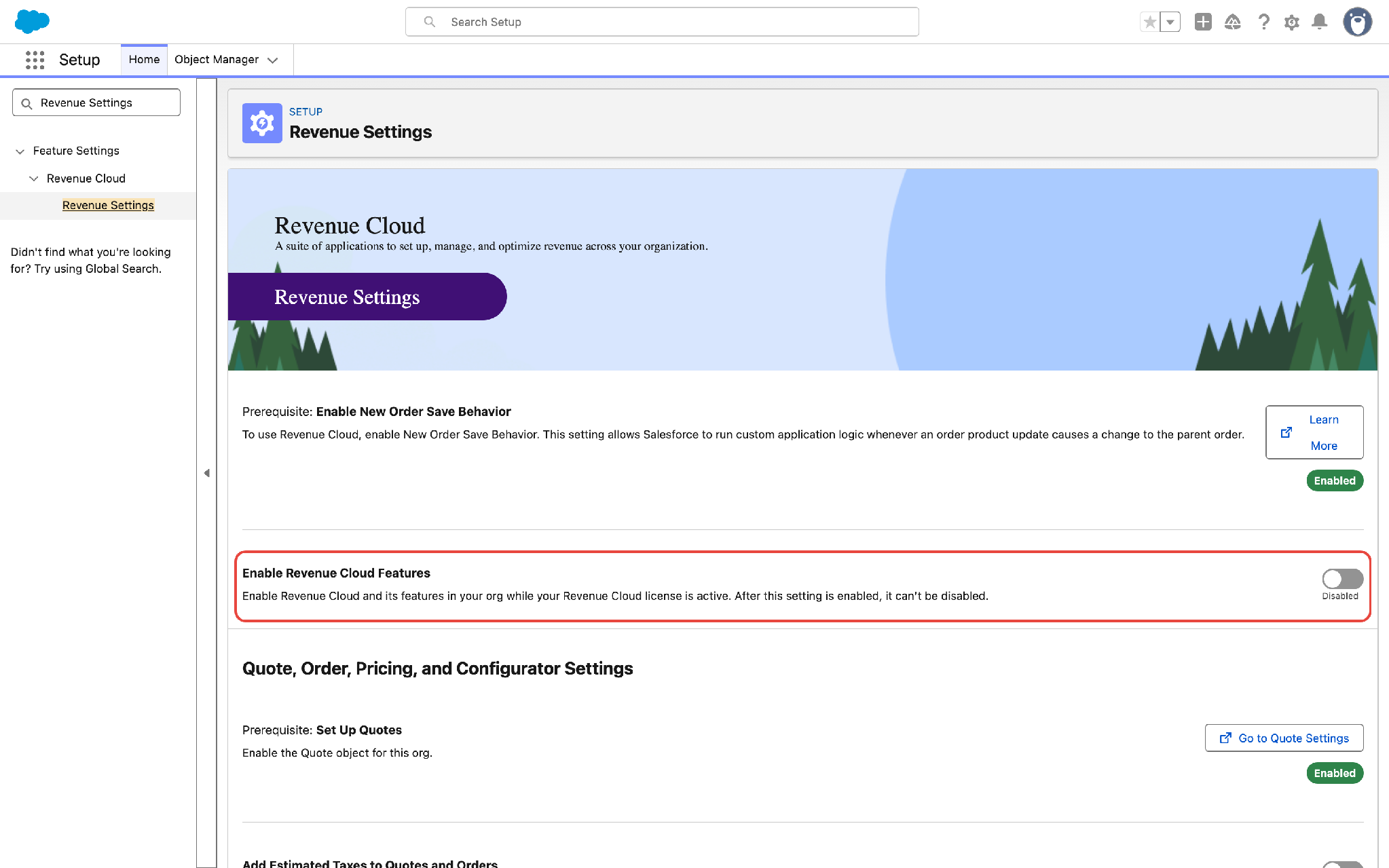
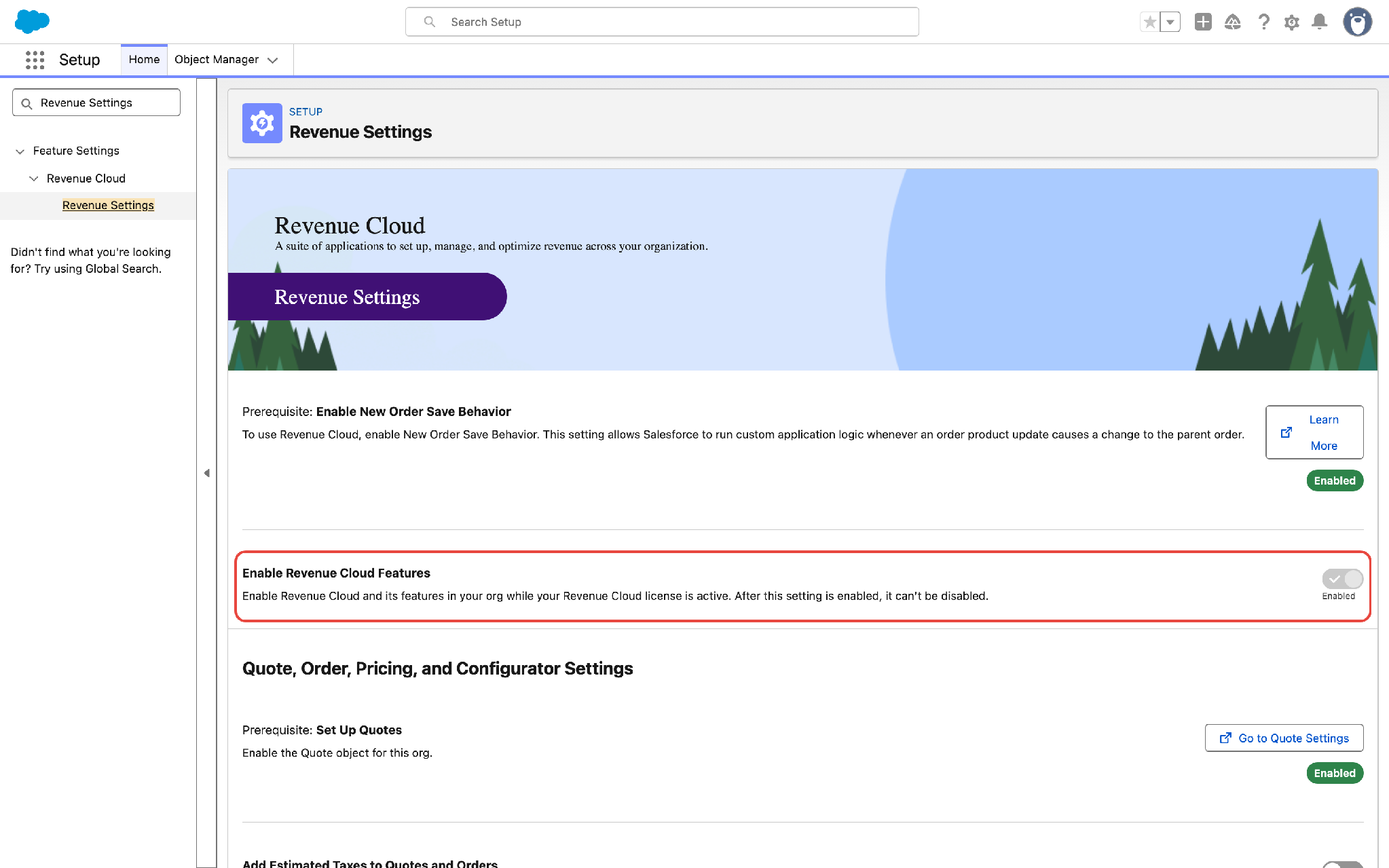
The first switch is Enable Revenue Cloud Features. It turns Revenue Cloud on for the whole org, and it can't be turned off again.
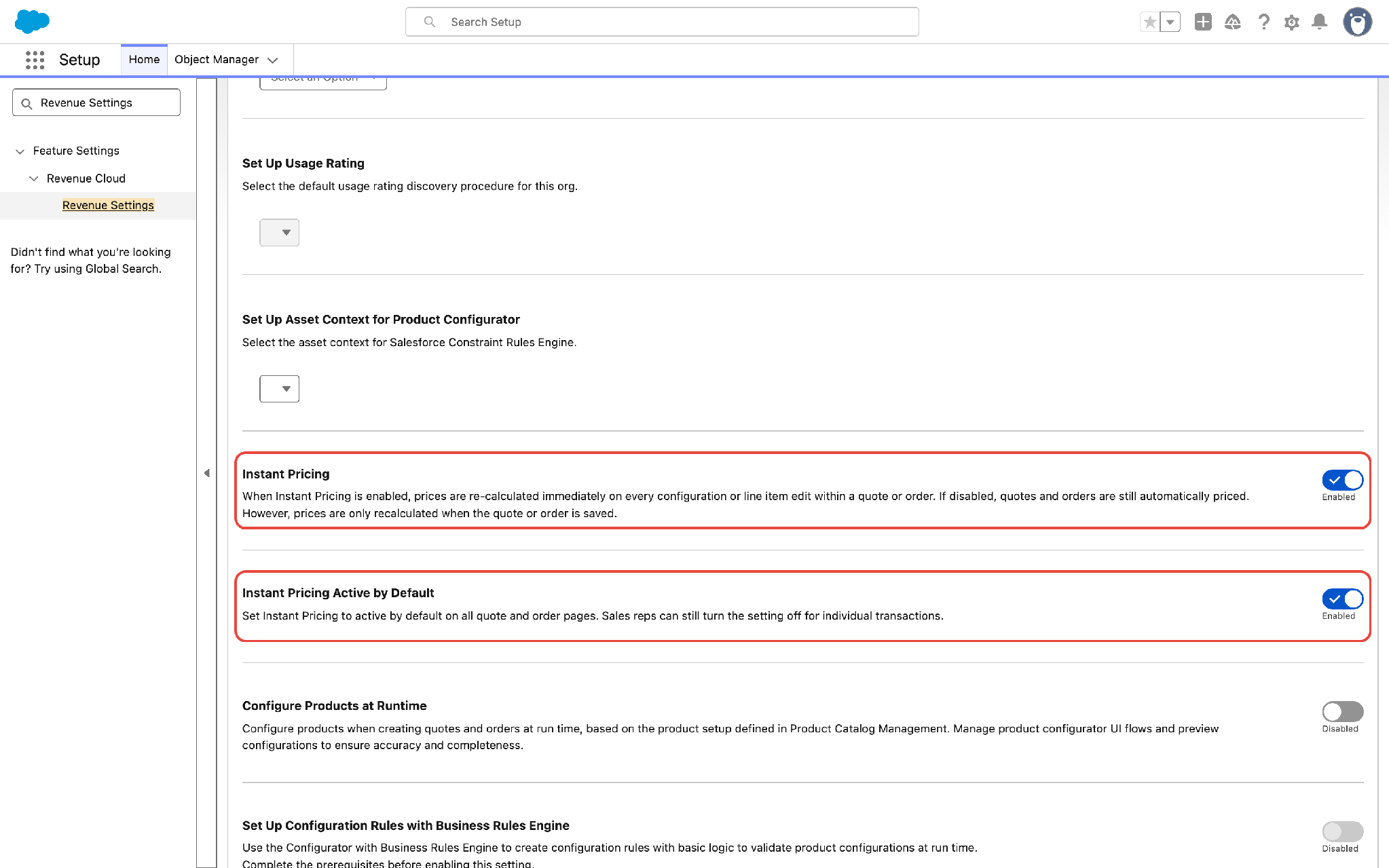
A little further down the same page are Instant Pricing and Instant Pricing Active by Default. With both on, the quote recalculates as soon as a rep changes a quantity, with no separate "calculate" button. The default pricing procedure stays as it is for now: we come back to it in Step 5.
How we do it at Noltic: we only switch on what the first release actually needs. Some of these settings are permanent, so we agree on the list with the client before anyone clicks.
Step 2. Let reps configure products on the quote
CloudSuite sells packages: a platform edition with a number of users, plus services. For a rep to change a package once it is on the quote, Revenue Cloud needs one more switch on the same Revenue Settings page: Configure Products at Runtime.
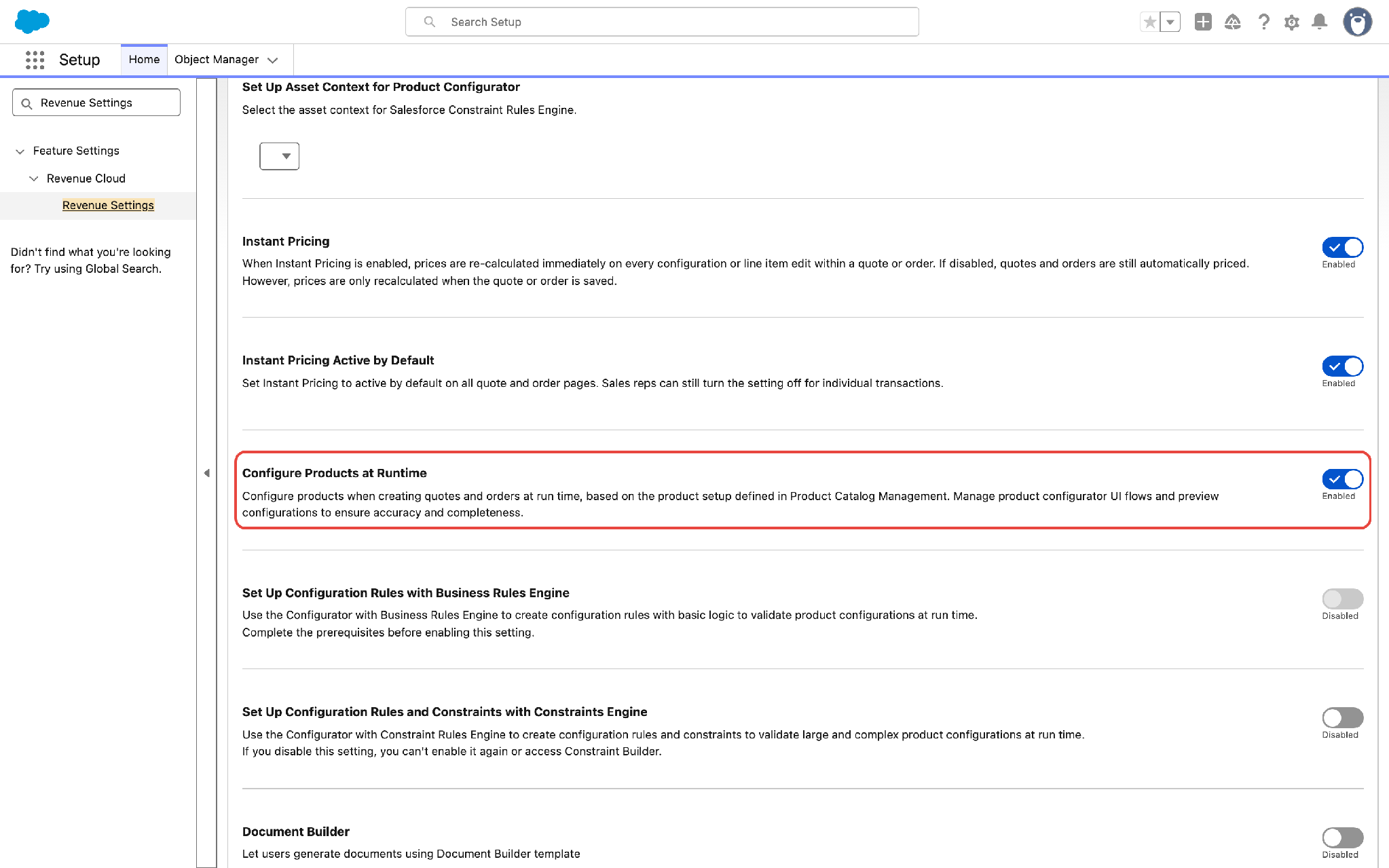
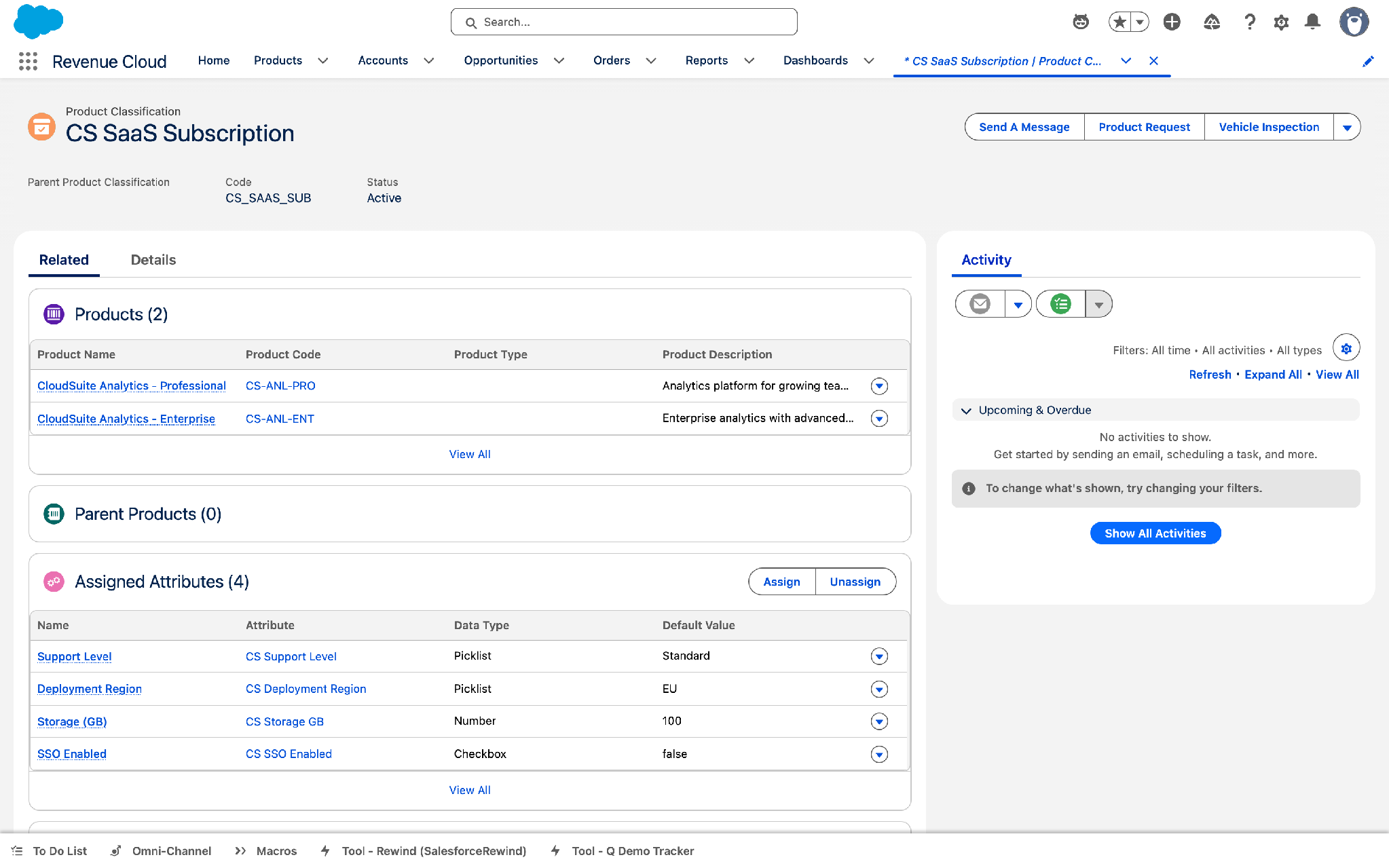
The options that every CloudSuite product shares are not set product by product. Support level, deployment region, storage, and Single Sign-On are defined once, on the product classification CS SaaS Subscription (App Launcher → Product Classifications). Every new CloudSuite product picks them up automatically.
There is no separate configurator page to set up in our org. The rep changes the bundle right in the quote lines, for example, the number of users, as we will see in Step 7.
Step 3. Prepare pricing
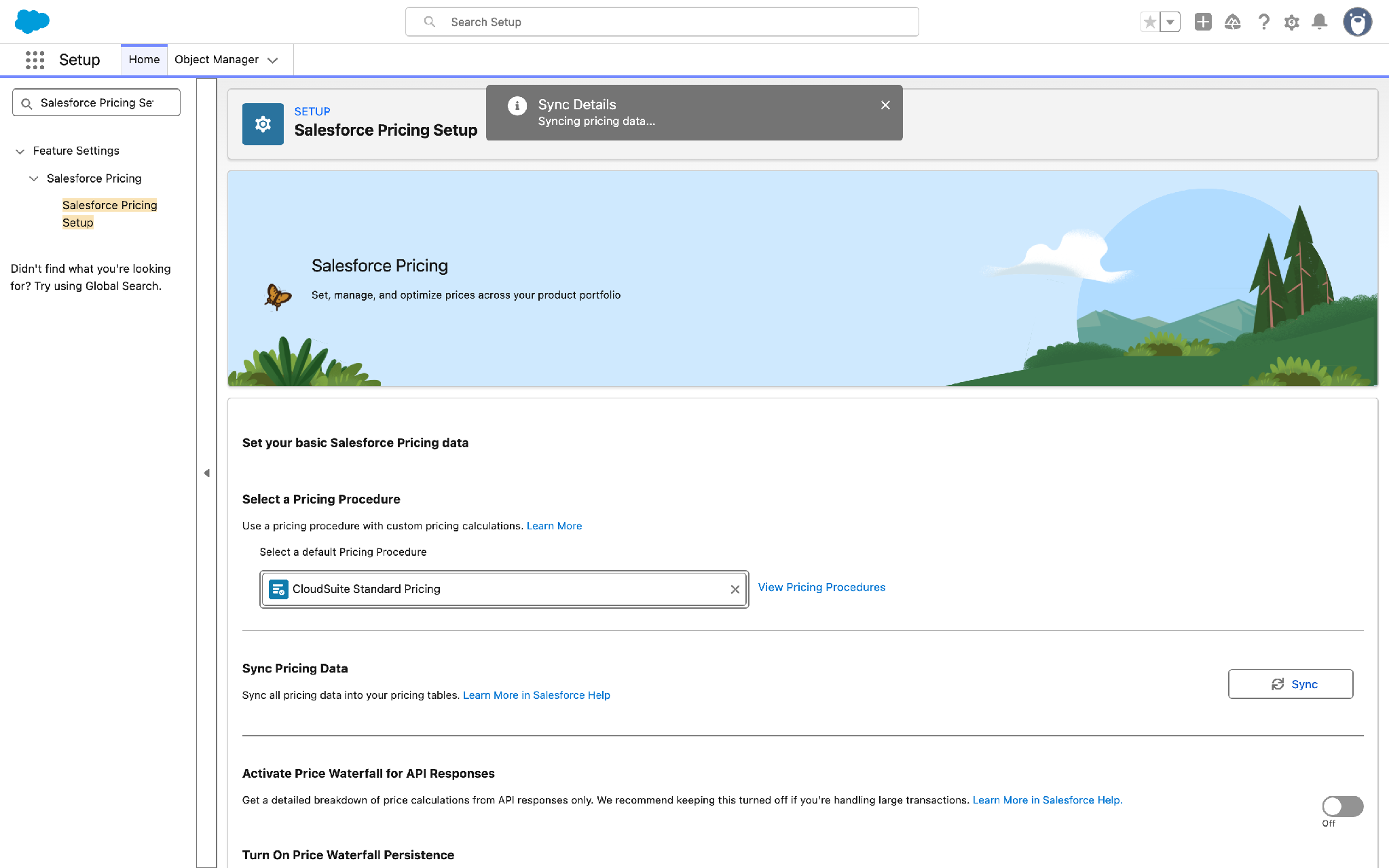
Revenue Cloud keeps its own fast copy of prices and discounts. Whenever prices change, that copy has to be refreshed, or quotes keep showing the old numbers. The refresh lives in Setup → Salesforce Pricing Setup, together with the default pricing procedure and the Price Waterfall switch.
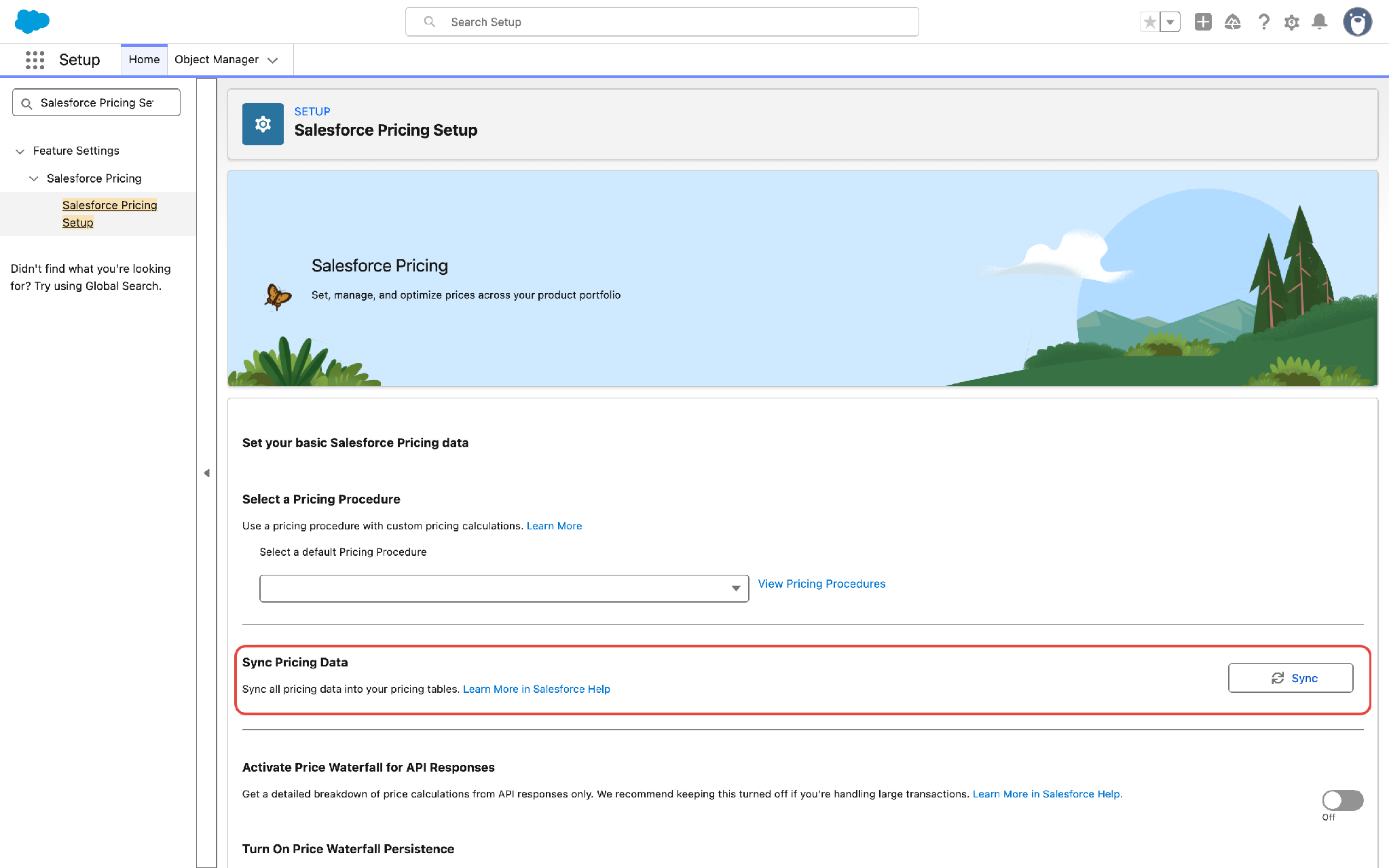
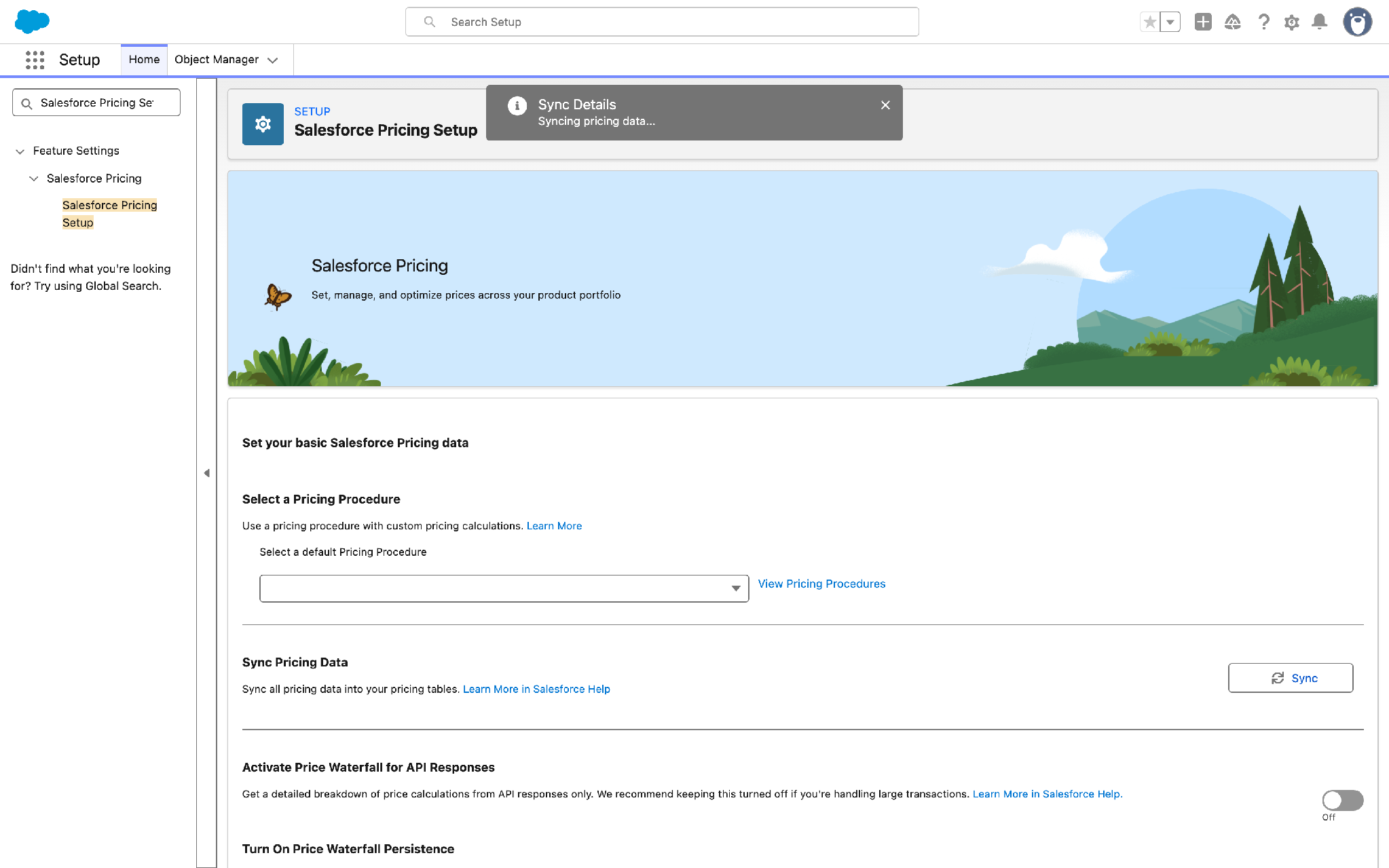
Click Sync, confirm, and the sync runs in the background.
On the same page, we switch on Price Waterfall Persistence. From then on, Revenue Cloud saves how every price was reached, step by step. So anyone can open that calculation on a quote line later.
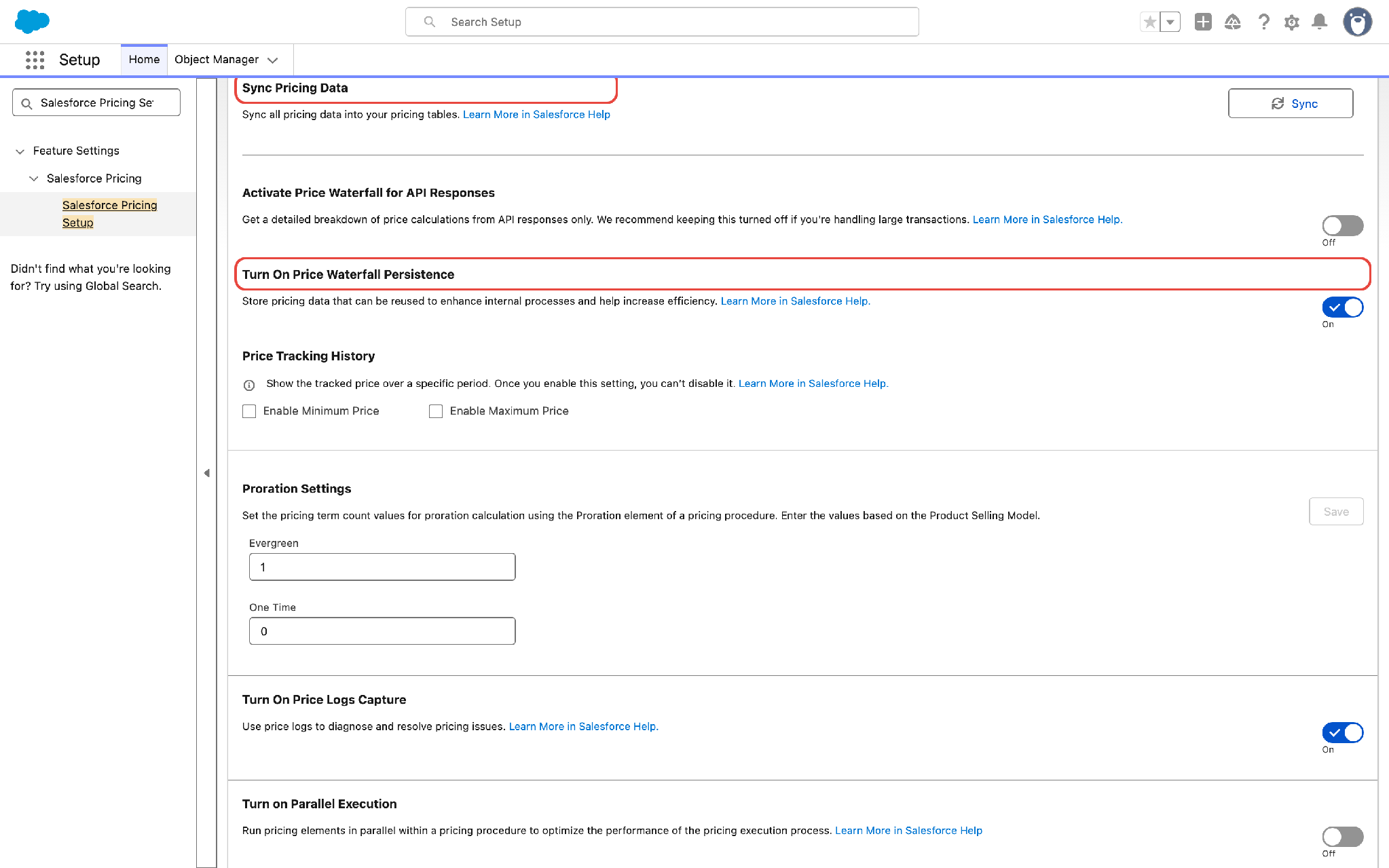
How we do it at Noltic: the sync is a fixed item on our go-live checklist. When a client says "the price on the quote is wrong" after a release, a missed sync is a common reason.
Step 4. Decide what data pricing can see
Pricing and the catalog need to know about the deal: who the customer is, what is on the quote, and how many users. Salesforce describes this data in standard templates called context definitions (Setup → Context Definitions). Two of them matter here: SalesTransactionContext for quotes and orders, and ProductDiscoveryContext for the catalog.
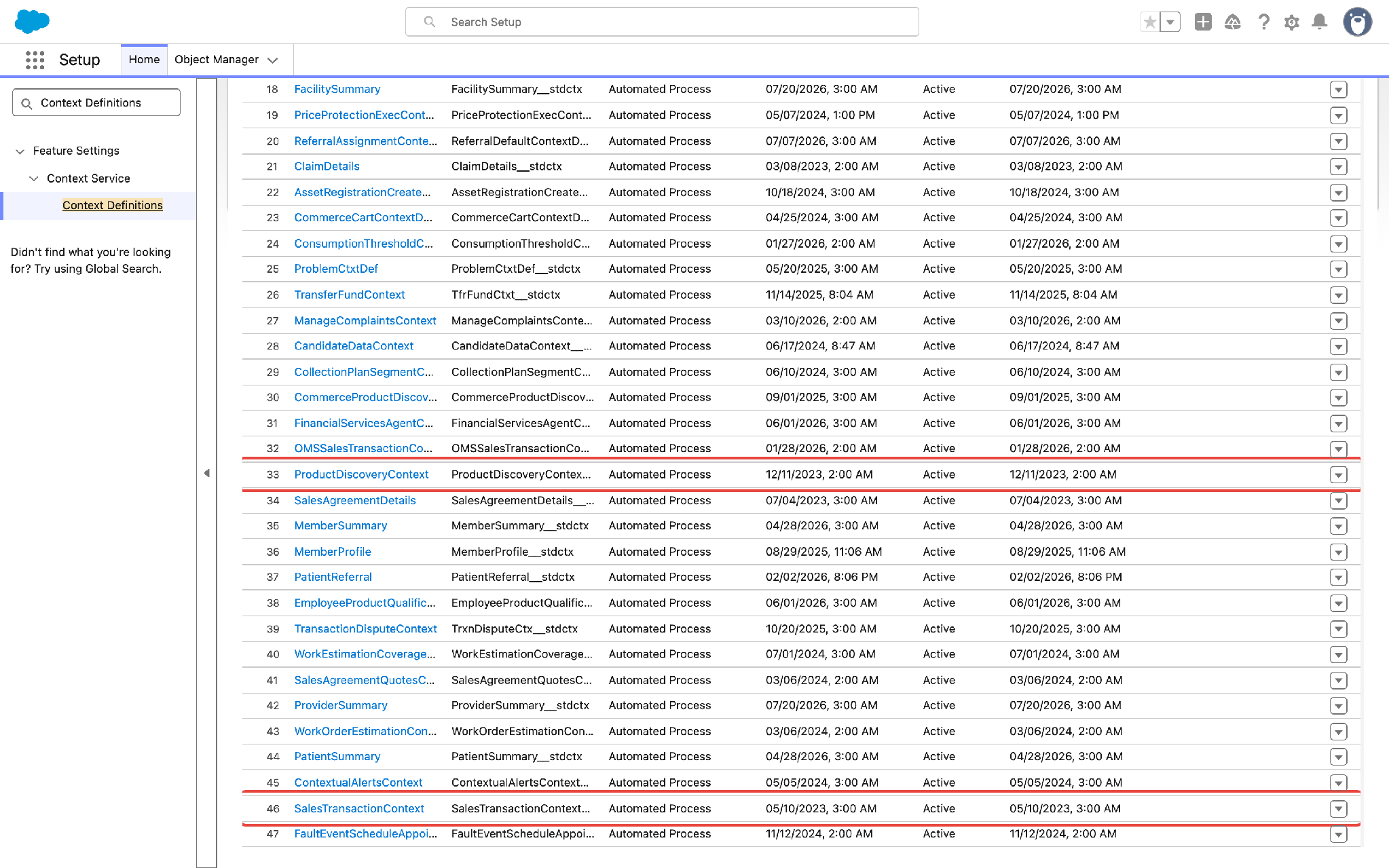
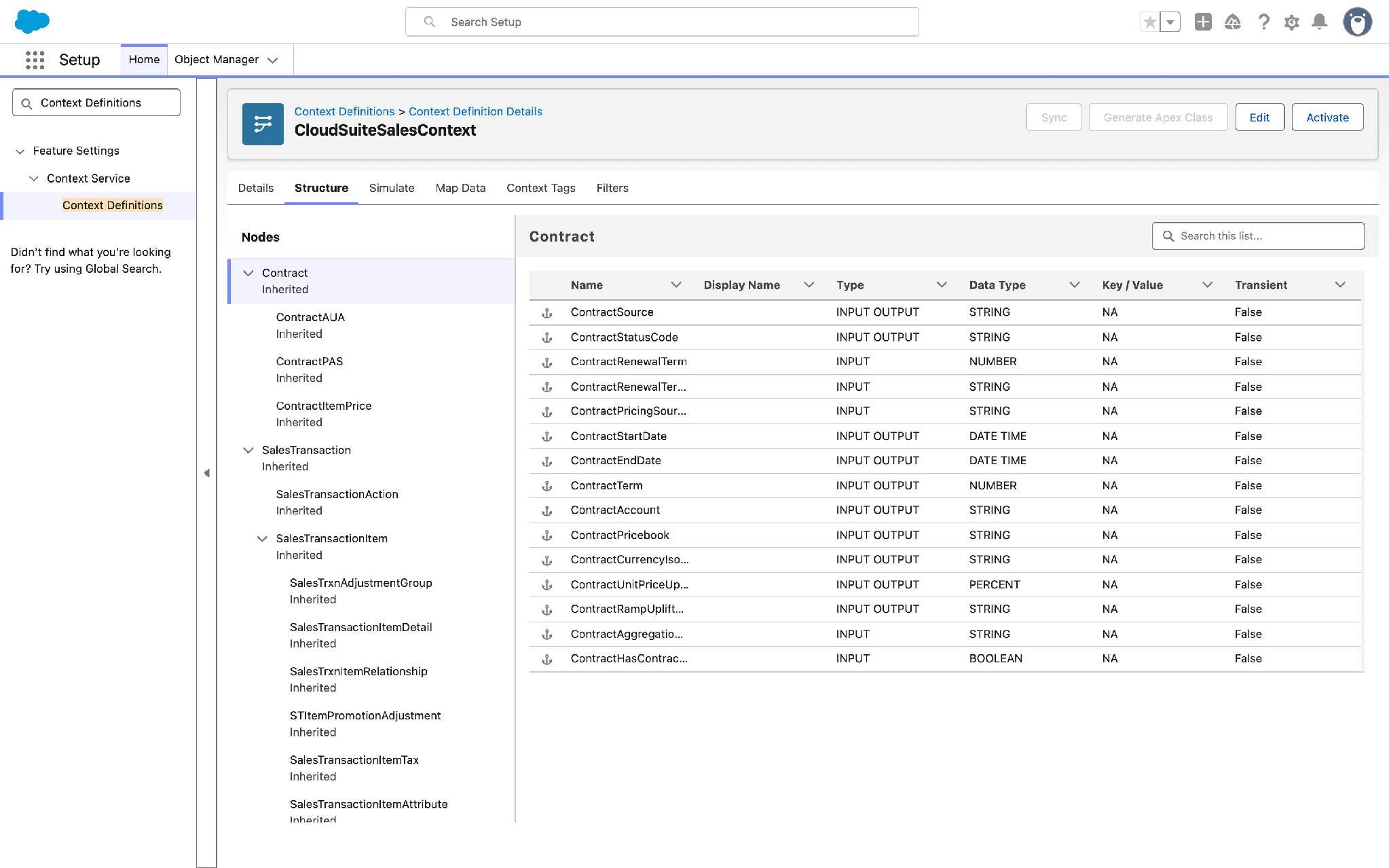
We don't change these templates; we extend them. Open SalesTransactionContext, click Extend, and name the extension CloudSuiteSalesContext (letters and numbers only, no spaces). Its Structure tab shows the data pricing will work with: the sales transaction, its lines, and the records around them.
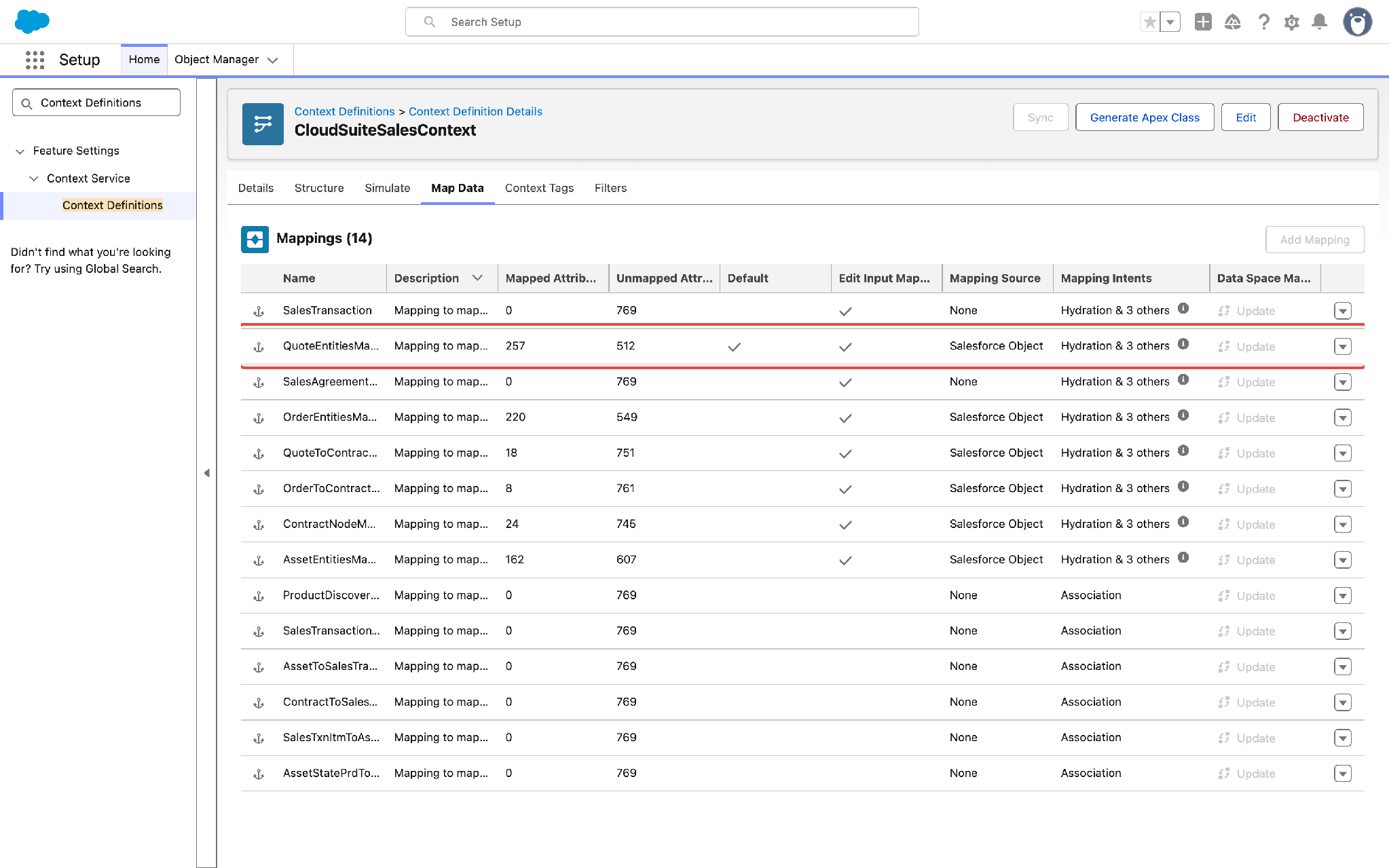
An extension also needs to know where to read its data from. On the Map Data tab, mark QuoteEntitiesMapping as the default mapping; without a default mapping, the extension can't be activated.
Activate the extension, then do the same for the catalog: extend ProductDiscoveryContext as CloudSuiteDiscoveryContext, make ProductDiscoveryMapping its default, and activate it. Back in the list, both extensions show as Active.
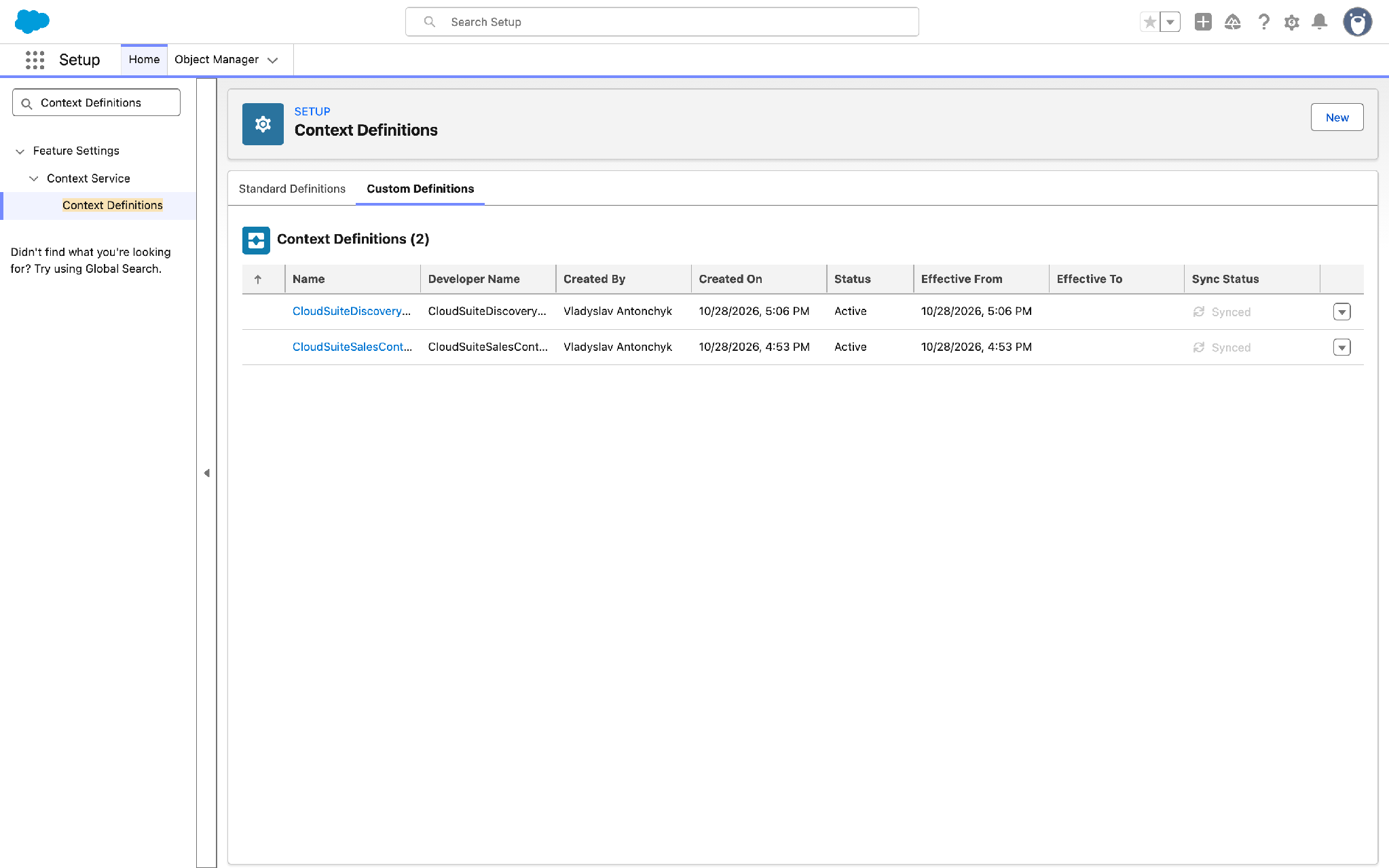
How we do it at Noltic: we extend the standard templates, never copy or change them. An extension keeps receiving Salesforce's updates with each release. And the client's changes stay safe in their own layer.
Step 5. Set up the pricing procedure
The pricing procedure is the chain of steps that turns a list price into the price the customer pays. We don't build it from scratch. Salesforce provides a standard one, Revenue Management Default Pricing Procedure, which already covers what a subscription business needs on day one: price book and contract prices, discounts, proration, and subscription terms.
Our demo org didn't include it, so we copied it from another Revenue Cloud org as metadata: about 60 steps, too many to rebuild by hand. In our org, it is called CloudSuite Standard Pricing and points to the context from Step 4, CloudSuiteSalesContext. You find it under App Launcher → Pricing Procedures.
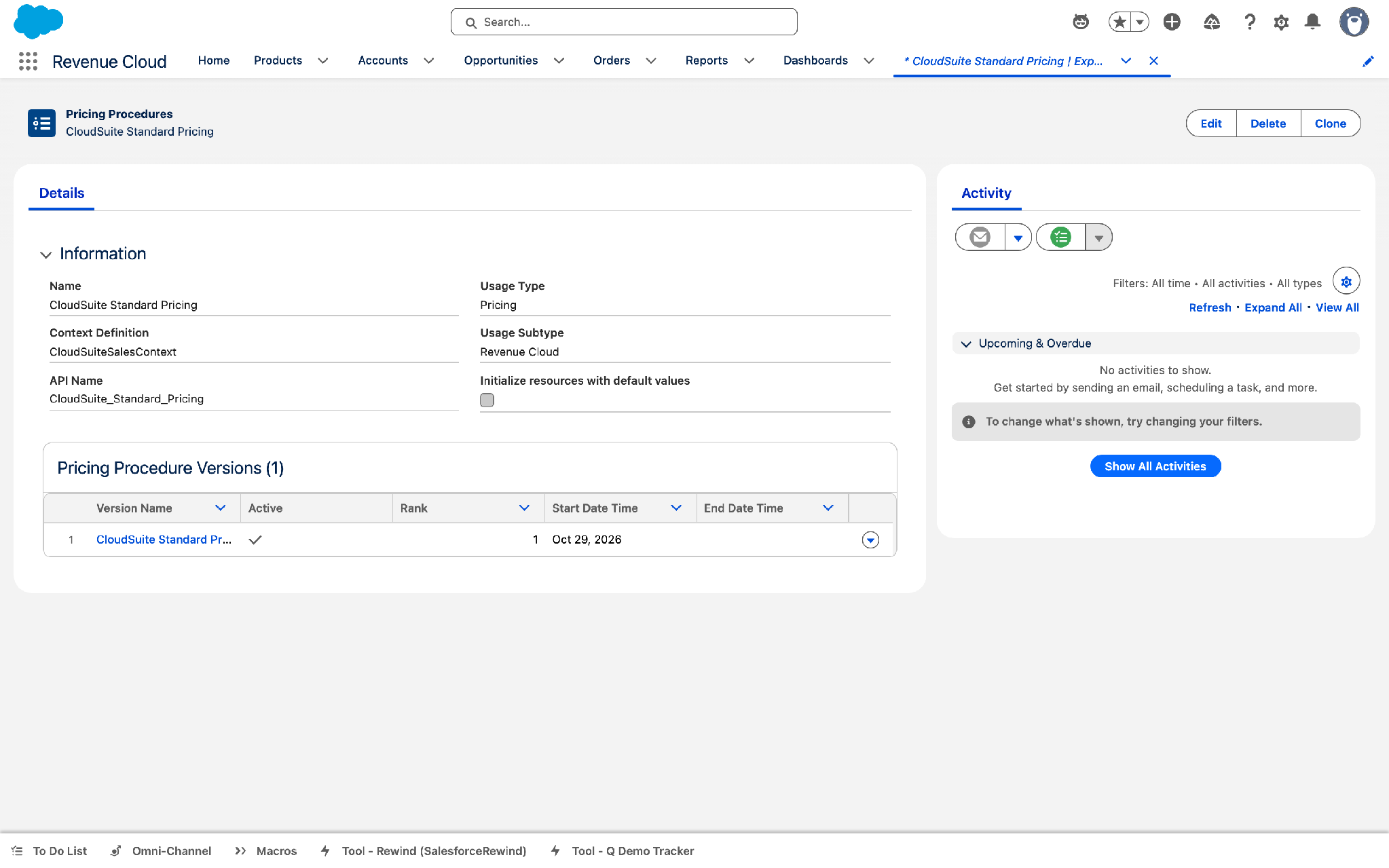
The version opens in a visual builder in a new tab, where you activate it. The chain starts with pricing settings and the price from the price book: CloudSuite Professional costs $540 per user per year.
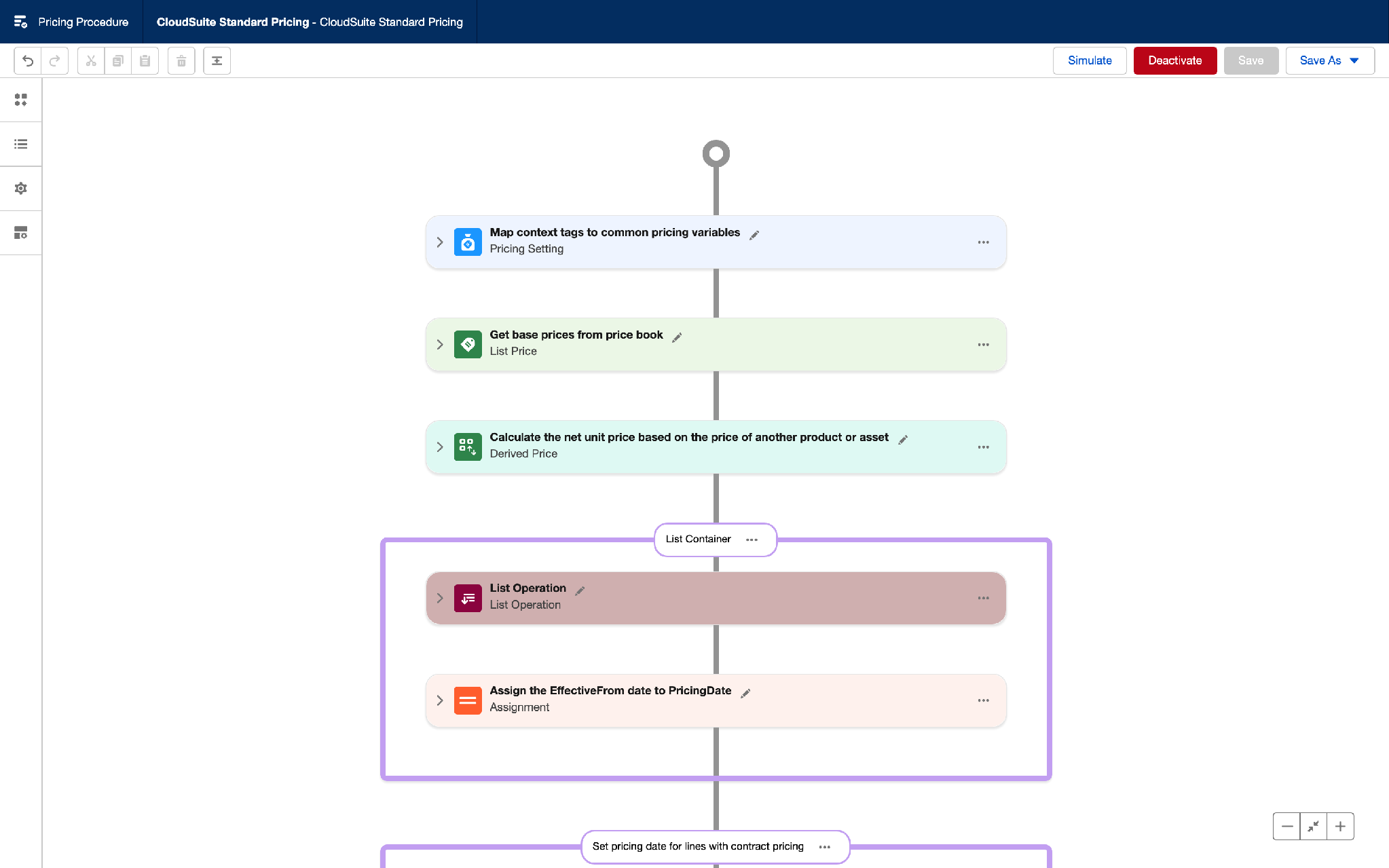
Further down are the steps that make this procedure right for subscriptions. Proration and Subscription Pricing work out the subscription term, its end date, and the total for each line. Without them, an order can't be activated (Step 8) and a mid-term change can't be priced (Step 11).
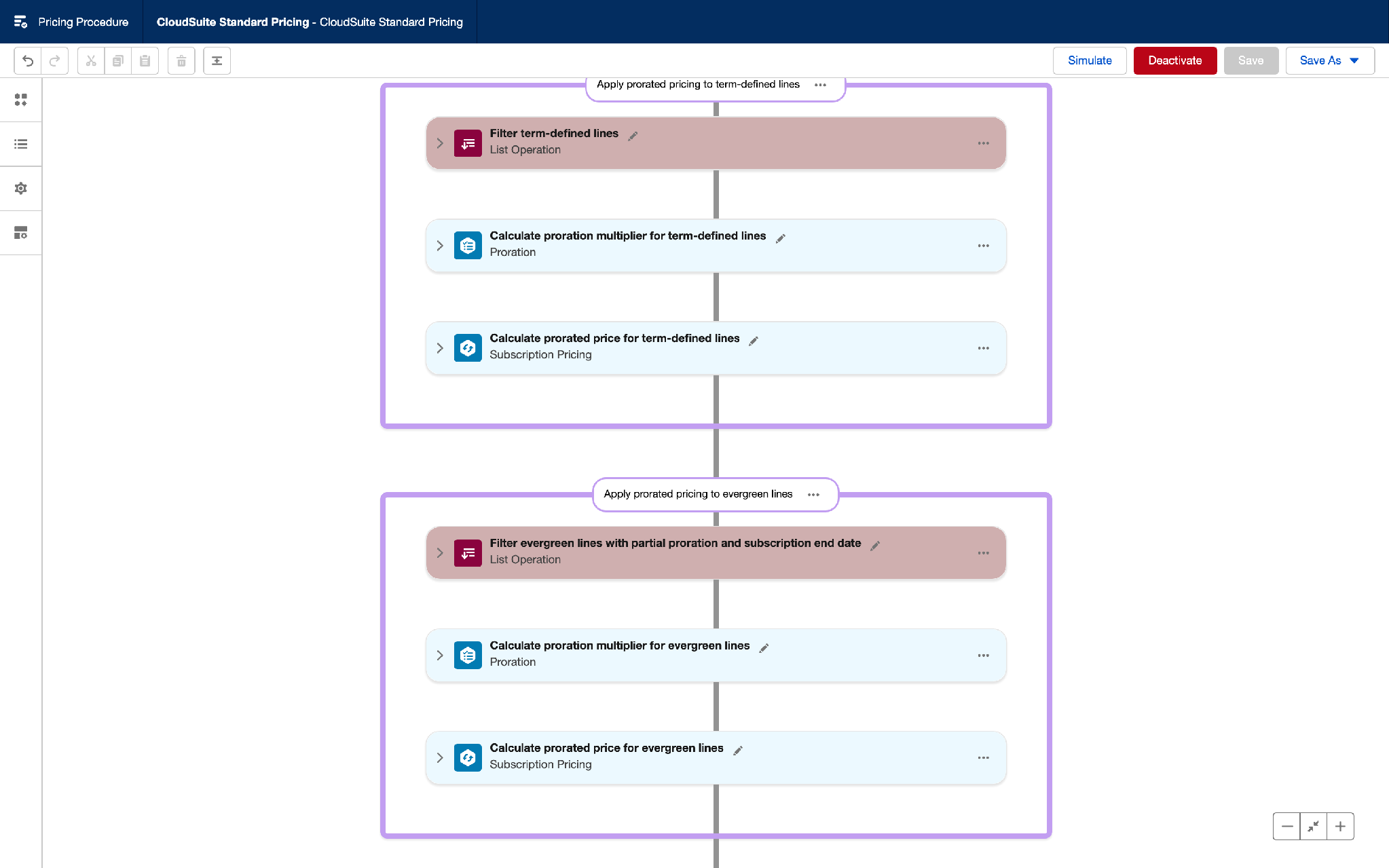
The procedure becomes the default in two places: in Salesforce Pricing Setup and in Revenue Settings.
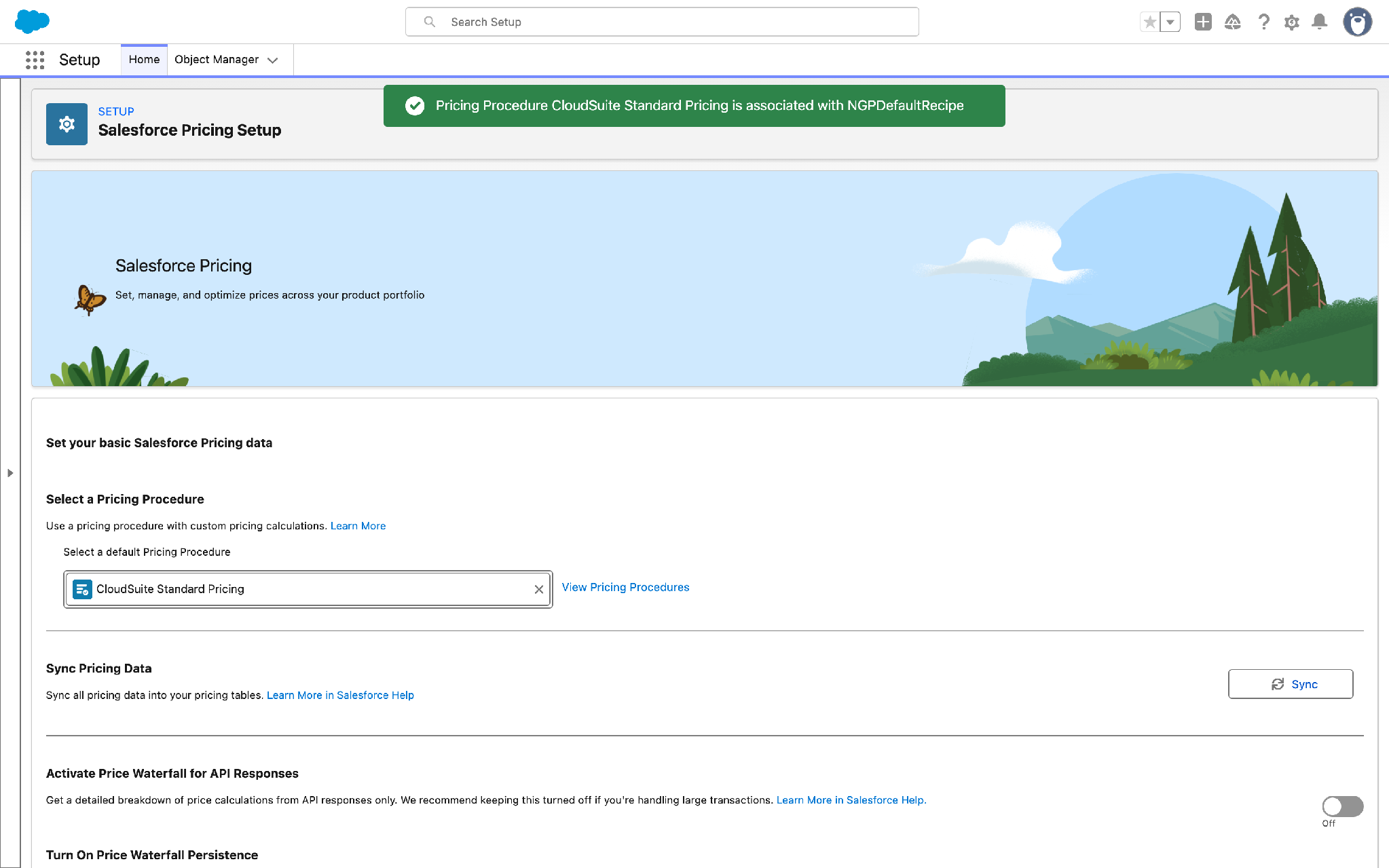
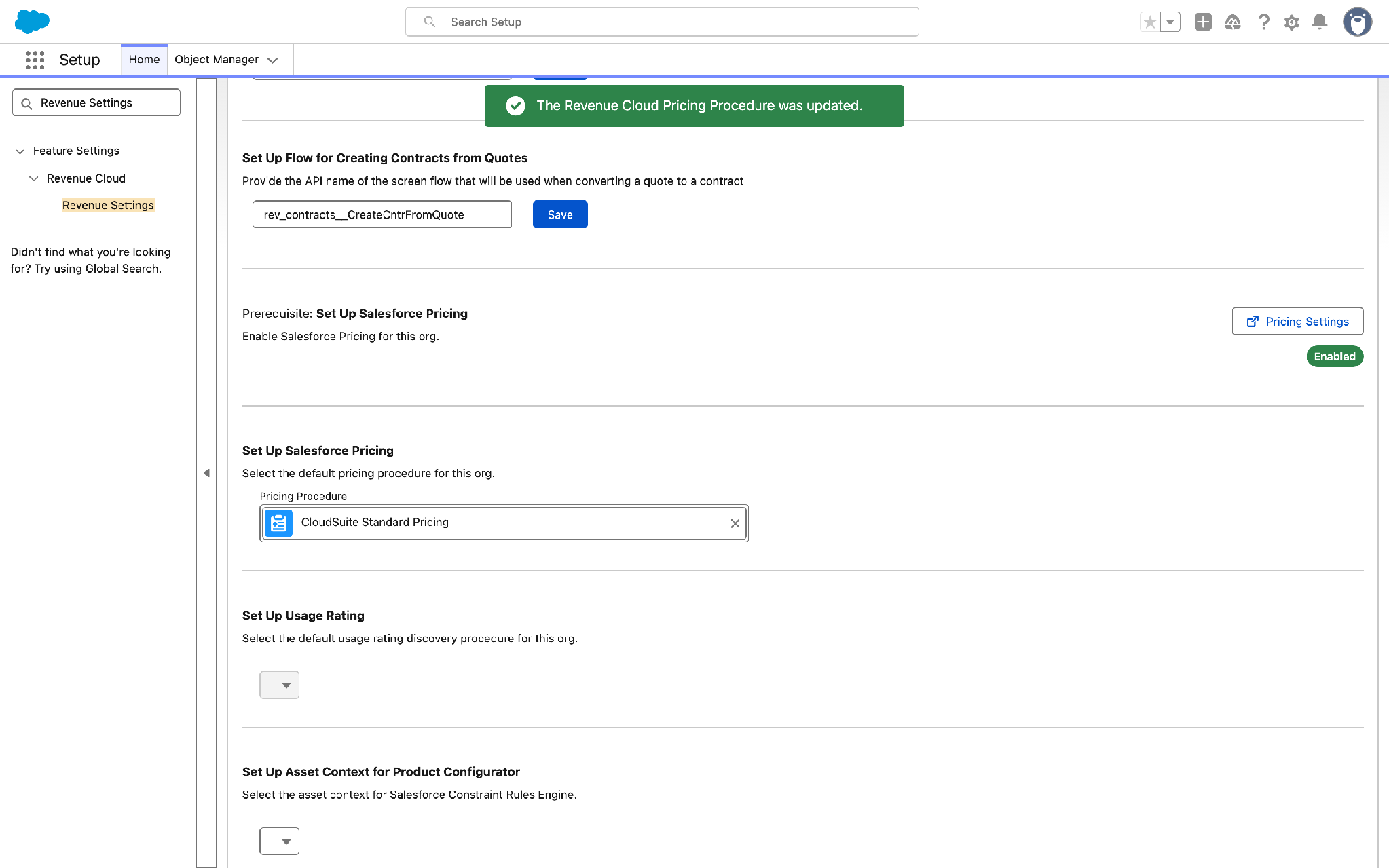
After any change like this, run the pricing sync from Step 3 again.
How we do it at Noltic: we start every project from the standard procedure and keep a short list of what we changed and why. In this demo, we first built a three-step procedure by hand. Quotes were priced correctly. But orders would not activate because nothing was filled in the subscription term and end date. The standard procedure fixed that without a single custom step.
Step 6. Open the catalog to sales reps
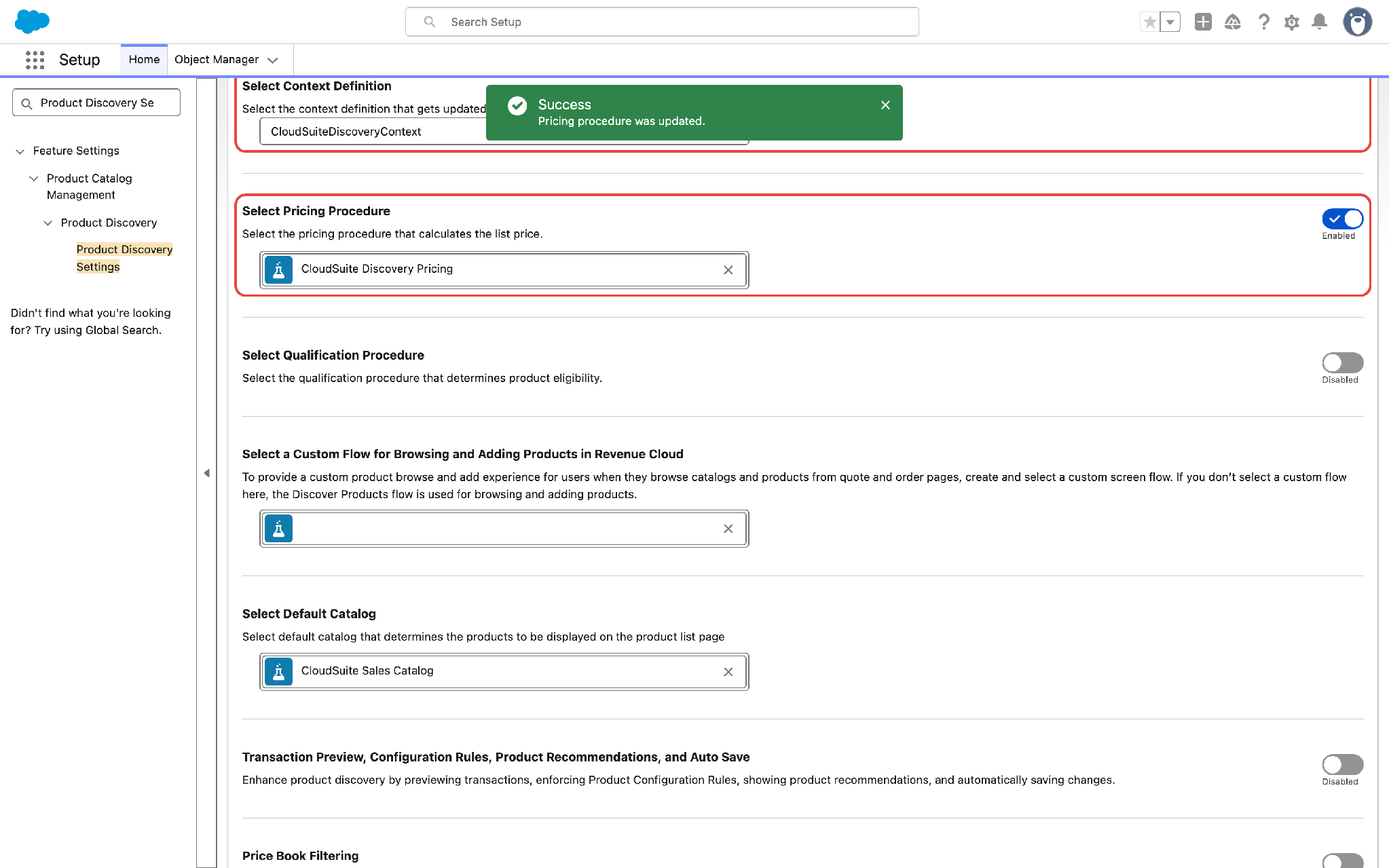
Reps find products through a Browse Catalogs button on the quote, which opens a store-like view with categories and prices. The catalog doesn't use the quote's pricing procedure. It gets its own small one, CloudSuite Discovery Pricing, created the same way as in Step 5 but in the catalog context CloudSuiteDiscoveryContext, with only two steps: Pricing Setting and List Price.
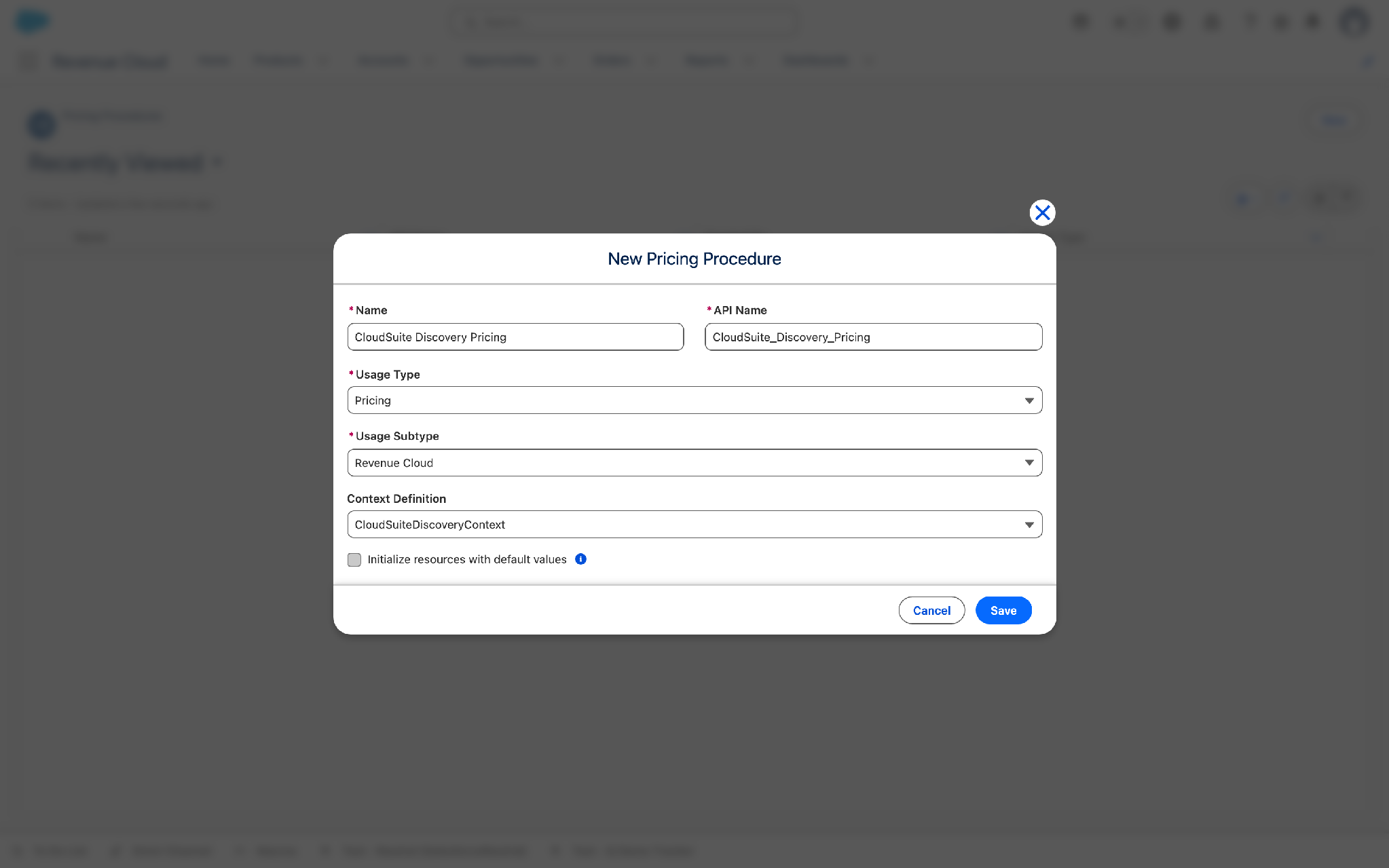
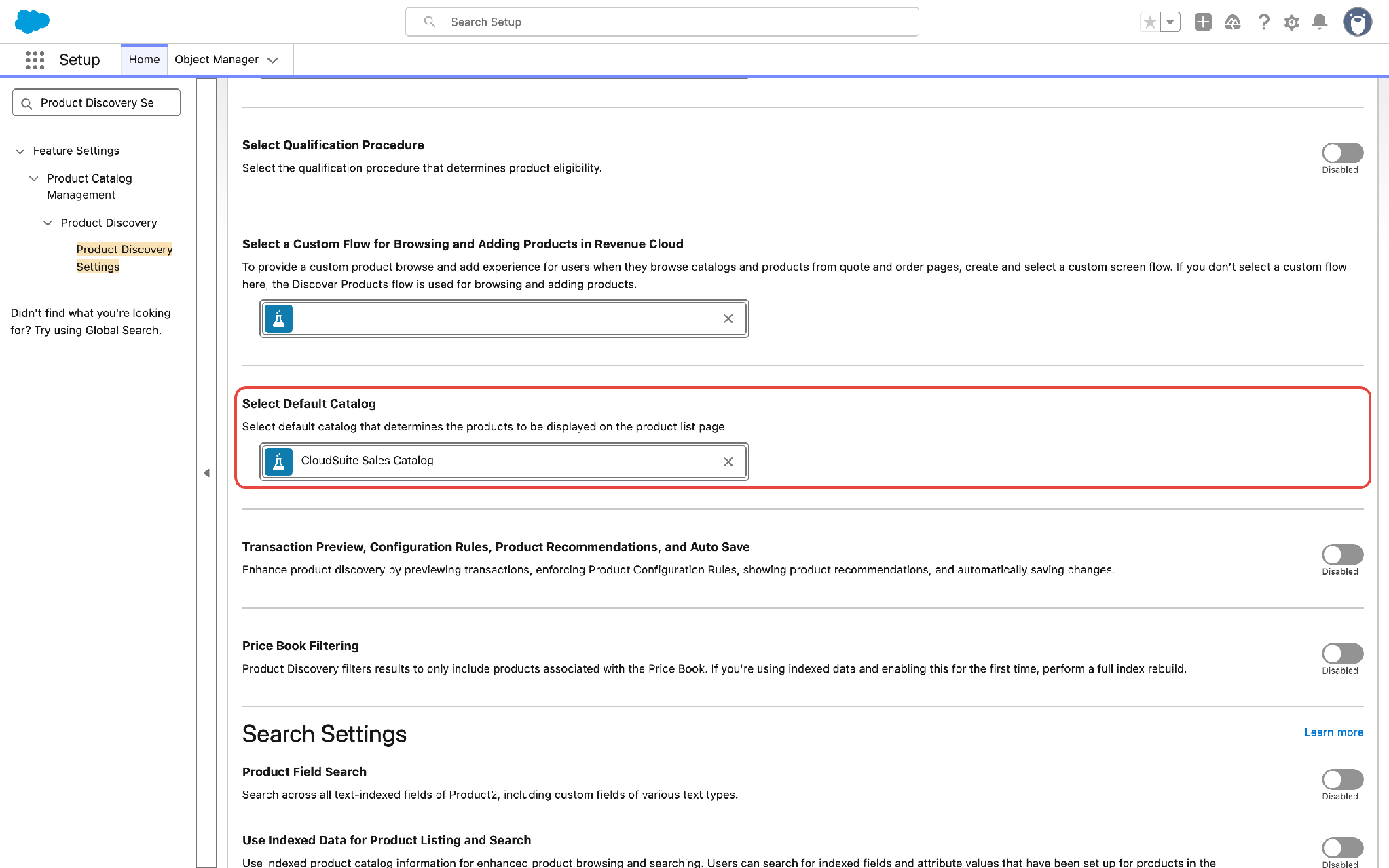
The catalog is wired up in Setup → Product Discovery Settings: select CloudSuiteDiscoveryContext, switch pricing on, and pick CloudSuite Discovery Pricing.
On the same page, CloudSuite Sales Catalog becomes the default catalog.
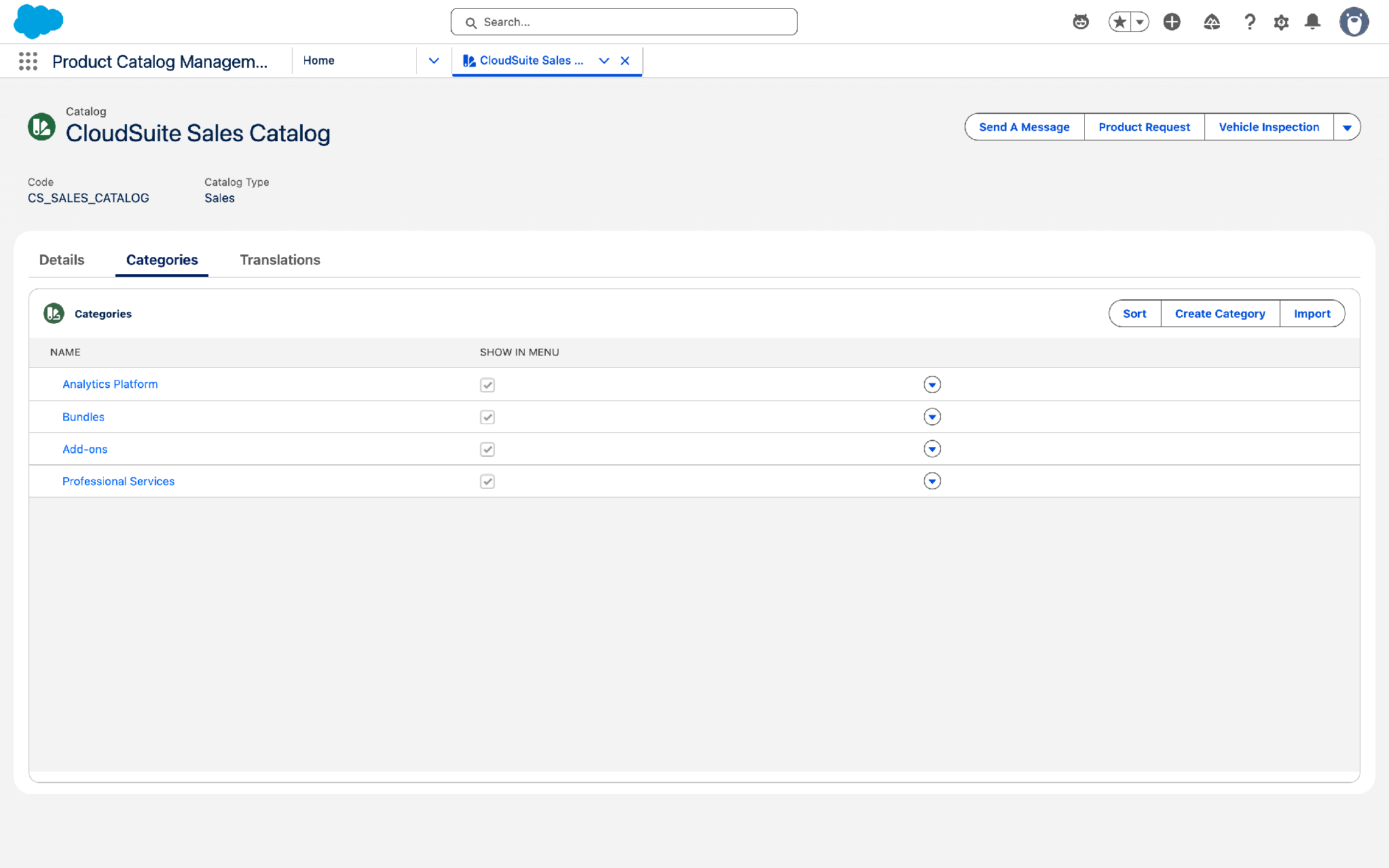
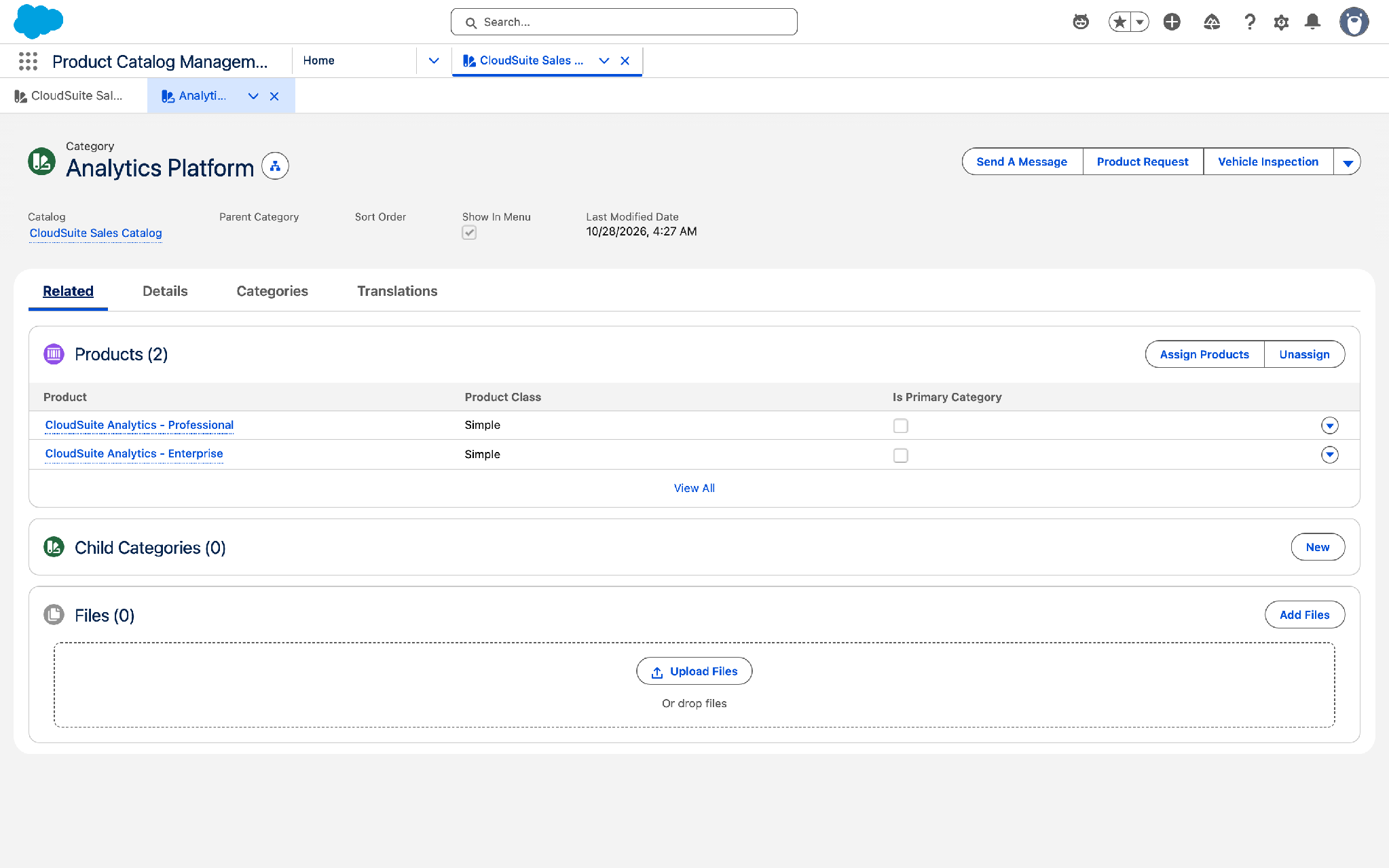
The catalog itself lives in Product Catalog Management. It has four sections, the way the sales team thinks about the offer: Analytics Platform, Bundles, Add-ons, and Professional Services.
Finally, the quote page needs the Browse Catalogs button. If it is missing, add it to the quote page layout.
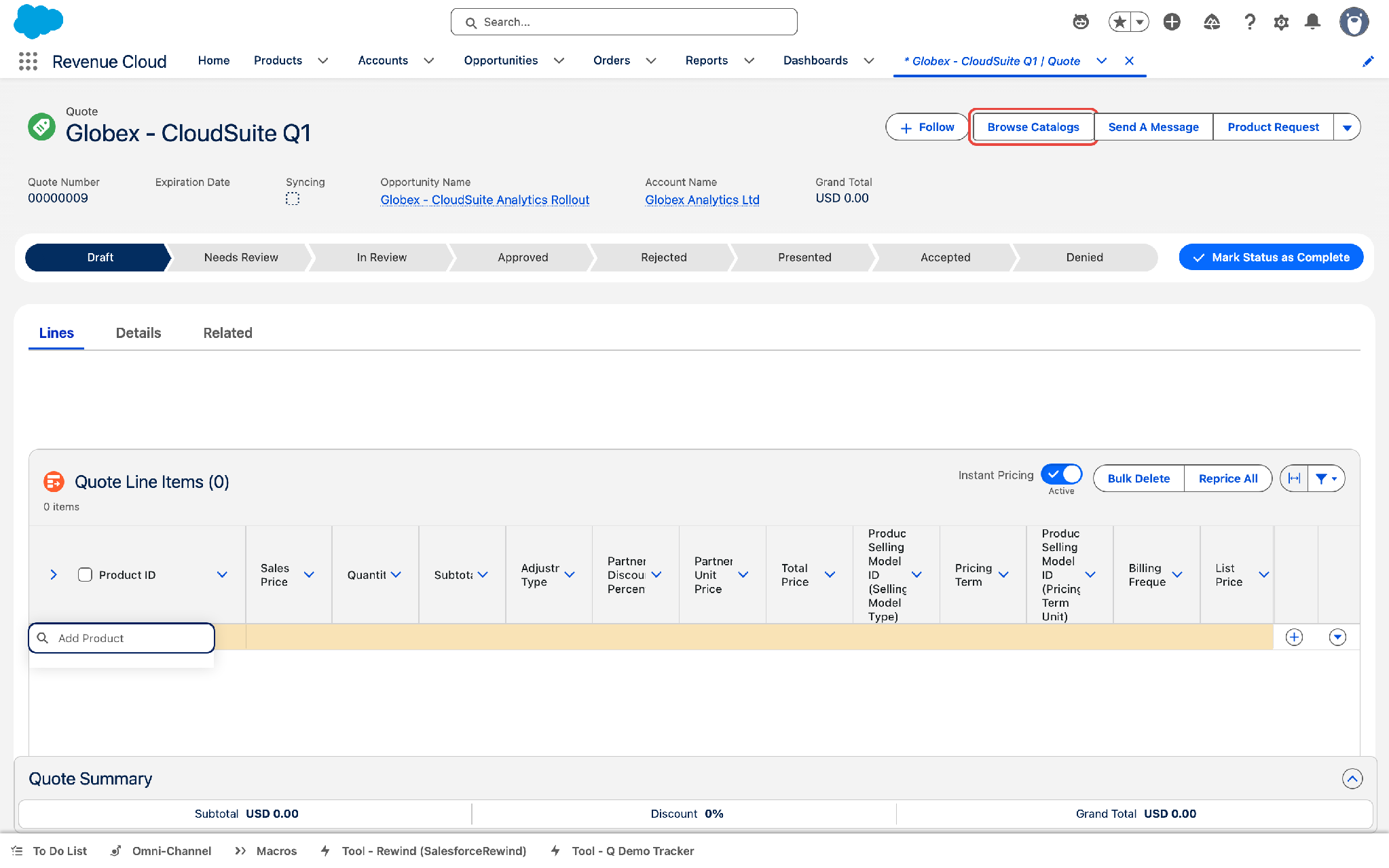
How we do it at Noltic: the catalog gets its own pricing procedure in its own context. If you reuse the quote procedure, Browse Catalogs fails with "Something went wrong when calculating product prices". The quote and the catalog send different pricing data, so each needs a procedure built for it.
Step 7. The first quote
Now the setup meets a real deal. On the Globex opportunity, "Globex - CloudSuite Analytics Rollout", the rep clicks Create Quote and names it Globex - CloudSuite Q1.
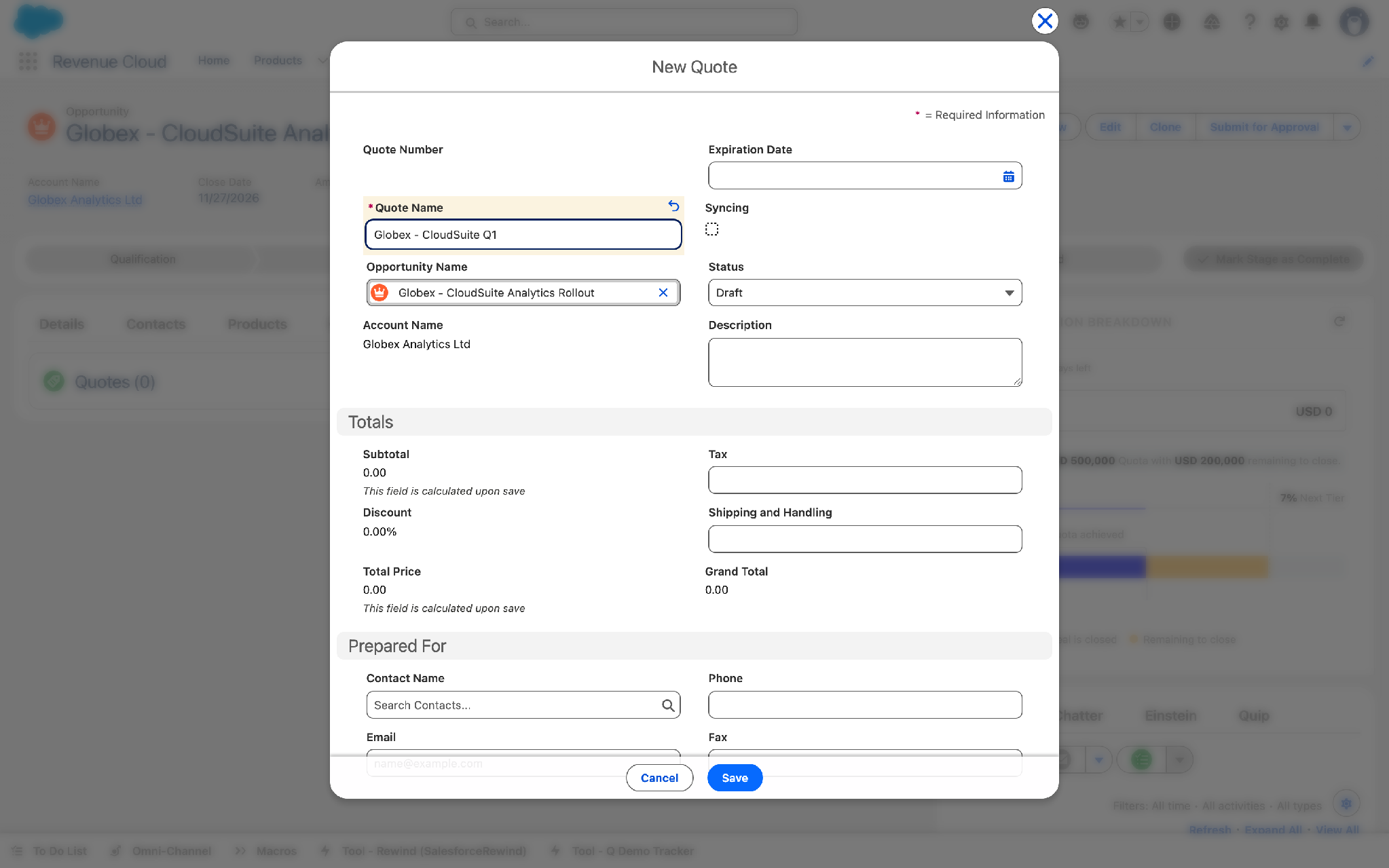
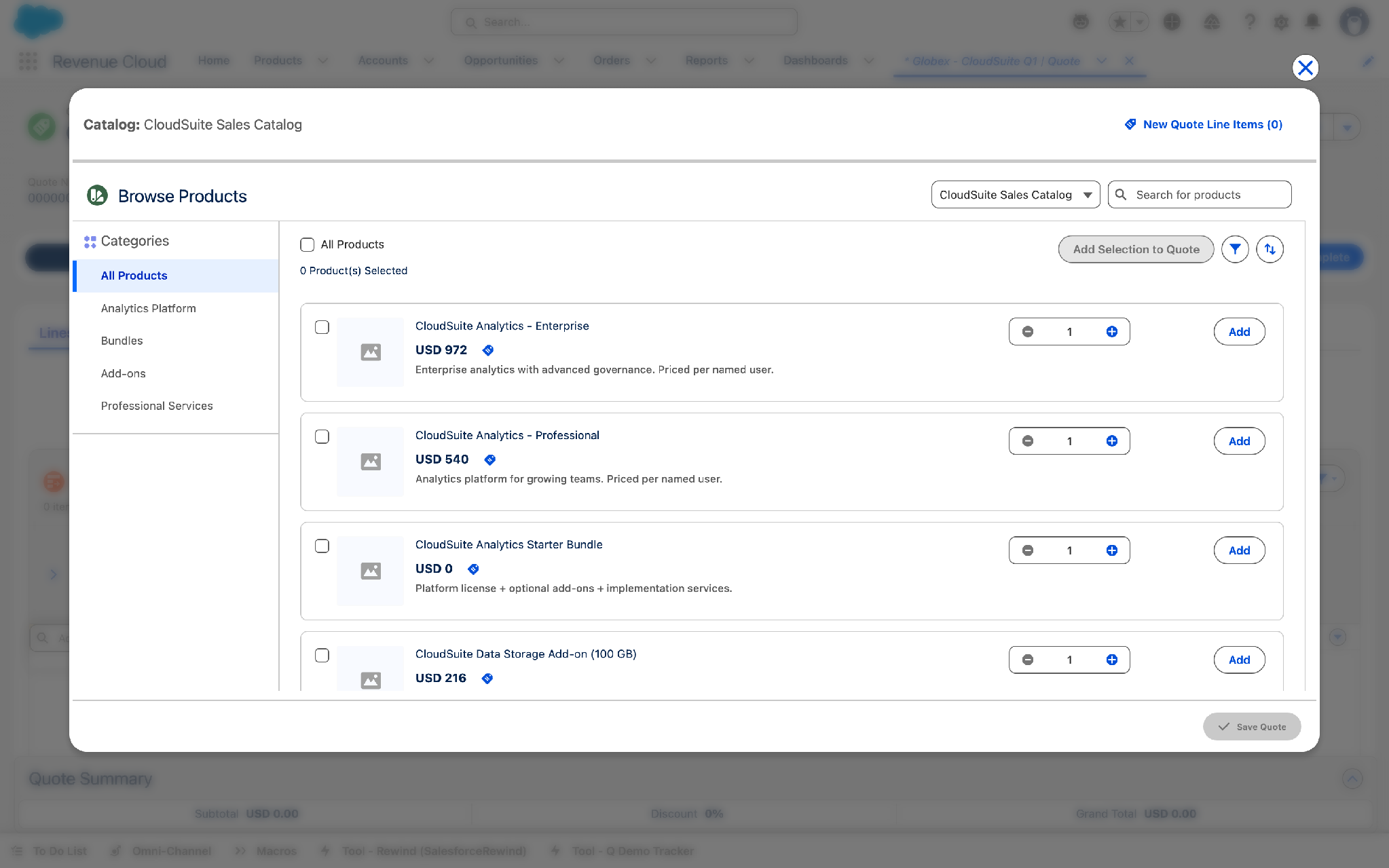
Browse Catalogs opens the CloudSuite Sales Catalog right on the quote, with sections on the left and a price on every product.
In Bundles, the rep picks the CloudSuite Analytics Starter Bundle.
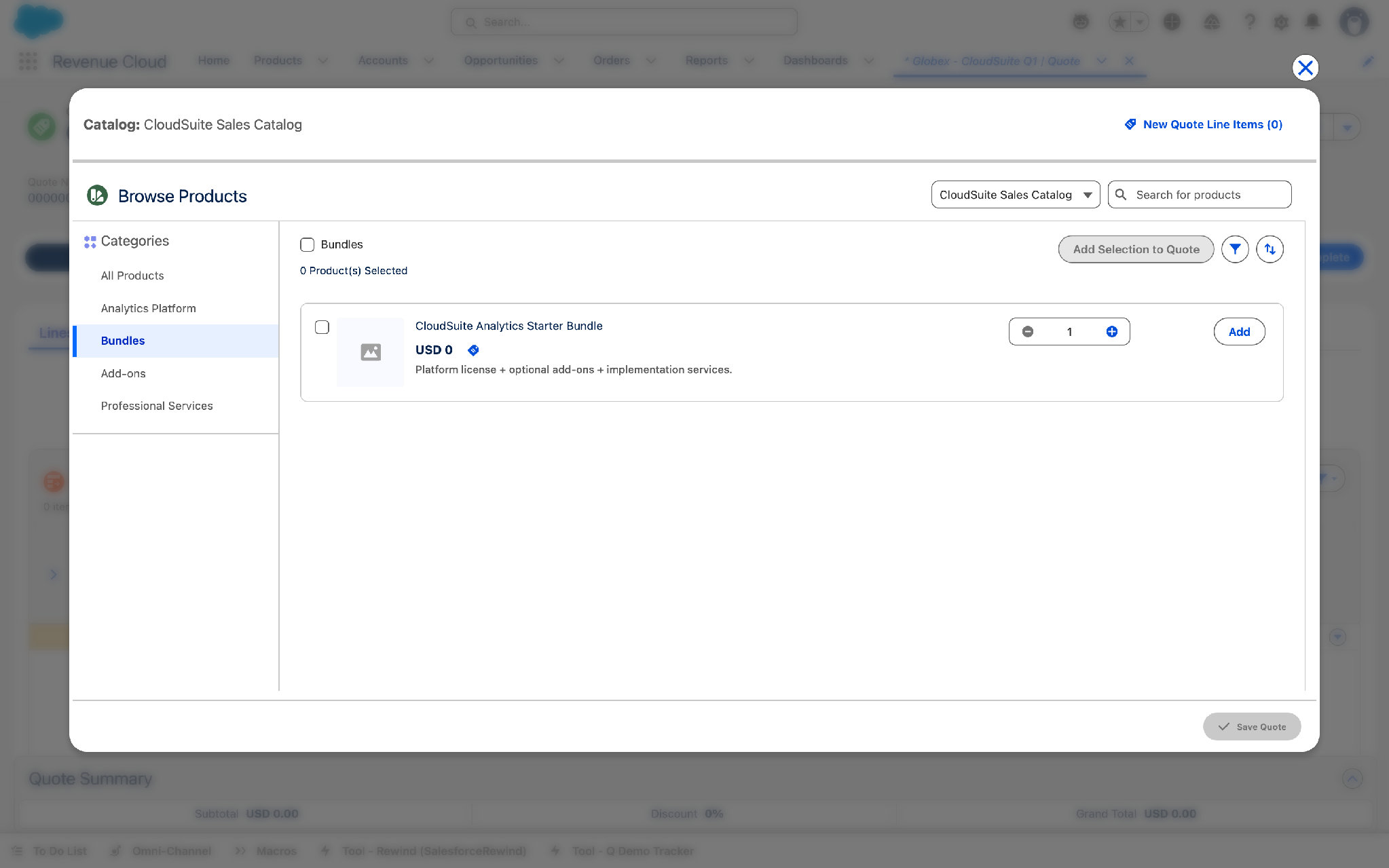
Revenue Cloud adds the bundle together with what is inside it: the Professional edition with 10 users by default and the Implementation service. Globex needs 120 users, so the rep types 120 straight into the Professional line.
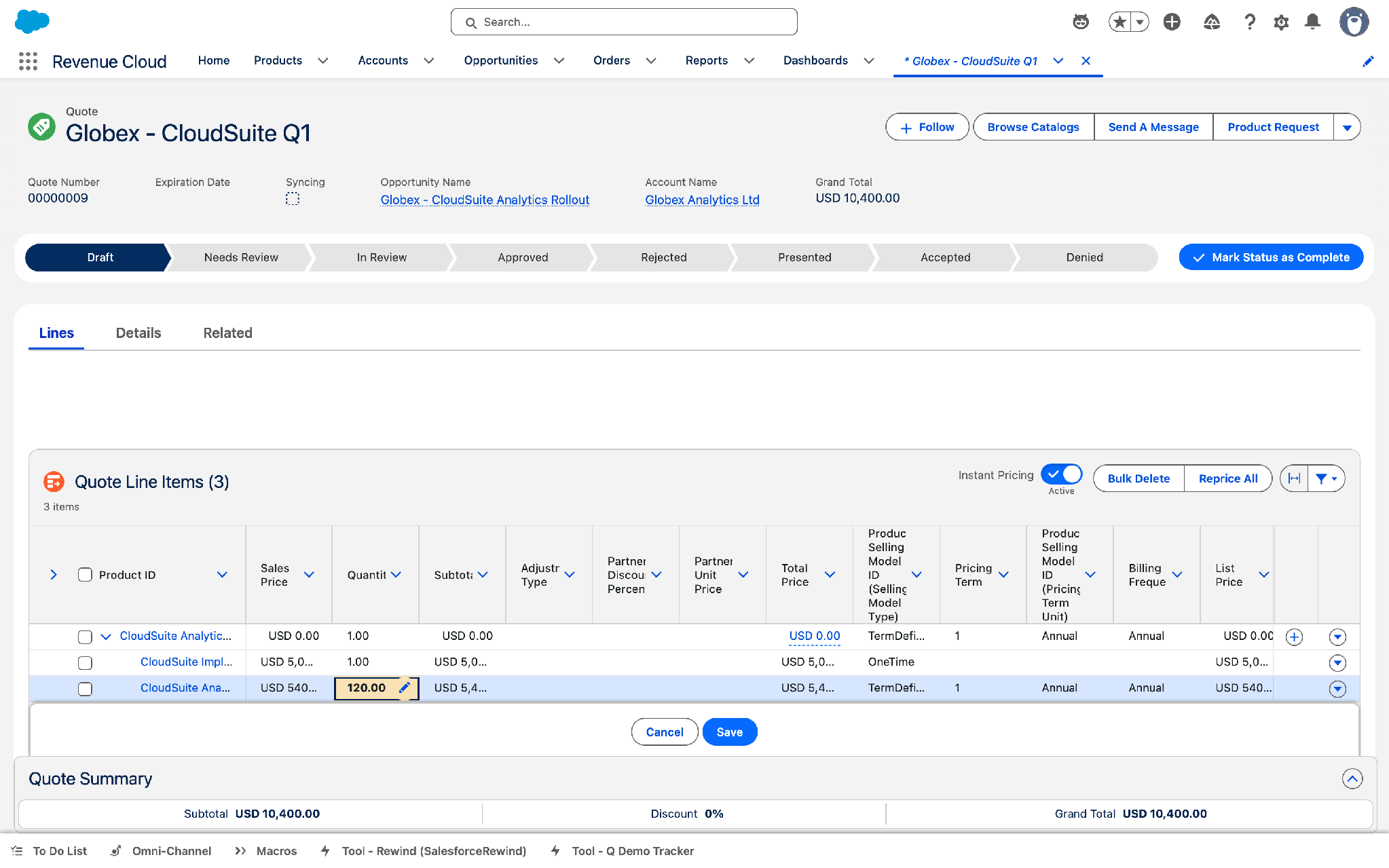
The quote recalculates at once and comes to $69,800 for the first year.
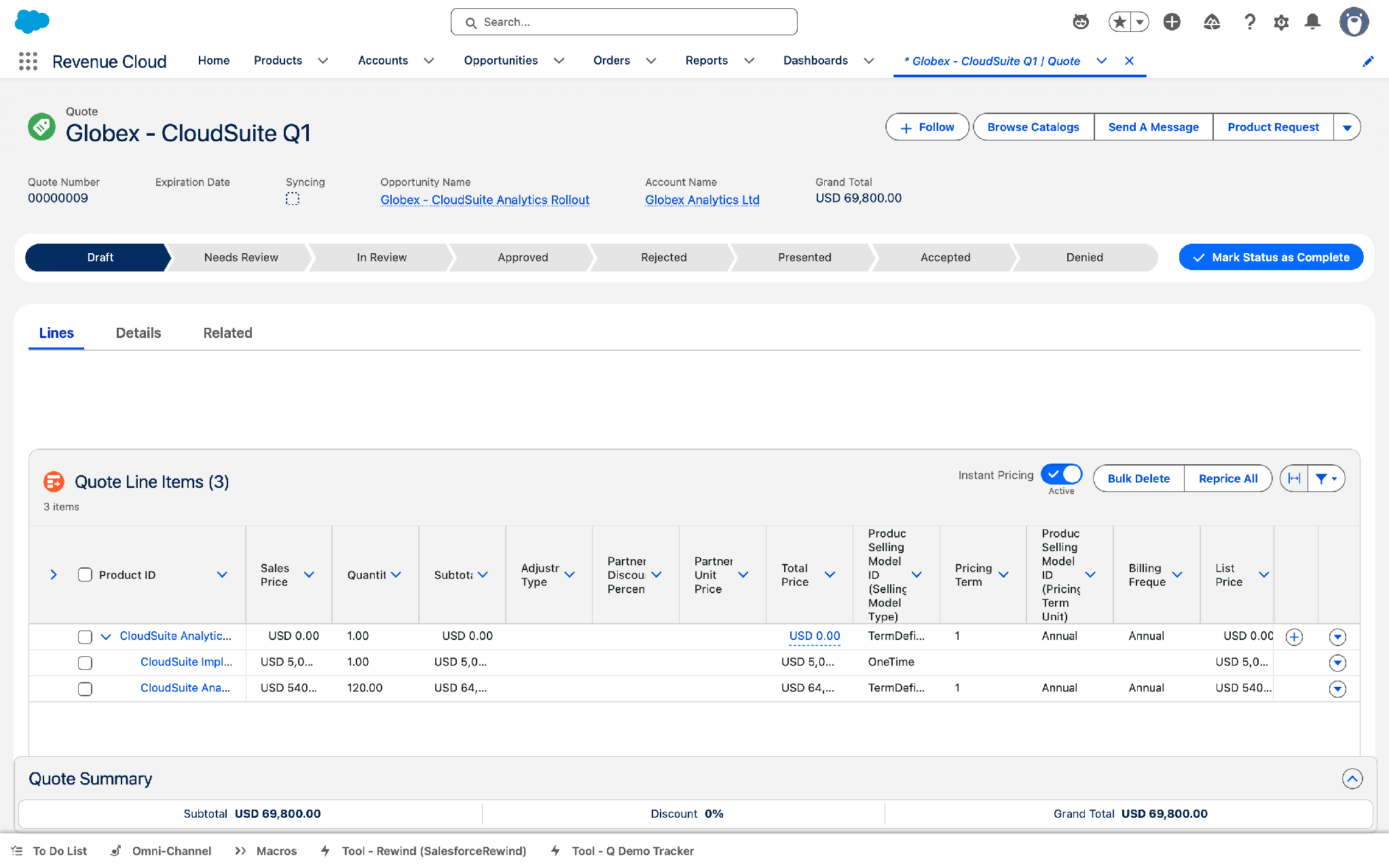
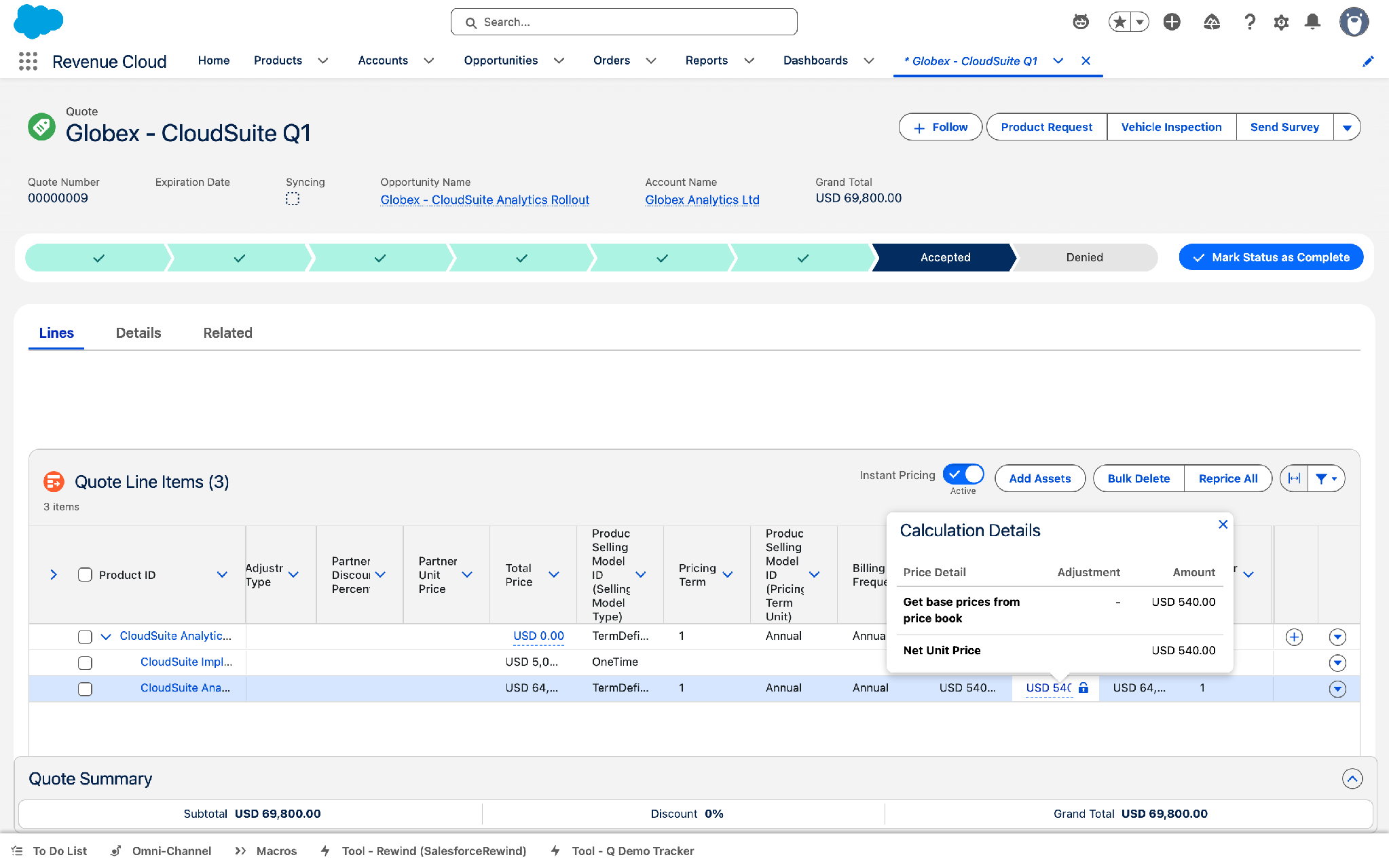
Anyone can check how a price was built. A click on the net unit price of the Professional line opens Calculation Details: the step "Get base prices from price book" at $540, and the $540 net unit price.
If prices come out empty or wrong, the usual causes are a pricing sync that wasn't run after a change (Step 3) or a pricing procedure that isn't active or isn't the default (Step 5). If Browse Catalogs shows an error, check the catalog's own procedure (Step 6).
Step 8. Turn the quote into an order
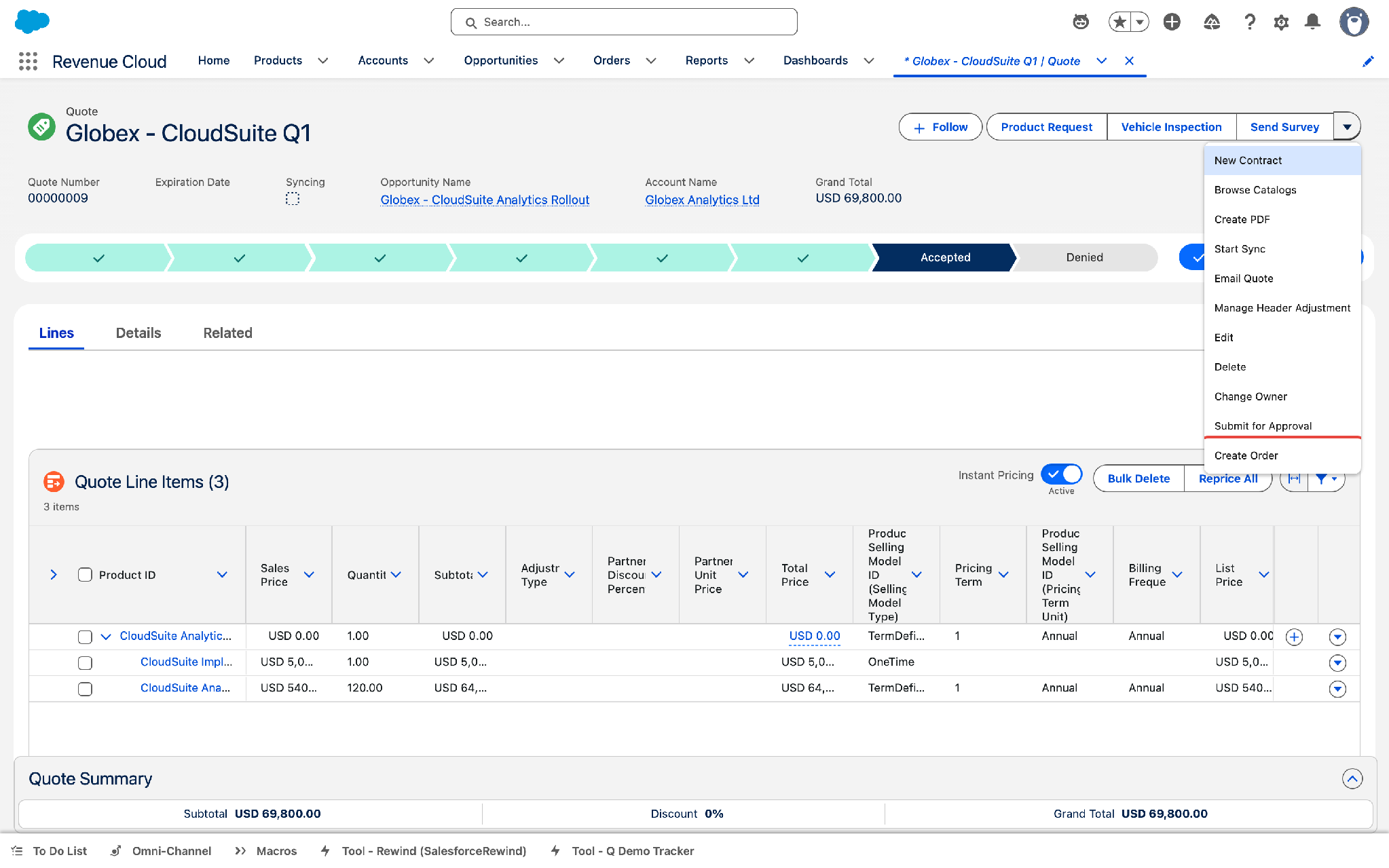
An accepted quote becomes an order in one click, but out of the box the Create Order button is hidden. Three things bring it out.
First, the button itself. In Setup → Object Manager → Quote → Page Layouts, open the Quote Layout, override the predefined Lightning actions and drag Create Order into the actions section.
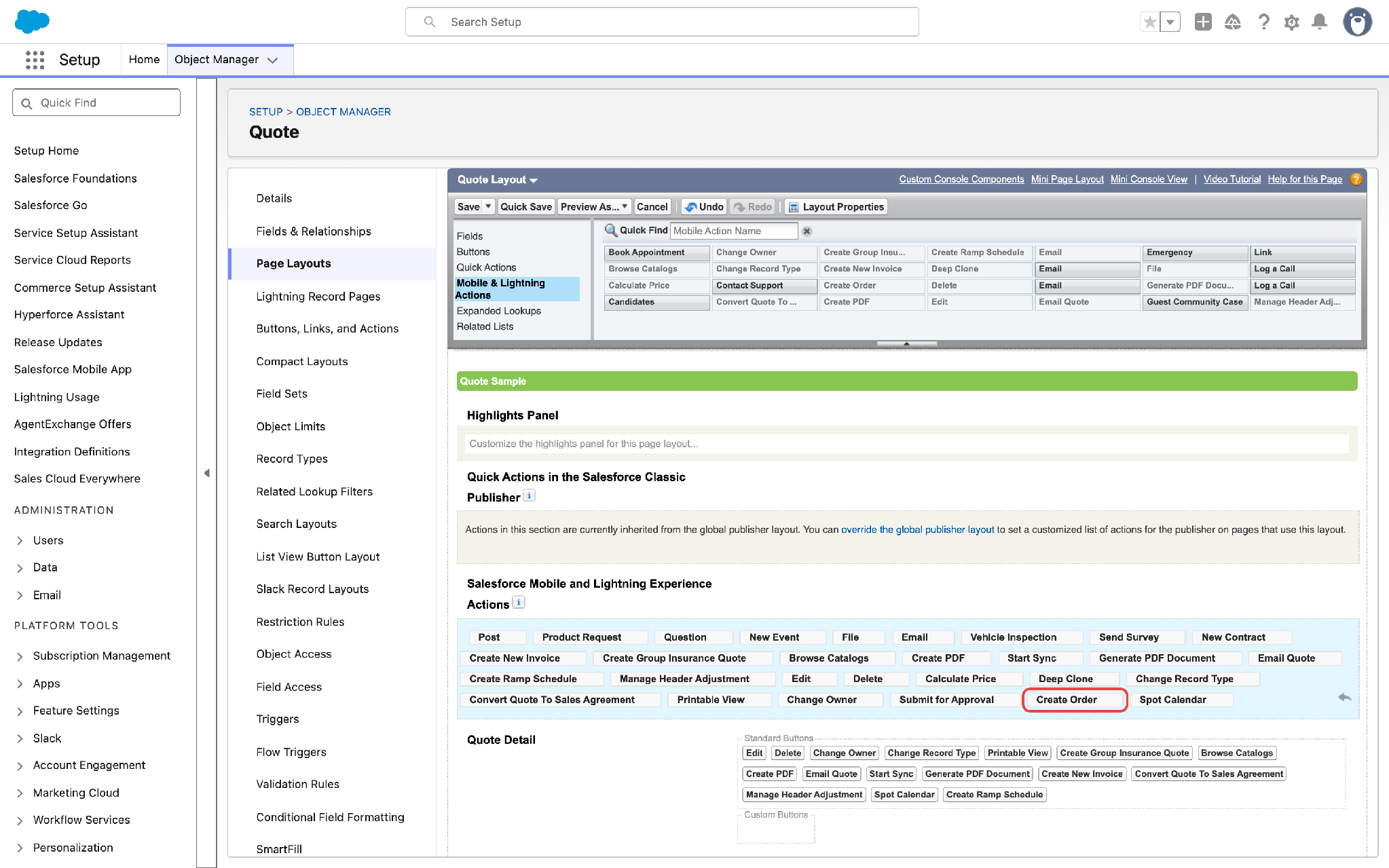
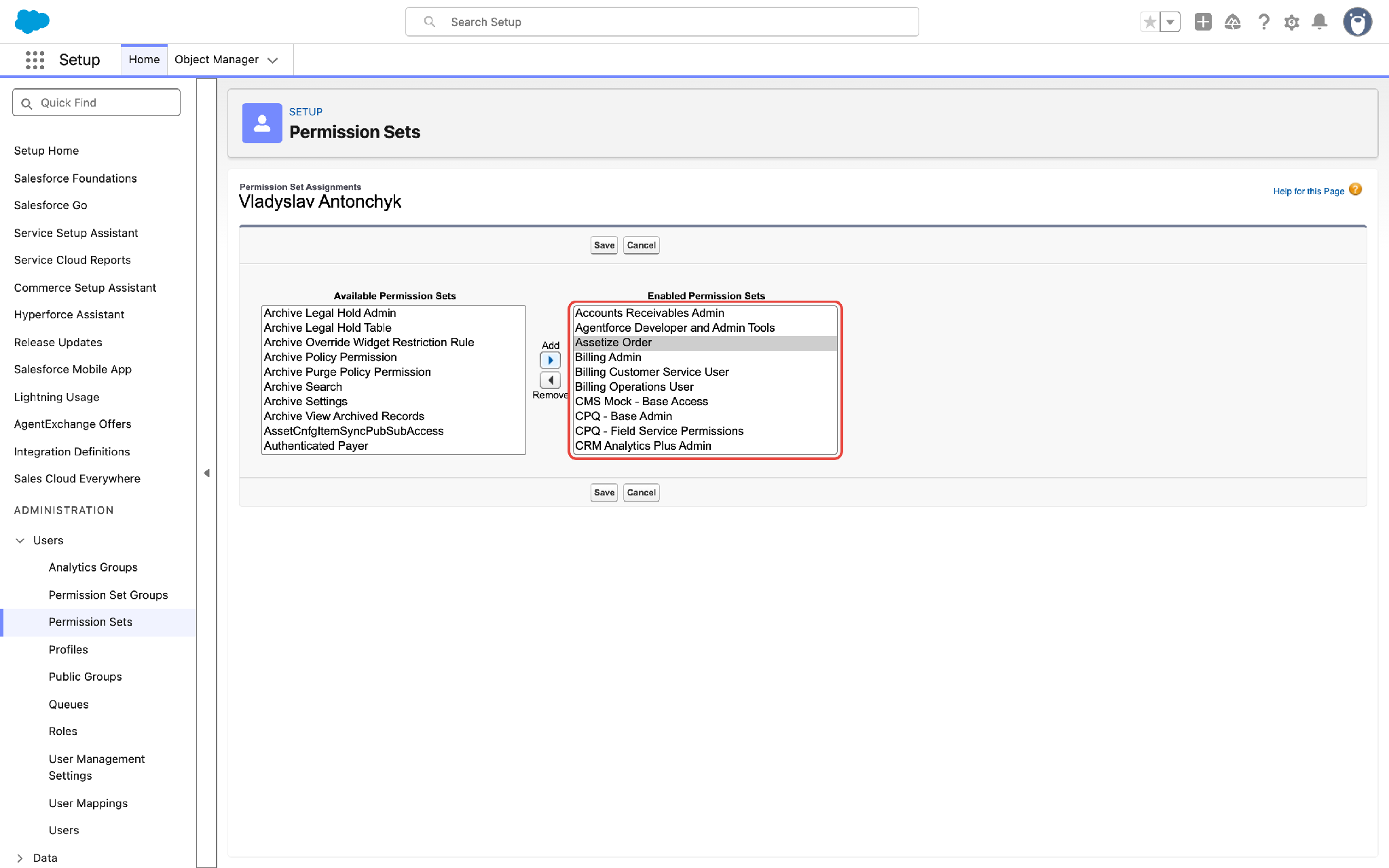
Second, permissions. Without the order permission sets the button stays hidden even when it is on the layout. We assigned seven: Create Orders from Quotes, Assetize Order, CreateContract API, PlaceOrder API, Fulfillment Designer, Fulfillment Manager/Operator, and Submit Transactions and Fulfillment User.
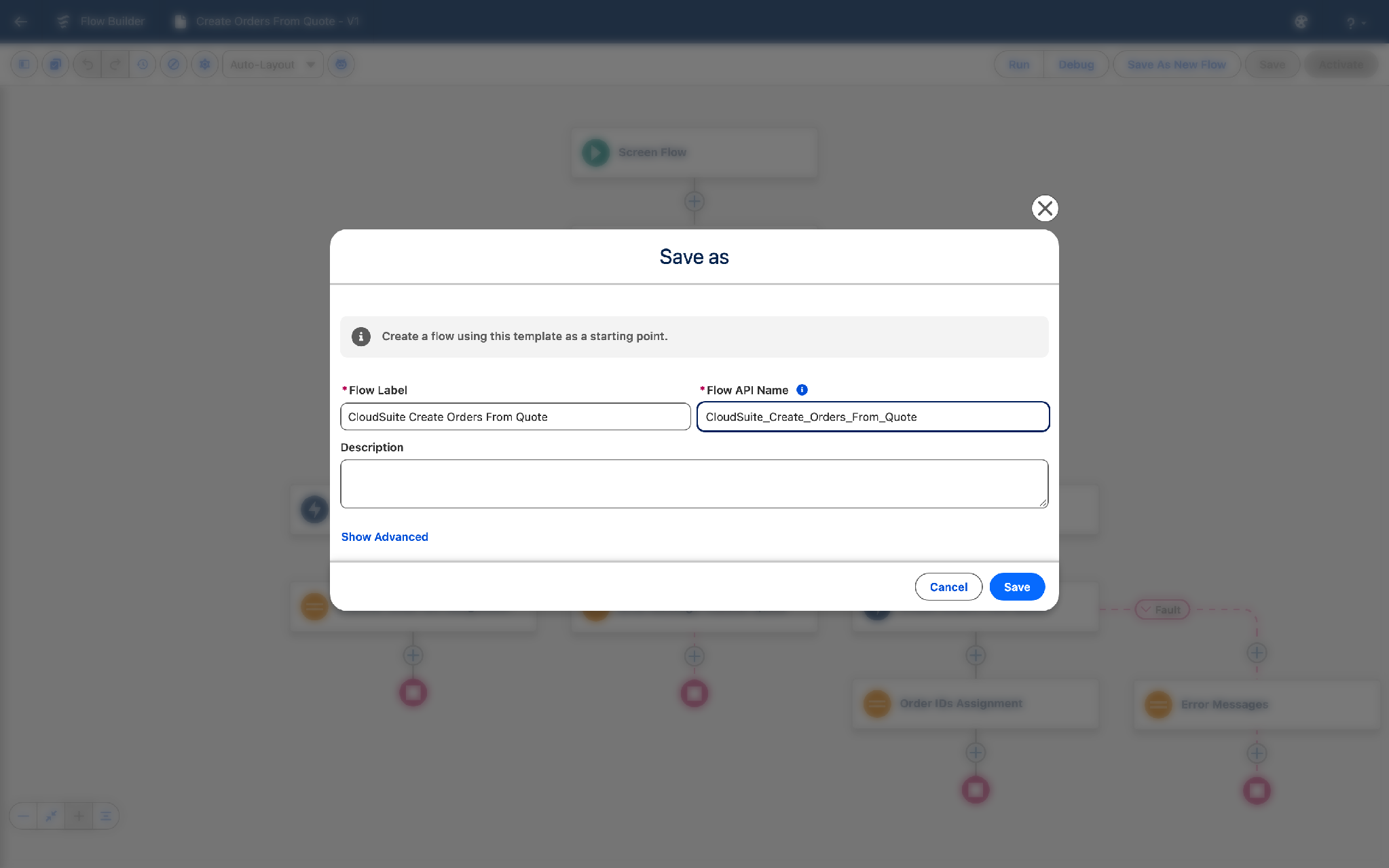
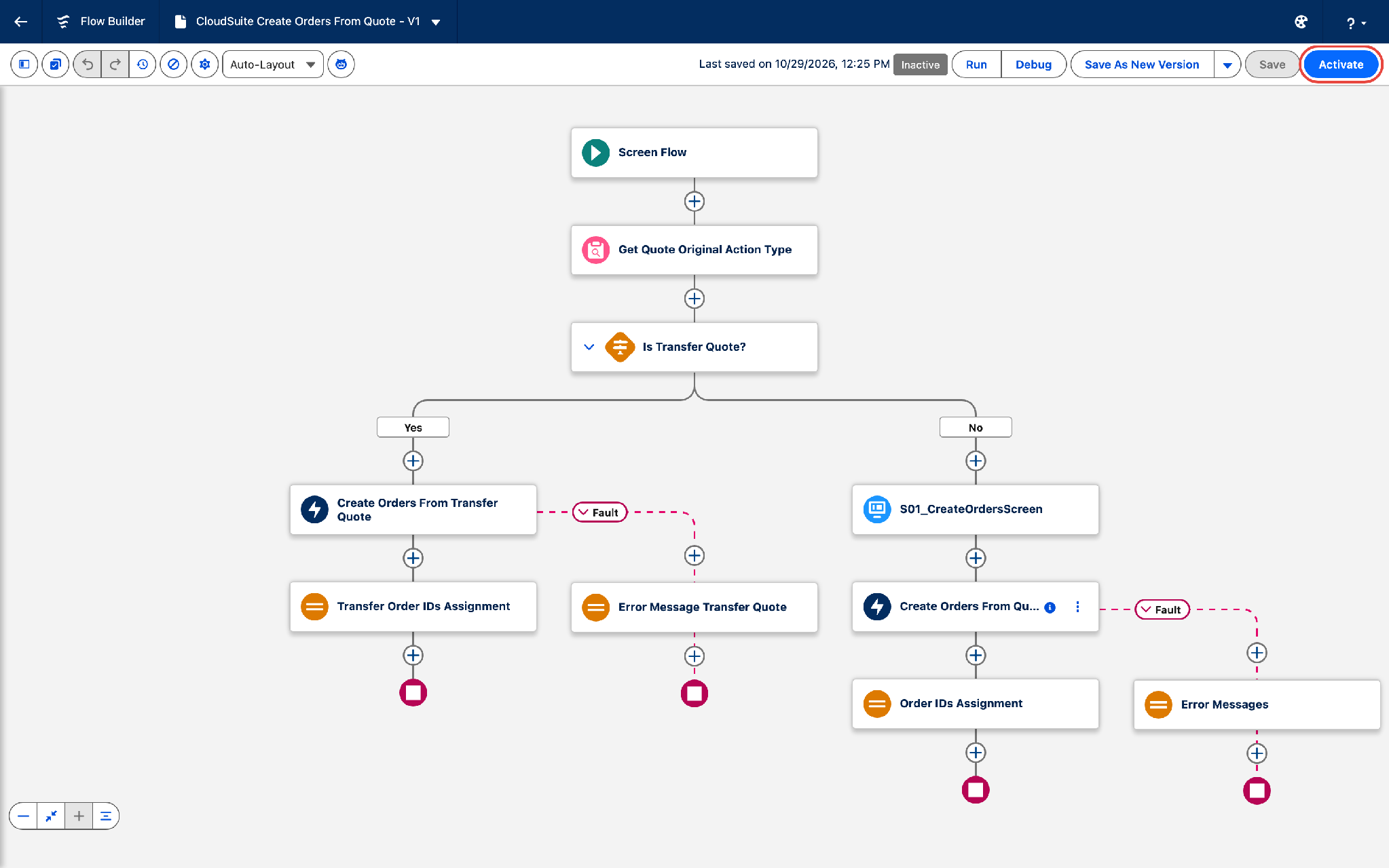
Third, the flow that creates the order. Salesforce ships Create Orders From Quote as a template that can't be activated, so we save it as a new flow, CloudSuite Create Orders From Quote, and activate the copy.
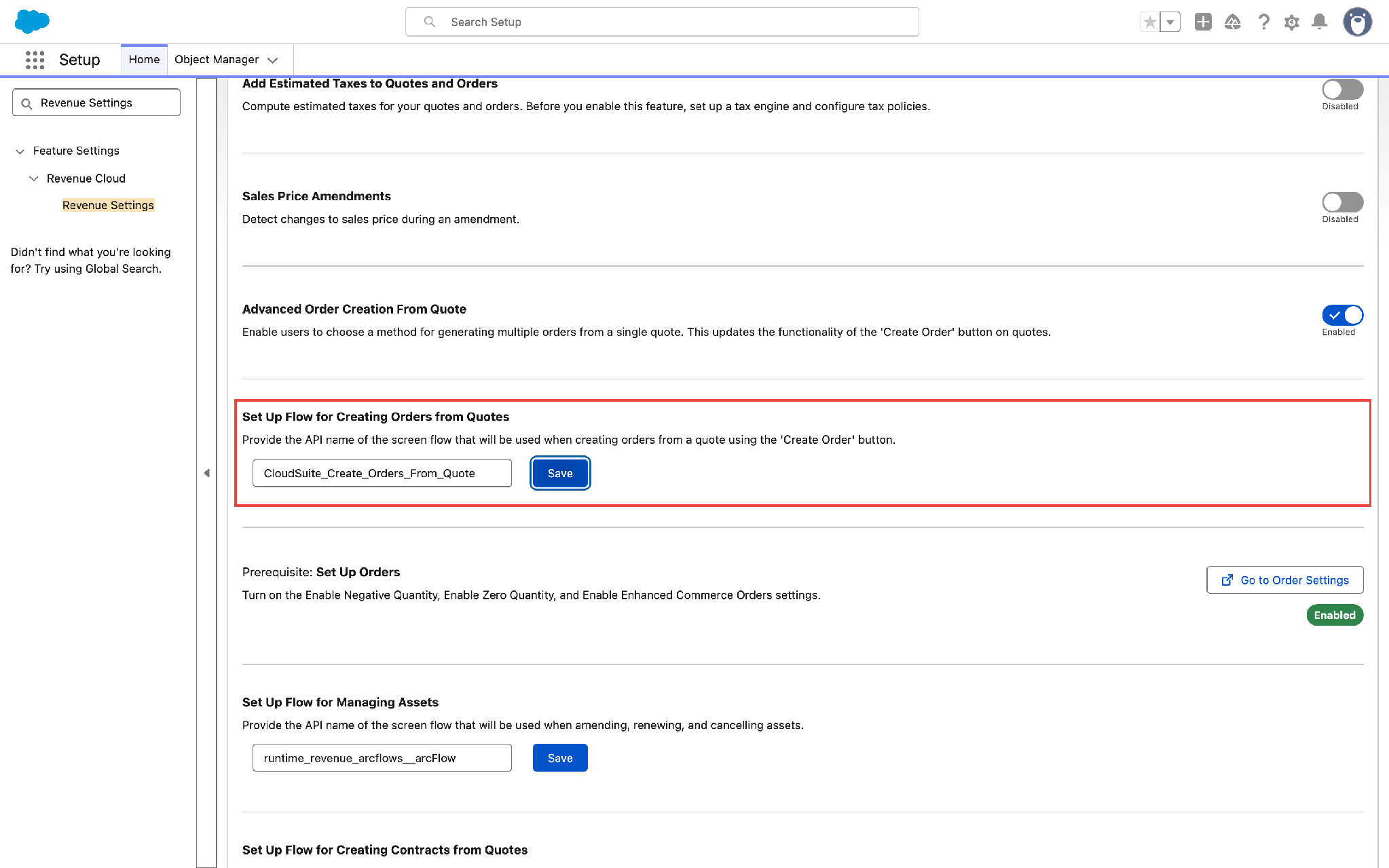
Revenue Settings then needs to know about it, in the field "Set Up Flow for Creating Orders from Quotes".
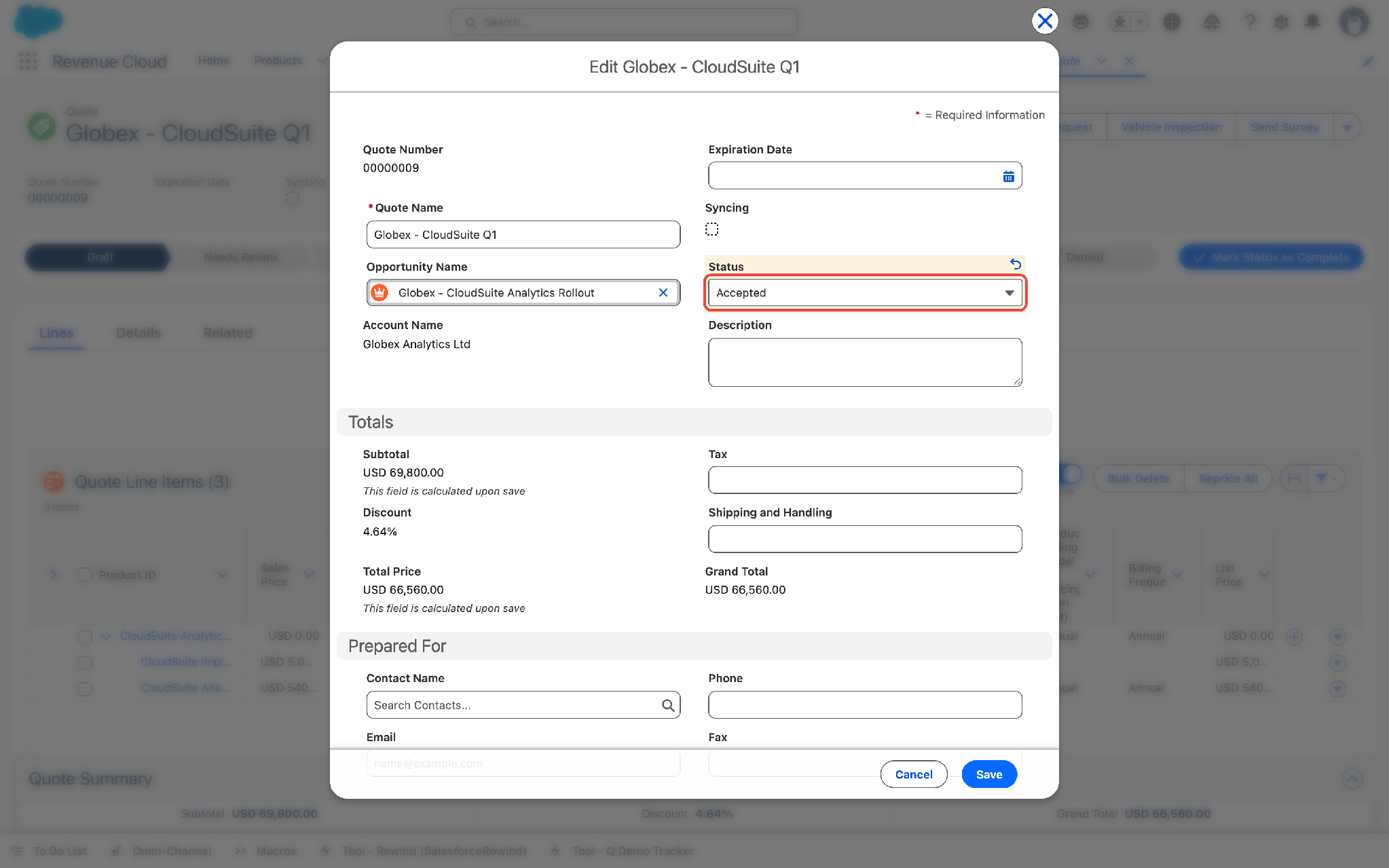
With that in place, the rep marks the Globex quote as Accepted…
…clicks Create Order in the actions menu…
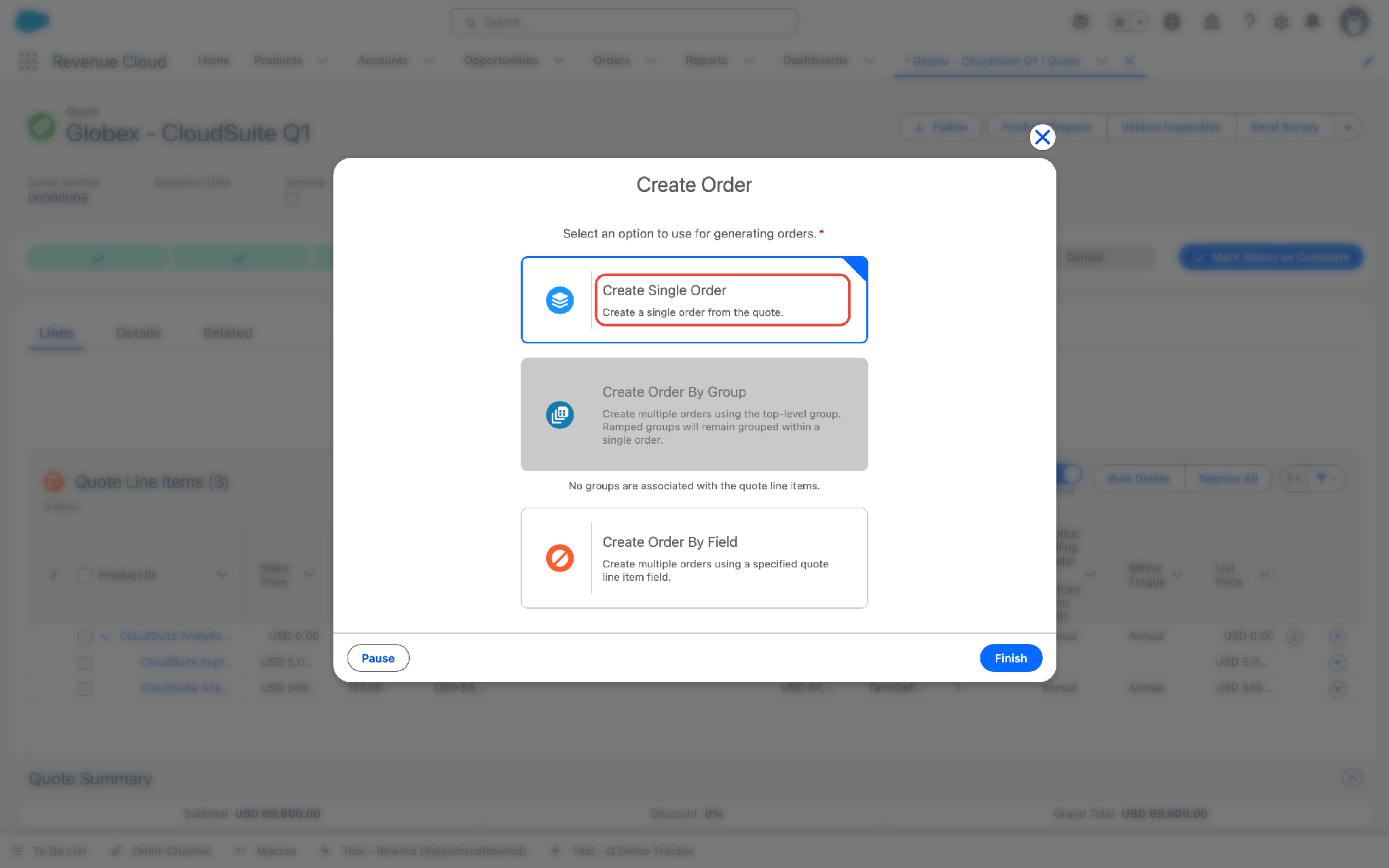
…and chooses Create Single Order.
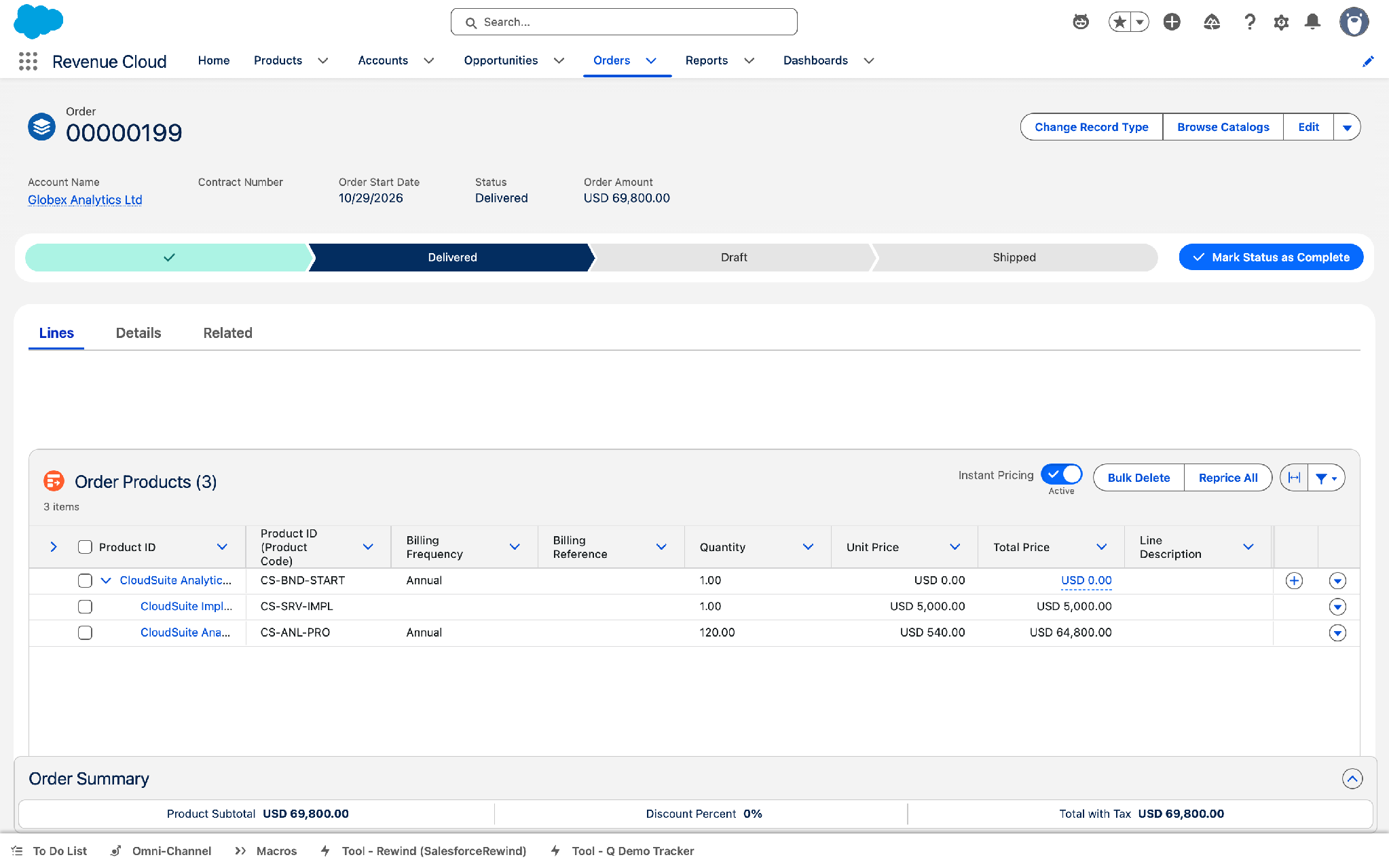
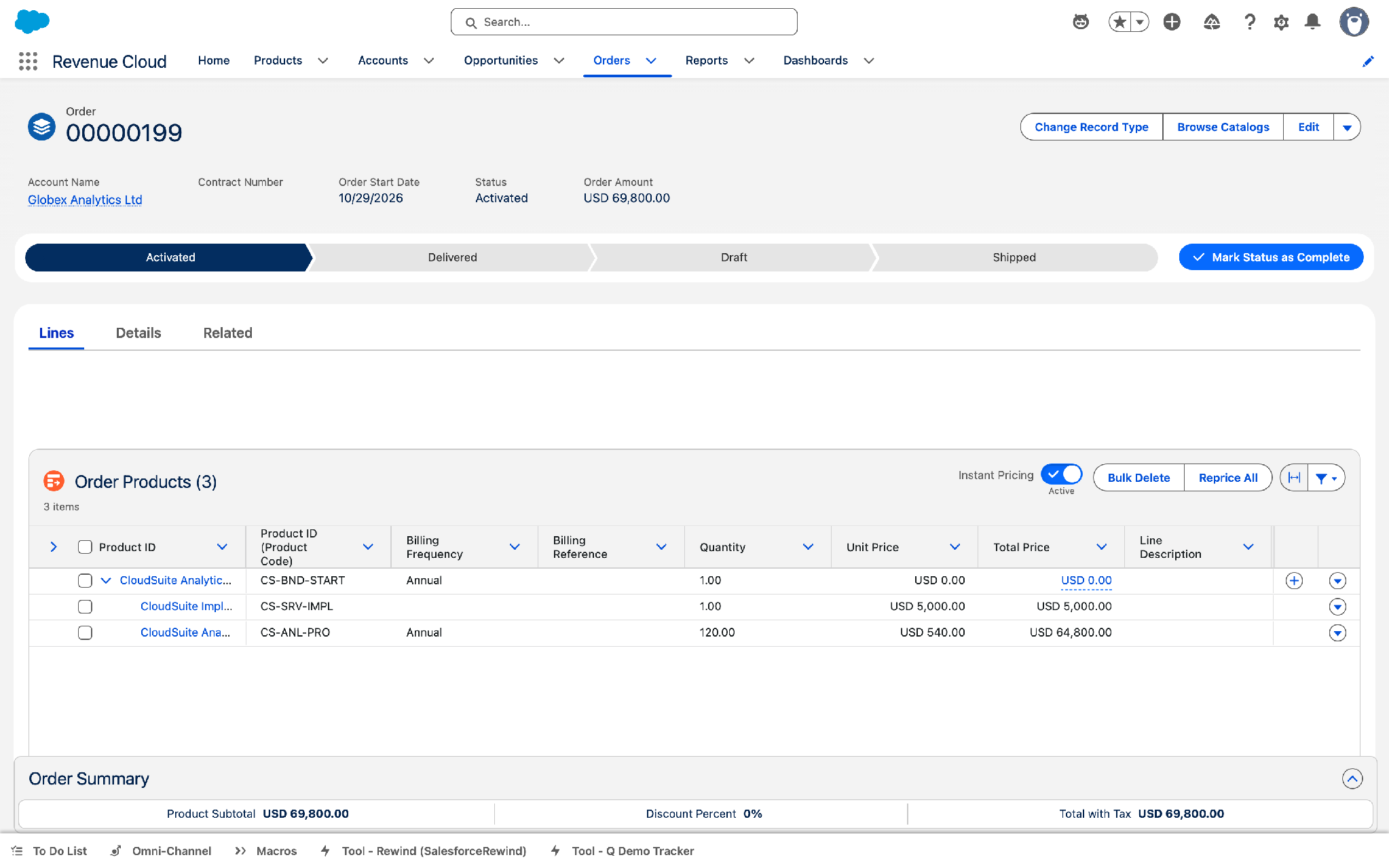
The order carries the same three lines and the same $69,800 as the quote.
How we do it at Noltic: we never edit a standard Revenue Cloud flow. We save a copy with the client's prefix. That’s why a Salesforce release cannot overwrite our changes. We also activate the first order on day one: an order only activates when the pricing procedure has filled the subscription end date and term. So a broken procedure shows up here, not in production.
Step 9. Fulfil the order with Dynamic Revenue Orchestrator
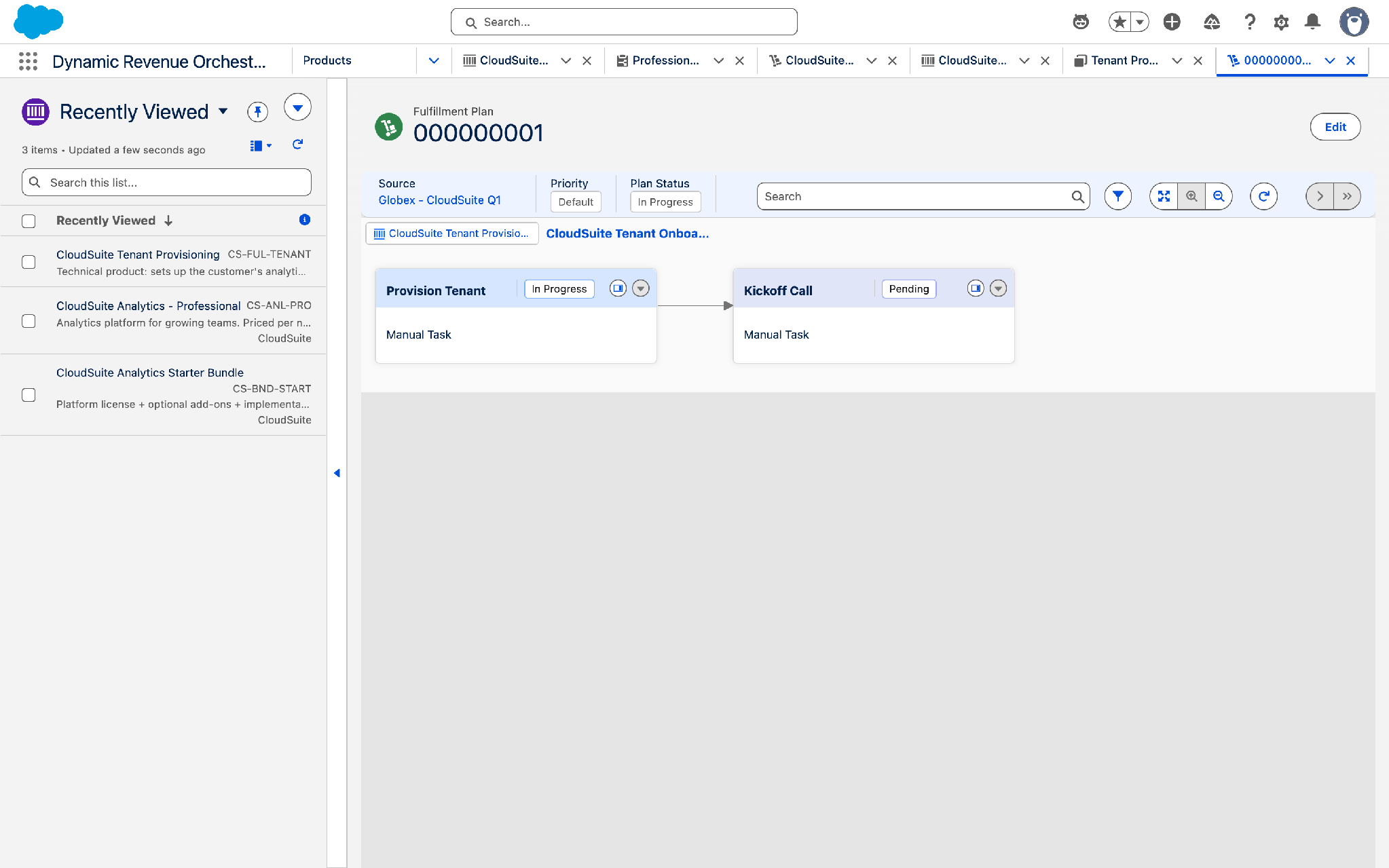
Dynamic Revenue Orchestrator (DRO) turns an activated order into a fulfillment plan: a list of tasks for the delivery team, in the right order. For CloudSuite we kept it minimal. Every Professional subscription creates two tasks: Provision Tenant, and once that is done, Kickoff Call.
The chain behind it is short. The product the customer buys (Professional) leads to a technical product only the delivery team sees (Tenant Provisioning), which leads to a group of steps, which becomes the plan on each order.
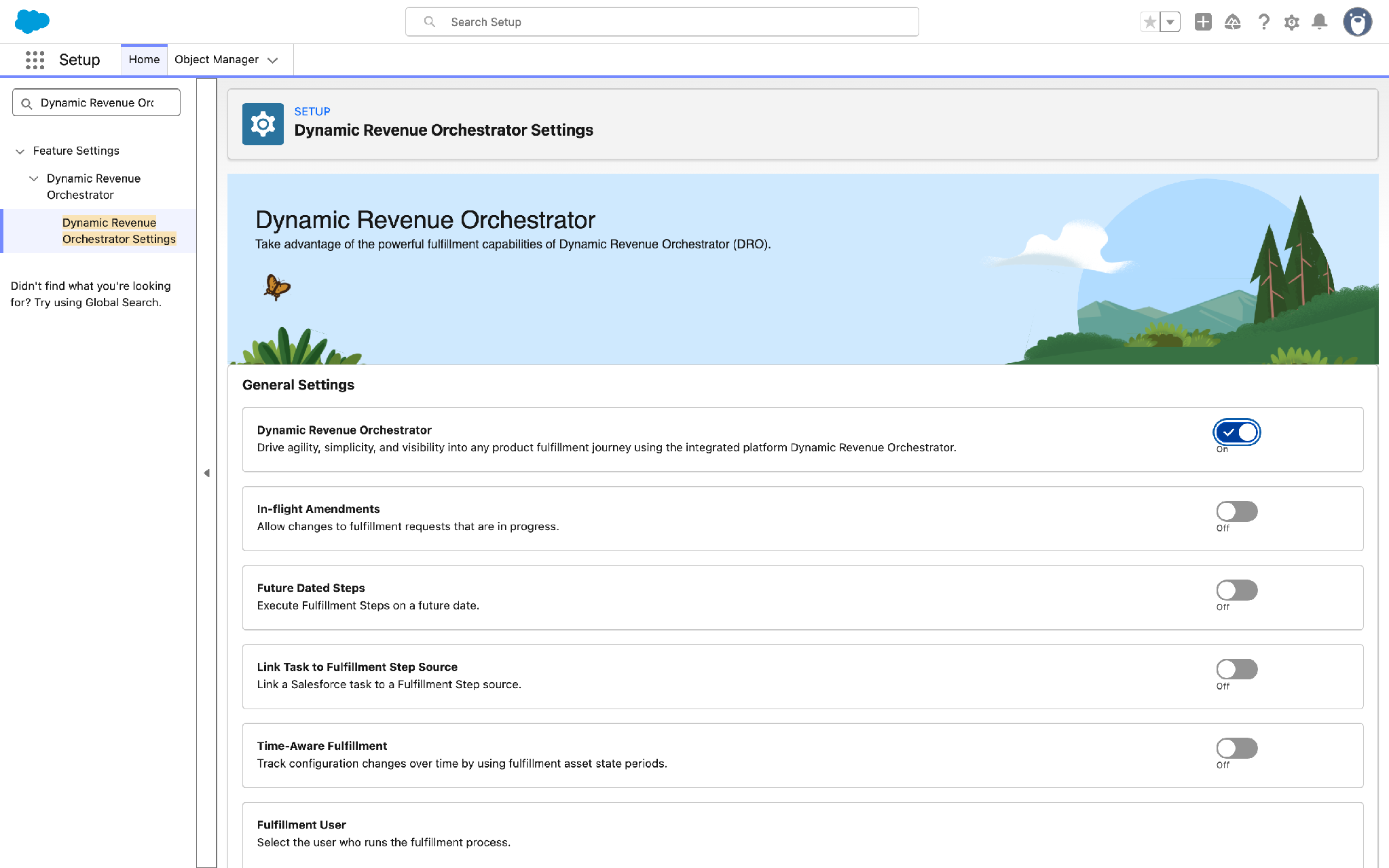
DRO is switched on in Setup → Dynamic Revenue Orchestrator Settings.
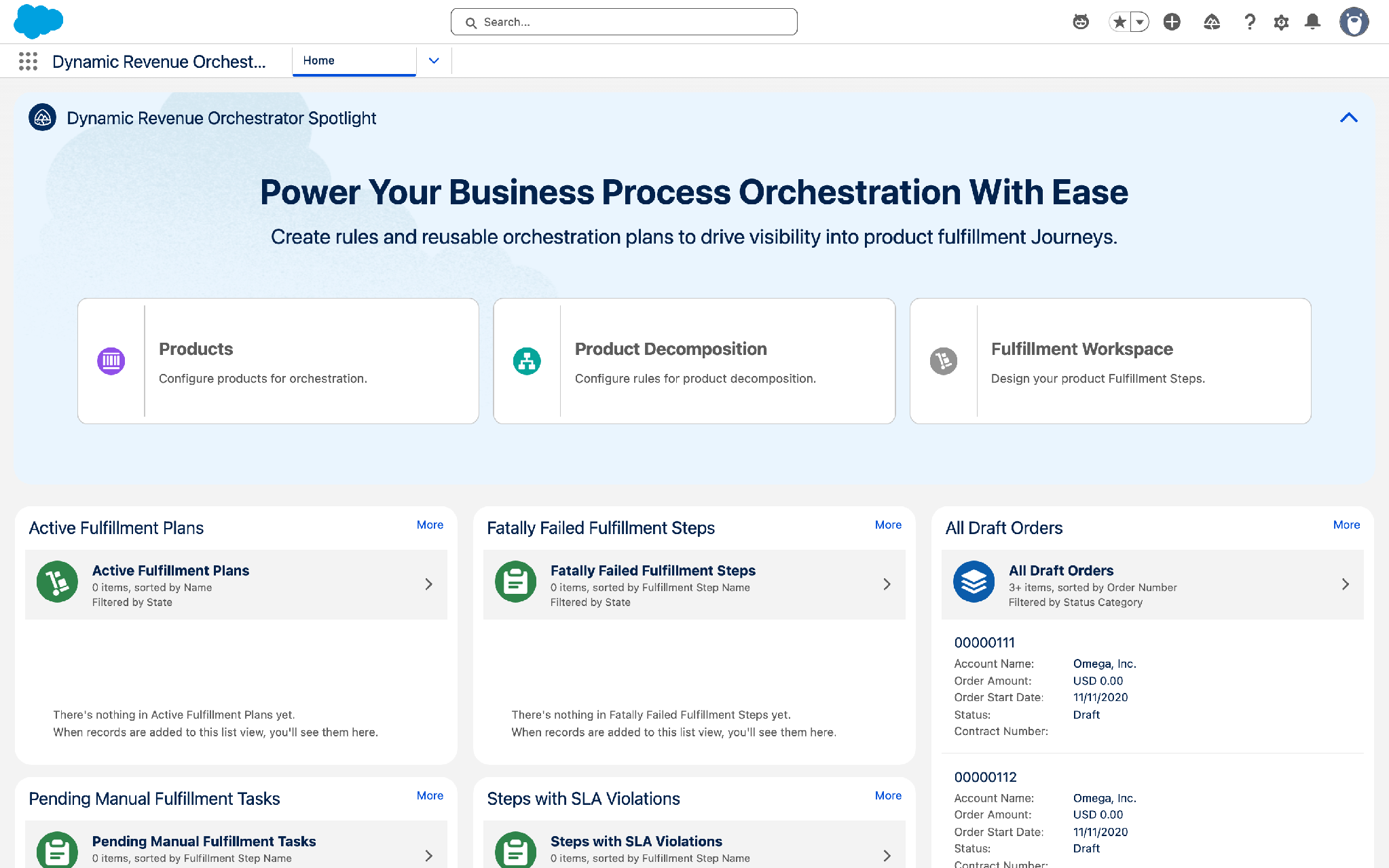
Everything else is set up in the Dynamic Revenue Orchestrator app. Its home page links to the three places we need: Products, Product Decomposition and Fulfillment Workspace.
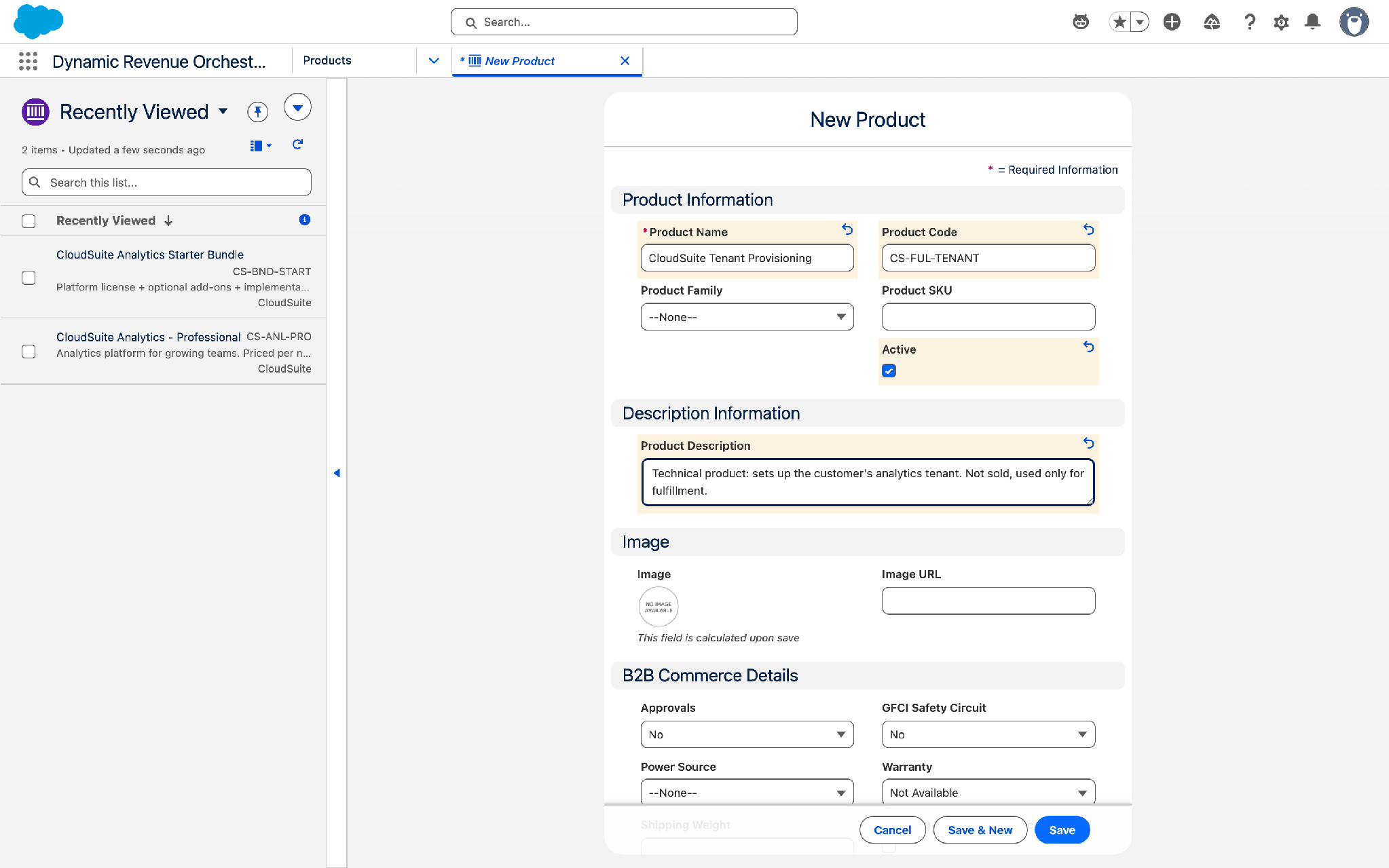
We start with the technical product, CloudSuite Tenant Provisioning (code CS-FUL-TENANT). Customers never see it; it exists only so delivery has something to plan around.
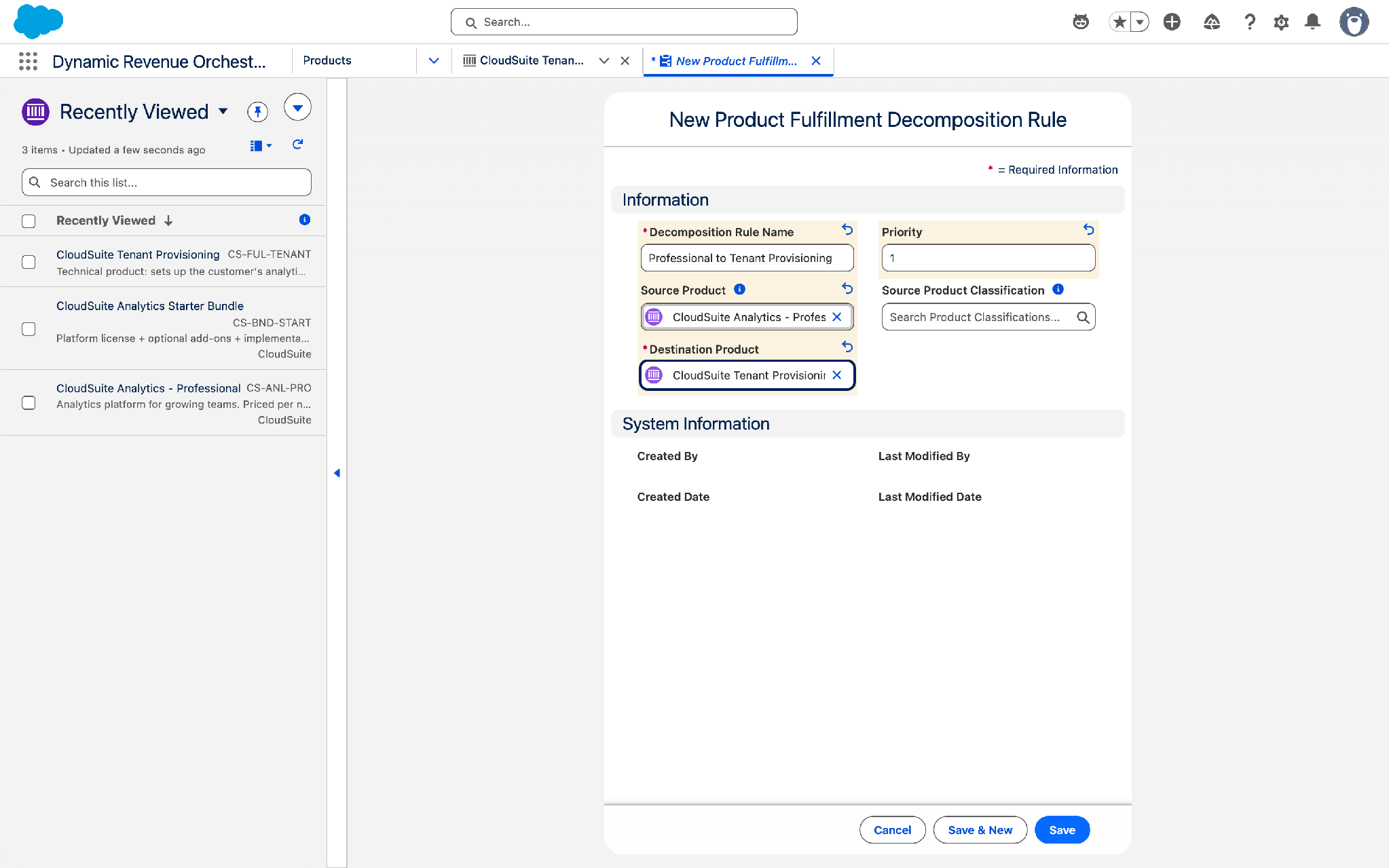
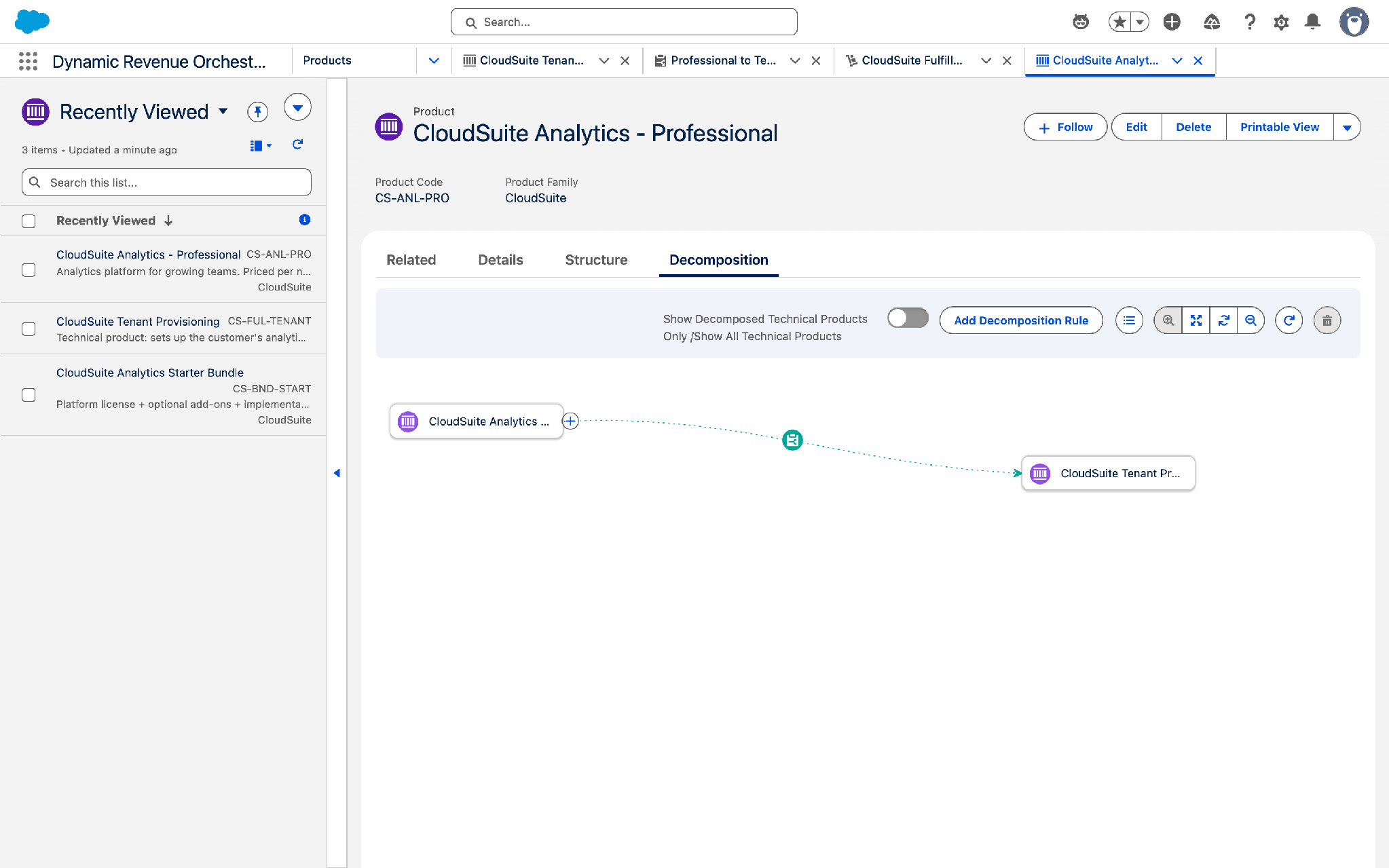
A decomposition rule connects it to what was sold: whenever Professional is on an order, Tenant Provisioning goes into fulfillment.
The Decomposition tab on the Professional product shows the same link as a picture.
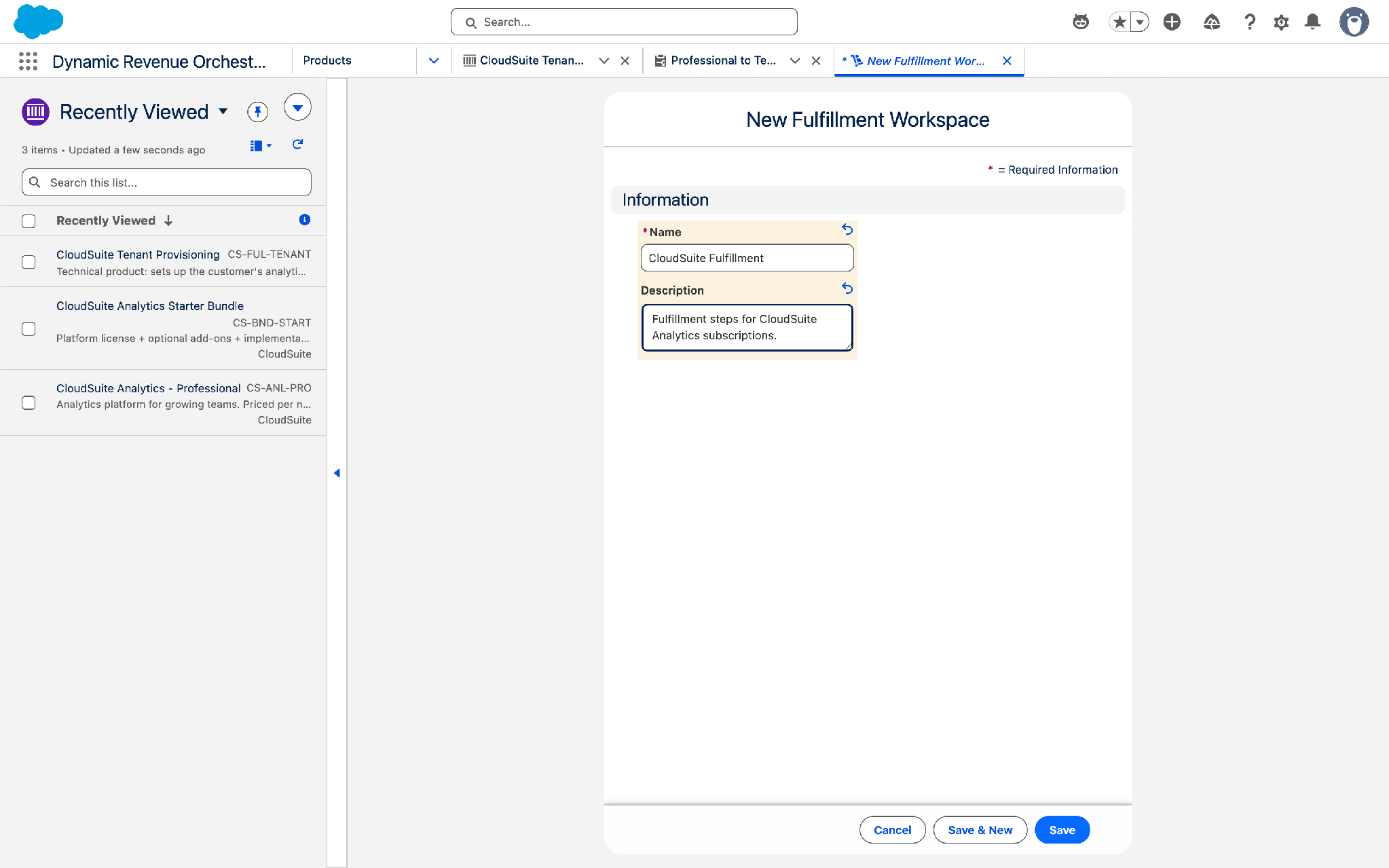
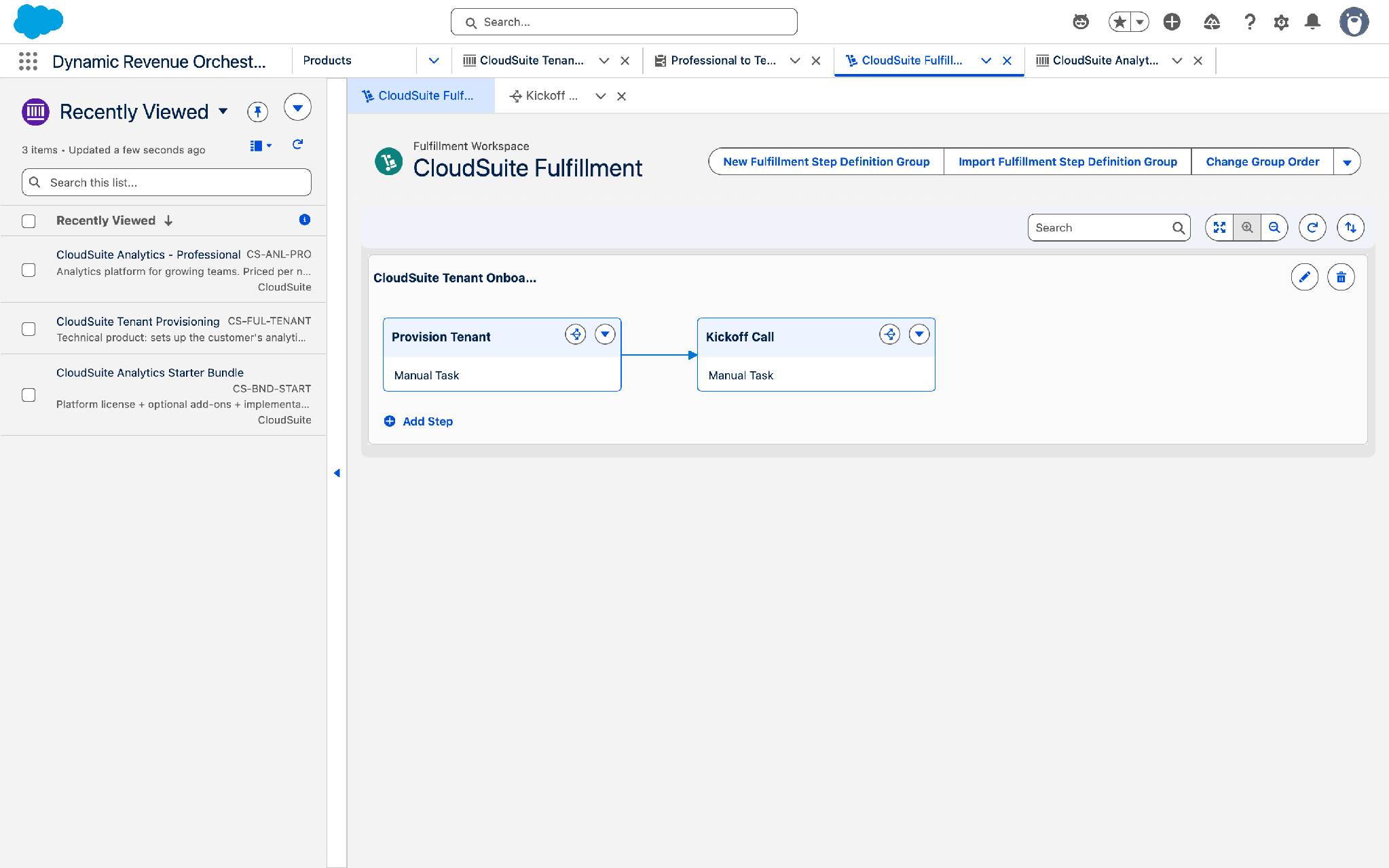
The steps live in a fulfillment workspace. We created CloudSuite Fulfillment…
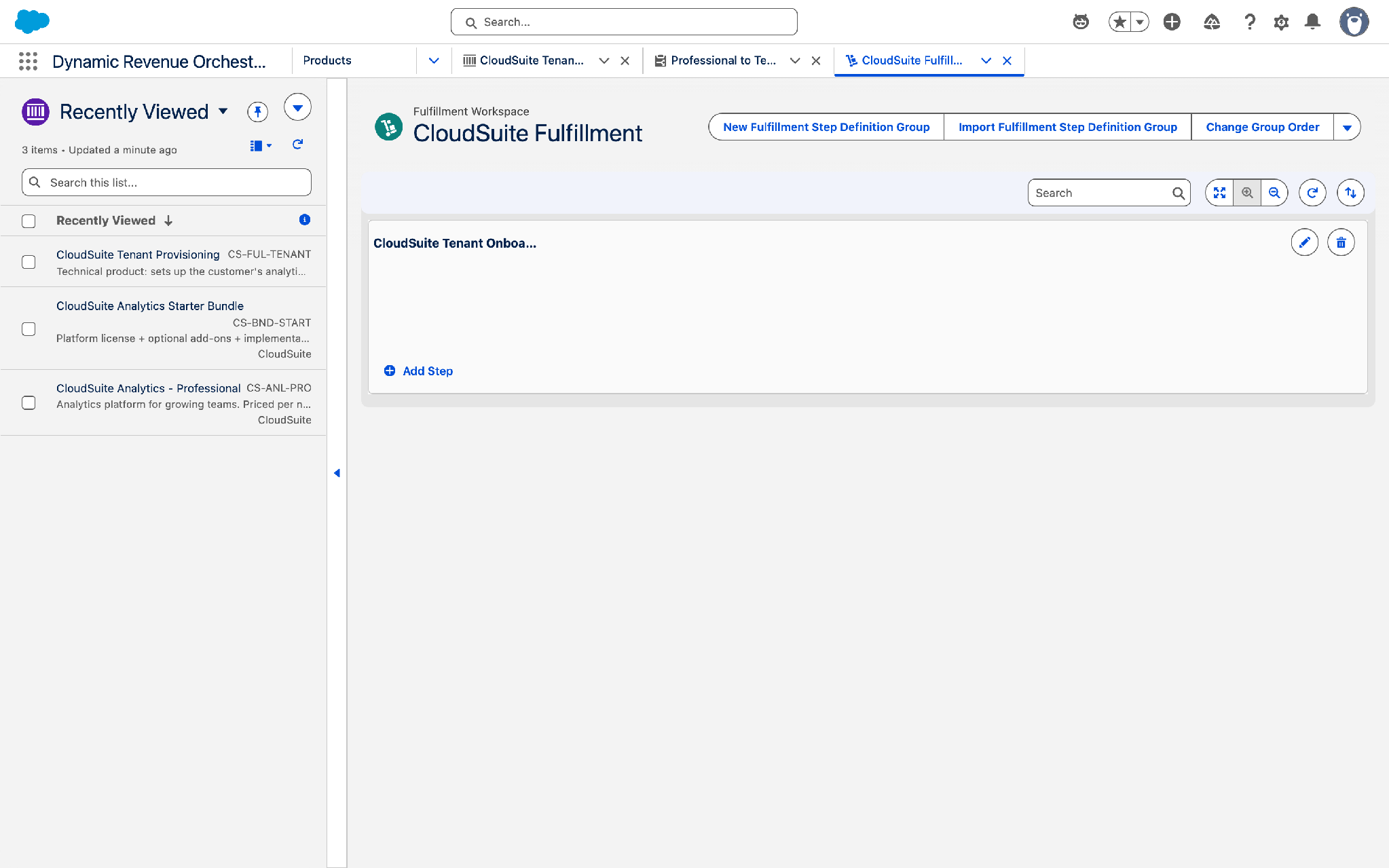
…and in it a step group, CloudSuite Tenant Onboarding.
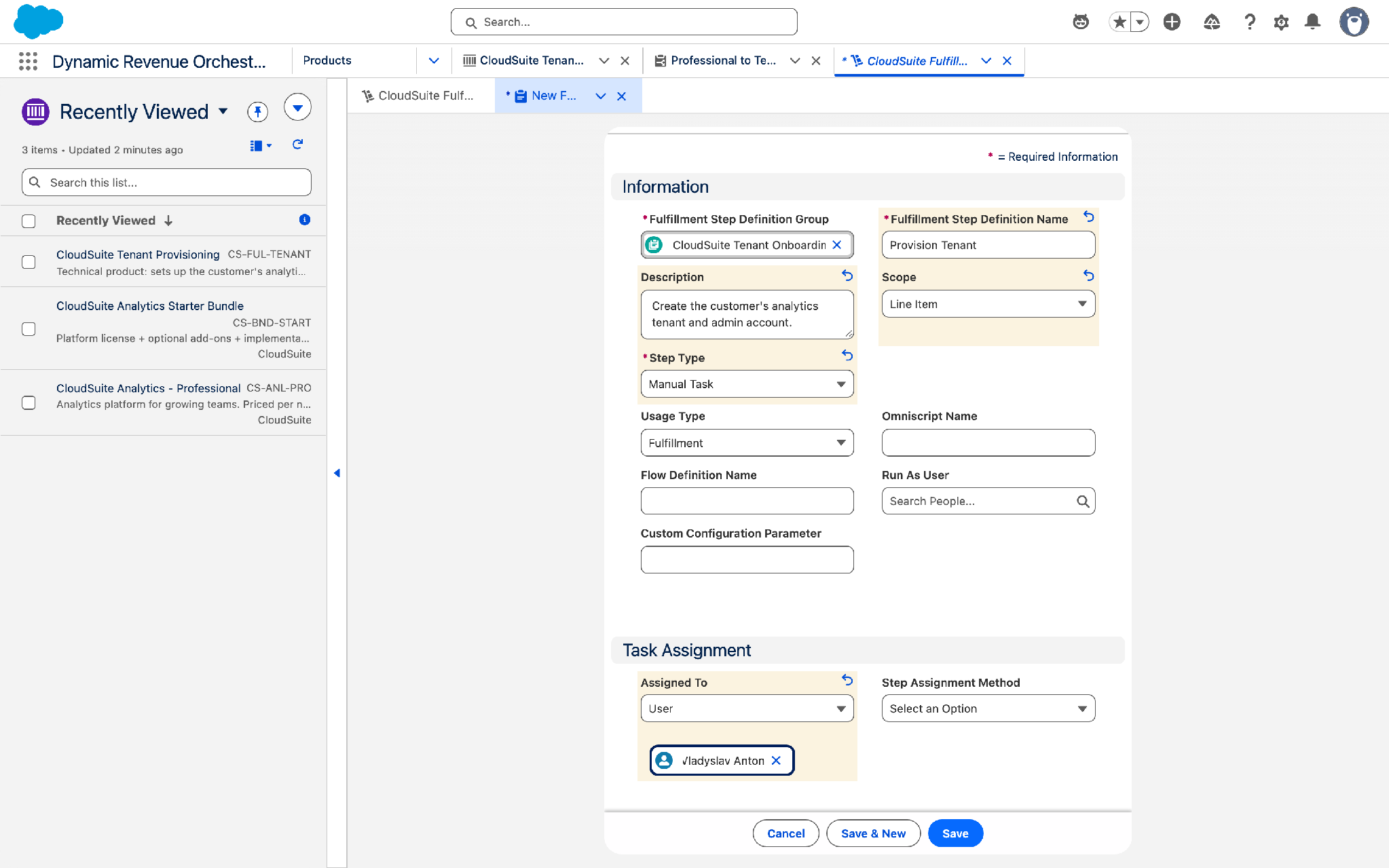
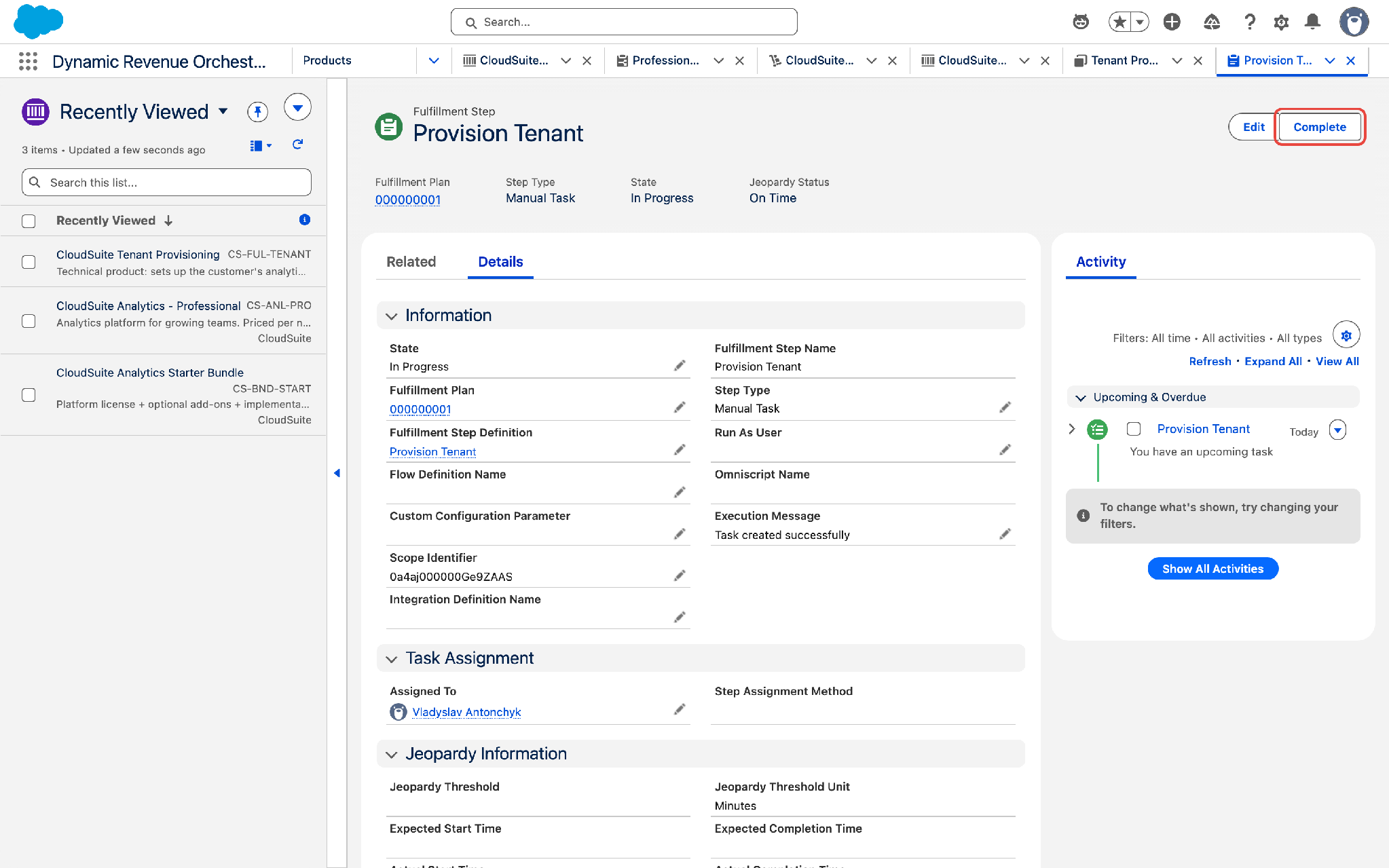
Add Step creates the two tasks. Both are manual tasks, scoped to the order line and assigned to the delivery owner.
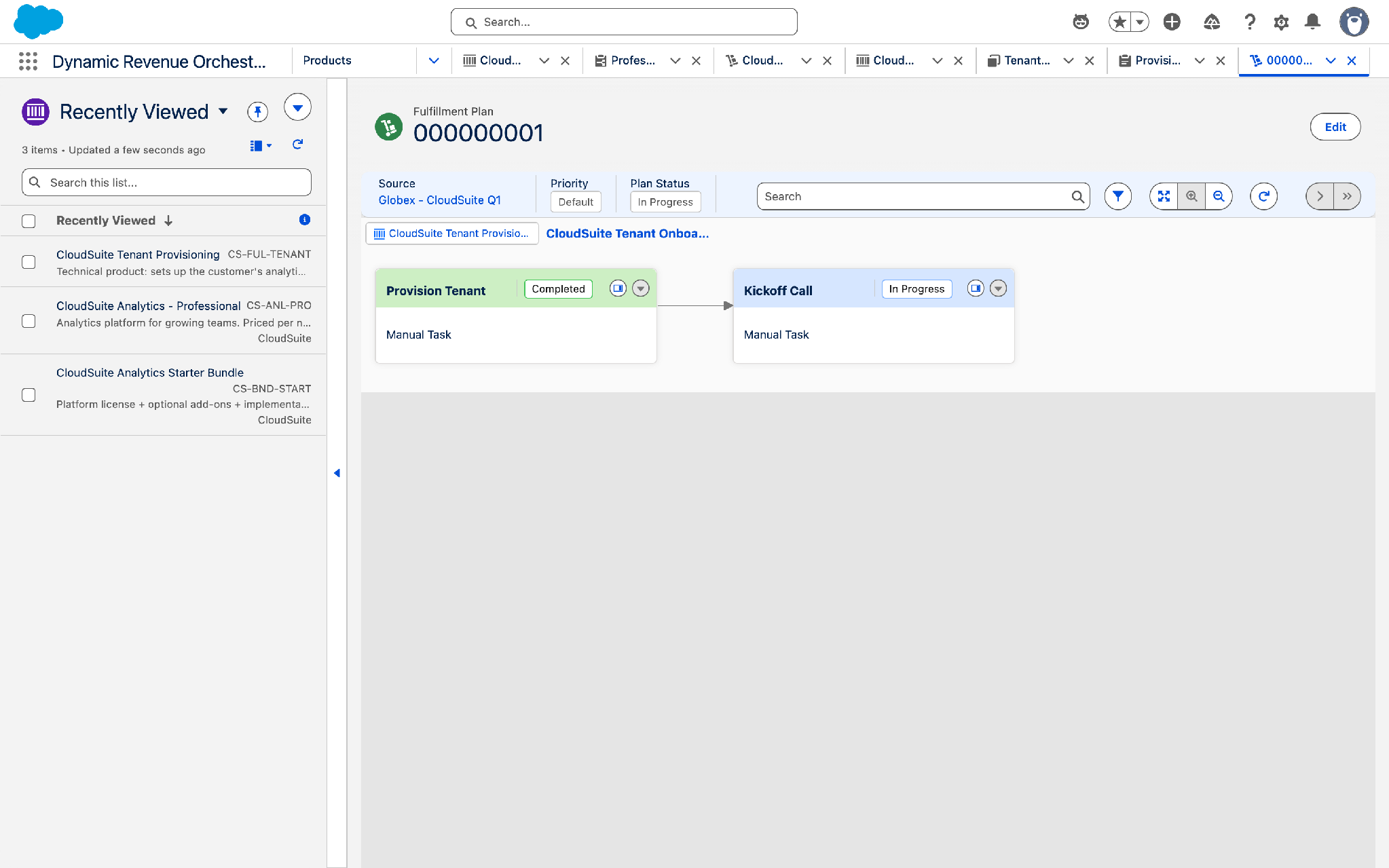
A link between them makes Kickoff Call wait for Provision Tenant: click the link icon on Provision Tenant, then the plus on Kickoff Call, name the link and save.
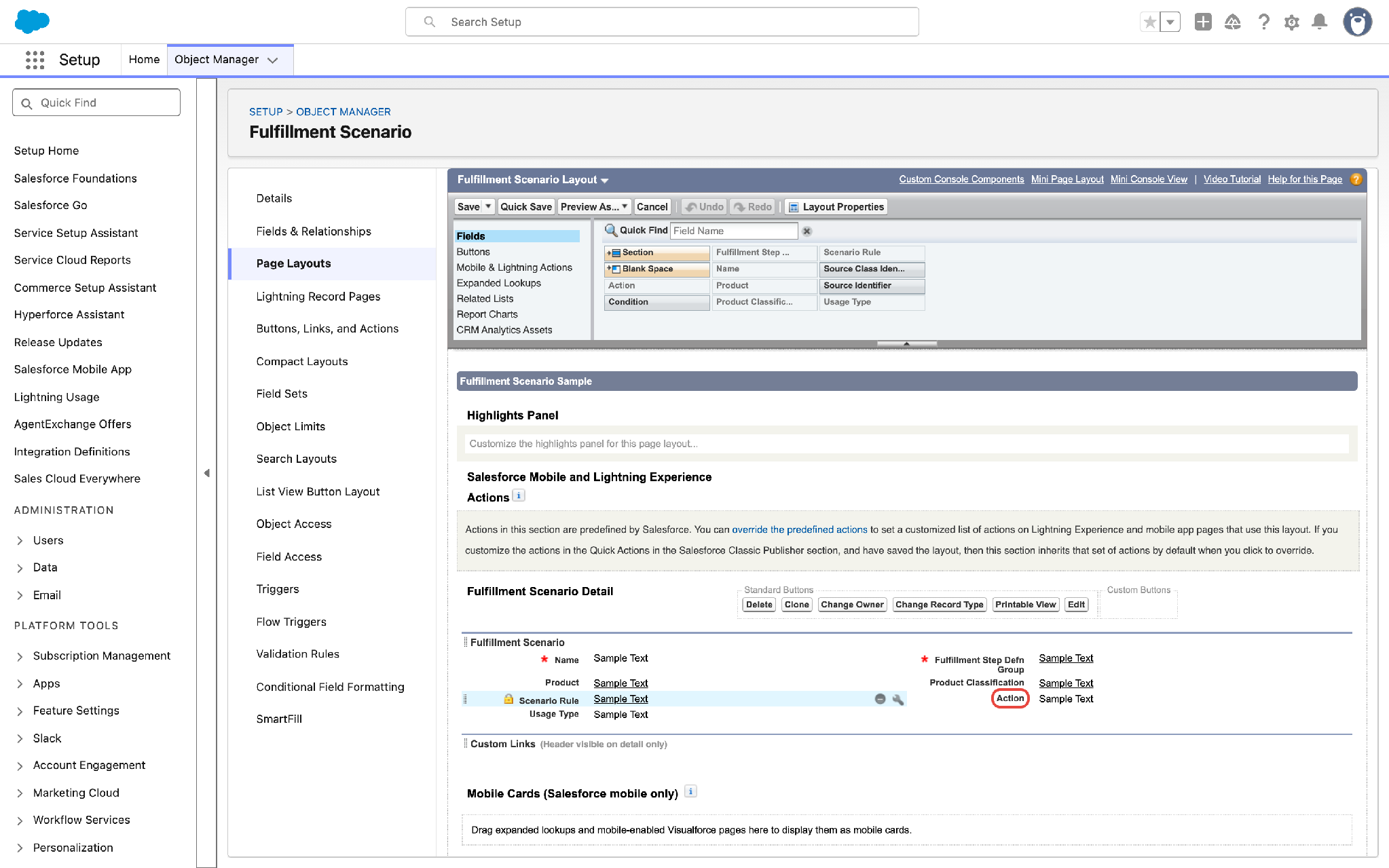
The last piece is a fulfillment scenario that ties the technical product to the step group. Its Action field decides which orders it applies to: new sales, amendments, renewals or cancellations. Salesforce leaves that field off the page layout, so we added it first.
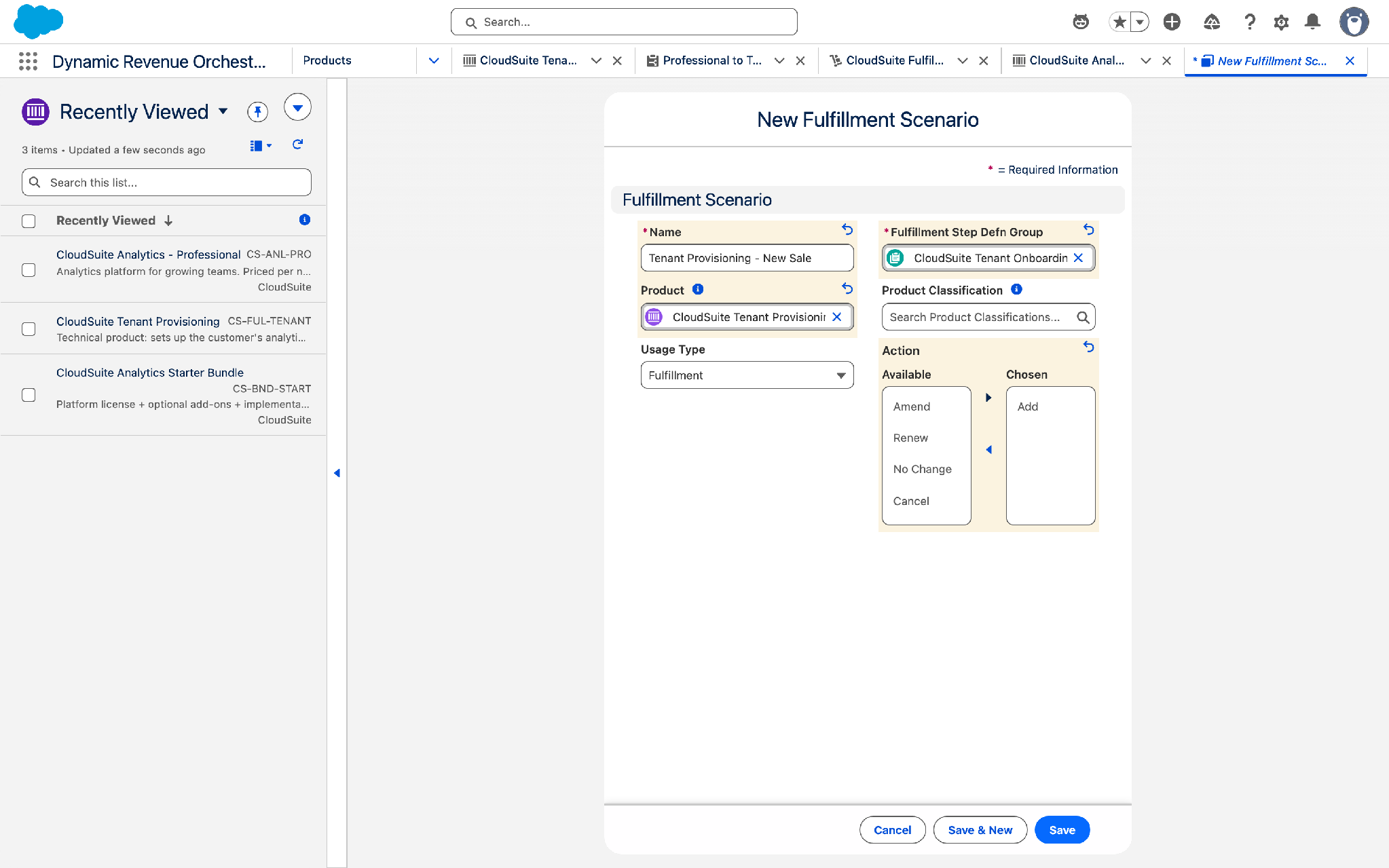
The scenario Tenant Provisioning - New Sale uses the product Tenant Provisioning, the step group CloudSuite Tenant Onboarding and the action Add.
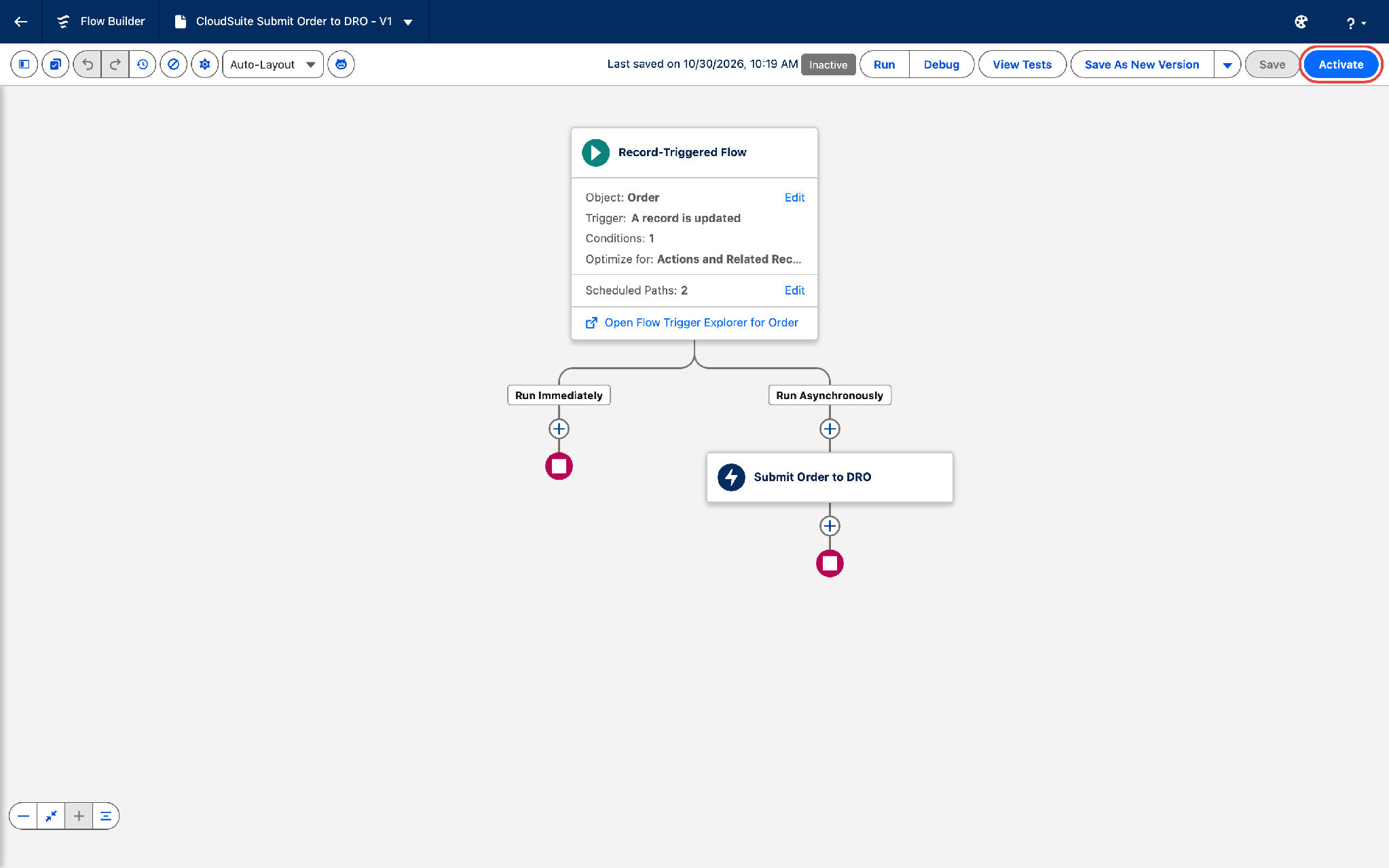
One thing surprised us: activating an order does not send it to DRO by itself. We added a small record-triggered flow, CloudSuite Submit Order to DRO, that calls the standard Submit Order action when an order becomes Activated. We deployed it as a draft and activated it in Flow Builder; it holds a single action.
Now the Globex order can be activated.
Its fulfillment plan appears in the DRO app: Provision Tenant is in progress, and Kickoff Call waits for it.
When the delivery team finishes provisioning, they open the step and click Complete…
…and the next task starts on its own.
How we do it at Noltic: we start DRO with manual tasks, not integrations. The client sees the plan, the order of steps and who owns each task in the first week. Callouts to provisioning systems replace the manual steps later, one at a time, without changing the plan.
Step 10. Turn the order into assets
An asset is what the customer owns after the order: the subscription, its quantity and its dates. Assets matter more than the order itself, because every later change, whether amendment, renewal or cancellation, starts from them.
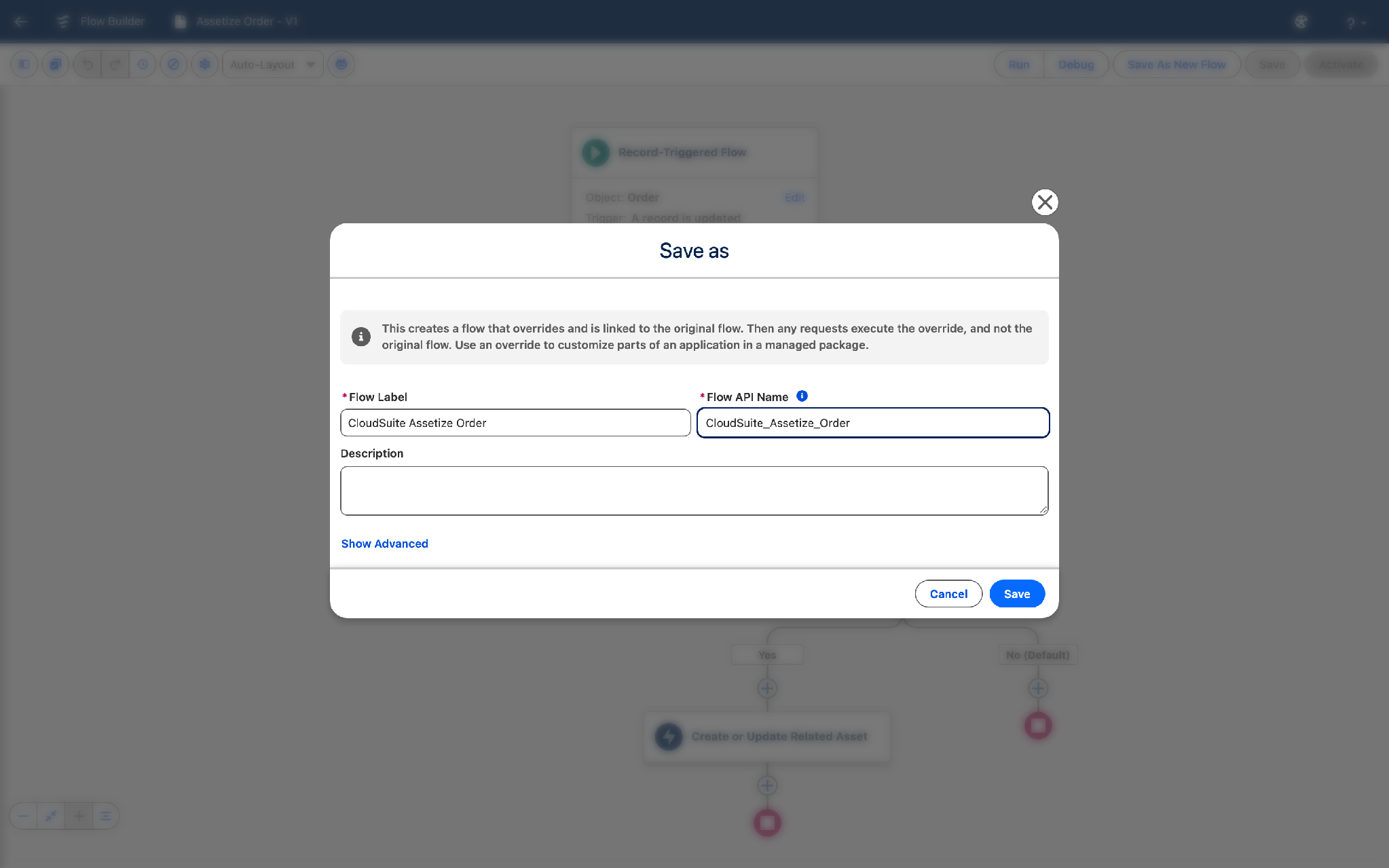
Assets are created by the standard Assetize Order flow. Like the order flow, it ships as a template that can't be activated, so we saved a copy, CloudSuite Assetize Order, and activated it. From then on every activated order creates or updates assets.
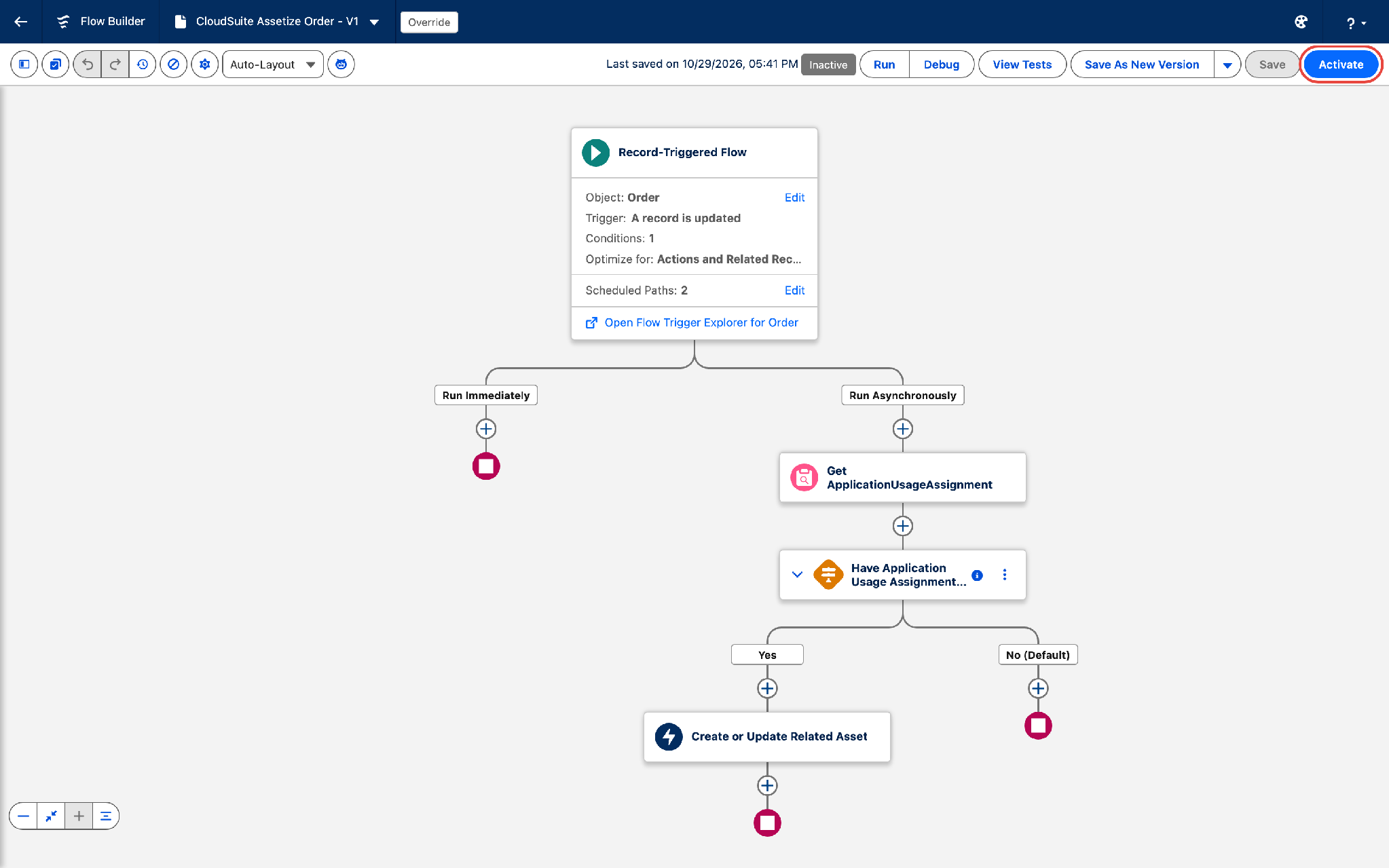
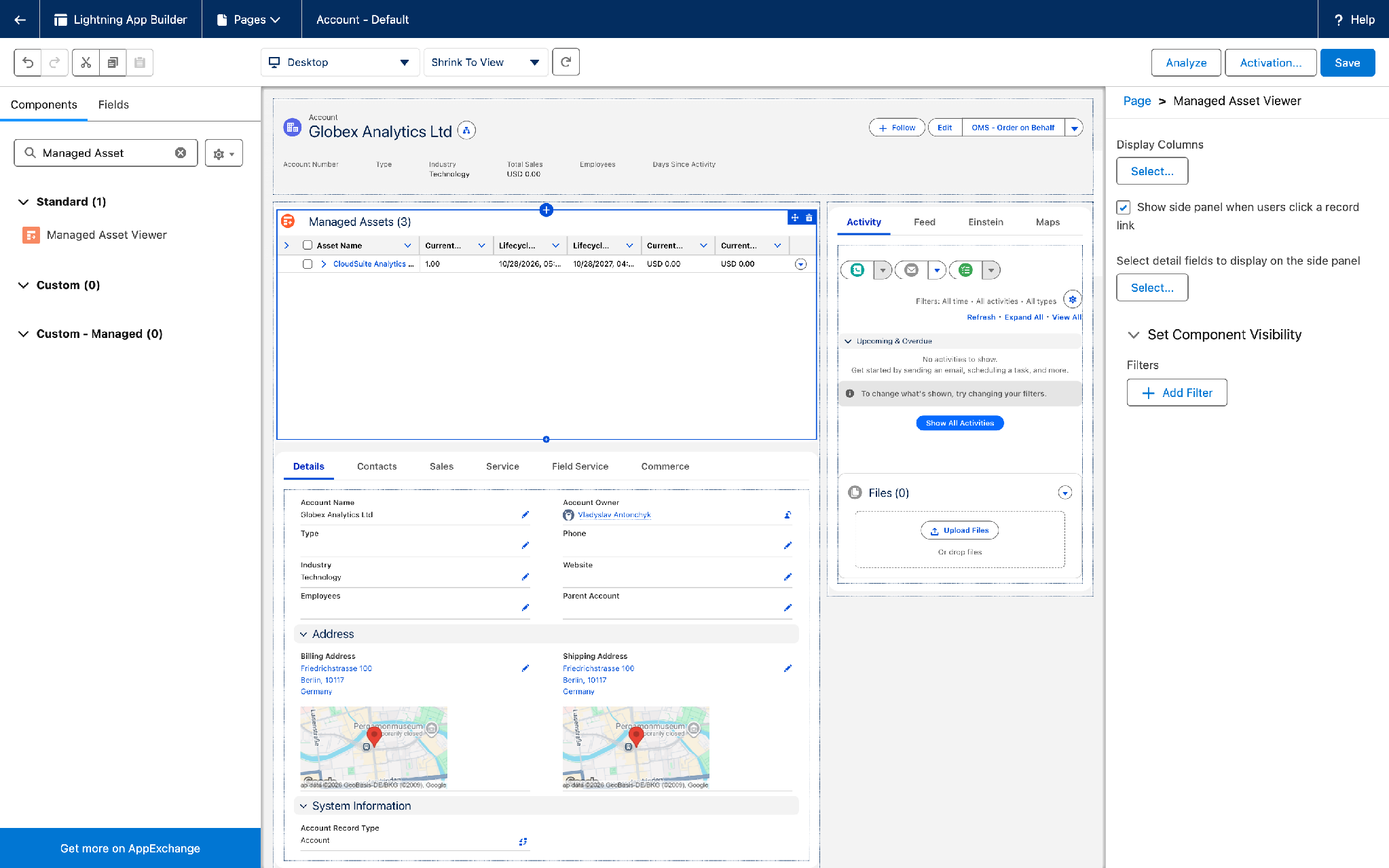
To show assets where sales and support look every day, we added the Managed Asset Viewer component to the account page, above the tabs, in Lightning App Builder.
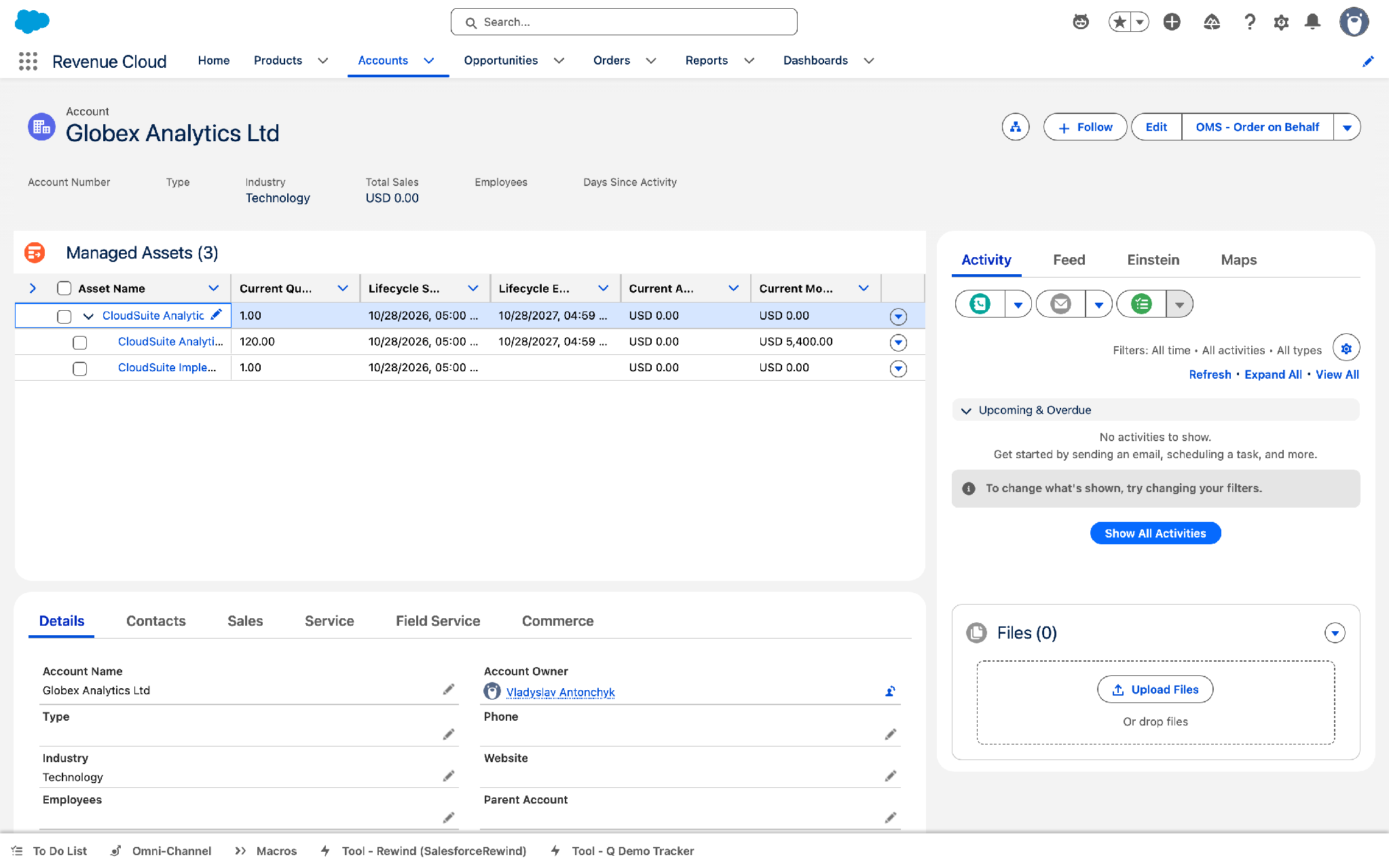
The Globex account now lists three assets: the bundle, Professional ×120 and Implementation. Each has a start and an end date, and Professional shows $5,400 of monthly recurring revenue, which is $64,800 divided by 12.
How we do it at Noltic: we put Managed Asset Viewer on the account page before the first demo. Sales and support then look at one list of what the customer owns, and every later change starts from there.
Step 11. Amend and renew
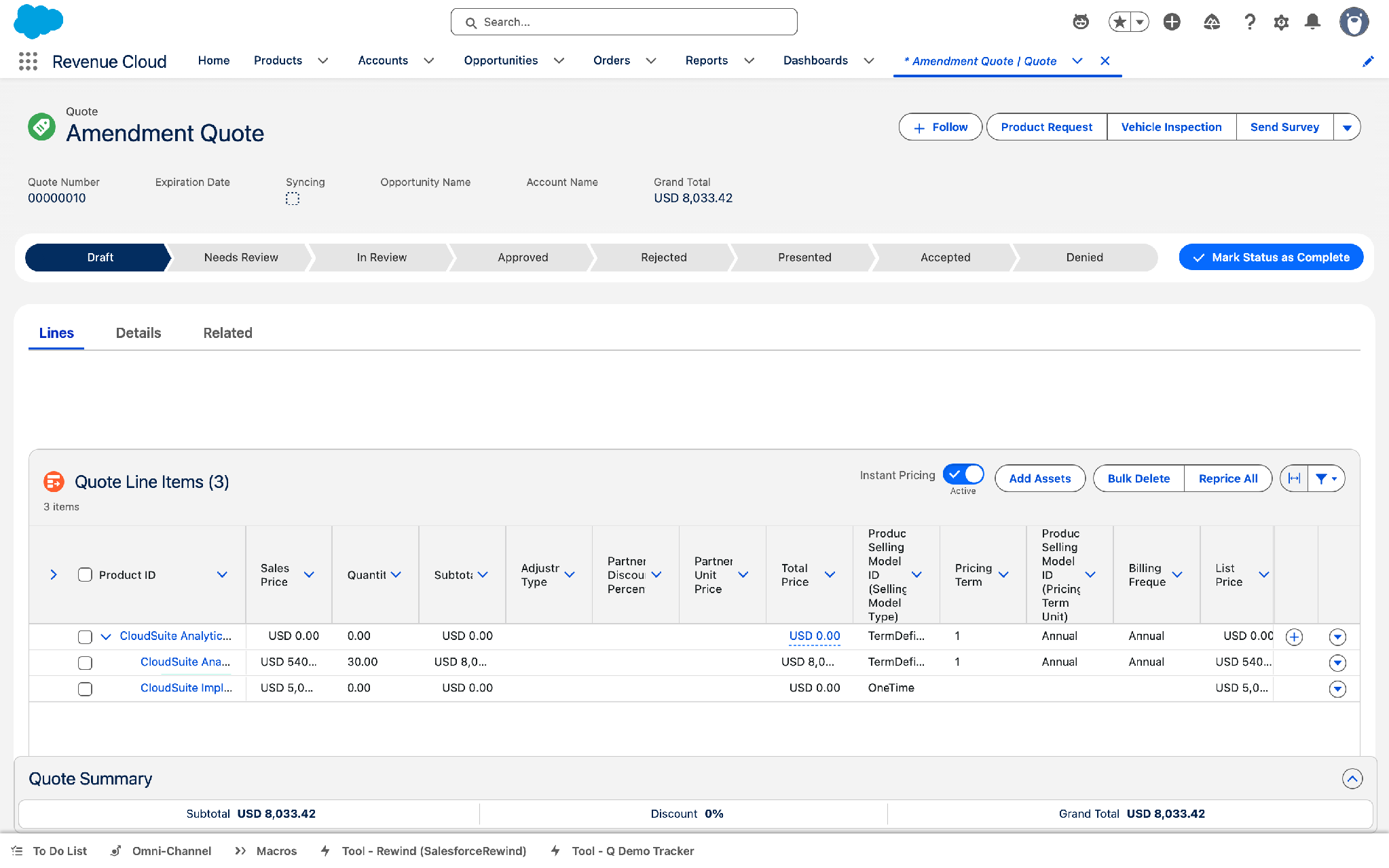
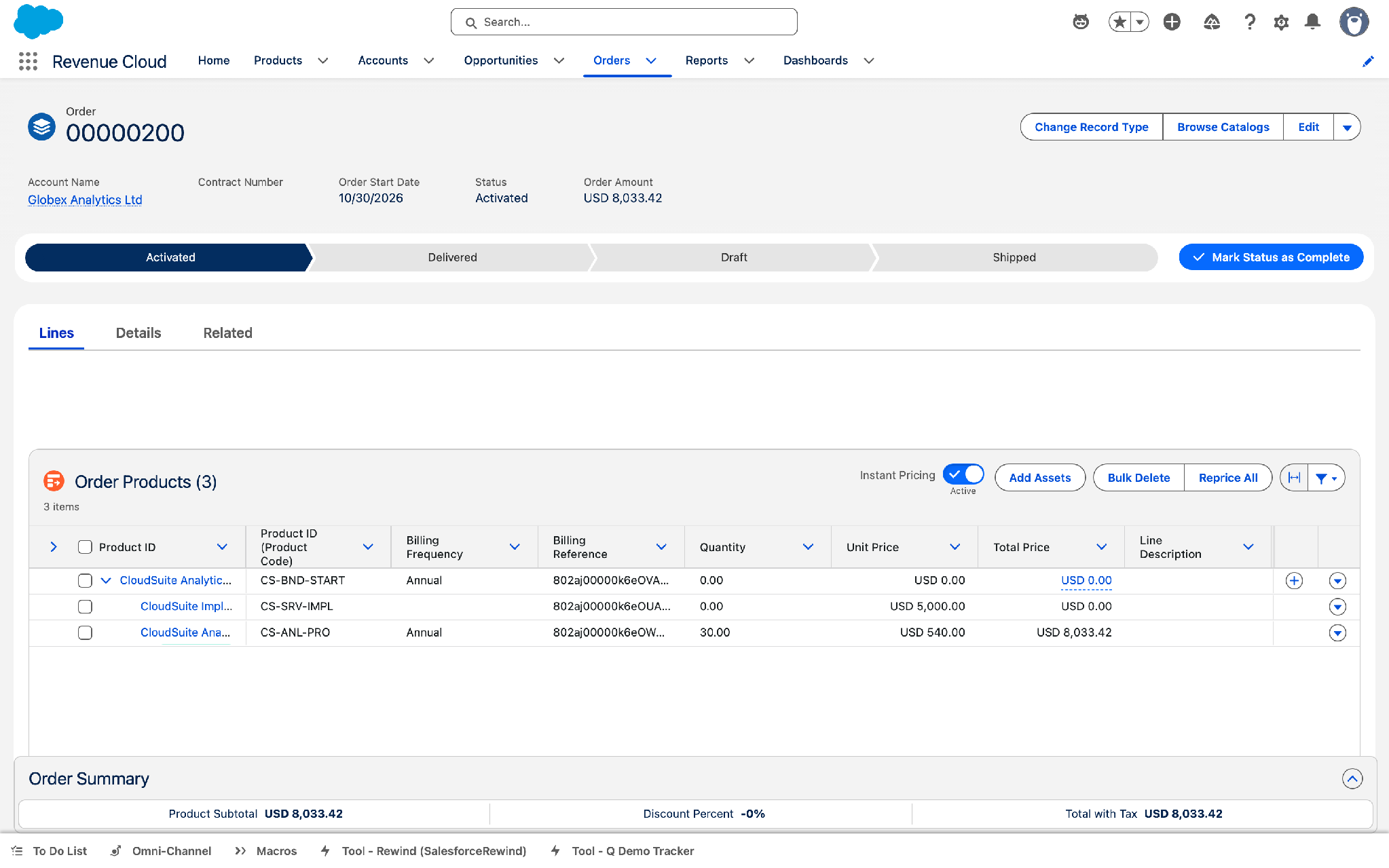
Halfway through the year Globex adds 30 users. Revenue Cloud charges only for the months left: 30 × $540 × 0.496 of a year = $8,033.42. At the end of the term it prepares the renewal for all 150 users: $81,000.
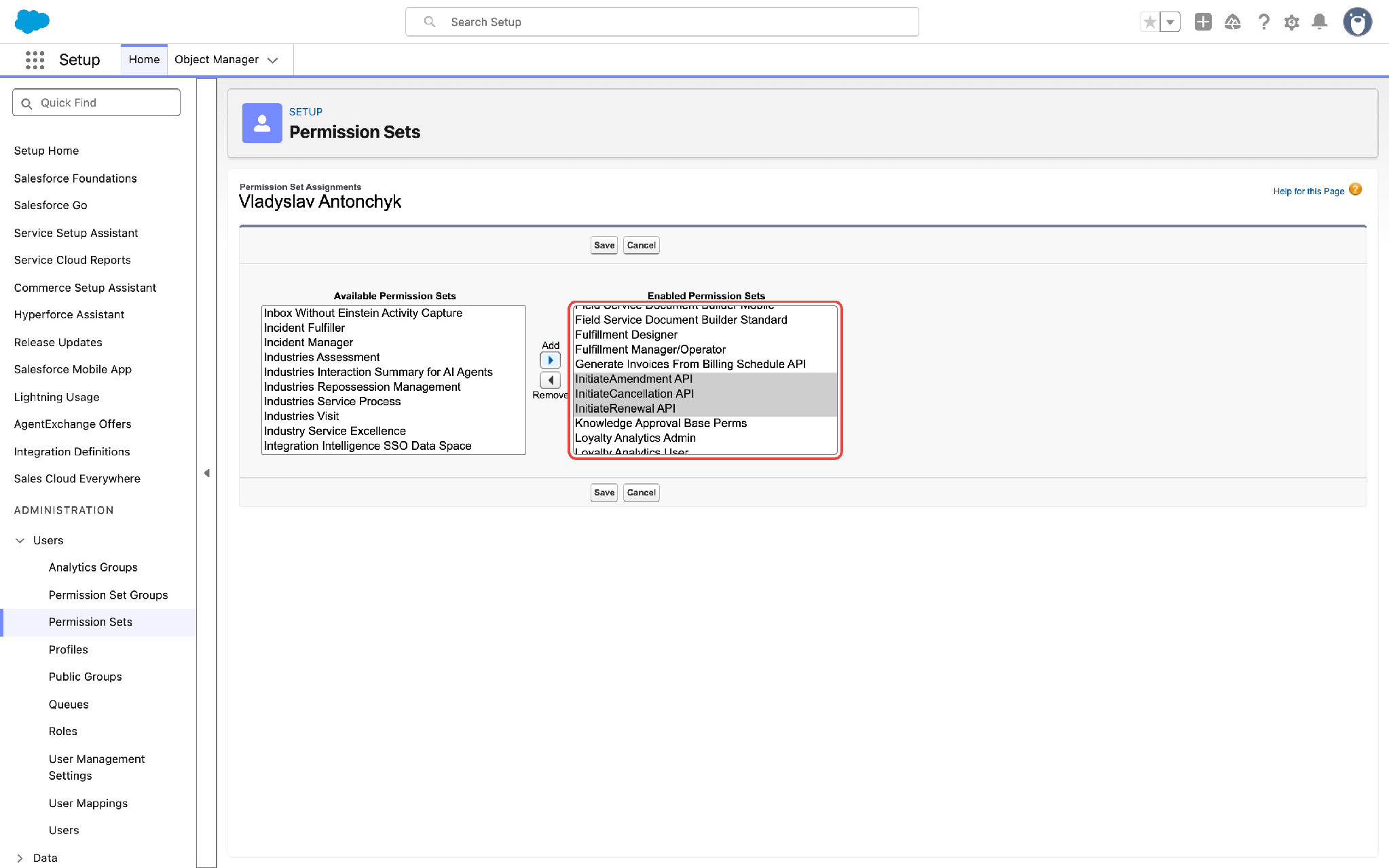
The Amend, Renew and Cancel buttons need permissions of their own: InitiateAmendment API, InitiateRenewal API and InitiateCancellation API. Without them Managed Asset Viewer shows no buttons at all.
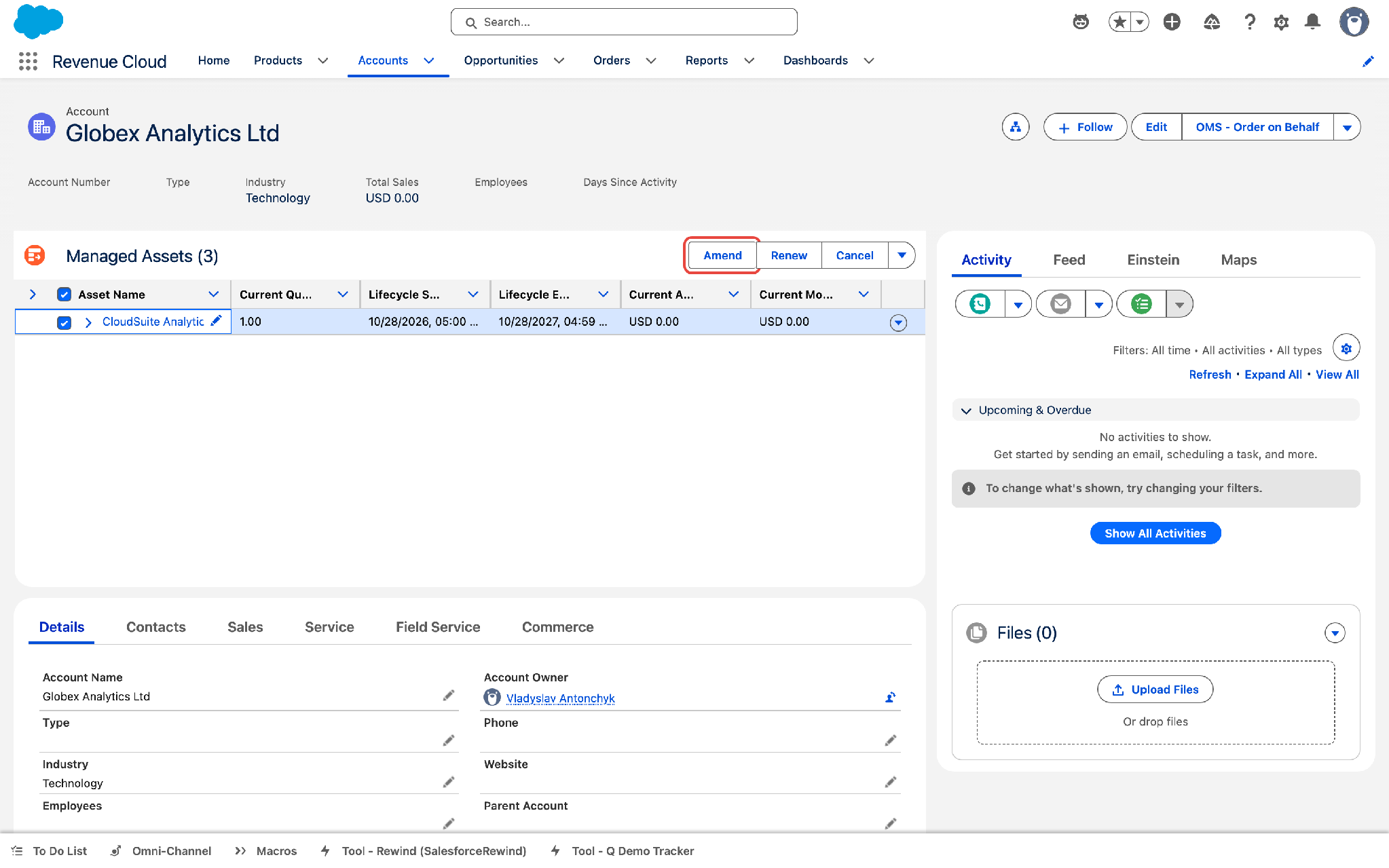
On the Globex account the rep ticks the bundle in Managed Assets and clicks Amend…
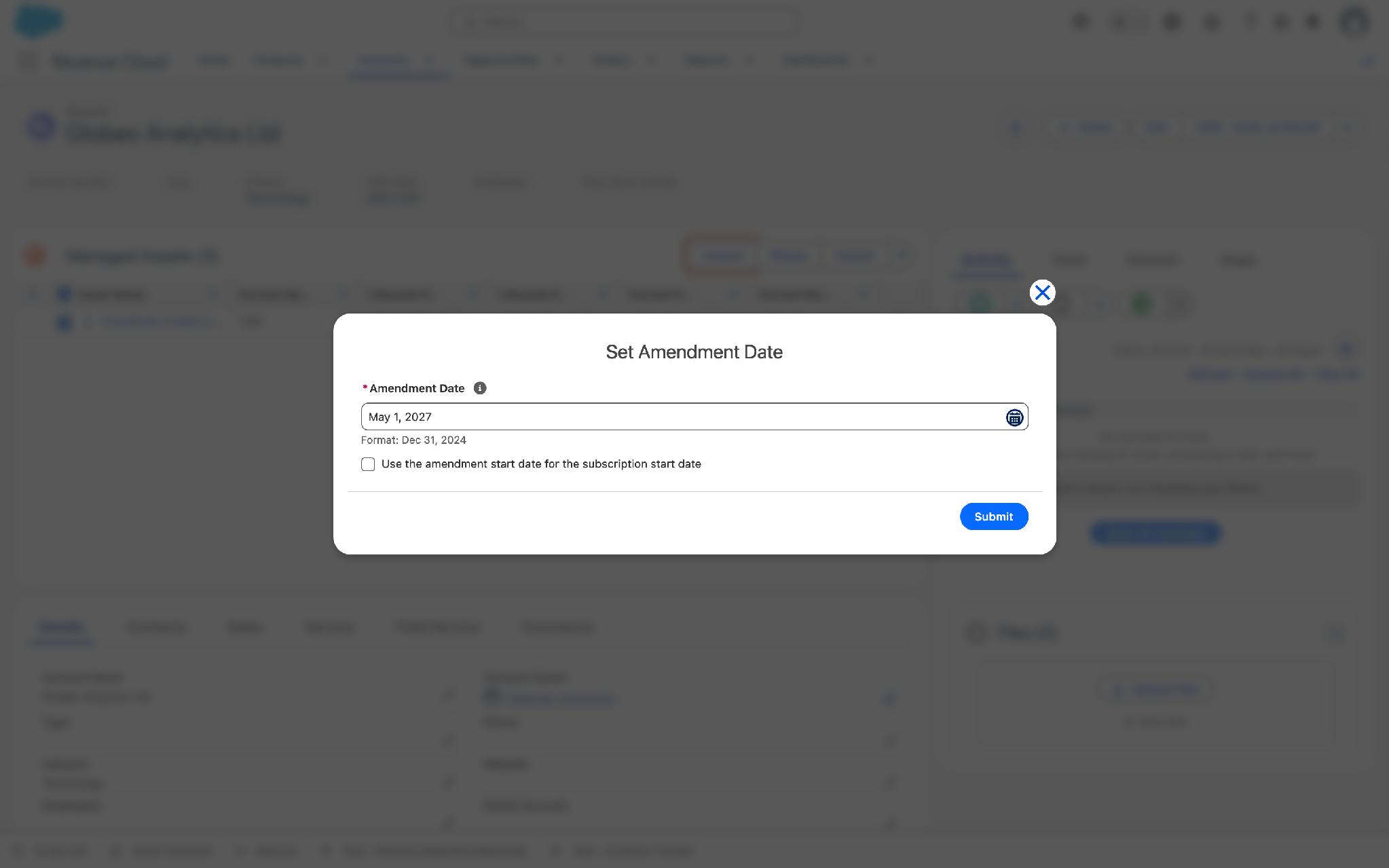
…and sets the date the change starts: May 1, 2027.
Revenue Cloud opens an amendment quote with the current assets at quantity 0, meaning no change. The rep types 30 on the Professional line, the number of users added rather than the new total. The quote prices them for the 0.496 of the year that is left: $8,033.42.
From here it is the same path as Step 8: accept the quote, create the order, activate it.
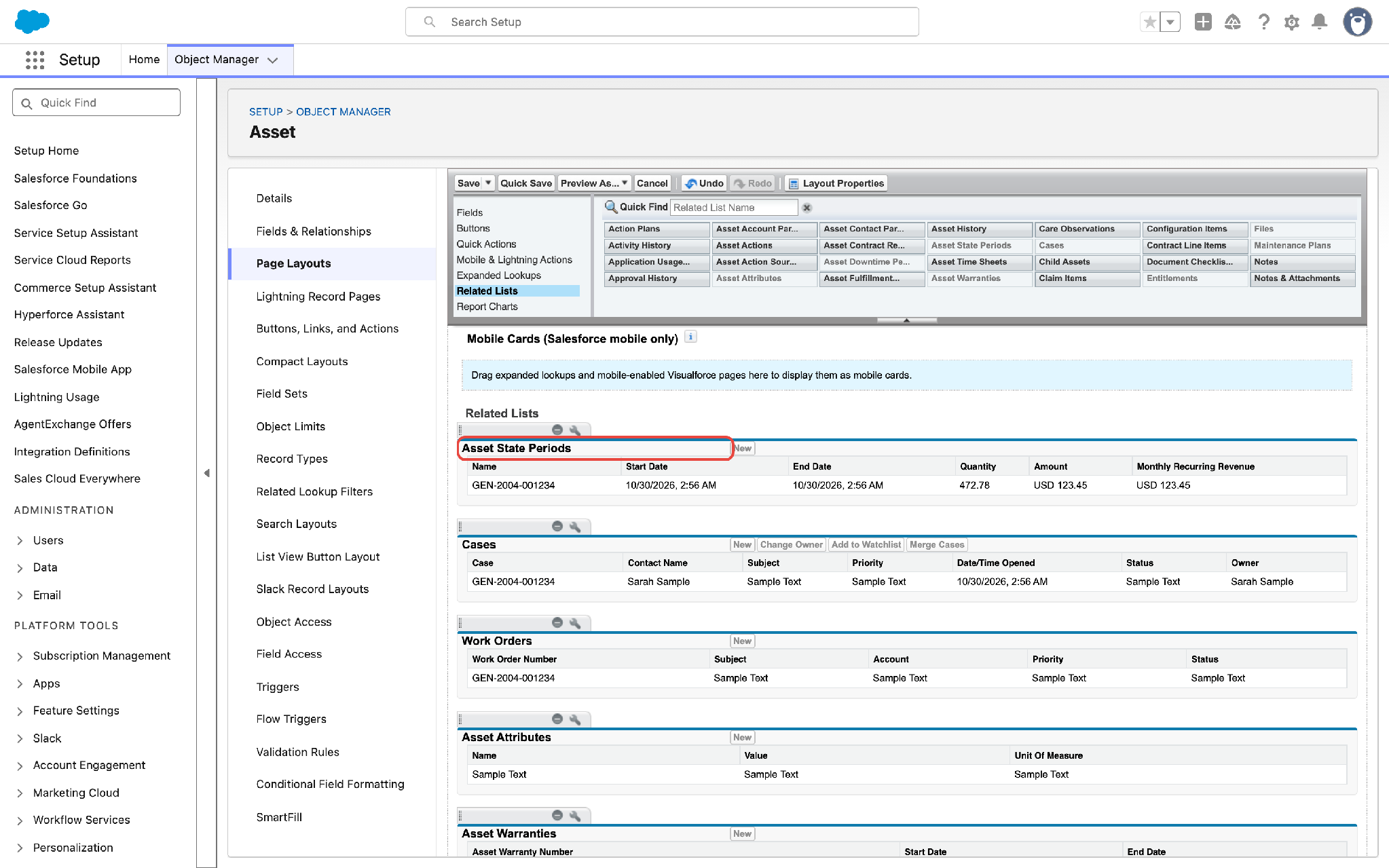
The asset keeps its history. To see it on the asset page, we added the Asset State Periods list to the asset layout once.
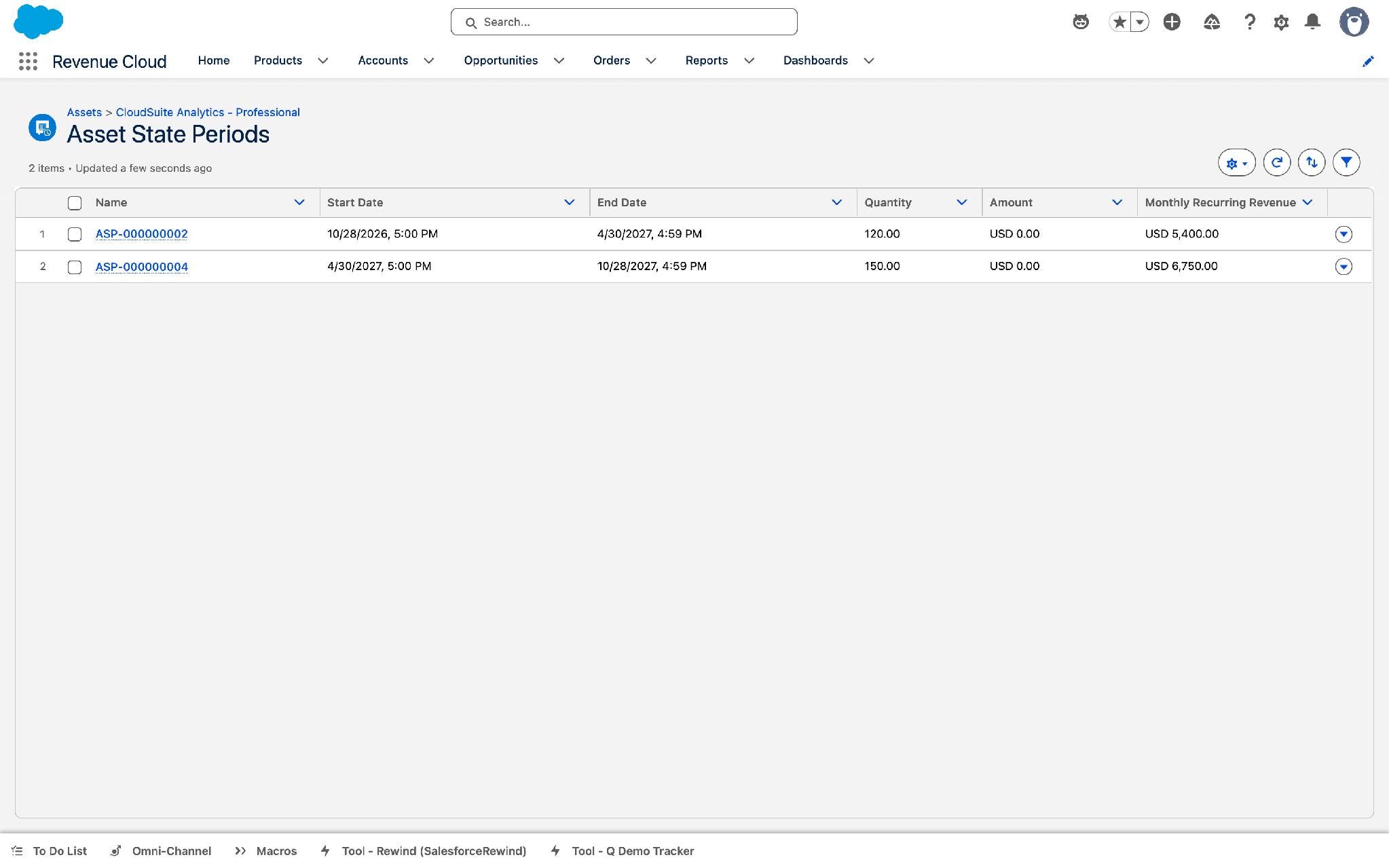
The Professional asset now shows both periods: 120 users at $5,400 a month until April 30, 2027, and 150 users at $6,750 a month from May 1.
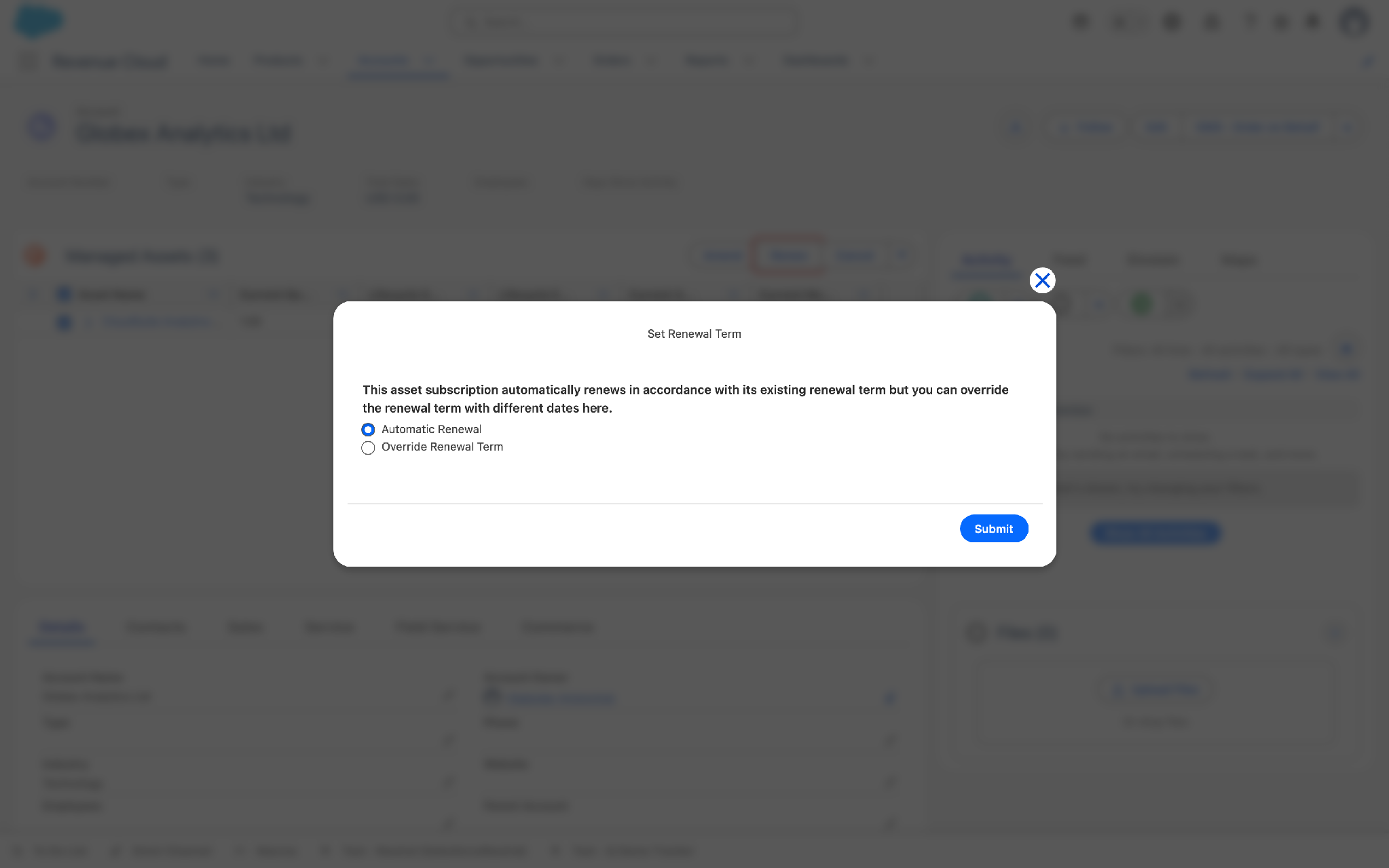
Renewal starts the same way. The rep ticks the bundle and clicks Renew, keeping Automatic Renewal, because the asset already knows its renewal term.
The renewal quote covers all 150 users for October 29, 2027 to October 28, 2028: $81,000. The one-time Implementation is not renewed.
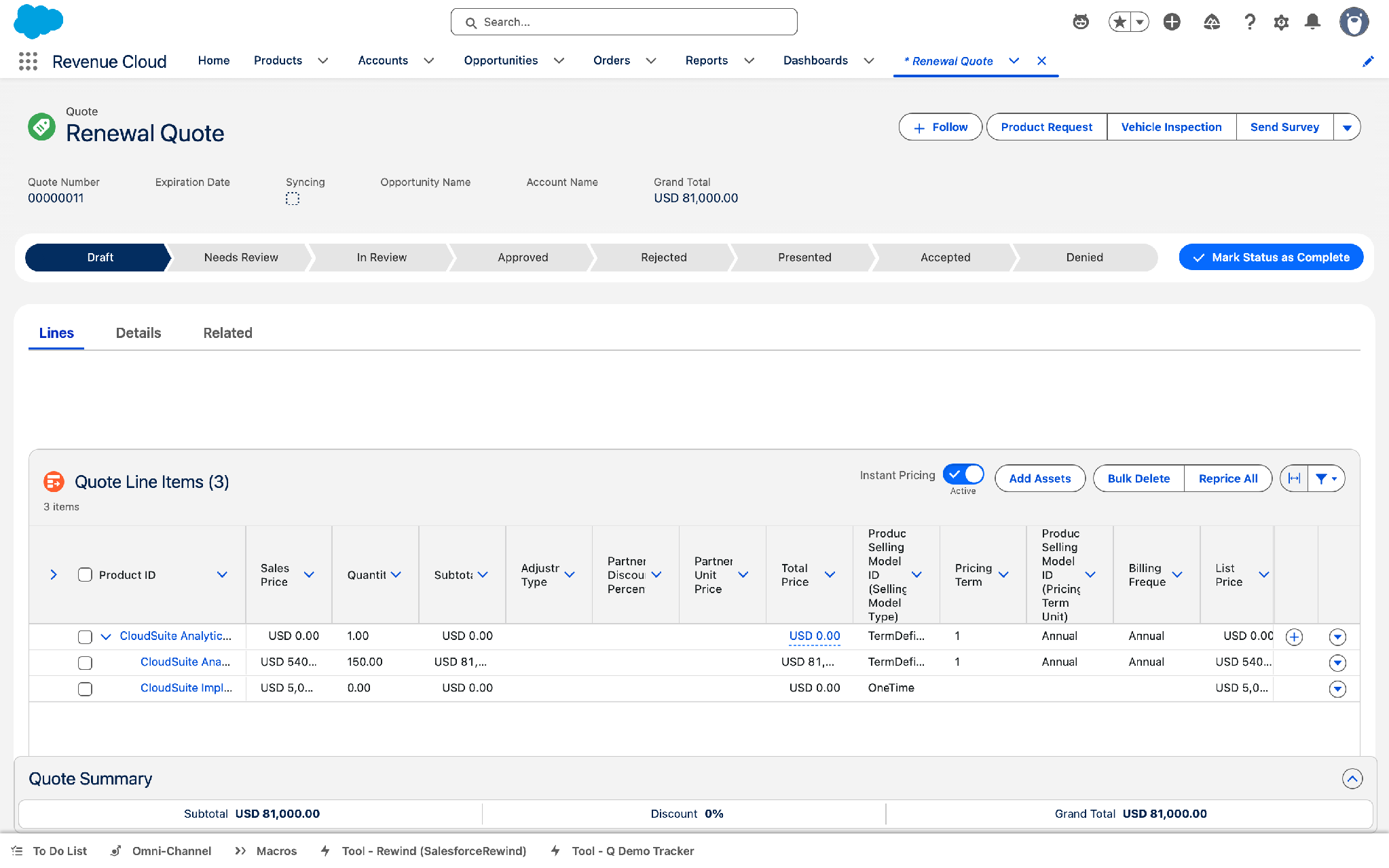
How we do it at Noltic: we test amendments with a date in the middle of the term, never on day one. That is where proration, monthly revenue and the asset history show whether the pricing procedure is right.
Step 12. Create a contract with negotiated prices
The last step keeps what Globex agreed to. On the original quote, the actions menu has New Contract.
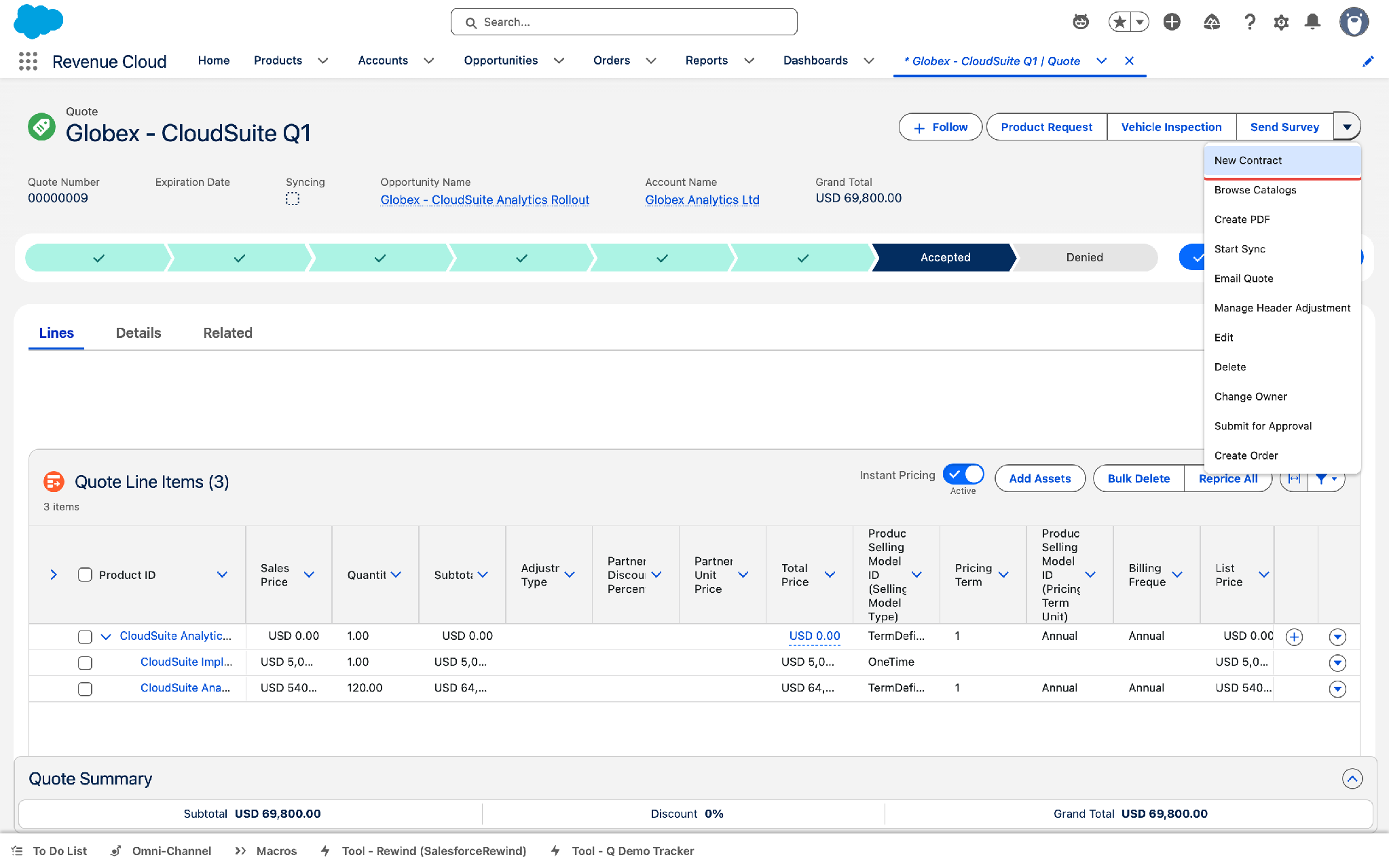
Revenue Cloud asks what the contract should keep. We chose Net Unit Price, so the net unit price of every line becomes a contract price. The other options keep the discounts instead, or no prices at all.
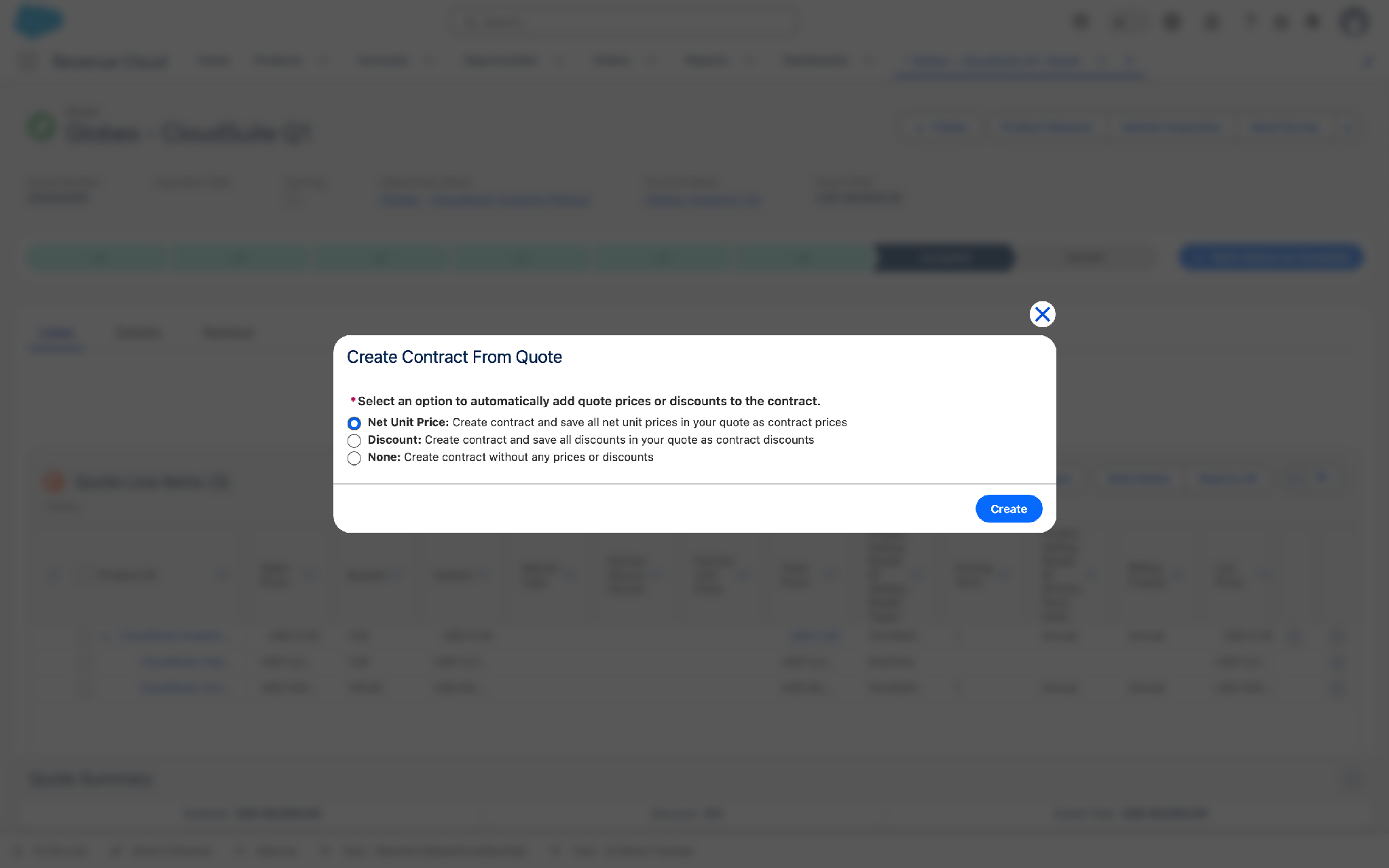
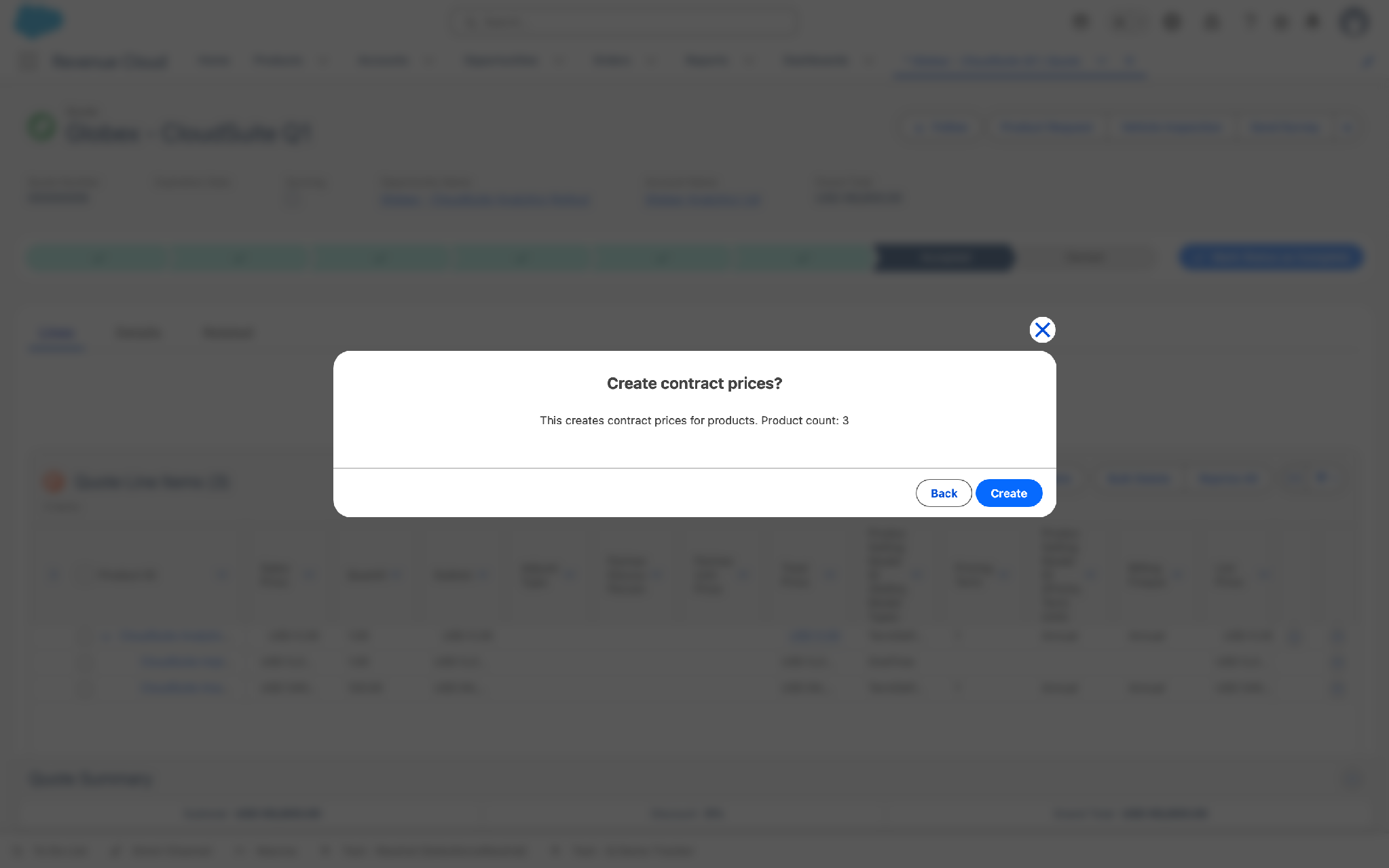
It then confirms the contract prices for the three products.
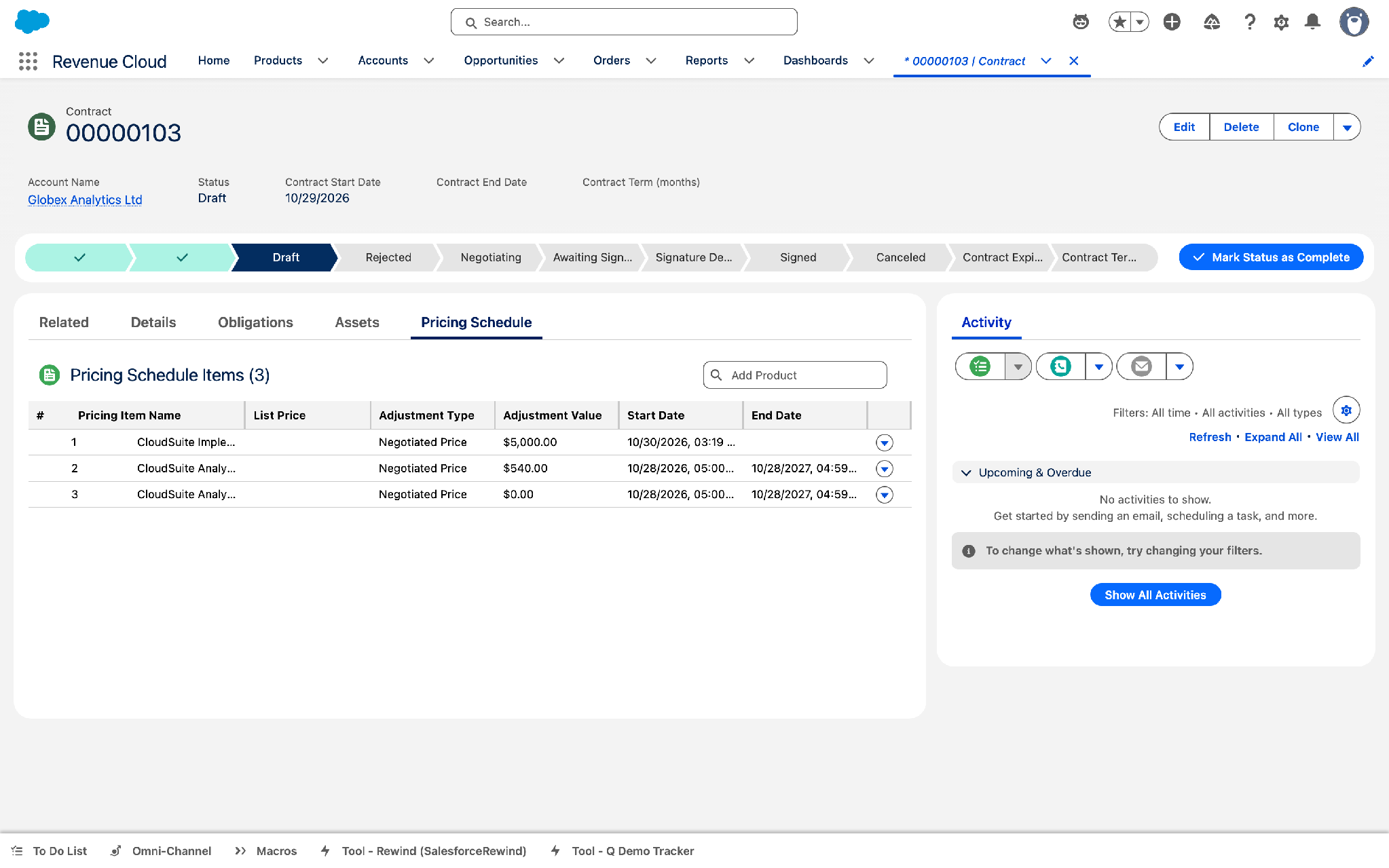
The new contract stores them on its Pricing Schedule tab, each with a negotiated price and the dates it applies: Professional at $540 until October 28, 2027, Implementation at $5,000 and the bundle at $0. Later quotes for Globex start from these prices, not from the price book.
How we do it at Noltic: we agree with the client which deals get a contract price before go-live. A contract price wins over the price book, so a wrong one quietly underprices every later quote for that customer.
From Quote to Renewal: Revenue Cloud Features in Action
On the Globex quote from Step 7, a rep goes from an empty quote to a priced offer of $69,800 without leaving the page. After the deal, the same platform turns it into an order, a fulfillment plan, assets, a mid-term amendment, a renewal and a contract. Below are the features behind that story.
Catalog with live prices
The rep opens Browse Catalogs right on the quote and gets a store-like view of the CloudSuite Sales Catalog. Products sit in four sections: Analytics Platform, Bundles, Add-ons and Professional Services. Each product shows its price before it is added (Figures 7.2 and 7.3).
The rep no longer needs to know product codes or check a price list in another tab. The catalog shows only what this company sells, grouped the way the sales team thinks about it.
How we do it at Noltic: we design the catalog sections together with the sales team, not from the product list. A rep should find the right product in two clicks.
Bundles
A bundle is a package sold as one offer. When the rep adds the CloudSuite Analytics Starter Bundle, Revenue Cloud adds its parts too: the Professional edition with 10 users by default and the one-time Implementation fee of $5,000. The bundle line itself costs $0, because the price comes from its parts (Figure 7.5).
The rep then changes only what differs for this customer. For Globex that is the number of users, 10 to 120, typed straight into the quote line (Figure 7.4). Implementation can't be forgotten, because it comes with the package.
How we do it at Noltic: we put mandatory services such as implementation into the bundle. This removes the most common quoting mistake: a license sold without the work needed to launch it.
Instant pricing
With Instant Pricing on, the quote recalculates as soon as the rep changes something. There is no separate "calculate" button and no waiting for a batch job. On the Globex quote the rep types 120 in the Professional quantity, and the line becomes 120 × $540 = $64,800 and the quote total $69,800 straight away (Figures 7.4 and 7.5).
How we do it at Noltic: we test Instant Pricing on the client's largest real quote, not on a three-line demo. A quote with hundreds of lines shows early whether the pricing procedure is fast enough for reps to keep it on.
Transparent prices
Click the net unit price on any quote line and Revenue Cloud opens Calculation Details: the steps that produced that price. For the Professional line it shows the step "Get base prices from price book" at $540 and the $540 net unit price (Figure 7.6). With more rules in the chain, each one appears here as its own step.
This works because Price Waterfall Persistence is on (Step 3). Revenue Cloud saves the calculation with the quote, so it can be opened later, not only at the moment of pricing.
How we do it at Noltic: we switch this on in every project. When a customer or finance asks "why this price?", the answer is one click away instead of a support ticket.
A standard pricing procedure, adjusted rather than rebuilt
Pricing rules live in a pricing procedure: a visual chain of steps, each taking the price from the step before (Figure 5.2). Salesforce provides a standard procedure of about 60 steps. It covers price book, derived and contract prices, attribute, bundle, volume and manual discounts, proration and subscription terms (Figure 5.3).
Each step reads its data from lookup tables, such as price book entries. Changing a price or a rule is a change in data or in the chain, not a code release.
How we do it at Noltic: we start from the standard procedure, point it to the client's context and change only the steps where the client's pricing really differs. Each change is tested on a real quote and, for subscriptions, on a mid-term amendment.
A data model you extend, not copy
Two features keep the setup tidy as the catalog grows. Product classifications hold the options every product shares: Support Level, Deployment Region, Storage (GB) and SSO Enabled are defined once on the CS SaaS Subscription classification, and every CloudSuite product based on it gets them automatically (Figure 2.2). Context definitions describe what data pricing and the catalog can see: the quote, its lines, the account. We extended Salesforce's templates instead of copying them (Figure 4.2), so a client field, for example a customer segment, can be added to pricing later.
How we do it at Noltic: extensions keep receiving Salesforce's updates each release. A copied template freezes on the day it was copied and has to be maintained by hand.
From quote to order and fulfillment
An accepted quote becomes an order with one click, with the same lines and the same $69,800 (Figures 8.7–8.9). The activated order then gets a fulfillment plan from Dynamic Revenue Orchestrator (Figure 9.14). The plan is built from rules: the product sold, the technical product behind it and the steps for that product, in order. When the team closes one task, the next one starts on its own (Figure 9.16).
How we do it at Noltic: we hang fulfillment on technical products, not on what sales sells. Sales can rename, bundle and reprice the catalog without touching the delivery plan.
Assets, amendments and renewals
Every activated order updates the customer's assets: what they own, how many and for which dates (Figure 10.4). Amend, renew and cancel all start from those assets.
Adding 30 users to Globex from May 1, 2027 costs $8,033.42, because Revenue Cloud charges only for the part of the year that is left (Figure 11.4). The asset keeps its history: 120 users until April 30, then 150 (Figure 11.7). The renewal quote for all 150 users is ready in one click: $81,000 for the next year (Figure 11.9).
How we do it at Noltic: we treat assets as the source of truth for renewals and recurring revenue. If the monthly revenue on the account matches what finance invoices, the setup is right.
Contract prices
A contract created from the quote stores the agreed prices as a pricing schedule with dates (Figure 12.4). The customer's later quotes start from the negotiated price, not from the price book.
How we do it at Noltic: every contract price gets an end date that matches the term. An old discount then does not carry into the next term unless someone decides it should.
What we learned on the demo
A few things worked differently from what we expected, and each is now a check we run on every project.
The catalog needs its own pricing procedure. At first we used the quote procedure for the catalog too, and Browse Catalogs failed with "Something went wrong when calculating product prices". The quote and the catalog pass different data to pricing, and a small separate procedure on the catalog context fixed it (Step 6).
A hand-built procedure can price quotes and still break orders. Our first procedure had three steps and priced the quote correctly, but the order refused to activate: "Missing required field: TotalLineAmount", plus a missing end date and pricing term on subscription lines. The standard procedure fills these in its proration steps (Step 5).
Activating an order does not send it to fulfillment. No plan appeared until a small flow called the standard Submit Order action on activation (Step 9).
Key buttons depend on permission sets. Create Order (Step 8) and Amend, Renew and Cancel (Step 11) stay hidden until the user has the matching permission sets; the page layout alone is not enough.
How we do it at Noltic: we test every pricing rule on a real quote, not only in the procedure's simulator. Problems with missing data show up only when real quote data flows through the chain.
How Noltic Helped Businesses Make Sales Work Better with Revenue Cloud
As Revenue Cloud is one of our focus areas, we have many success stories related to it. So we want to share the results of a few collaborations. Three businesses came with different requests and left with brilliant outcomes.
For Waste Vision, every public tender took weeks to check spreadsheets and update figures. Because of long contracts, they couldn’t predict revenue. And the team was trying hard to trust the numbers.
We configured product catalogs, pricing, and revenue structures to fit their tender process. The result? Tender reviews became 4x faster, with 60% fewer manual updates.
At Zabbix, five regional offices worked with separate CRM systems. Quotes, contracts, and invoices followed different processes. That’s why it was difficult to manage global sales.
We brought them together in one Salesforce org, with multi-currency CPQ, automated documents, and renewal logic. Now, five offices work from one system.
For Cheshire Pointing, sales started in the field. Workers measured walls, wrote down the numbers, and waited for quotes and invoices that were created manually.
We built a custom quote tool that calculates prices from measurements, generates quotes and invoices, and lets workers prepare quotes on a tablet. The result: a shorter sales cycle.
Different verticals. Different pain points. But the goal was the same: make quoting and sales easier to manage and let teams spend less time on admin and more time on business development.
Why Choose Noltic for Salesforce Revenue Cloud?
With 9 years in the market, Noltic has delivered 160 projects for clients in high tech, financial services, retail, manufacturing, and other verticals. We support businesses in the USA and Europe, where priorities may differ but challenges are similar.
Why is Noltic among the top Salesforce Revenue Cloud implementation partners?
We can take on the whole process, from discovery, data migration, and integrations to implementation and ongoing support. So, it's up to you whether to hire our team for full-cycle development or involve us at a certain stage.
Our experience and skilled team of 122 specialists with 322 Salesforce certifications can be at your disposal. Besides consulting, we specialize in product development: our five in-house products are on AppExchange. We have expertise in complex, multi-cloud implementations. This means you can improve not only revenue operations or marketing but also other processes.
Already using Salesforce CPQ? We can help you move to Revenue Cloud Advanced step by step. Opt for our Salesforce implementation services to migrate with fewer flaws and keep your system running with minimal performance drops.
FAQs
Is Salesforce Revenue Cloud the same as Salesforce CPQ?
No, they’re different. Salesforce CPQ is a separate package used to configure, price, and quote products. Revenue Cloud goes further and has more advanced features. It manages the entire process, from the first quote to the final payment.
Is Revenue Cloud better than CPQ?
For new projects, Revenue Cloud Salesforce is a better option than CPQ. Revenue Cloud presides over the majority of the revenue process. It runs natively on Salesforce and gets new features, including AI agents. CPQ still works but no longer receives new functionality..
Is Salesforce CPQ being discontinued?
Not yet. New customers can’t access it. But existing clients can renew licenses and get support. Salesforce hasn't announced an end-of-life date or obligatory migration yet.
When did Revenue Cloud become Agentforce Revenue Management?
In 2020, Revenue Cloud debuted. In October 2025, it was rebranded as Agentforce Revenue Management. In September 2026, it returned to Revenue Cloud. It offers two editions: Revenue Cloud Growth and Revenue Cloud Advanced.
What does Salesforce Revenue Cloud cost?
You should pay $150 per user/month for Revenue Cloud Growth. But if you need Revenue Cloud Advanced, be ready to spend $200 per user/month. Both plans require an annual Sales Cloud subscription. Surely, if you want to develop Revenue Cloud, customize it, or integrate with other systems, you’ll need an extra budget.
How does Revenue Cloud integrate with ERP or accounting systems?
Through APIs or MuleSoft, you can connect Revenue Cloud Salesforce with SAP, NetSuite, and Oracle. All this is done to sync contracts, billing, and payment data. So you deal with more consistent financial records and less admin work.
Can you customize Revenue Cloud without heavy development?
You can set up pricing, discounts, approvals, catalogs, and billing schedules without coding. But if you expect more functions, focus on Salesforce Flow, Apex, and Lightning components.
Does Revenue Cloud include analytics and reporting?
Yes, it has dashboards for revenue, pricing, fulfillment, and billing. Revenue Cloud Advanced also includes analytics and predictive capabilities.



Introducing Documate: an automated document generation app for Salesforce
together