How to build an Agentforce knowledge agent with Data Cloud and Google Drive

Company knowledge often sits across process guides, policies, product manuals, and shared folders. Finding one answer may require opening several files, searching through long documents, or asking a colleague who knows where the information is stored.
An Agentforce agent gives employees a faster way to use that knowledge. With Agentforce Data Cloud, the agent can search approved documents, find passages related to a question, and provide an answer with links to the original sources.
This guide explains how to connect Agentforce and Data Cloud for that purpose. Google Drive holds the documents, Data Cloud imports and indexes their content, and Agentforce turns the retrieved information into clear answers.
You will set up the Salesforce data integration, create a search index and retriever, build a grounded prompt template, and configure the agent in Agentforce Studio. The final agent will answer questions based on company documents, cite its sources, and receive updated knowledge when files change.
What are Agentforce and Data Cloud?
Salesforce Agentforce is a platform for building AI agents that can answer questions, use company data, and carry out approved actions. An Agentforce agent can support employees or customers while following defined instructions and access rules. Teams use Agentforce Studio to build, test, deploy, and monitor these agents.
Salesforce Data Cloud, now called Data 360, connects and prepares structured and unstructured information for use across Salesforce. In this guide, the Salesforce data integration imports documents from Google Drive, divides them into searchable passages, creates an index, and retrieves relevant content when an employee asks a question.
Why connect Agentforce and Data Cloud?
Employees often need answers hidden in long process documents, internal websites, product manuals, or shared folders. Finding one detail may require opening several pages, searching through a large document, or asking a colleague who already knows where the information is stored.
Connecting Agentforce and Data Cloud gives employees a simpler way to use that knowledge. Data Cloud imports and indexes approved files from a shared drive, while the Agentforce agent searches the indexed content and answers questions related to those documents. Employees can ask a direct question instead of reading an entire manual or searching an internal site.
A Salesforce Agentforce Data Cloud setup can also return the file name and source URL with each answer. Users can open the original document, check the context, and confirm that the response is based on an approved source rather than general model knowledge.
The connection between Data Cloud and Agentforce also helps keep answers current. Teams can add new files or update existing documents in the shared drive. Data Cloud imports and indexes those changes according to the configured refresh schedule, making the updated knowledge available to the agent without rebuilding it each time.
Common business use cases of Agentforce and Data Cloud
Companies can use Agentforce and Data Cloud to make approved knowledge easier to access across departments.
Employee support
An employee-facing agent can answer common questions about leave policies, expenses, payroll dates, IT access, equipment requests, and workplace procedures. Employees receive a direct answer with a link to the relevant policy, while HR, finance, and IT teams spend less time responding to repeated requests.
Customer service
Service representatives can ask the agent for troubleshooting steps, return policies, warranty conditions, escalation rules, or case-handling instructions. The agent retrieves information from approved service documents, helping representatives give more consistent answers without searching through several folders. Learn more about related capabilities in our guide to Salesforce Service Cloud features.
Sales
Sales teams can use the agent to find product details, pricing rules, qualification criteria, proposal guidance, and answers to common buyer questions. New information becomes available after the source files are updated and processed by Data Cloud, reducing reliance on old presentations or saved copies.
Operations
Operations teams can ask how to complete a process, which approval is required, who owns the next step, or when an issue should be escalated. The agent can turn long operating manuals into clear instructions while linking employees to the full procedure when more context is needed.
Employee onboarding
New hires can use the agent to learn how internal tools, policies, and processes work. Instead of asking a manager where each document is stored, they can request role-specific guidance and open the cited source when they need further details. The agent should support formal onboarding rather than replace training, manager guidance, or required policy reviews.
Partner knowledge
Partners can receive answers based on approved program rules, product documents, support instructions, and sales materials. Access controls help ensure that each user sees only the information available to their role. For companies managing partners through Salesforce portals, our Salesforce Experience Cloud guide explains how portal access, content, and self-service can work together.
Does Agentforce require Data Cloud?
No, Agentforce does not require Data Cloud for every use case. An agent can work with Salesforce records, flows, Apex, APIs, prompt templates, and other approved actions without Data Cloud. The right setup depends on what the agent needs to know and do. Our Agentforce implementation guide explains the main planning and technical choices.
Data Cloud becomes useful when an agent needs to search connected company information and ground its answers in specific sources. In the setup covered here, Data Cloud:
- Imports unstructured documents from Google Drive
- Divides and indexes their content for search
- Retrieves passages related to the user’s question
- Passes file names and source URLs to the prompt
- Refreshes indexed knowledge when source documents change.
Agentforce then uses the retrieved content to prepare a clear answer.
Before you begin
Company knowledge often sits in long process guides, product manuals, internal websites, and shared folders. Employees may know that an answer exists but still spend time searching for it. The setup in this guide connects a Google Shared Drive to Data Cloud and uses that content to ground an Agentforce employee agent.
Naming note: Salesforce now uses the name Data 360 for the product previously called Data Cloud. The screenshots and many setup labels in this guide still use Data Cloud, so both names appear where needed.
What the architecture does
- Google Drive stores approved source documents.
- The Google Drive Unstructured connector imports those documents into Data Cloud.
- A search index divides and prepares the content for semantic search.
- A retriever returns the passages most relevant to the employee’s question.
- Prompt Builder combines the question with retrieved knowledge and returns structured JSON.
- Agentforce formats the answer and shows source links when they are available.
Requirements
- A Salesforce org with Data Cloud and Agentforce features available.
- Data Cloud Architect or equivalent access for connections, objects, streams, indexes, and retrievers.
- Einstein enabled and the Prompt Template Manager permission set.
- Access to Agentforce Studio and permission to create or edit an agent.
- A Google Workspace Shared Drive and a Google Cloud project.
- Google Workspace admin help if your organization limits service accounts or Shared Drive membership.
- One or more approved test documents that do not contain secrets or data the test users should not see.
Release check: Connector availability, permissions, labels, and limits can change between Salesforce releases. Confirm the options shown in your org before using the guide in production.
Prepare the knowledge source
Start with the documents, not the agent. Retrieval quality depends on the way the source material is written, split, named, and maintained.
- Use a Shared Drive rather than a personal My Drive folder.
- Keep one focused topic or common question per file where practical.
- Prefer short files when a large manual can be divided without losing meaning.
- Give files clear names that employees will understand in a source list.
- Remove duplicate, outdated, or conflicting instructions before ingestion.
- Assign an owner and review date to every source document.
- Check that each intended user is allowed to see the information the agent may return.
Step 1. Create the Google service account
Data Cloud uses a Google service account to read the files available to the connector. Create the account in the same Google Cloud project where you will enable the Google Drive API.
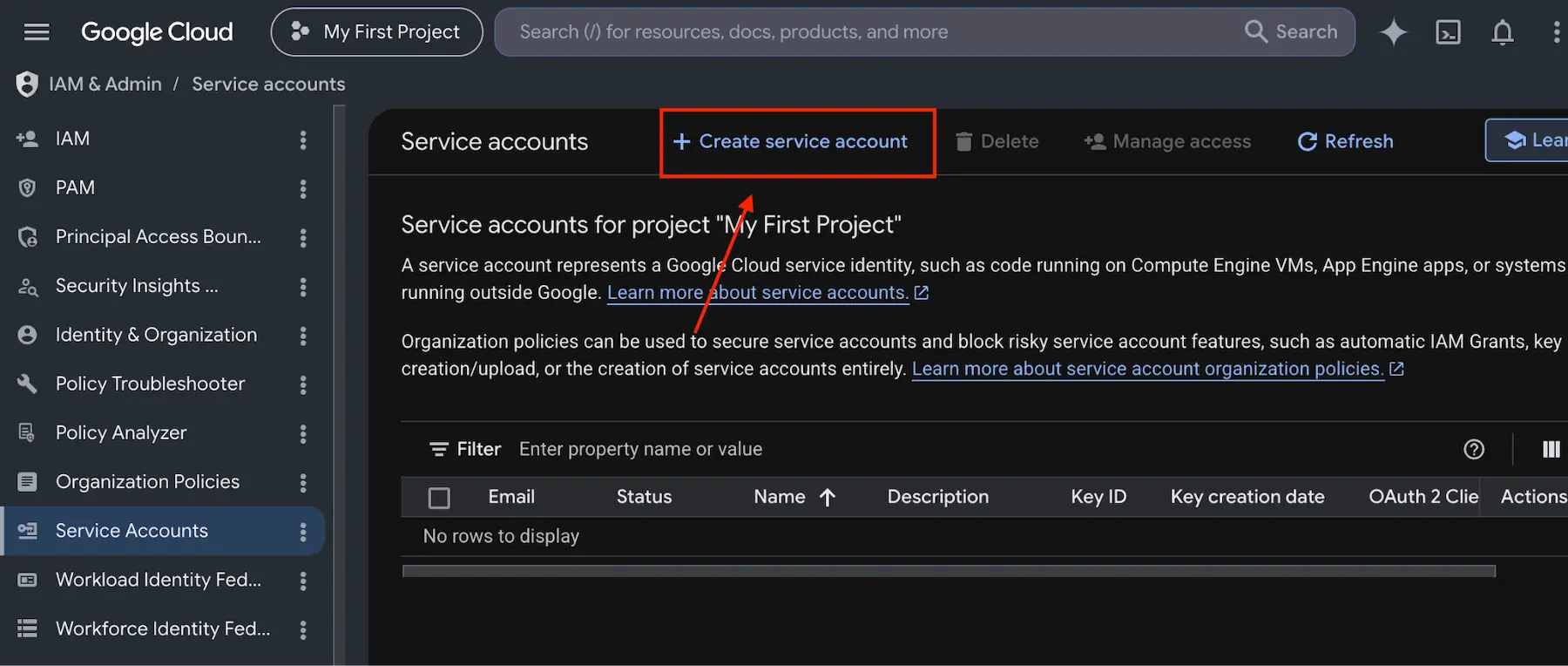
1.1 Open the Service Accounts page
- Open Google Cloud Console.
- Select the correct Google Cloud project.
- Go to IAM & Admin, then Service Accounts.
- Select Create service account.
1.2 Name the account
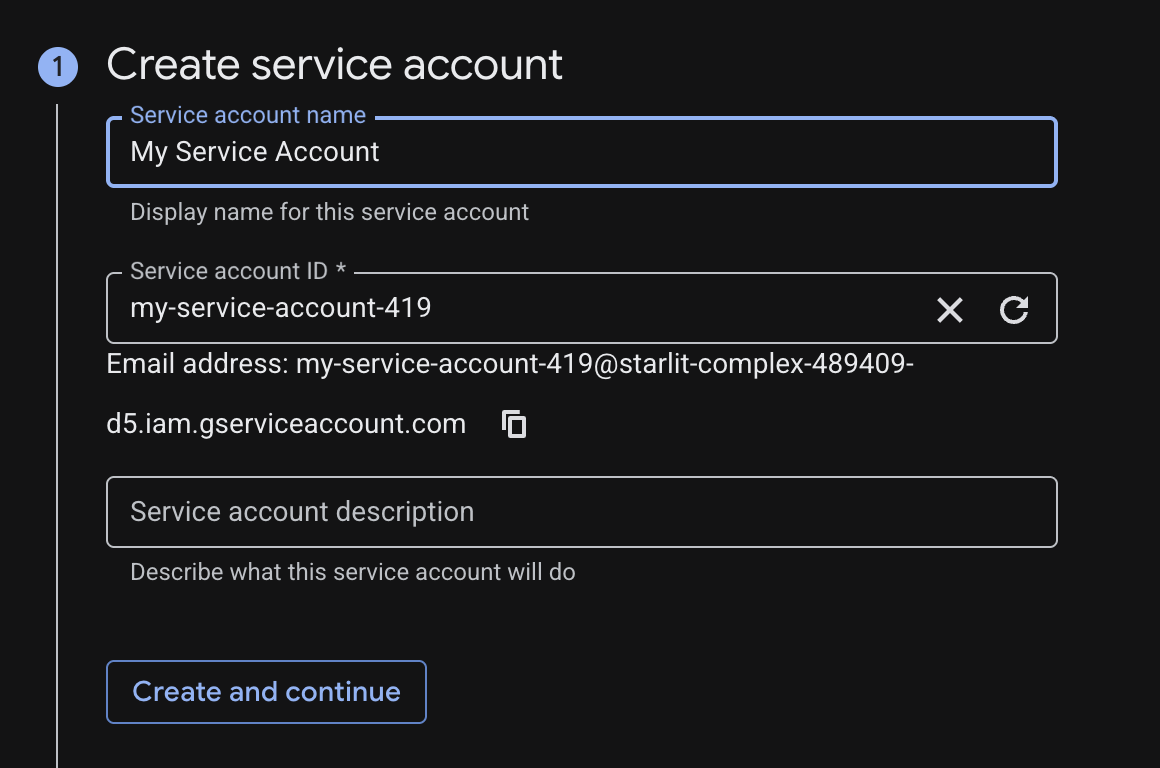
Use a name that states the account’s purpose, such as data-cloud-google-drive. Add a short description so another administrator can identify the integration later.
1.3 Assign the token creator role
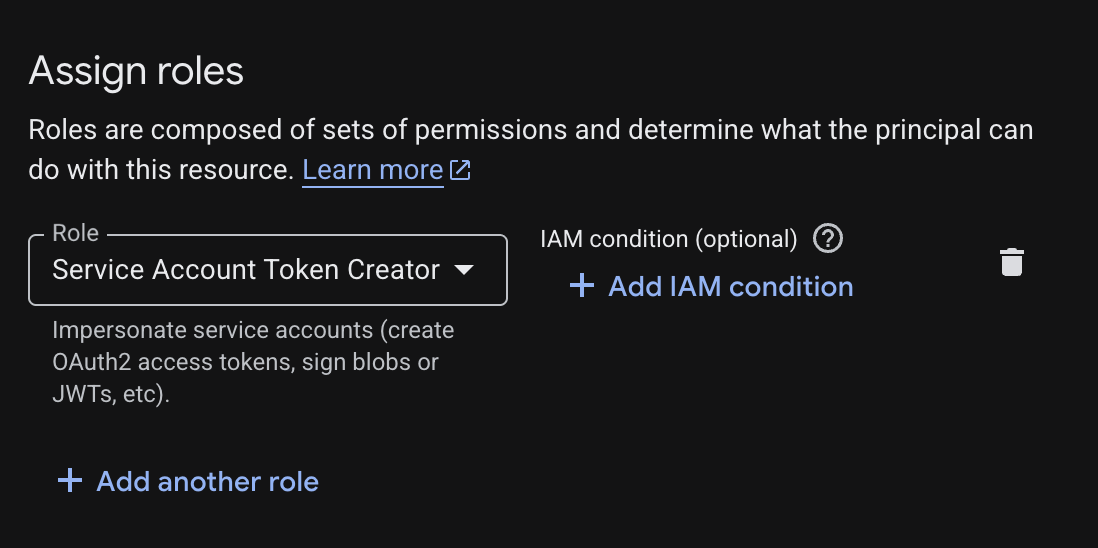
Assign the Service Account Token Creator role as shown in the author’s working setup and the current Salesforce preparation instructions. Follow your organization’s access review process before saving the role assignment.
1.4 Create a JSON key
- Open the new service account.
- Go to the Keys tab.
- Select Add key, then Create new key.
- Choose JSON and download the file.
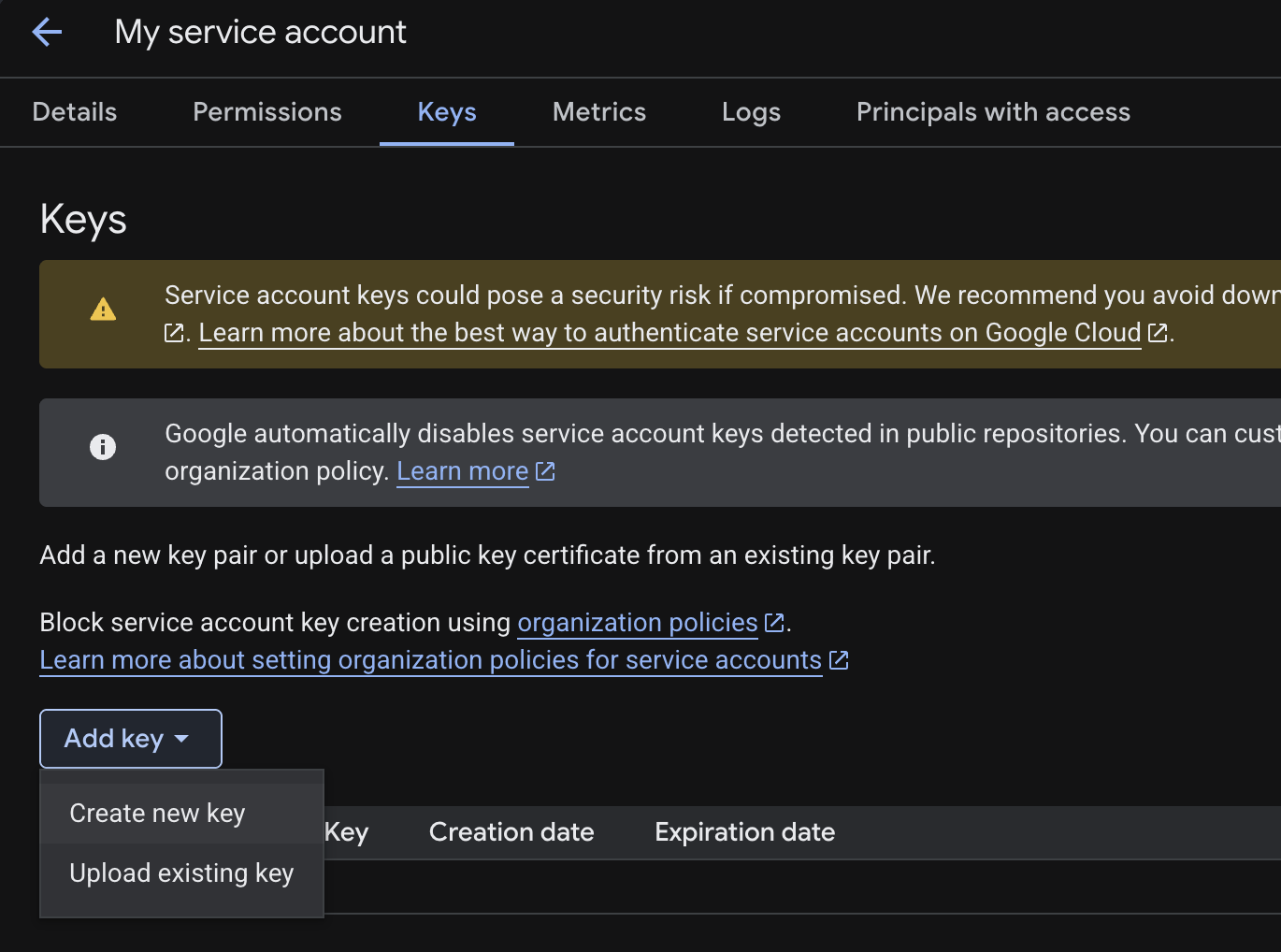
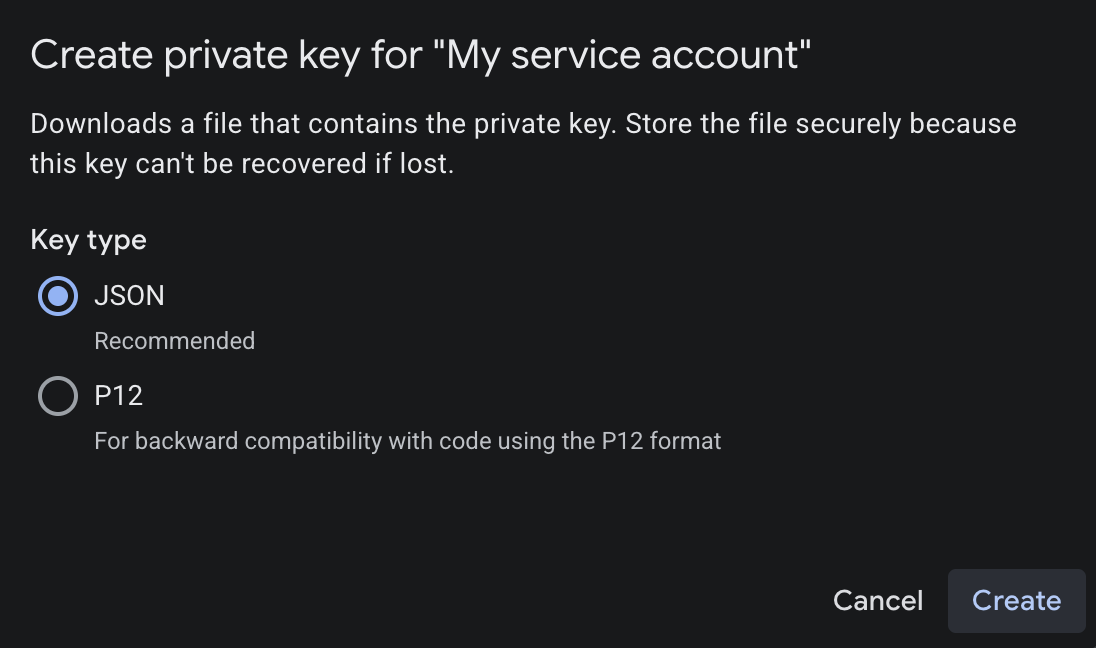
Security: Treat the JSON file as a credential. Do not email it, add it to source control, place it in the Shared Drive, or include its private key in screenshots. Store it only for the connection setup and follow your key rotation policy.
Learn more: Prepare your Google Drive unstructured data connection.
Step 2. Create and prepare the Google Shared Drive
2.1 Create the Shared Drive
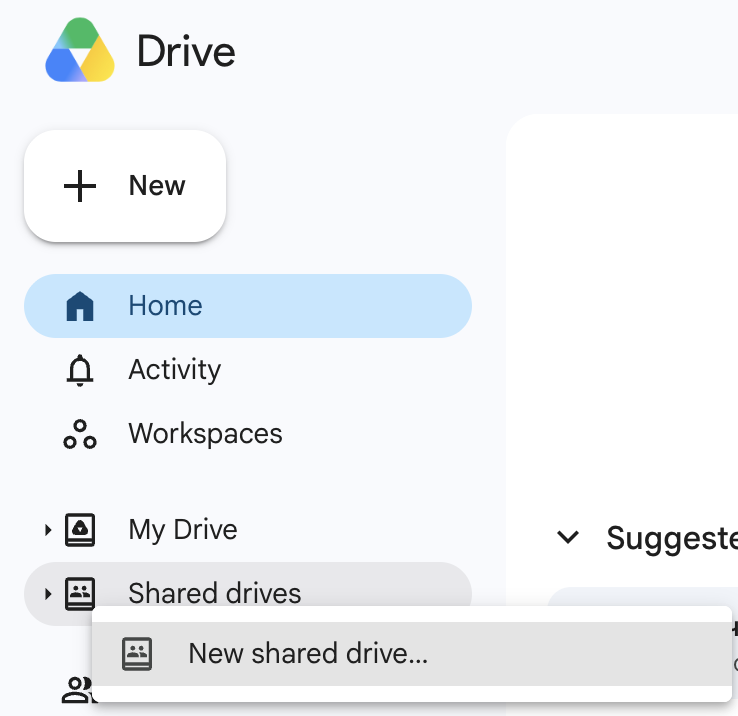
- Open Google Drive with an account that can create Shared Drives.
- Open Shared drives in the left navigation.
- Select New and enter a clear name for the knowledge source.
.webp)
2.2 Give the service account access
Add the service account email from the JSON file as a member of the Shared Drive. Use the lowest access level that still lets the connector read the intended files. If your Workspace settings block the account, ask a Google Workspace administrator to review the domain policy.
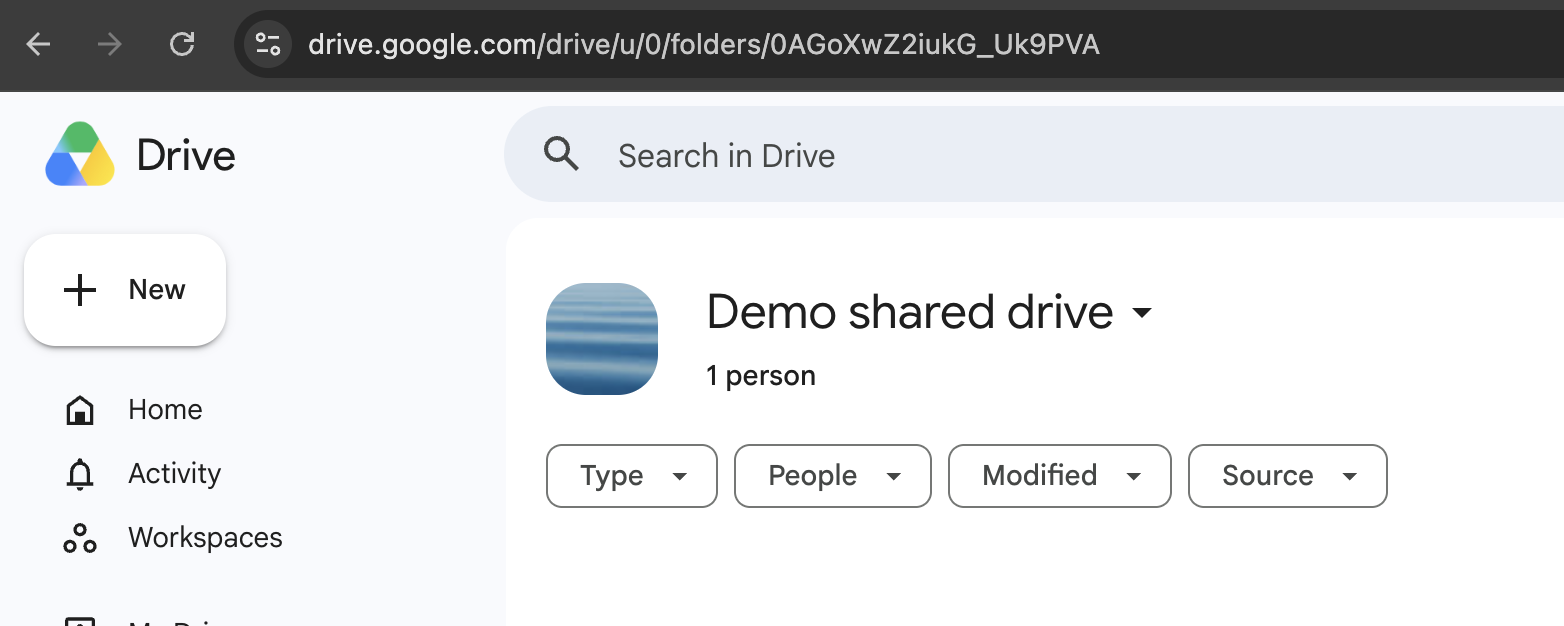
2.3 Copy the Shared Drive ID
Open the Shared Drive and copy its ID from the browser address. Store the ID in your implementation notes. Do not copy the sample ID from the screenshot into your own configuration.
2.4 Add a small test document
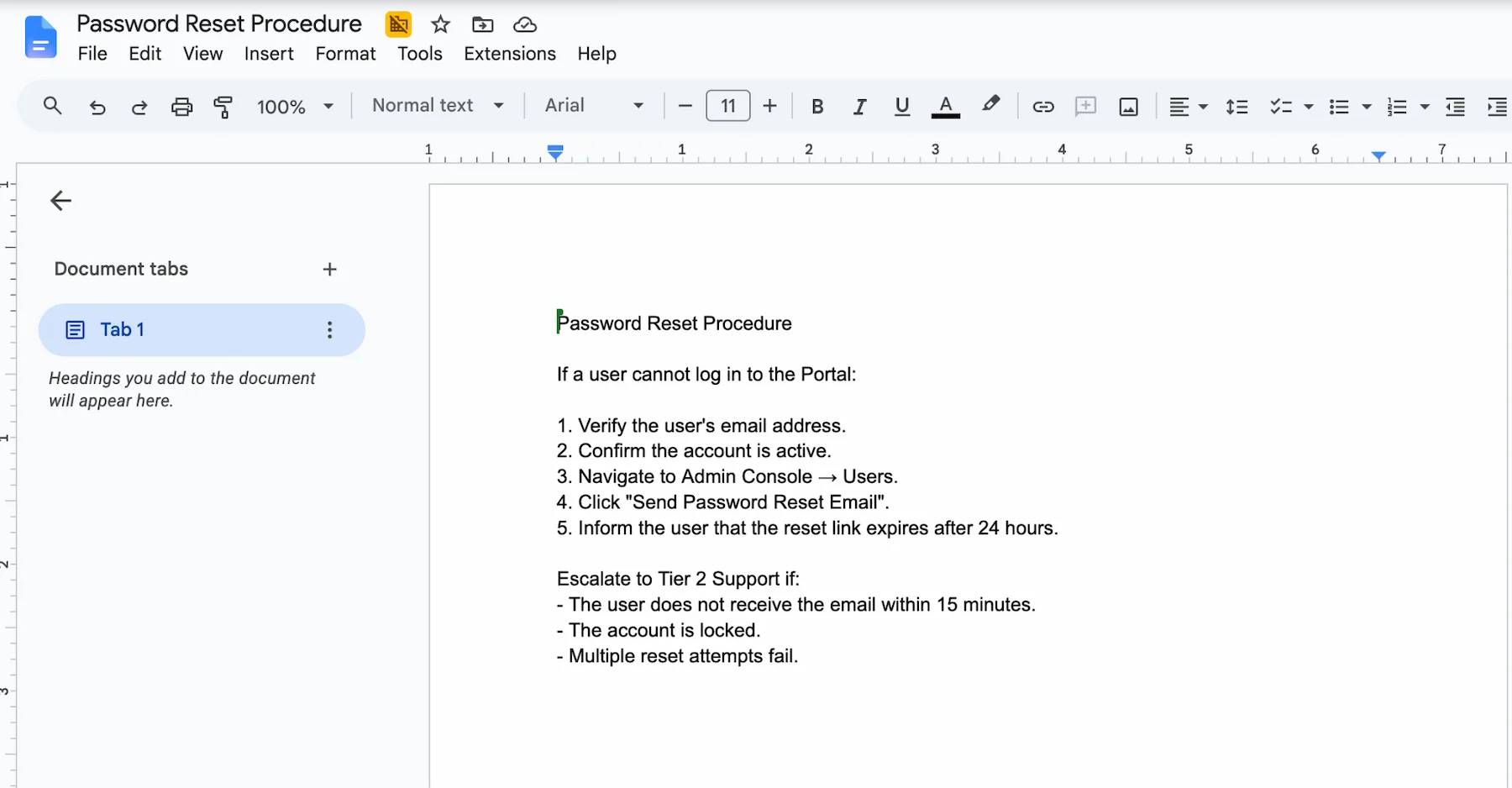
Create one short file that contains a clear answer to a test question. A focused document makes it easier to confirm that ingestion, retrieval, answer grounding, and source links all work before you add the wider knowledge base.
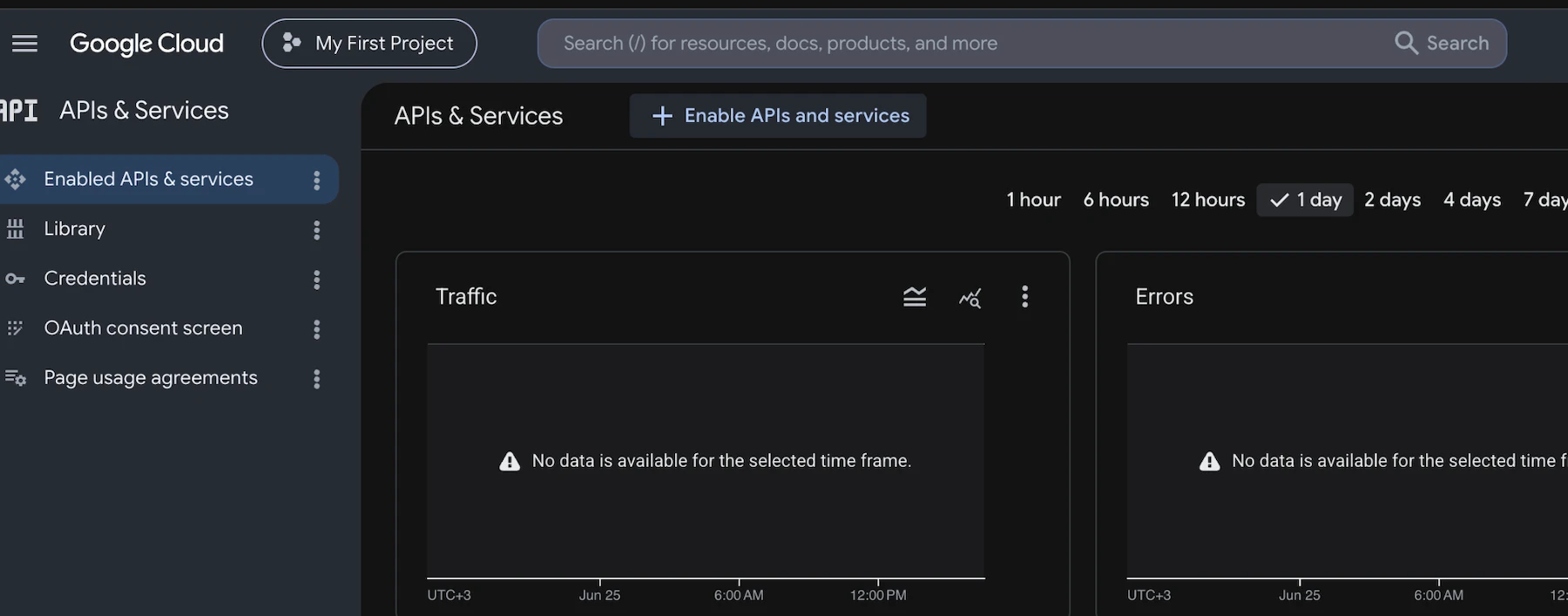
Step 3. Enable the Google Drive API
- Return to Google Cloud Console.
- Open APIs & Services, then Library.
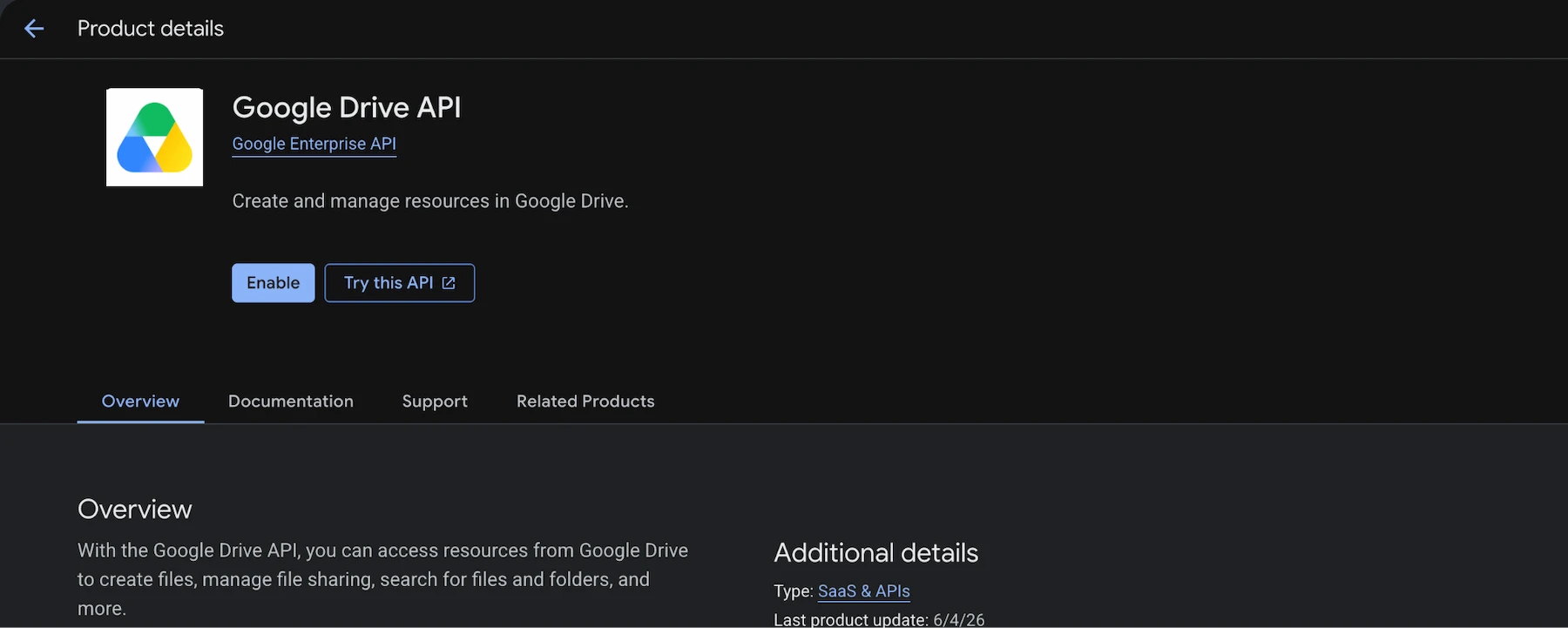
- Search for Google Drive API.
- Open the result and select Enable.
Step 4. Connect Google Drive to Data Cloud
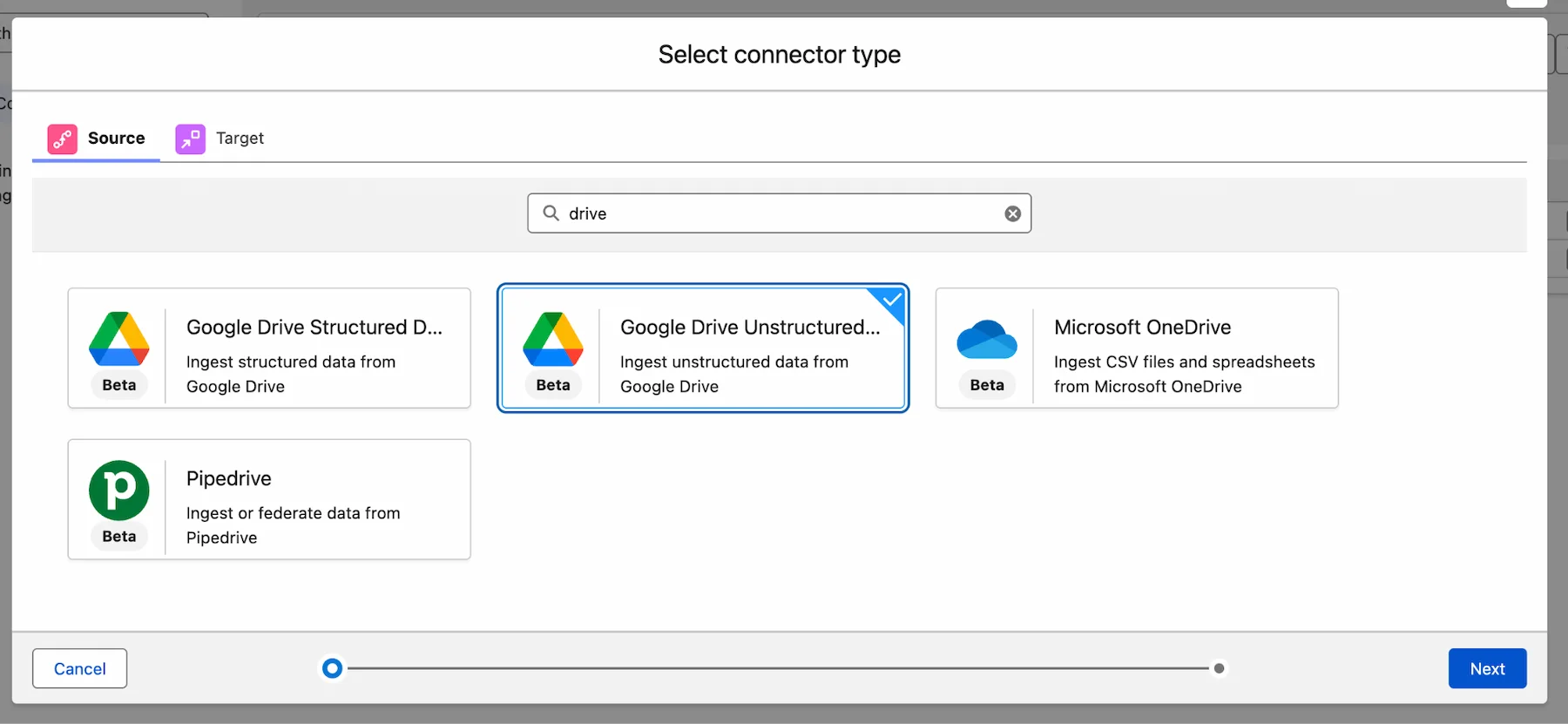
The connection authorizes Data Cloud to read the files that the service account can access. Salesforce currently documents the Google Drive Unstructured connector for unstructured files such as documents and PDFs.
4.1 Create the connection
- In Salesforce Setup, open Data Cloud Setup.
- Under External Integrations, select Other Connectors.
- Select New.
- Choose Google Drive Unstructured Data and continue.
4.2 Map the JSON credentials
Open the JSON key locally and map its values to the connection form. Copy only the value inside each property. Do not include quotation marks or the JSON property name.
Check before saving: Confirm that the service account email matches the account added to the Shared Drive. A valid key cannot compensate for missing Drive access.
Learn more: Google Drive Unstructured connector.
Step 5. Create the unstructured Data Lake Object
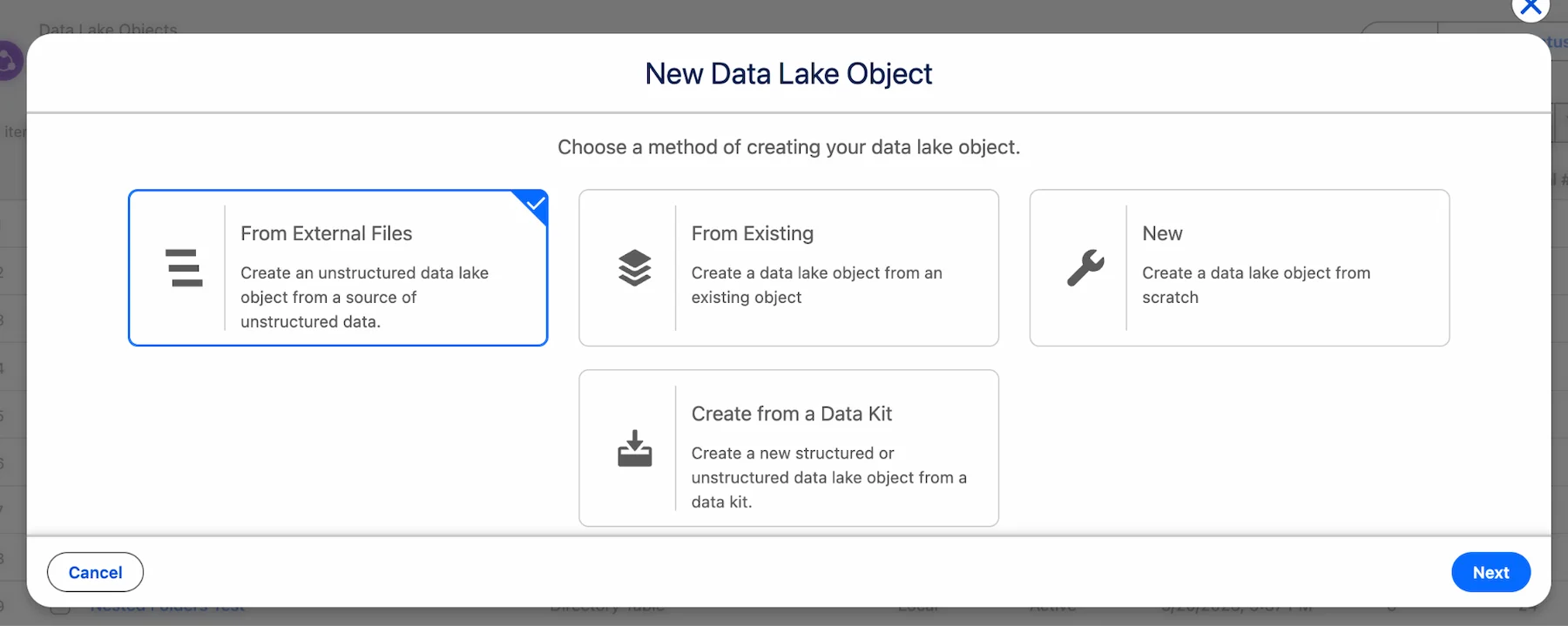
The Data Lake Object setup selects the Google Drive source and the Shared Drive to ingest. Salesforce then uses a linked data stream and unstructured data mapping so the content can be indexed.
5.1 Start from Data Lake Objects
- Open the Data Cloud app from the App Launcher.
- Go to Data Lake Objects.
- Select New.
- Choose From External Files.
.webp)
5.2 Select the Google Drive source
Choose Google Drive Unstructured Data, then select the connection created in Step 4. Enter the Shared Drive ID when the setup asks for a specific drive.
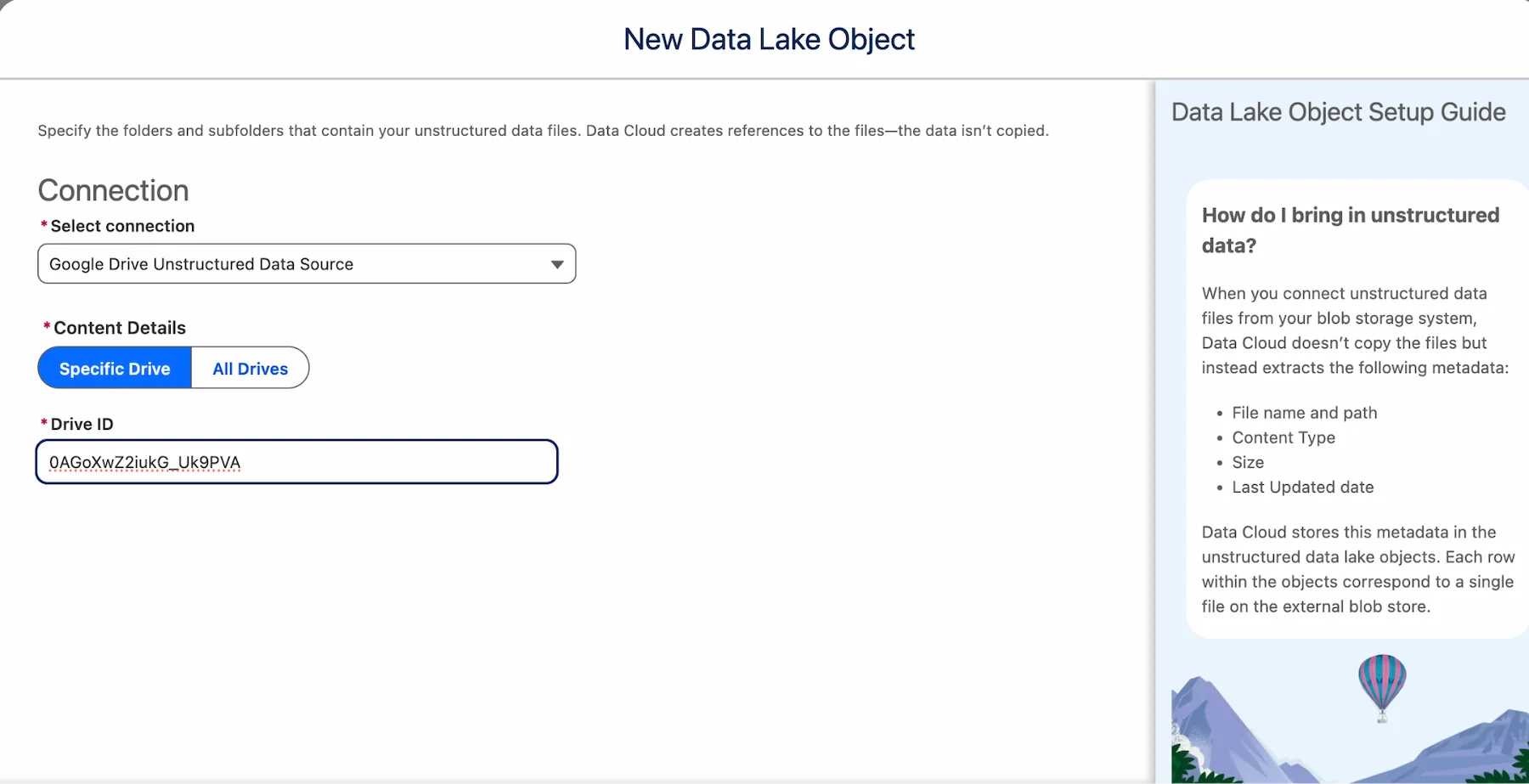
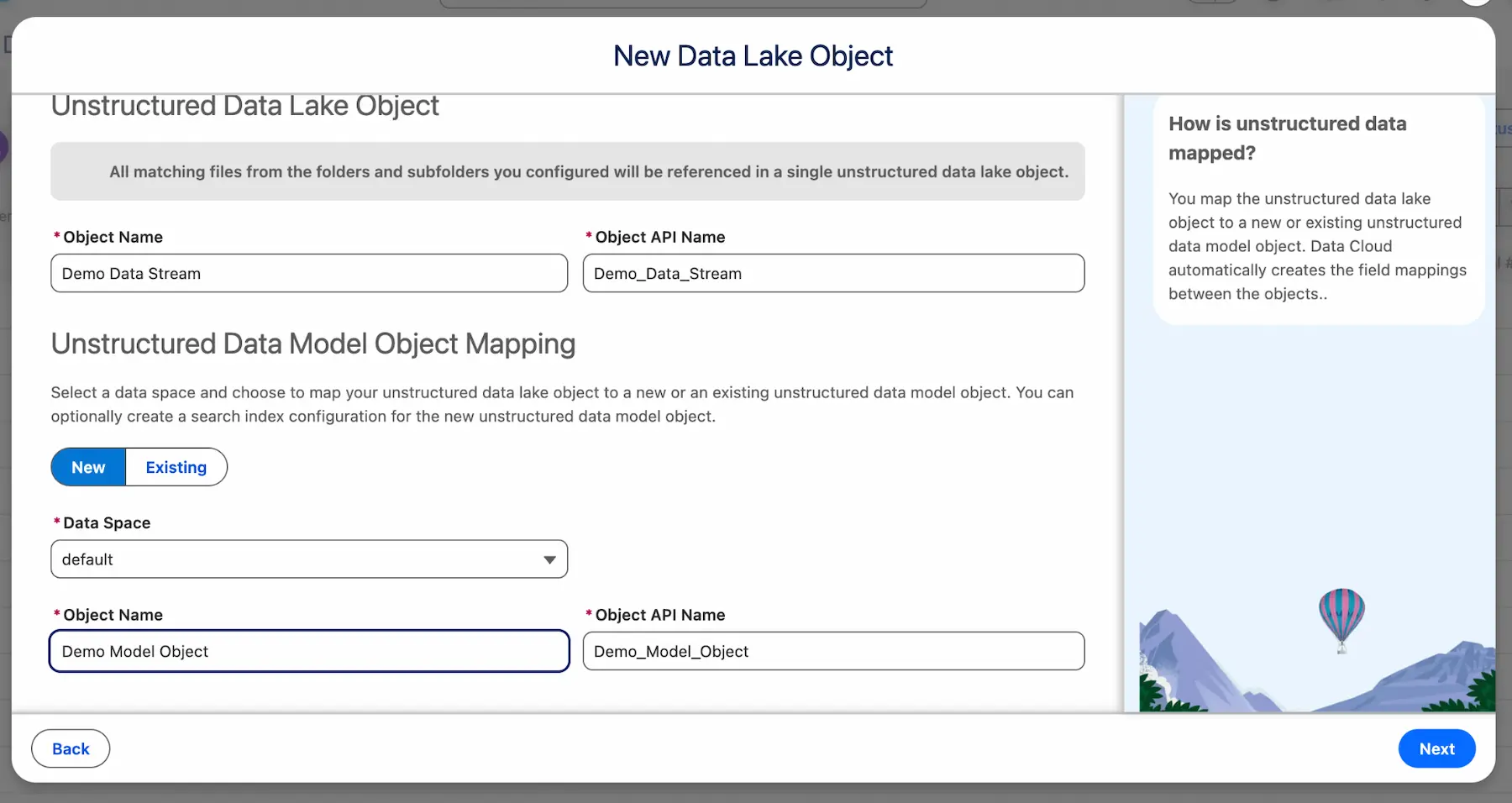
Validation: After saving, confirm that the object and linked stream are created and that ingestion completes without an access error. Do not continue to search setup until the test document is available in Data Cloud.
Step 6. Build the search index
A search index prepares document content for semantic retrieval. Salesforce can create a default index, but the author recommends advanced setup when you need control over file types, chunk settings, metadata, or filters.
6.1 Choose advanced setup
Create a search index for the unstructured data model object produced by the ingestion flow. Select Advanced Setup instead of accepting every default.
.webp)
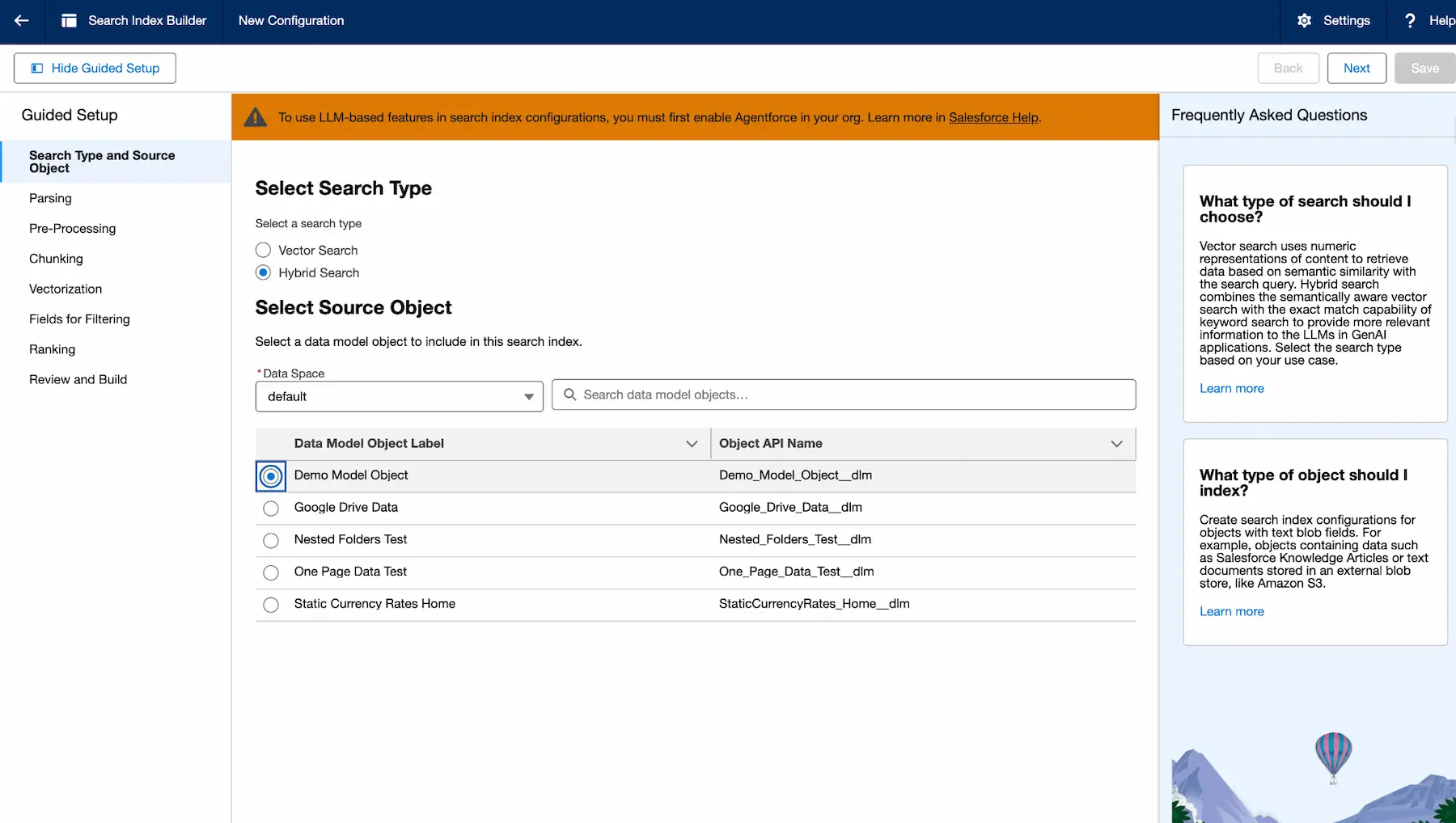
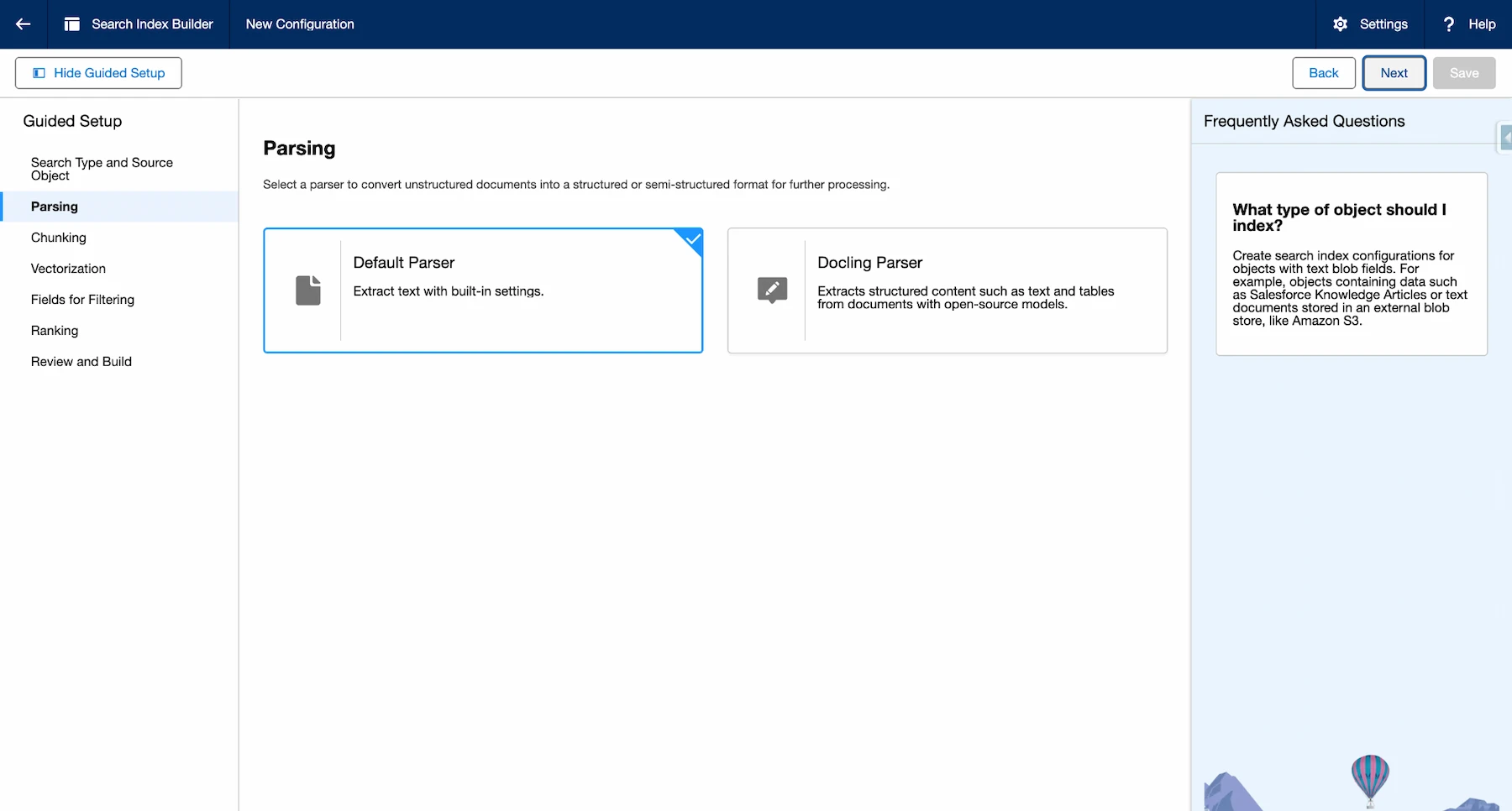
6.2 Select searchable fields and file types
Choose the fields that contain document content and source metadata. Limit ingestion to the file formats your knowledge owners will maintain. The author’s example keeps DOCX because the test knowledge base contains Word files.
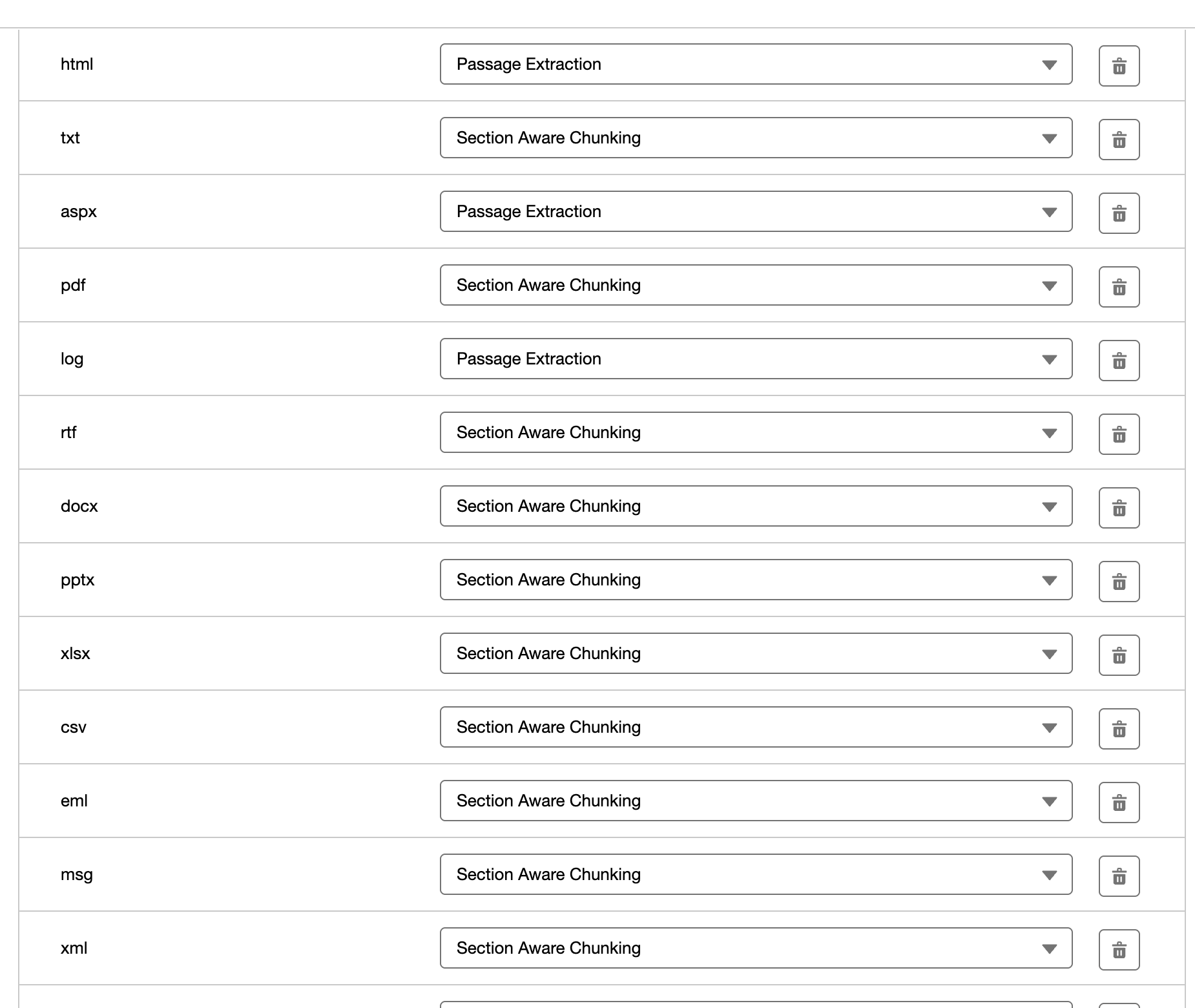
6.3 Configure chunking
Chunking splits a document into passages that can be ranked against a question. Larger chunks preserve more context but may return extra text. Smaller chunks can be more precise but may separate related instructions. Start with a reasoned value, test real questions, and adjust it based on answer quality.
Include the file name and source URL in the indexed metadata when you want Agentforce to cite the original document. Add filter fields only when the agent must restrict results by a property such as file name, department, region, or audience.
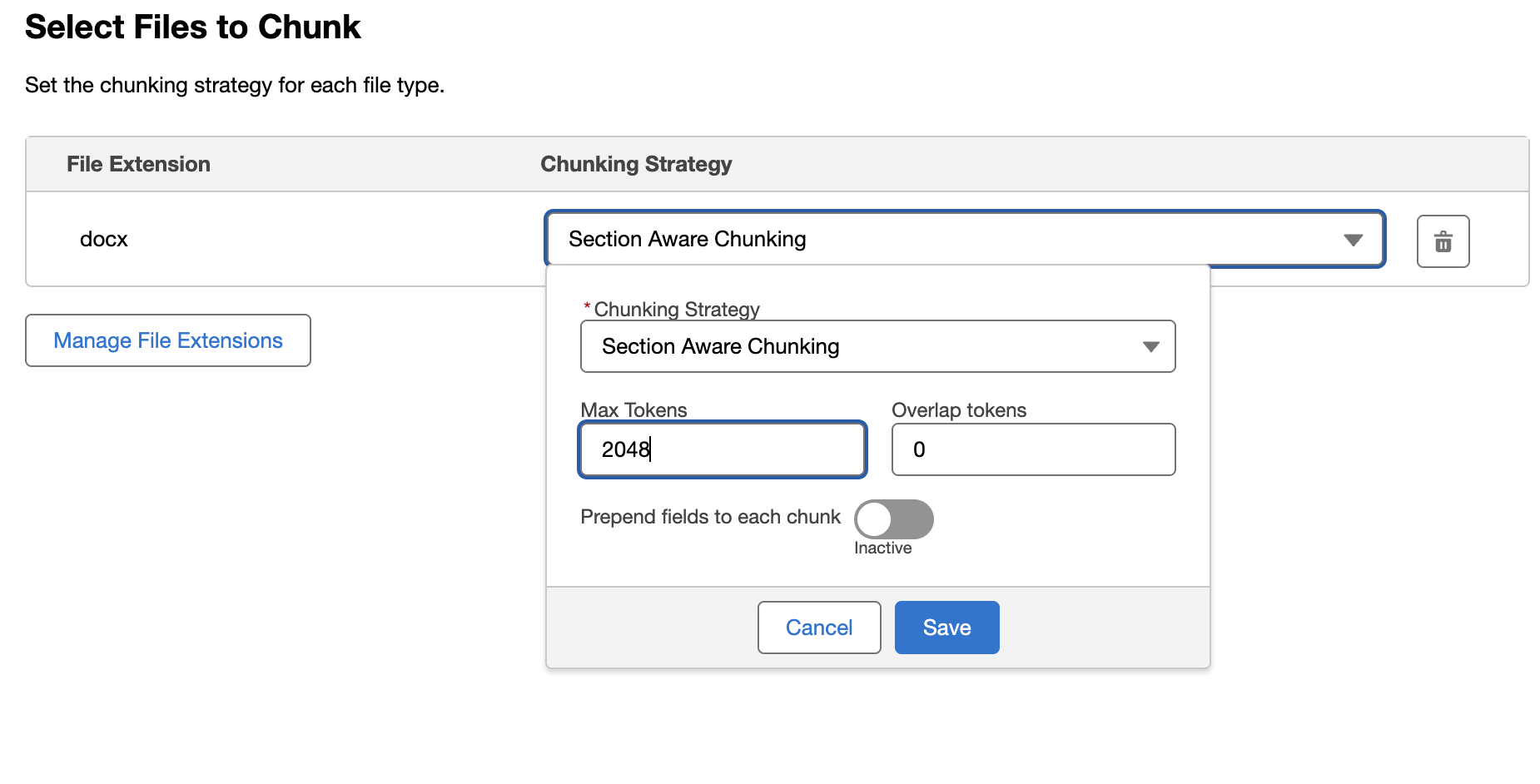
6.4 Review and activate the index
Review the source, chunk settings, searchable fields, return fields, and filters. Save the index and wait until its status shows that it is ready before creating the retriever.
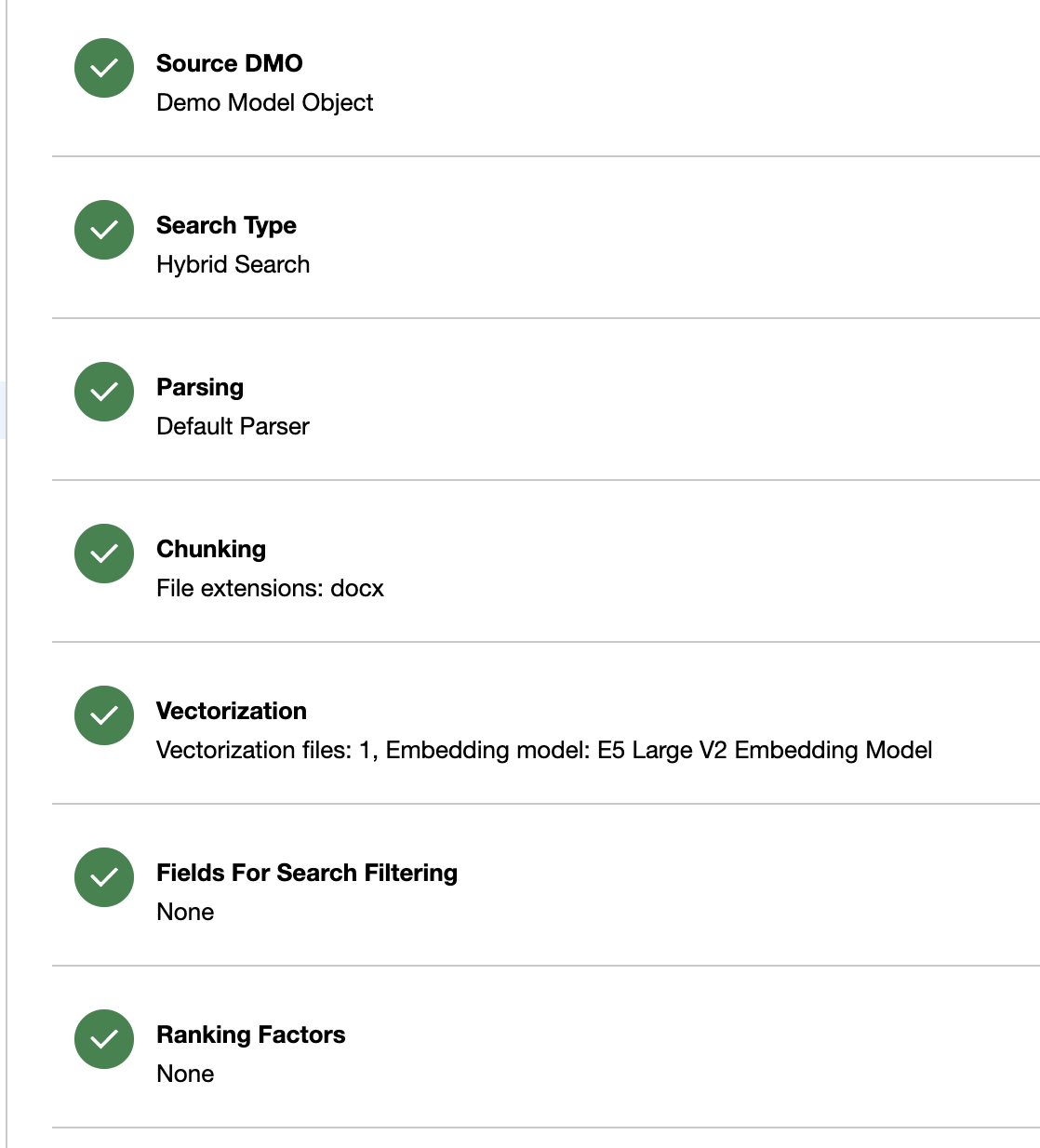
Step 7. Create the retriever
The retriever finds the indexed passages most related to a question. It passes those passages and selected source metadata to Prompt Builder. The model then writes an answer from the returned knowledge.
7.1 Start a retriever
- In Data Cloud, open AI Models.
- Open the Retrievers area.
- Select New Retriever.
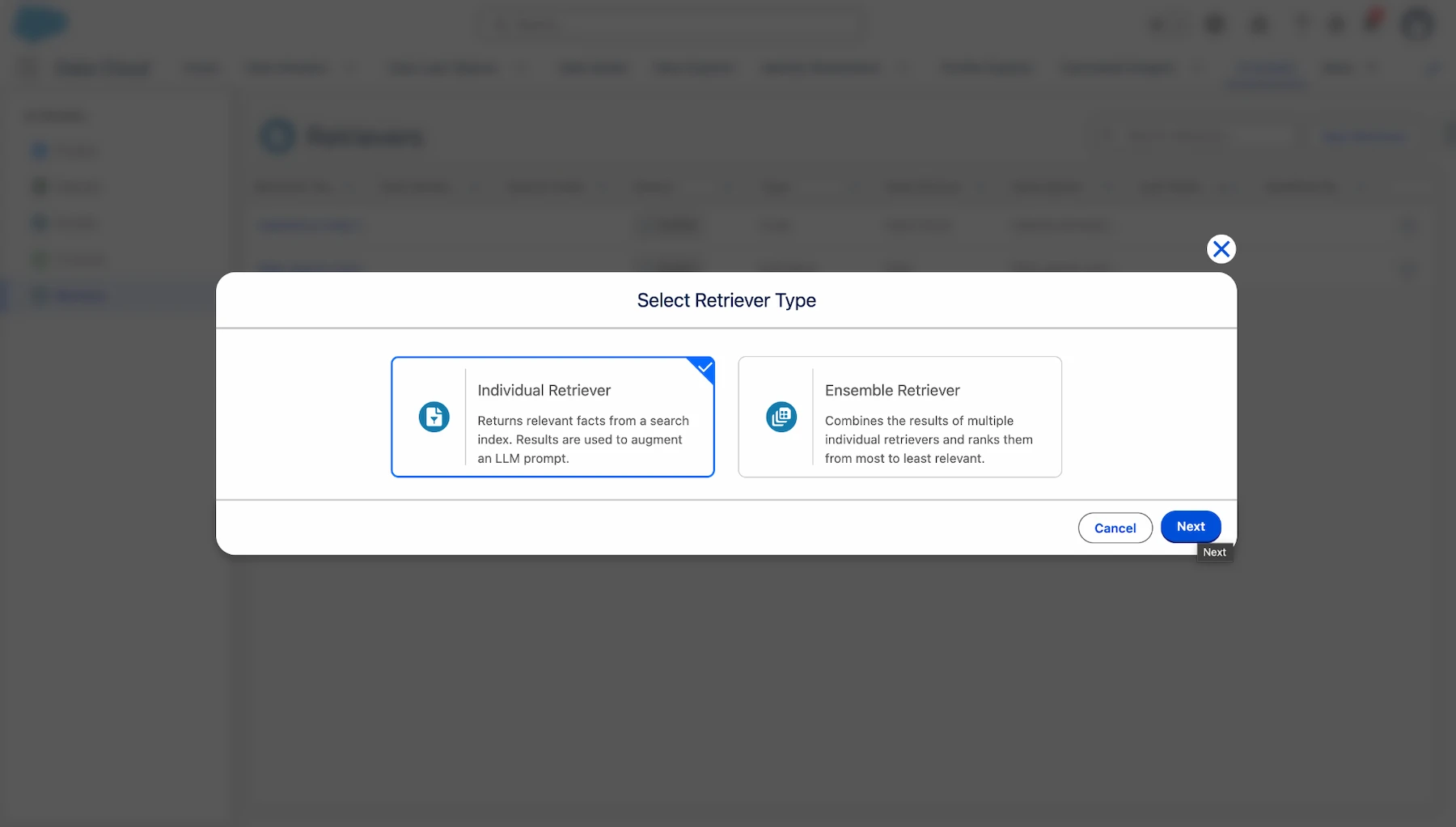
7.2 Select the object and index
Select the unstructured Data Model Object linked to your Google Drive source, then choose the search index created in Step 6.
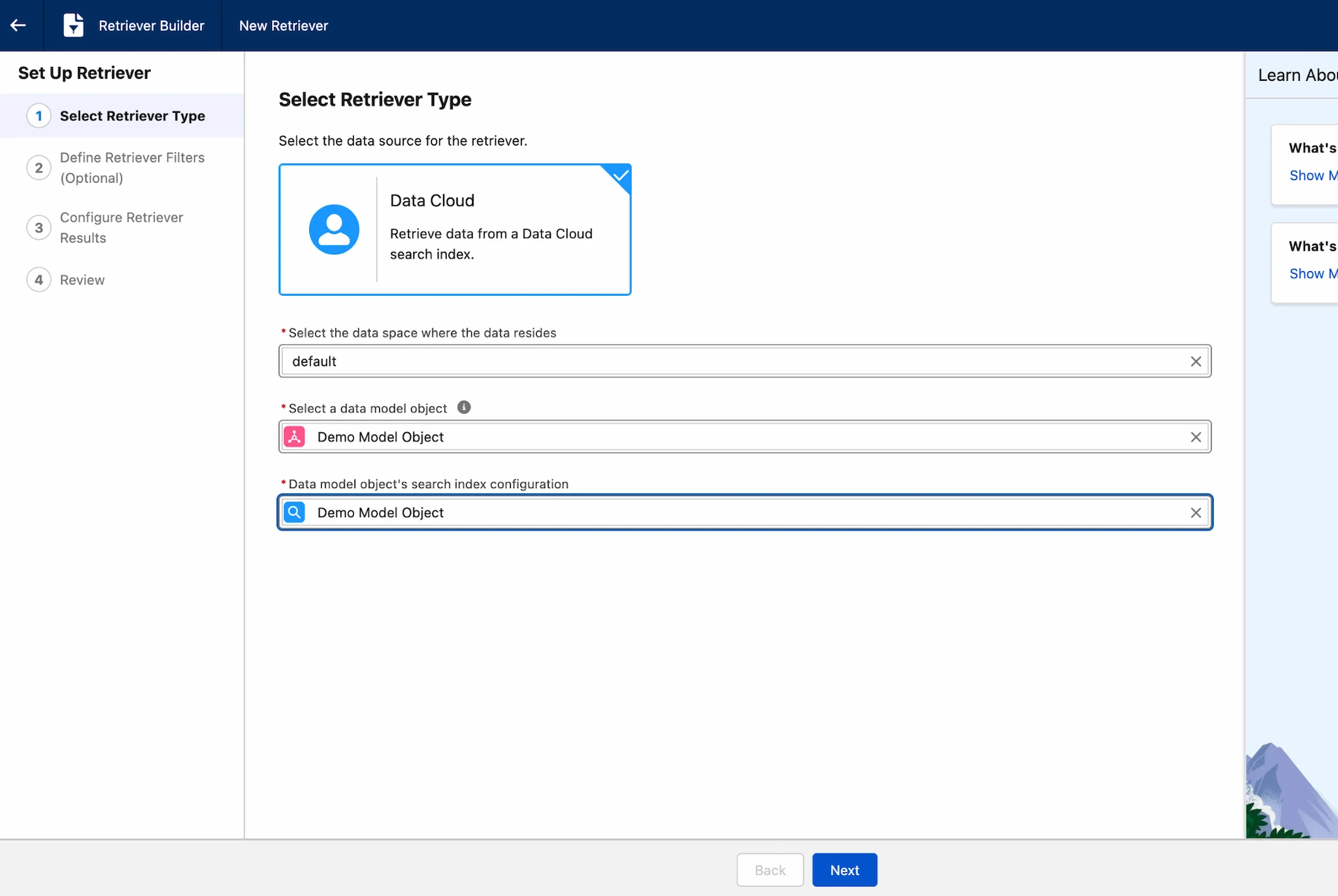
7.3 Set return fields and result count
Return the text chunk used for the answer. Also return the file name and URL so the prompt can build a source list. The author’s test retrieves five passages. Treat five as a starting point, then compare answer quality and consumption against a smaller or larger result count.
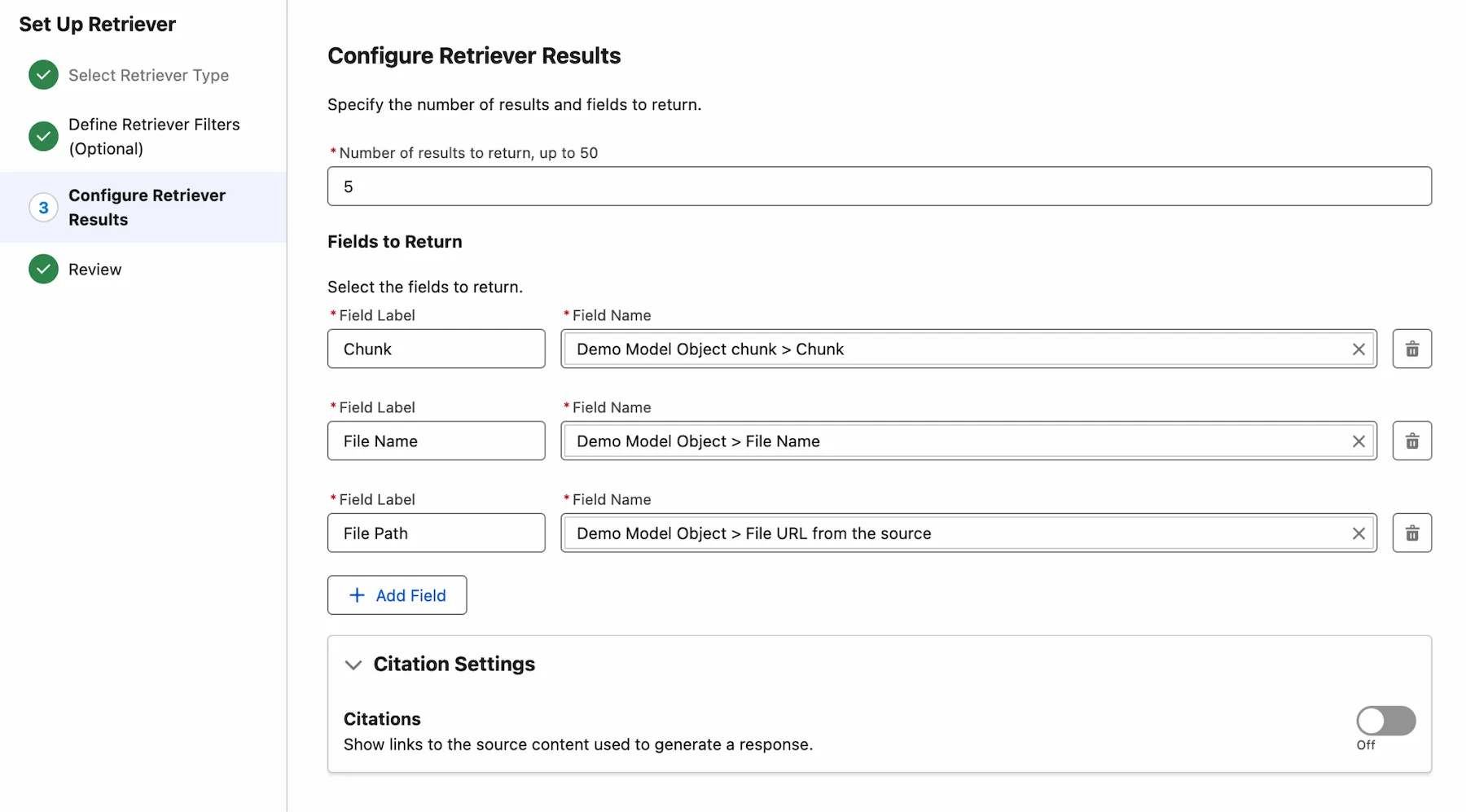
Save and activate the retriever. An inactive retriever will not be available to the prompt template.
7.4 Review the data stream refresh schedule
Open the data stream created for the Google Drive source and review its refresh schedule. Choose a frequency that matches how often the source documents change and how soon users need updates. Confirm the actual default shown in your org rather than assuming that every release uses the same schedule.
Step 8. Build the grounded prompt template
Prompt Builder connects the employee’s question with the retriever output. The prompt in this guide restricts the response to retrieved knowledge and returns JSON so Agentforce can separate the answer from its sources.
8.1 Enable Einstein and assign access
Enable Einstein in Setup and assign the Prompt Template Manager permission set to the administrator building the template.

8.2 Create the prompt template
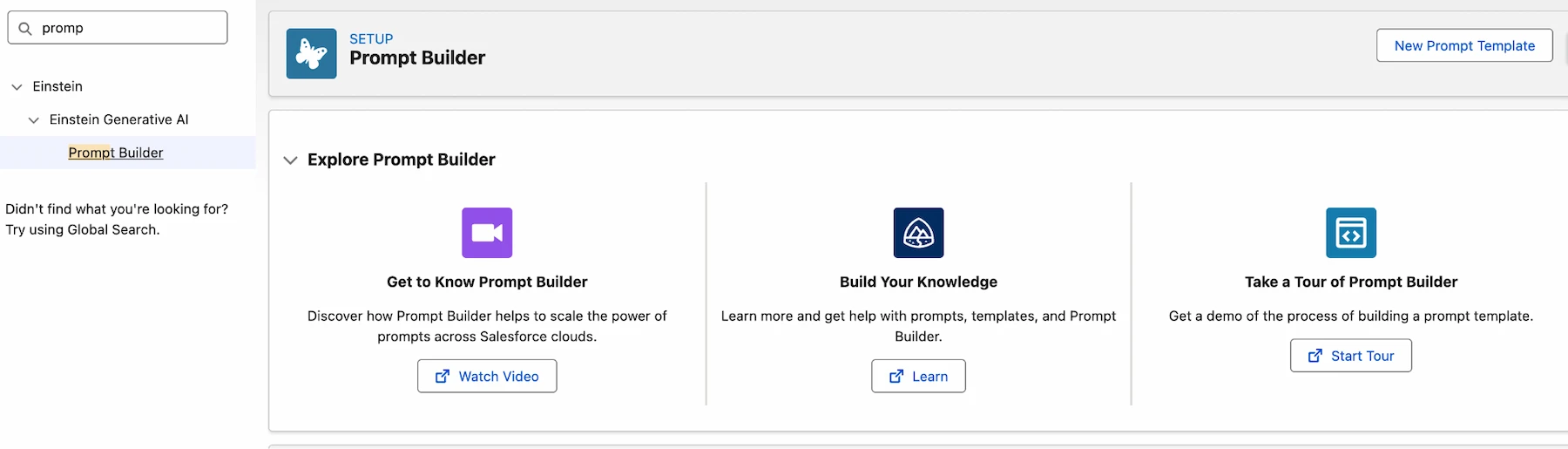
- Open Prompt Builder.
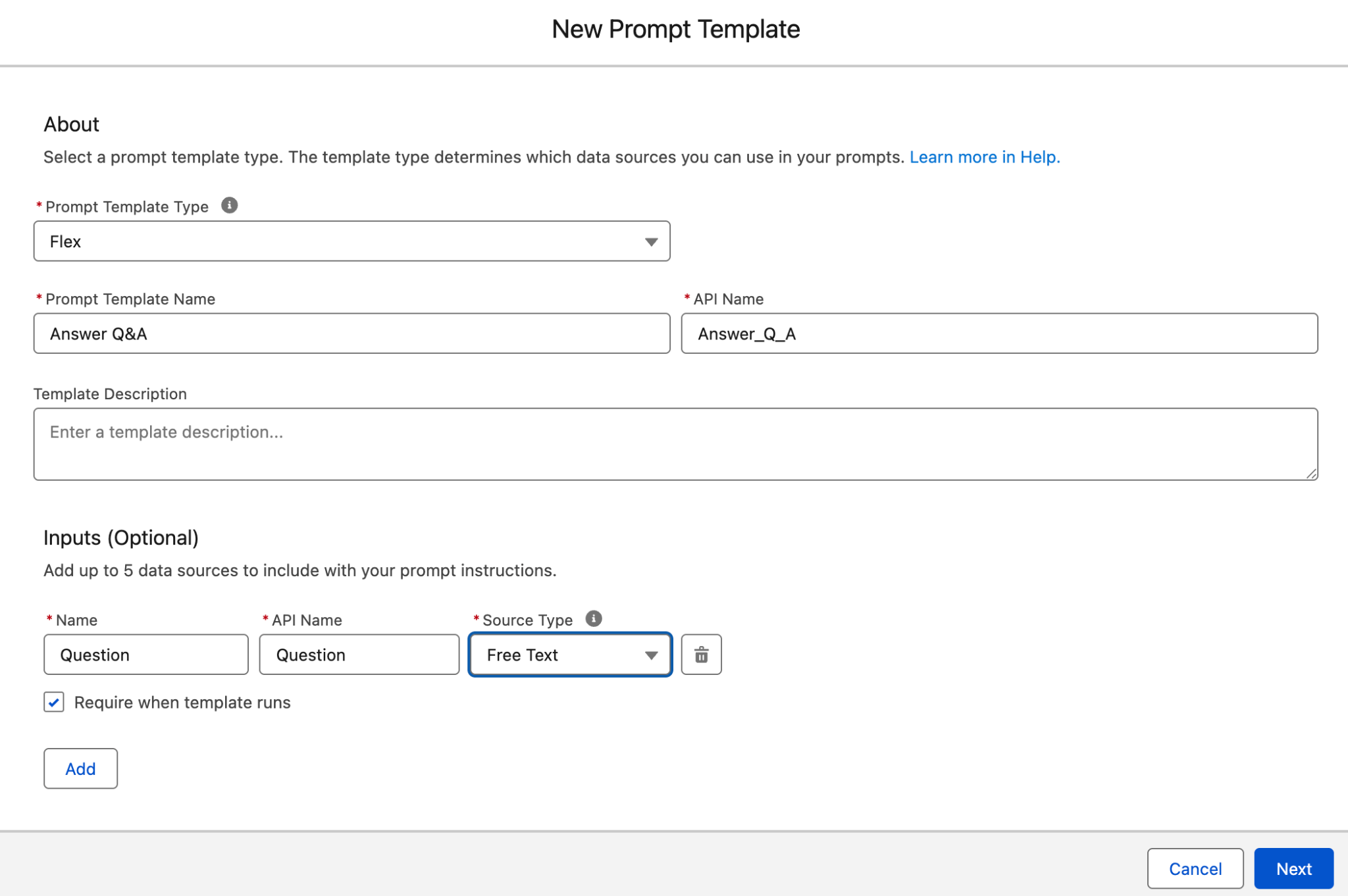
- Select New Prompt Template.
- Choose the template type used in your org.
- Add a text input named Question.
- Enter a clear template name and description.
Prompt used in our configuration
### ROLE
You are an AI assistant that answers operational questions for internal employees.
### SCOPE
Answer questions only within the supported operational domain. Use internal documentation, standard operating procedures, business processes, and other available knowledge relevant to the user's request.
### INSTRUCTIONS
Use only the information provided in KNOWLEDGE to answer the user's question.If the available knowledge does not contain enough information to answer the question, clearly state that the requested information could not be found.
Do not:
- invent information or procedures;
- make assumptions that are not supported by the provided knowledge;
- include information that is not present in the retrieved documents.
- include information that is not present in the retrieved documents.
### USER QUERY
{Query}
### KNOWLEDGE
{Retrieved_Knowledge}
### SOURCE CITATION RULES
If one or more documents are used to answer the question:
- Include each unique document once.
- Provide the document name and, if available, its source URL.
- Remove duplicate references.
If no supporting documents are available, return an empty list of sources.
### OUTPUT FORMAT
Return only valid JSON:
{
"answer": "Answer based only on the retrieved knowledge.",
"sources": [
{
"filename": "Document Name",
"source": "Document URL
}
]
}
Prompt rule: Keep the JSON structure stable because the agent instructions parse the answer and source list from promptResponse. A casual change to the output format can break the final response.
8.3 Insert the user question
Replace {Query} with the Question input created for the template. Use the resource picker rather than typing a placeholder that Prompt Builder cannot resolve.
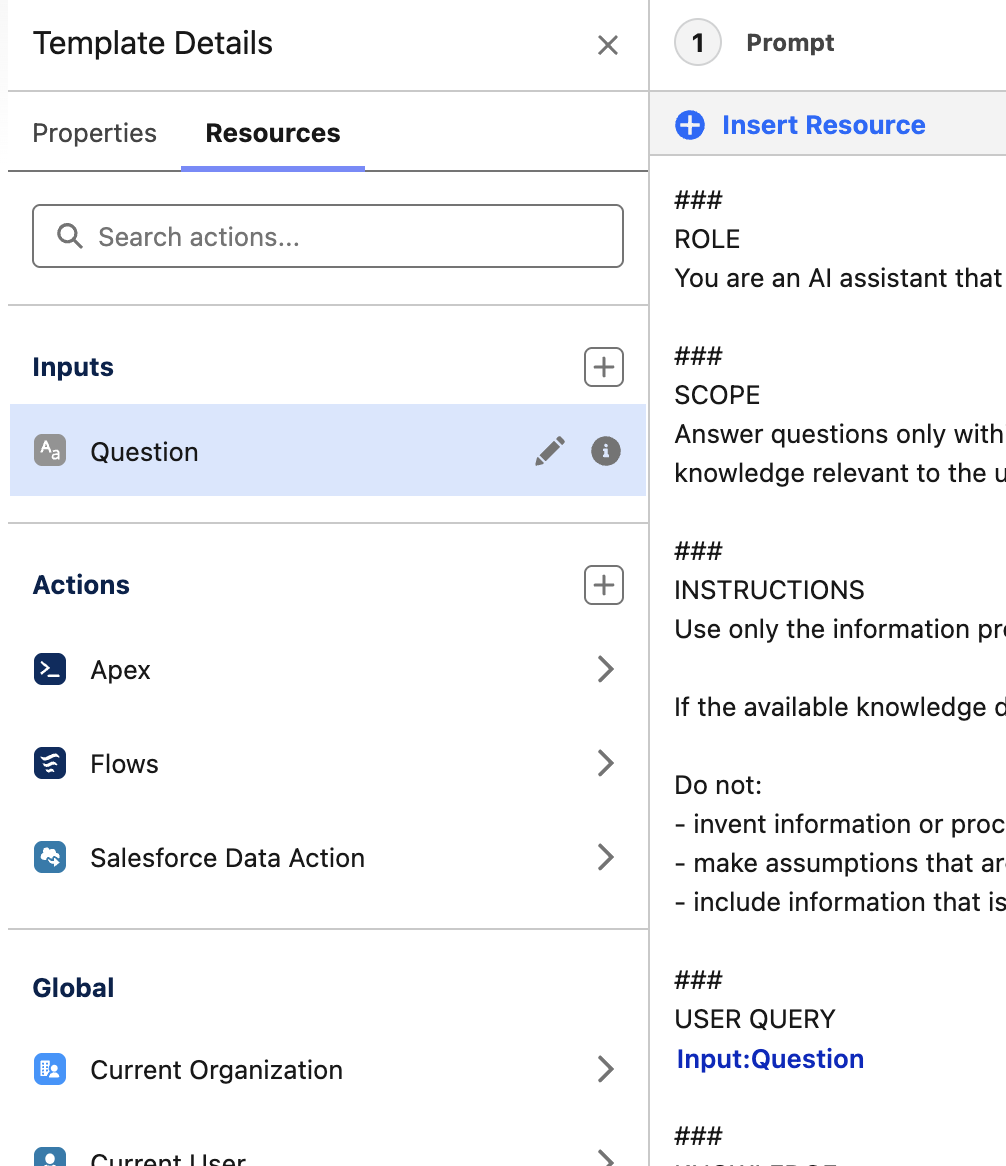
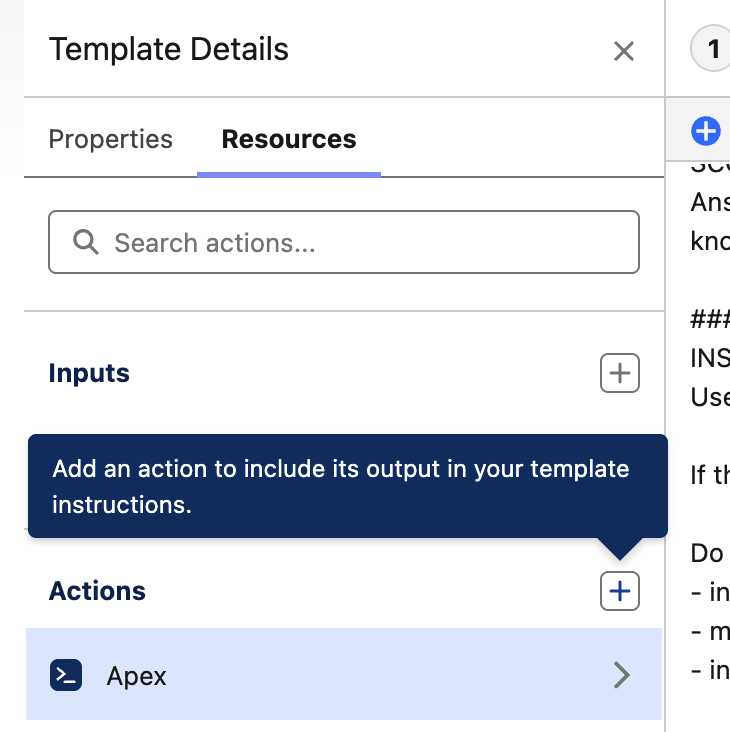
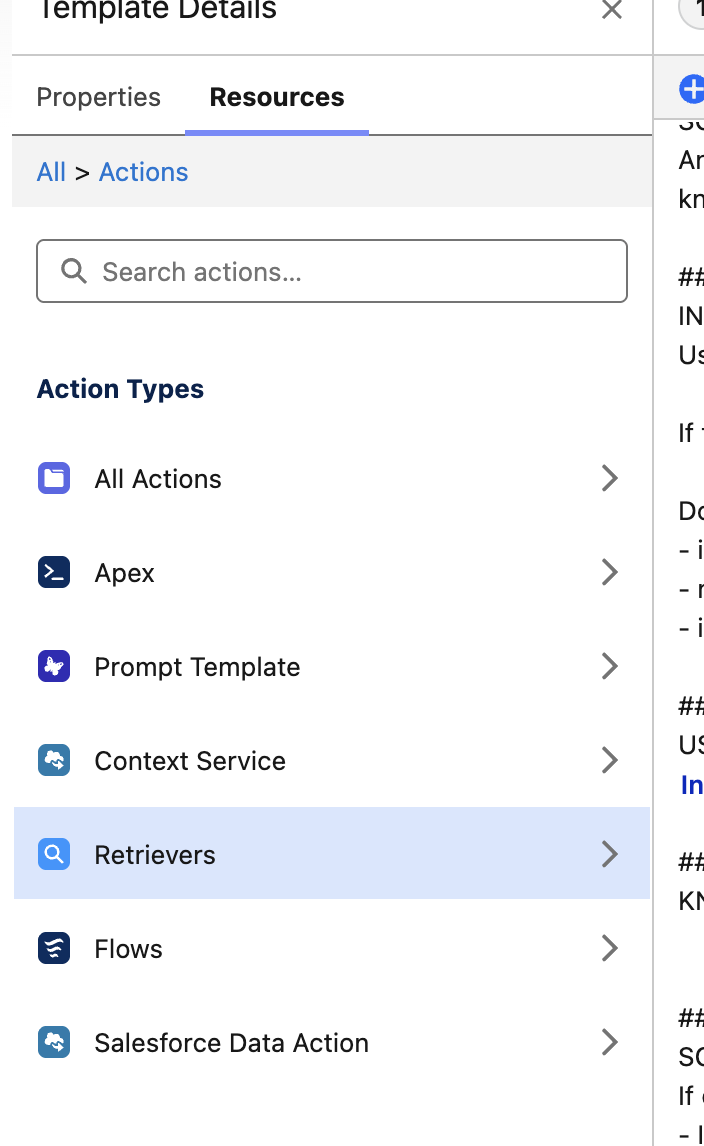
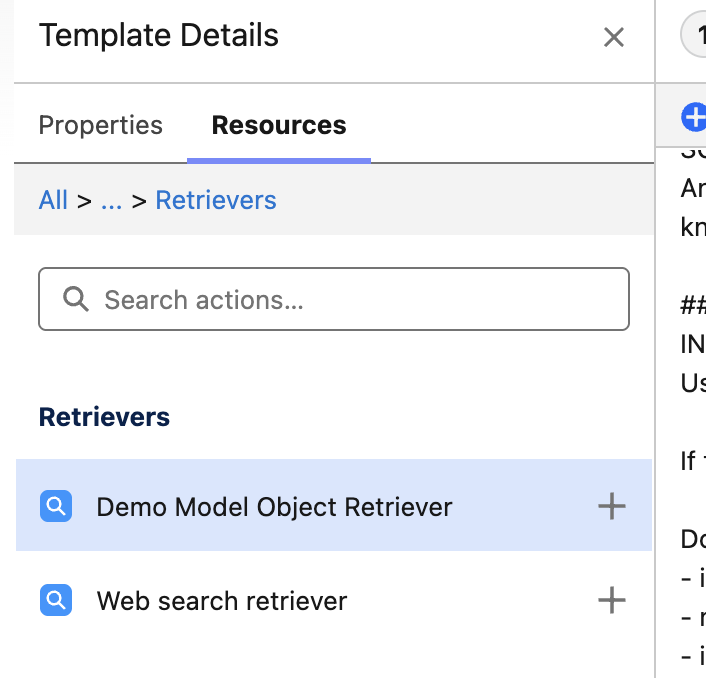
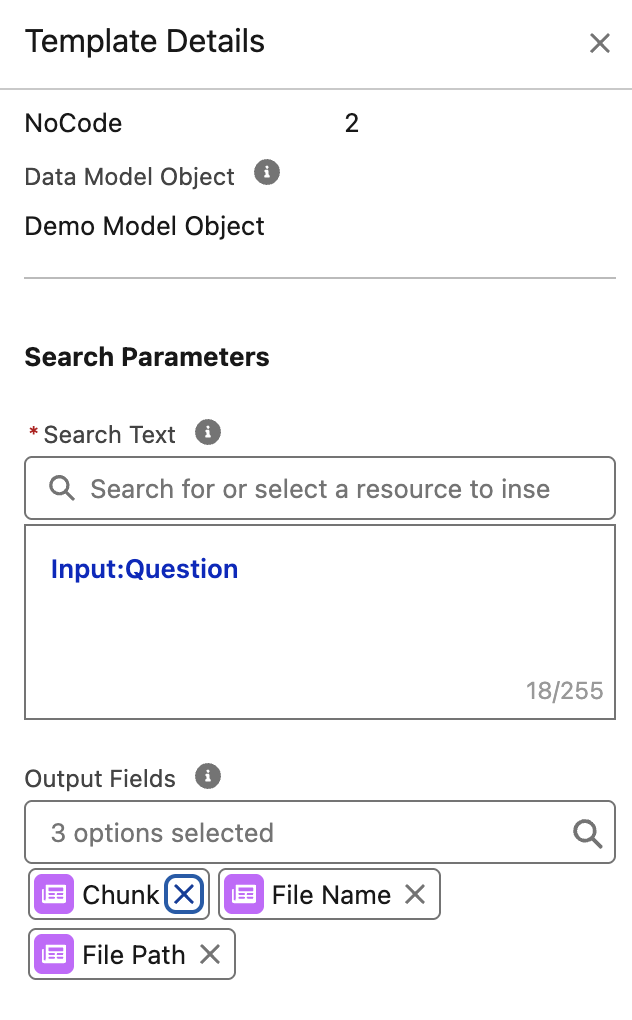
8.4 Insert the retriever output
- Place the cursor after the KNOWLEDGE heading.
- Select the plus icon in the resource panel.
- Open Retrievers.
- Select the retriever created in Step 7.
- Choose the output fields shown in the example.
- Select Insert.
8.5 Test and activate the prompt
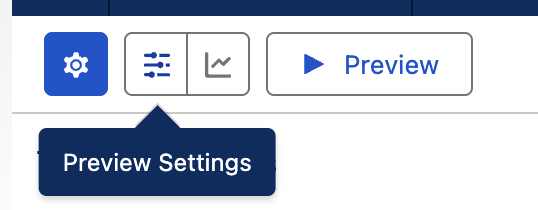
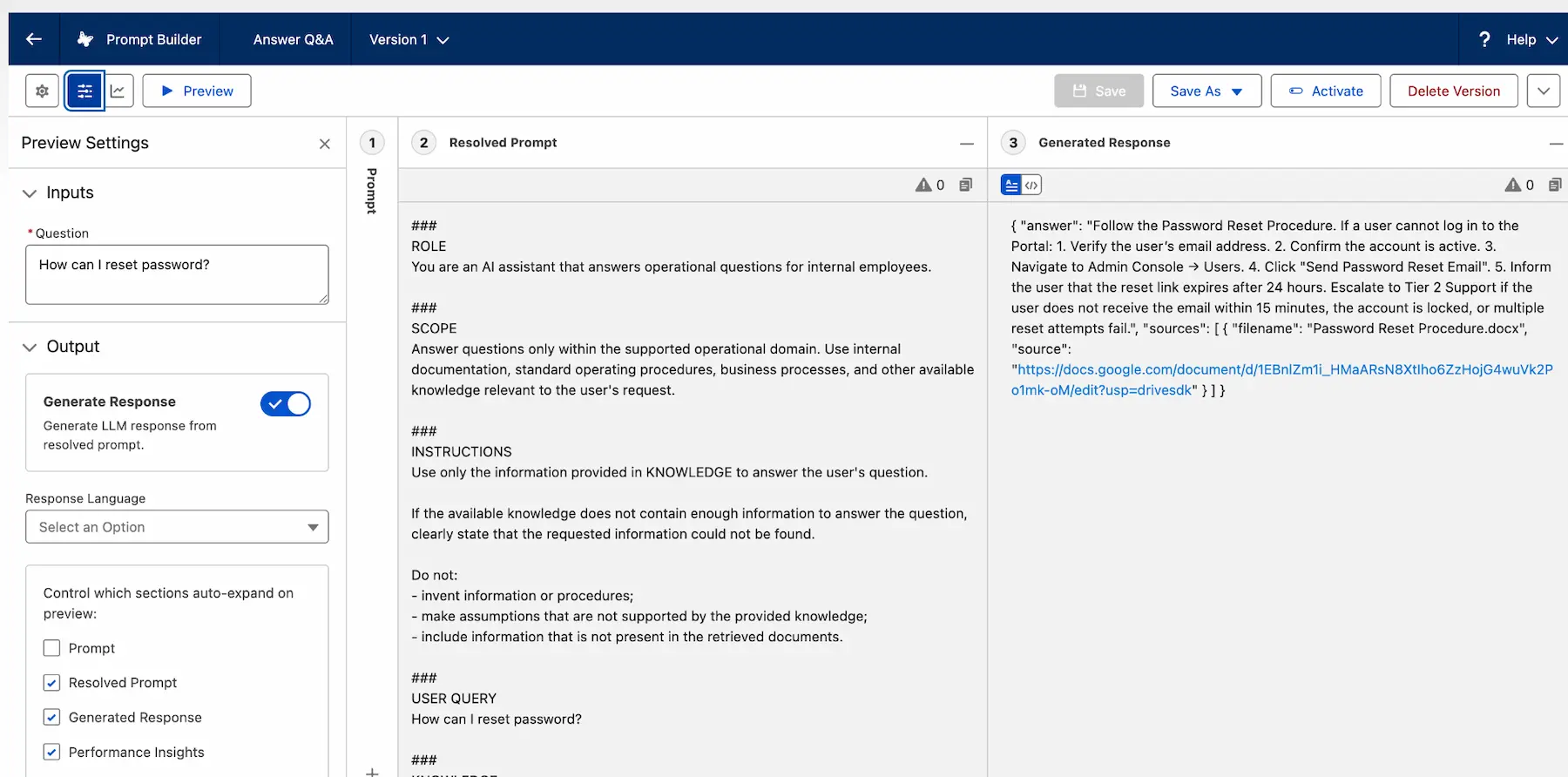
- Open Preview Settings.
- Enter the question answered by the test document.
- Run the preview.
- Check that the answer uses only the source document.
- Check that the response is valid JSON.
- Confirm that the source list contains the expected file name and URL.
- Test a question that is not covered and confirm that the prompt does not guess.
- Activate the prompt template after the checks pass.
Step 9. Create the Agentforce employee agent
The final setup adds the prompt template as an agent action. The author uses an Agentforce Employee Agent, but the same knowledge action can be adapted for another agent type when its users, channels, and permissions differ.
9.1 Enable Agentforce
In Setup, open Agentforce Agents and turn on Agentforce.

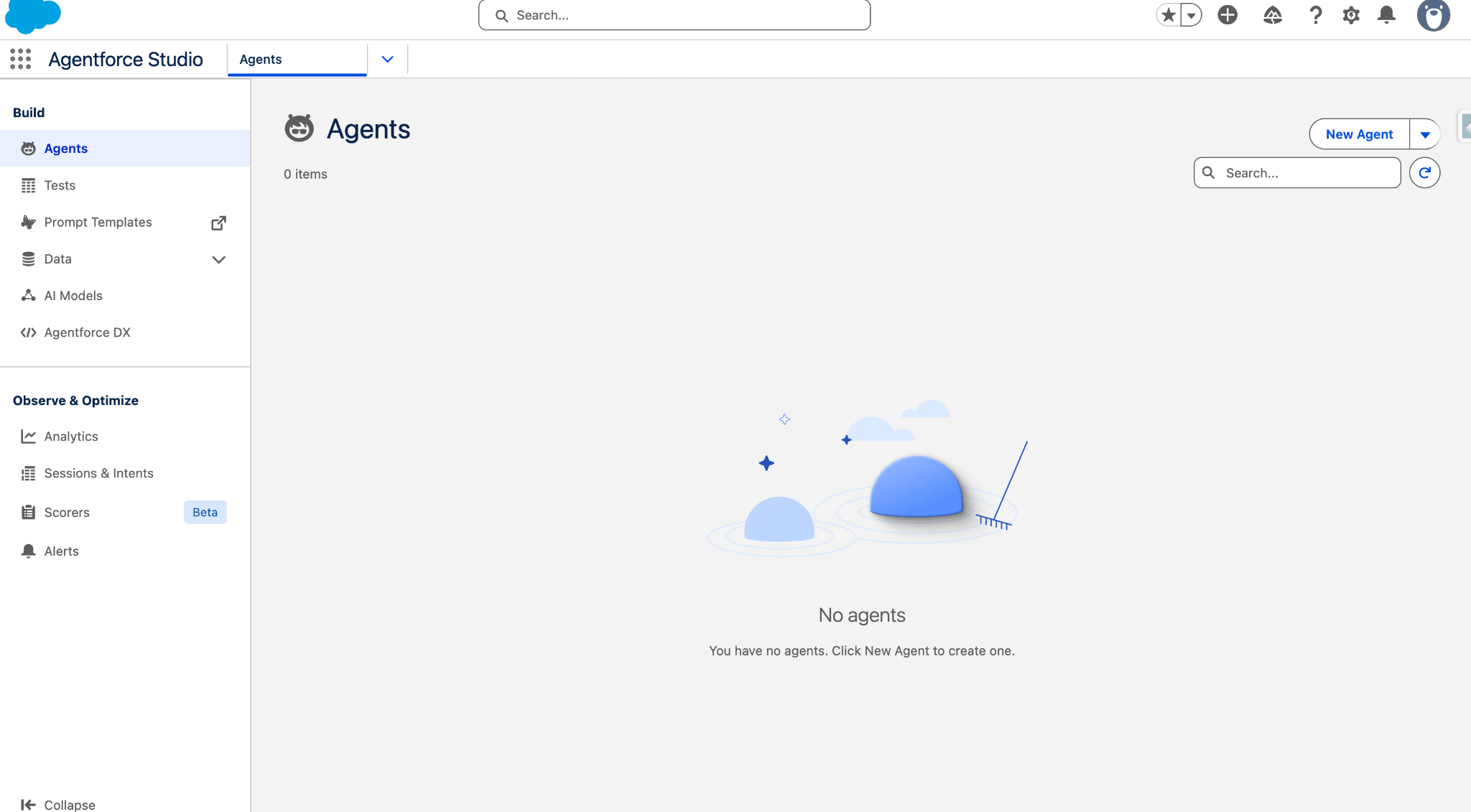
9.2 Open Agentforce Studio
Open the App Launcher and select Agentforce Studio. Create a new Agentforce Employee Agent or open the employee agent you want to extend.
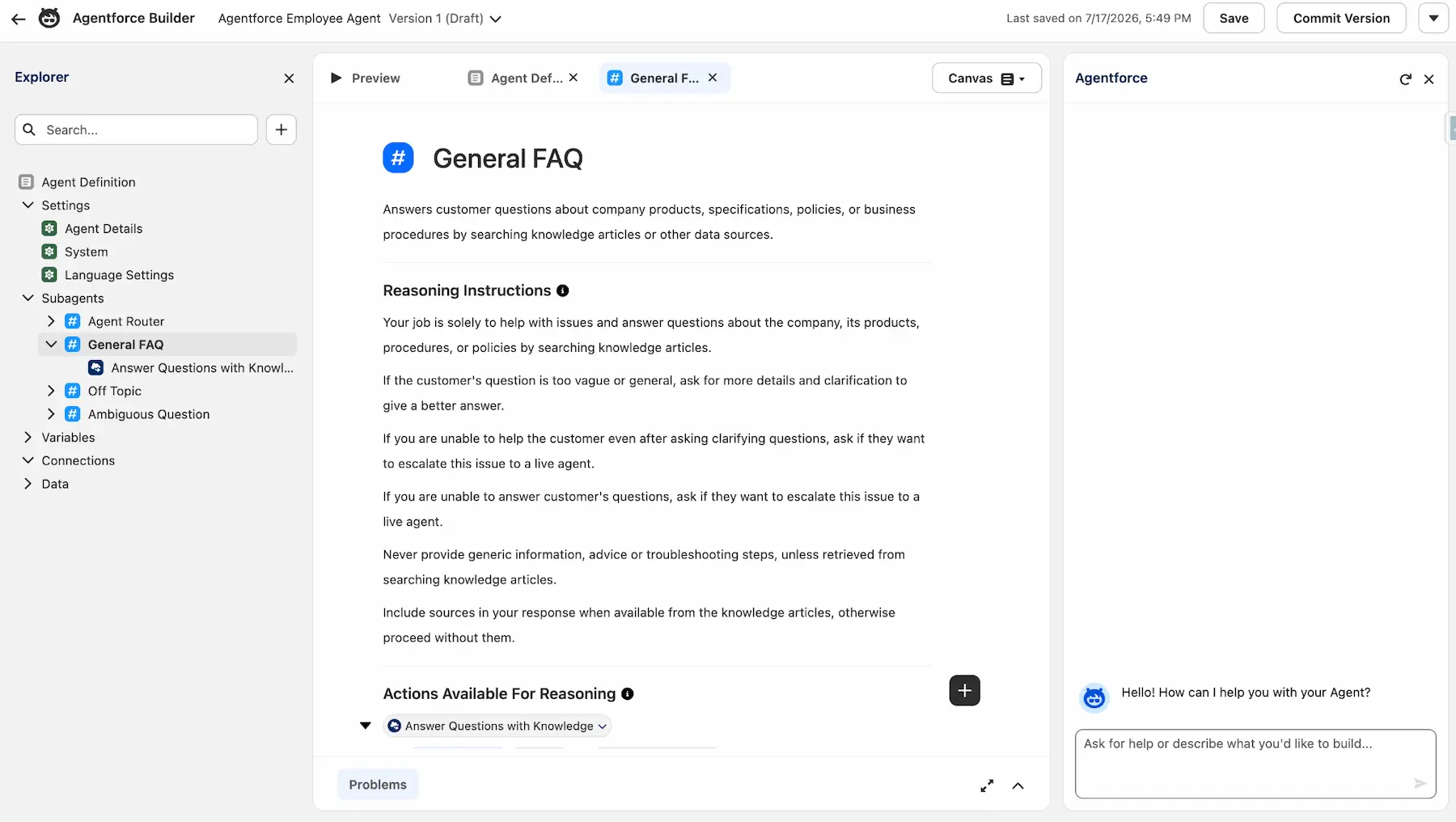
9.3 Configure the General FAQ subagent
An Employee Agent may already contain a subagent for general questions. Edit that subagent or create one when it is missing. Salesforce renamed agent topics to subagents in April 2026, so older org screens or documents may still use the word topic.
9.4 Add the knowledge action
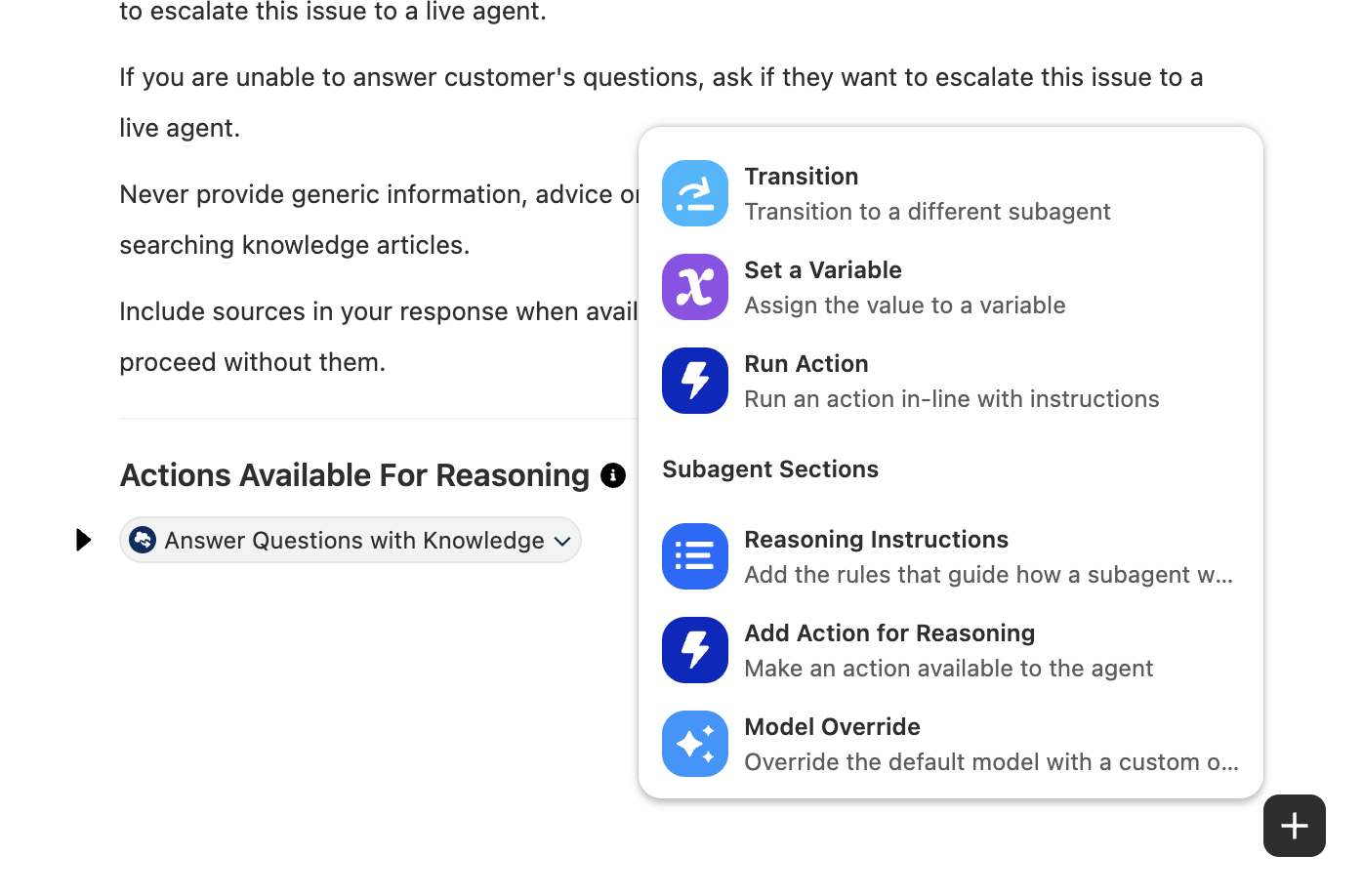
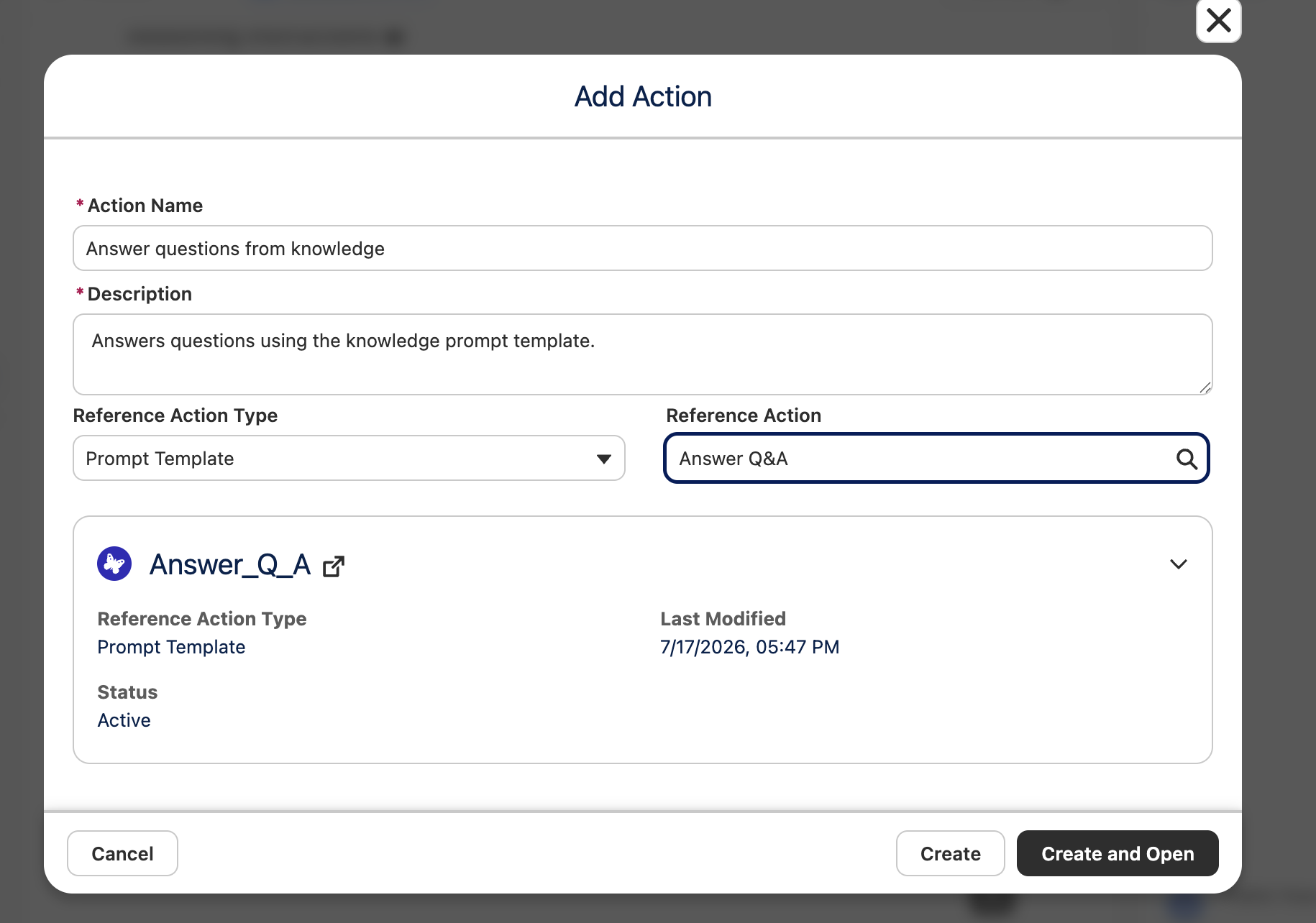
- Select Add Action in the General FAQ subagent.
- Give the action a clear label and description.
- Select Prompt Template as the action type.
- Choose the prompt template activated in Step 8.
- Map the employee’s question to the Question input.
Reference Agent Script pattern
subagent GeneralFAQ:
label: "General FAQ"
description: "Answers questions about company products, services, policies,
and business procedures using approved knowledge."
reasoning:
instructions: ->
| You answer user questions only using information returned by the knowledge action.
|
| Never invent company policies, procedures, product details, pricing,
| eligibility requirements, business processes, or troubleshooting steps.
| Never answer using your own knowledge.
|
| TOOL USAGE:
| 1. Use {!@actions.answerQuestionsFromKnowledge} with the user's question.
| 2. Parse promptResponse as JSON.
| 3. Strip markdown code fences if present.
| 4. Extract answer and sources.
|
| RESPONSE RULES:
| - Never display raw JSON or promptResponse.
| - Respond using only the value of "answer".
| - Preserve the meaning of the returned answer.
| - Organize long answers into short paragraphs or numbered steps.
|
| If the requested information could not be found:
| - Do not guess.
| - Ask for clarification when the question is ambiguous.
| - Otherwise, offer escalation to a live employee.
|
| If sources are present:
| - Display them after the answer.
| - Include each document only once.
| - Make the source URL clickable when available.
| - Do not mention sources when none are returned.
actions:
answerQuestionsFromKnowledge: @actions.Answer_questions_from_knowledge
with "Input:Question" = <map the current user question>
actions:
Answer_questions_from_knowledge:
label: "Answer Questions From Knowledge"
description: "Answers questions using the approved knowledge prompt template."
target: "generatePromptResponse://Answer_Q_A"
inputs:
"Input:Question": string
label: "Question"
description: "The user's question."
is_required: True
is_user_input: True
outputs:
promptResponse: string
label: "Prompt Response"
description: "JSON response returned by the knowledge prompt template."
is_used_by_planner: True
is_displayable: True
Adapt the script: Replace the prompt target, action names, and input mapping with the API names from your org. The placeholder for the current user question is intentional. Resolve all Builder validation messages before committing.
Official reference: Agent Script developer guide.
Step 10. Test the agent and allow source links
10.1 Preview the answer
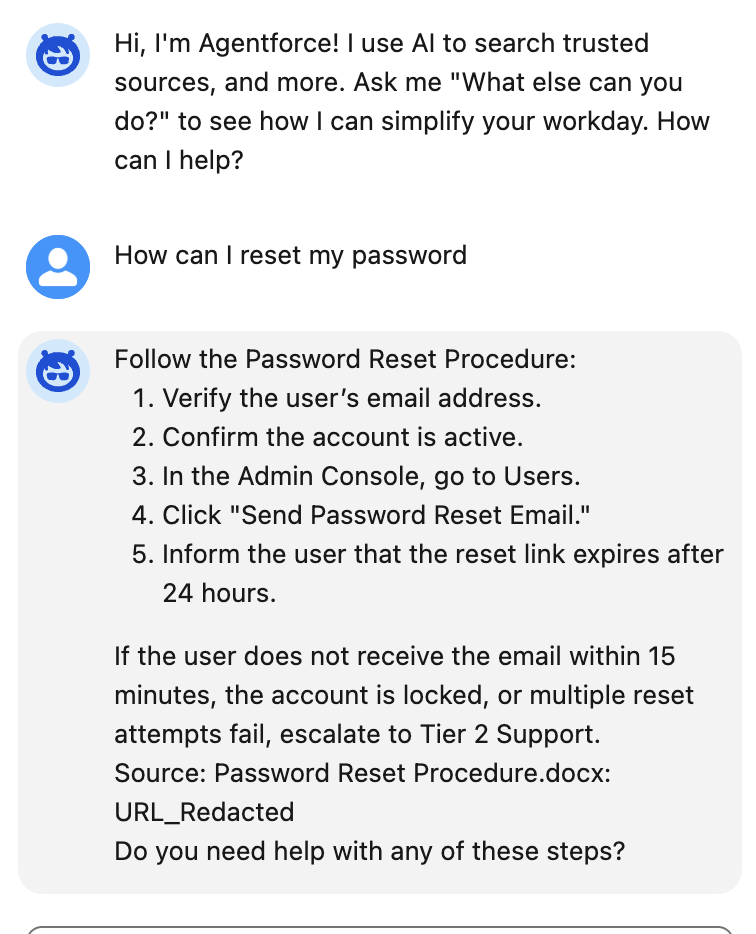
Ask the same known question in Agentforce Studio. Confirm that the agent calls the knowledge action, extracts the answer from JSON, and does not display the raw promptResponse.
10.2 Add Trusted URLs
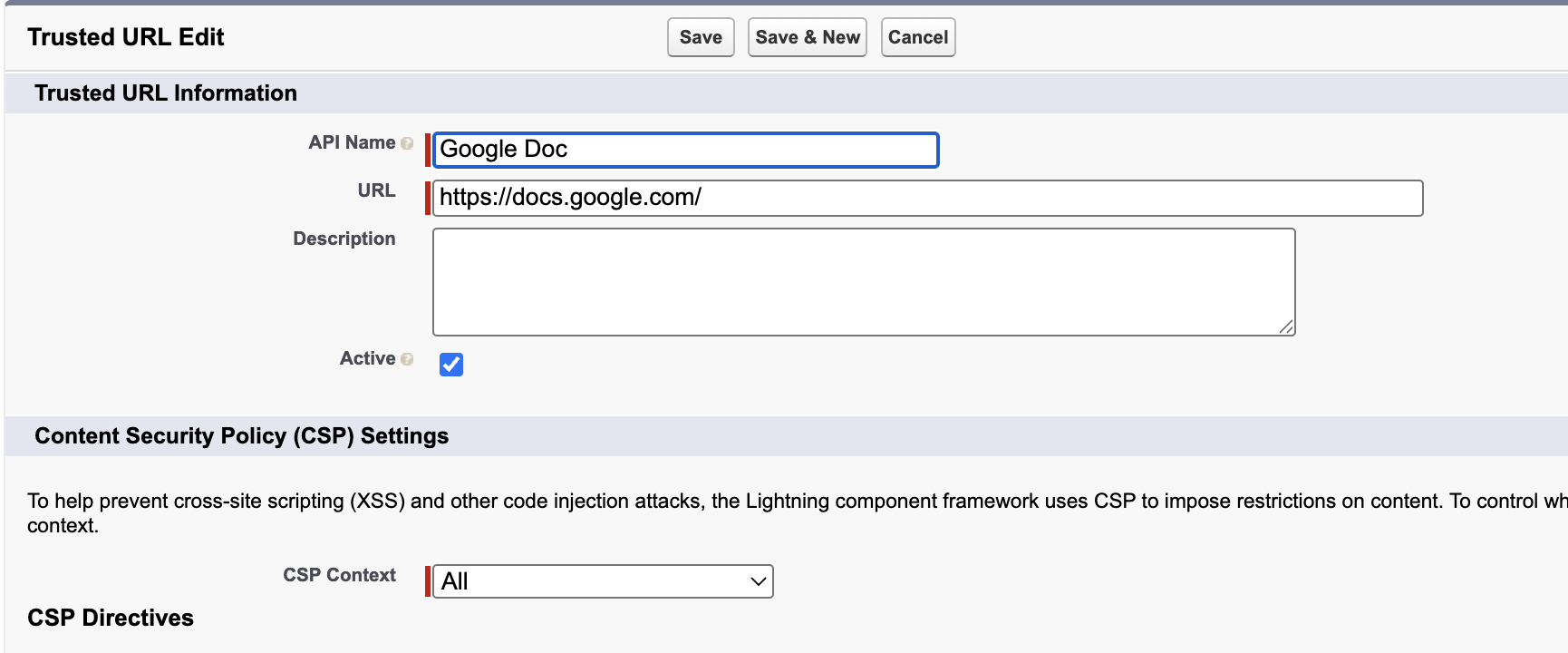
If the response includes a URL but Agentforce does not render it as a usable link, add the approved source domain under Trusted URLs in Setup. Add only domains your organization has reviewed. Avoid broad entries that allow unrelated sites.
10.3 Save, commit, and activate
- Save the agent changes.
- Run the Builder validation checks.
- Commit a new version.
- Activate the approved version.
Step 11. Give users access
11.1 Assign agent access
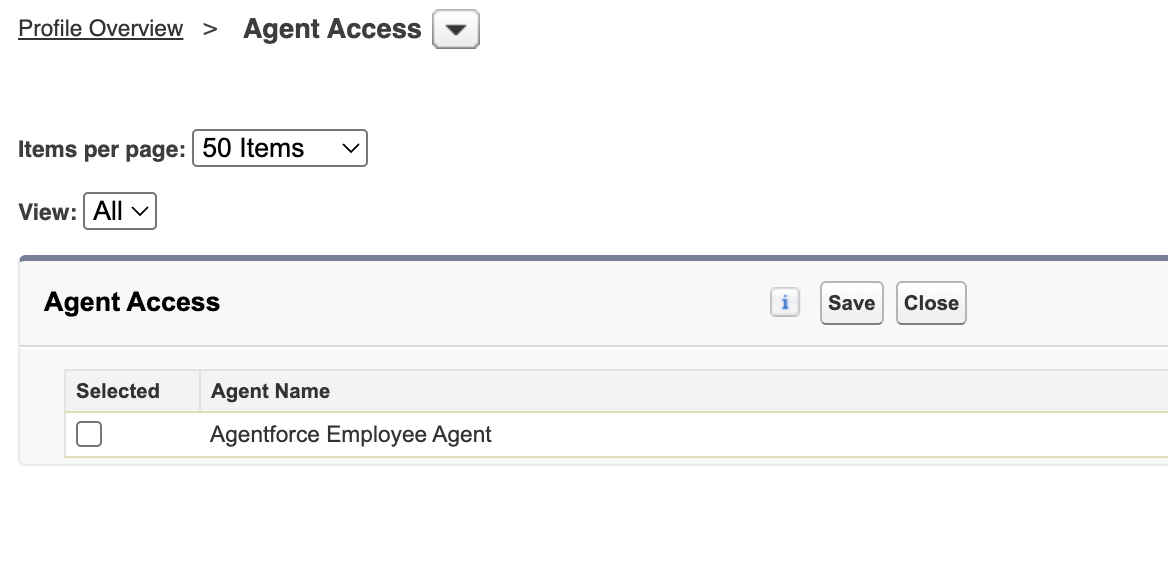
Give the intended employee access to the agent through the permission set or profile used by your organization. Test with a non-administrator account so administrator privileges do not hide an access problem.
11.2 Assign Data Cloud data space access
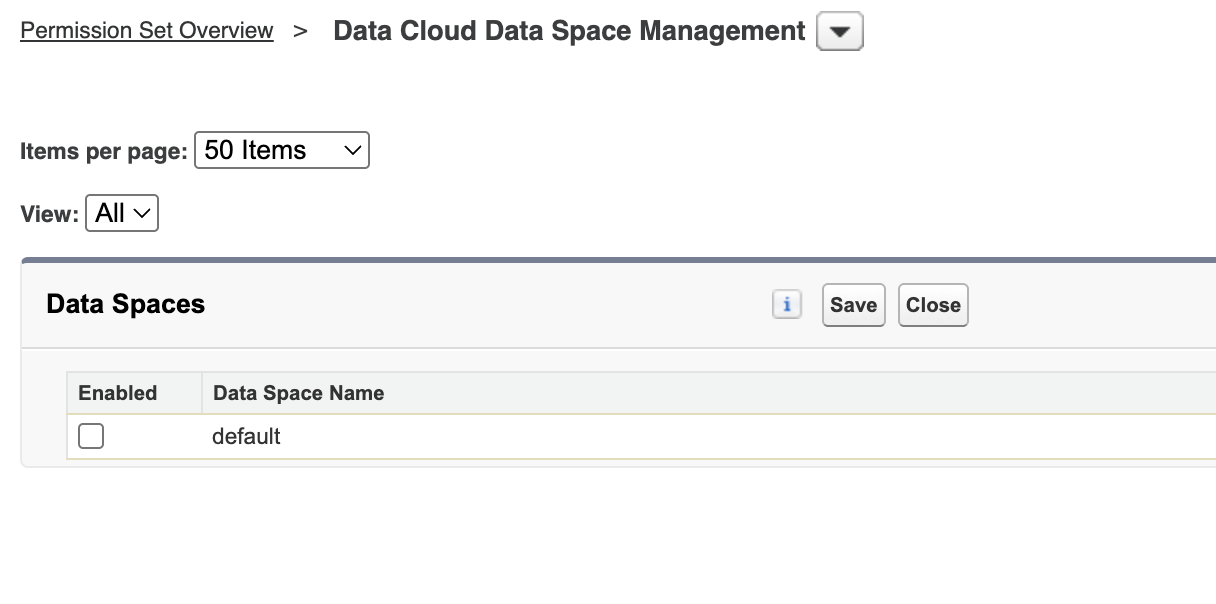
Give the user access to the data space that contains the indexed knowledge. Agent access alone may not be enough when the user cannot reach the related Data Cloud assets.
Step 12. Run an end-to-end test
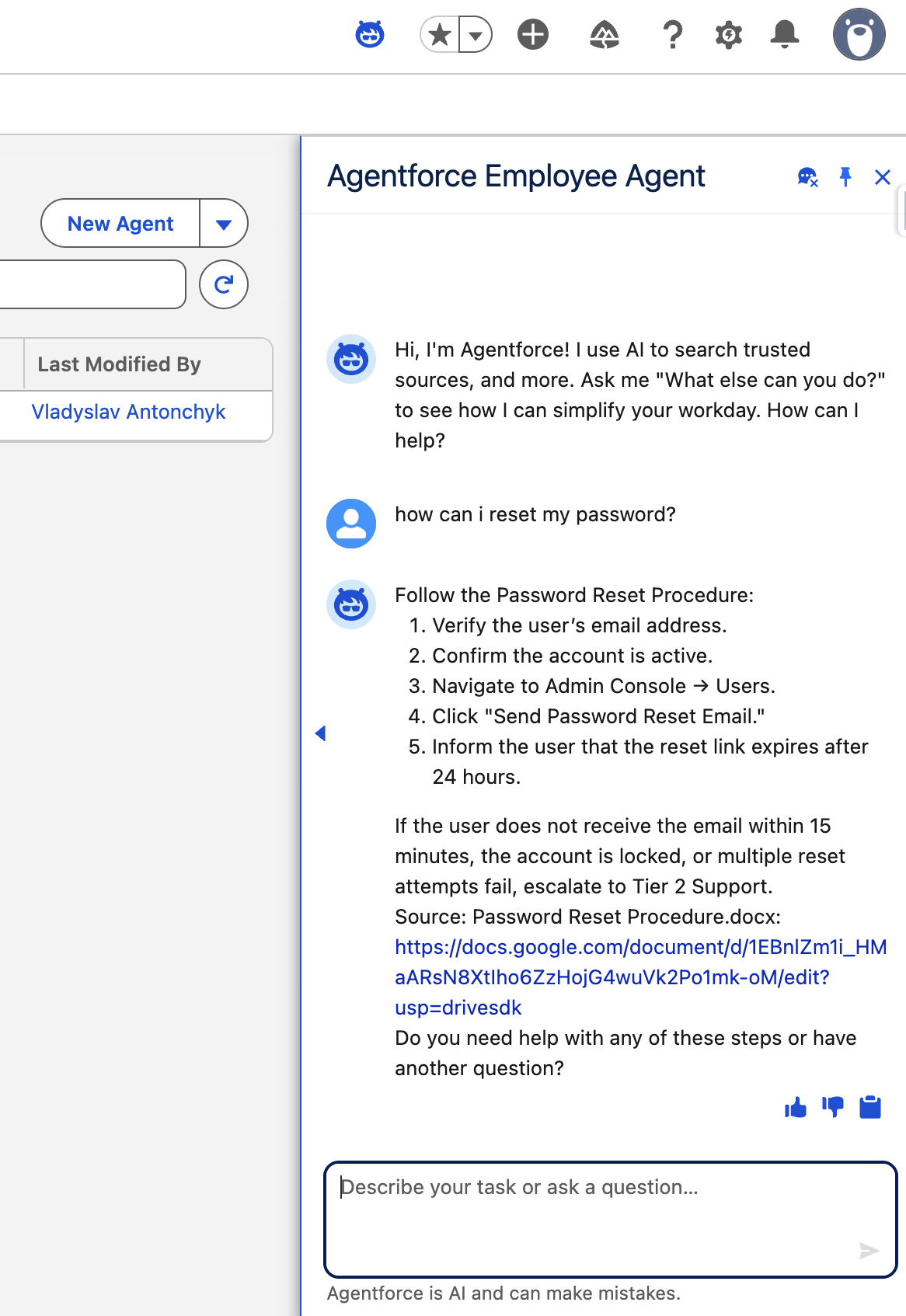
Open the agent as the target user and repeat the test with several question types. The completed response should answer from approved content and show the original document when a source URL is available.
Acceptance checklist of Salesforce Agentforce Data Cloud integration
- A direct question returns the correct answer from the test document.
- A differently worded question still retrieves the relevant passage.
- A question with no supporting content produces a clear not-found response.
- An unclear question causes the agent to ask for clarification.
- The response never displays raw JSON.
- Each source appears once, with the expected file name and URL.
- Approved source links are clickable.
- A changed document becomes available after the next successful refresh.
- A file excluded by type or filter does not appear in retrieval.
- A user without the required permission cannot access protected knowledge.
Common issues and checks after Salesforce Data Cloud Agentforce integration
The Shared Drive cannot be found: Confirm the Drive ID, service account email, Shared Drive membership, Google Drive API, and Workspace policy.
The document does not appear in Data Cloud: Check the file type, data stream status, last refresh, ingestion errors, and source selection.
The retriever returns weak passages: Review document size, duplicate content, chunk settings, search fields, filters, and result count.
The agent adds unsupported details: Confirm that it always calls the knowledge action and strengthen the rules that limit answers to retrieved content.
The response shows raw JSON: Check the subagent instructions, output mapping, and whether the prompt returned valid JSON.
Source links are missing: Return the file URL from the retriever, include it in the prompt output, and review Trusted URLs.
A user cannot open the agent: Check agent access, permission sets, profile settings, agent activation, and data space access.
New information is not available: Review the data stream schedule and status, then confirm that the index processed the updated content.
Next step: After the pilot works, add documents in small groups and repeat the acceptance tests. Track unanswered questions so knowledge owners can improve the source material before a wider rollout.
Turn approved company knowledge into answers employees can use
Once the setup is complete, an employee can ask a question in Agentforce, receive an answer based on approved company documents, and open the original source to check the full context. When a file changes, Data Cloud can process the updated content according to the configured refresh schedule.
Building the first working agent is only part of the project. Document structure, permissions, chunk settings, retrieval rules, prompt design, testing, and ongoing knowledge ownership all affect answer quality. An experienced Salesforce implementation partner can help connect these parts and prevent common issues such as missing sources, irrelevant passages, outdated content, or access to restricted files.
Build an Agentforce knowledge assistant around your company data
We help you connect Agentforce with Data Cloud, prepare your knowledge sources, configure search and retrieval, write grounded prompts, and test answer quality before rollout.
Noltic brings:
- 160+ completed Salesforce projects
- 95+ Salesforce-certified professionals
- 400+ Salesforce certifications
- 10 Salesforce Certified Architects
- 5.0 rating on AppExchange
- Hands-on experience with Agentforce, Data Cloud, Salesforce integrations, security, and custom development.
Our team can support the full project, from use-case planning and knowledge preparation to technical setup, testing, user access, and post-launch improvements.
FAQs about Agentforce and Data Cloud
What is Agentforce Data Cloud?
Agentforce Data Cloud commonly describes using Salesforce Agentforce with Data Cloud to ground AI-generated answers in connected company information. Data Cloud imports, prepares, indexes, and retrieves relevant content, while the Agentforce agent uses that content to answer employee or customer questions.
Does Agentforce require Data Cloud?
No. Agentforce does not require Data Cloud for every use case. An agent can perform actions and use other Salesforce resources without it. Data Cloud becomes useful when the agent needs to search unstructured documents, retrieve relevant passages, cite sources, and keep its knowledge aligned with connected company data.
Why connect Agentforce and Data Cloud?
Agentforce and Data Cloud help employees find answers across policies, manuals, process documents, and product materials without searching each file manually. Data Cloud retrieves relevant information from approved sources, and Agentforce turns it into a clear answer.
How do Data Cloud and Agentforce work together?
Data Cloud and Agentforce divide the process into two parts. Data Cloud imports and indexes company information, then retrieves passages related to the user’s question. Agentforce passes those passages to the prompt and generates a grounded response, including source metadata when configured.
How do I integrate Google Drive and Salesforce?
To connect Google Drive and Salesforce, configure a Google service account, grant it access to the required Shared Drive, enable the Google Drive API, and create an unstructured data connection in Data Cloud. You can then create a data stream, search index, and retriever that make the documents available to Agentforce.
Can an Agentforce agent cite the original document?
Yes. A Salesforce Agentforce Data Cloud configuration can pass file names, URLs, and other source metadata to the prompt. The response can then include a link to the original document, allowing employees to verify the answer and read the surrounding context.
Will the agent recognize updated Google Drive documents?
Data Cloud checks the connected source according to the data stream’s refresh schedule. After a revised or newly added file is imported and indexed, the Salesforce Data Cloud Agentforce setup can use its content in future answers. Update timing depends on the configured refresh and indexing processes.
What information can the setup support?
The Agentforce platform integration can support HR policies, IT instructions, product documentation, sales materials, operating procedures, onboarding guides, customer service playbooks, and approved partner resources. Access controls should determine which documents and answers are available to each audience.
How complex is an Agentforce integration?
Salesforce Agentforce integration complexity depends on the number of data sources, document formats, permission rules, retrieval requirements, agent actions, and user groups. A single Shared Drive may be relatively focused, while a company-wide knowledge assistant requires more work around content preparation, security, testing, and ownership.
When should a company work with Agentforce integration specialists?
Agentforce integration specialists are useful when the project includes multiple knowledge sources, restricted documents, custom retrieval logic, Salesforce automation, or a large user rollout. An experienced Salesforce partner can help define the architecture, prepare the data, configure permissions, test answer quality, and establish a process for maintaining the agent after launch.




Salesforce Data 360: real business use cases by industry
together