Key Insights
- Salesforce Marketing Cloud A/B testing compares different email versions to see which performs better.
- Marketing Cloud lets you test emails based on its subject line, email, content area, from name, send date and time, and preheader.
- Path Optimizer can test up to 10 journey paths and automatically or manually select a winner.
- Email Studio compares two versions and selects the best option based on unique open or click rate.
It’s time for an email marketing campaign. You’re writing an email. Then, you’re choosing the subject line, polishing the copy, picking the sender name, and hitting Send. You’re waiting.
Did people open it? Did they click? Was the subject line strong enough? Maybe another version could have done better.
With A/B testing Marketing Cloud, you don’t need to guess and predict possible scenarios. You can test different email versions with a specific group, see what gets more responses, and send the best option to the rest of your audience.
In fact, Salesforce Marketing Cloud gives you two ways to do this: Path Optimizer in Journey Builder and A/B Testing in Email Studio.
Why is A/B testing important? What are its main methods, and how do they work in practice? We cover all of this in our guide.
What Is A/B Testing in Salesforce Marketing Cloud?
Imagine this! You have two subject lines. Both look good. But which one will actually make people open the email?
Instead of choosing one and hoping for the best, A/B testing in email marketing lets you study and discover.
You can split your audience into groups and send each group a different version of the email. Then you compare the results — opens, clicks, or conversions. So you can see which version gets the better response. After that, you can send the top-performing option to the rest of the client base.
The idea behind Salesforce A/B testing is pretty simple: change one thing, keep everything else the same, and let your customers show you what works.
Over time, A/B testing helps you understand your audience better and succeed at personalized email campaigns. And when you know what works, the question of how to send mass emails in Salesforce will be easier to answer.
What Can You A/B Test in Marketing Cloud?
Marketing automation with Salesforce helps you digitize email campaigns and learn from how your audience responds. So, what can you actually test?
Marketing Cloud lets you test six parts of an email, from the subject line people see first to the time your email lands in their inbox. Email A/B testing ideas can answer a different question about what gets your audience to open, click, or engage. Let’s focus on different elements of an email:
Subject line: will people open this email?
Create two subject lines and see which one gets more opens. You can use up to 256 characters for each A/B testing subject line.
For example, compare a benefit-led subject line like “Cut your quoting time in half” with a curiosity-driven one like “The quoting mistake most teams make.”
Email version: does the whole email work better another way?
Test two different emails when you want to compare more than one element. This could be a different layout, message, or offer.
Content area: which piece of content gets more attention?
Test two content blocks within the same email and see which one performs better.
For example, you could compare a hero image with a short text block in the same position.
Sender’s name: who should the email come from?
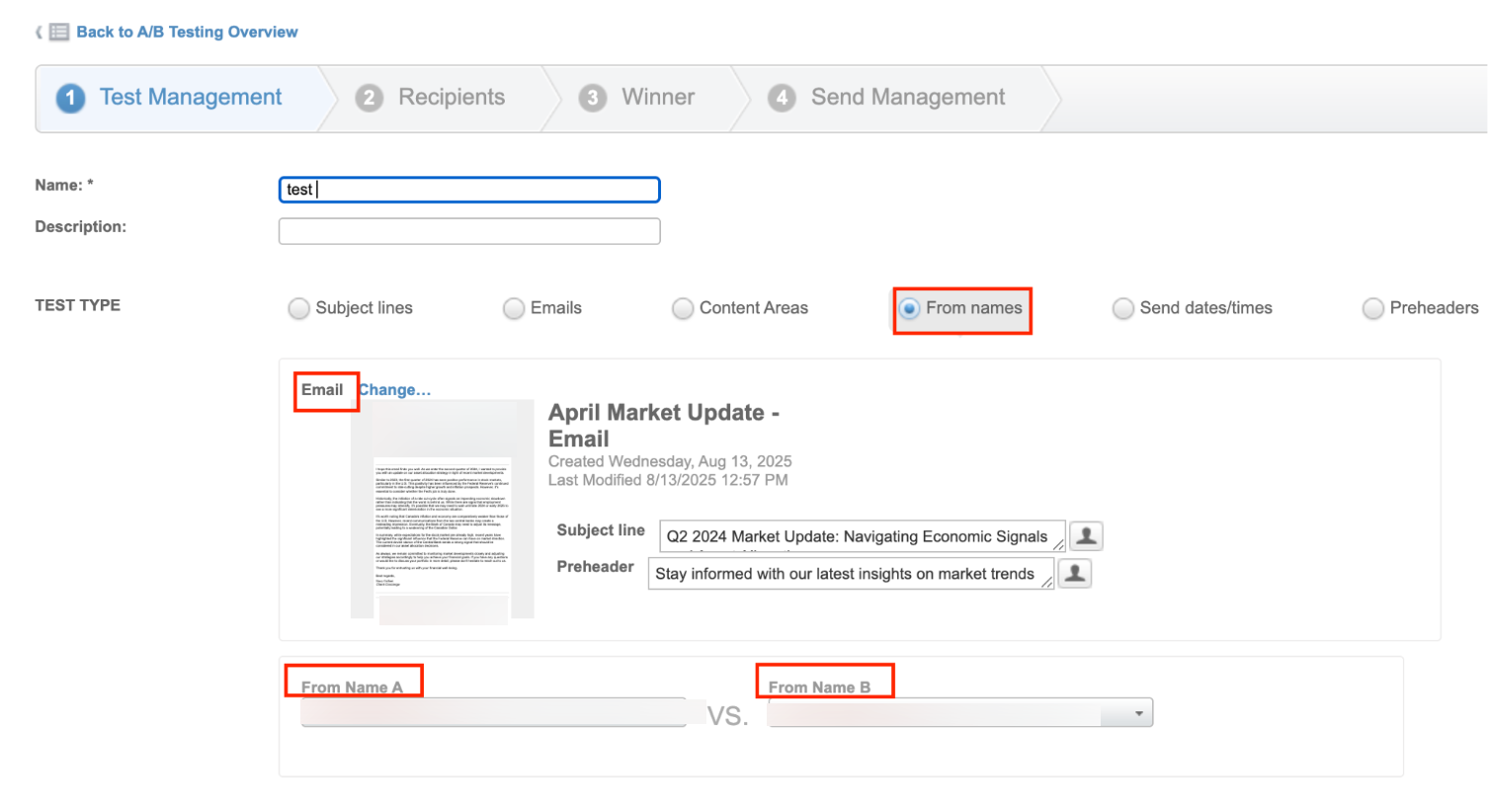
Test two sender names and see which one gets more engagement. You can use an existing sender name or enter a new one.
For example, compare “Noltic” with “Anna, Sales Representative at Noltic.”
Send date and time: when is your audience most likely to engage?
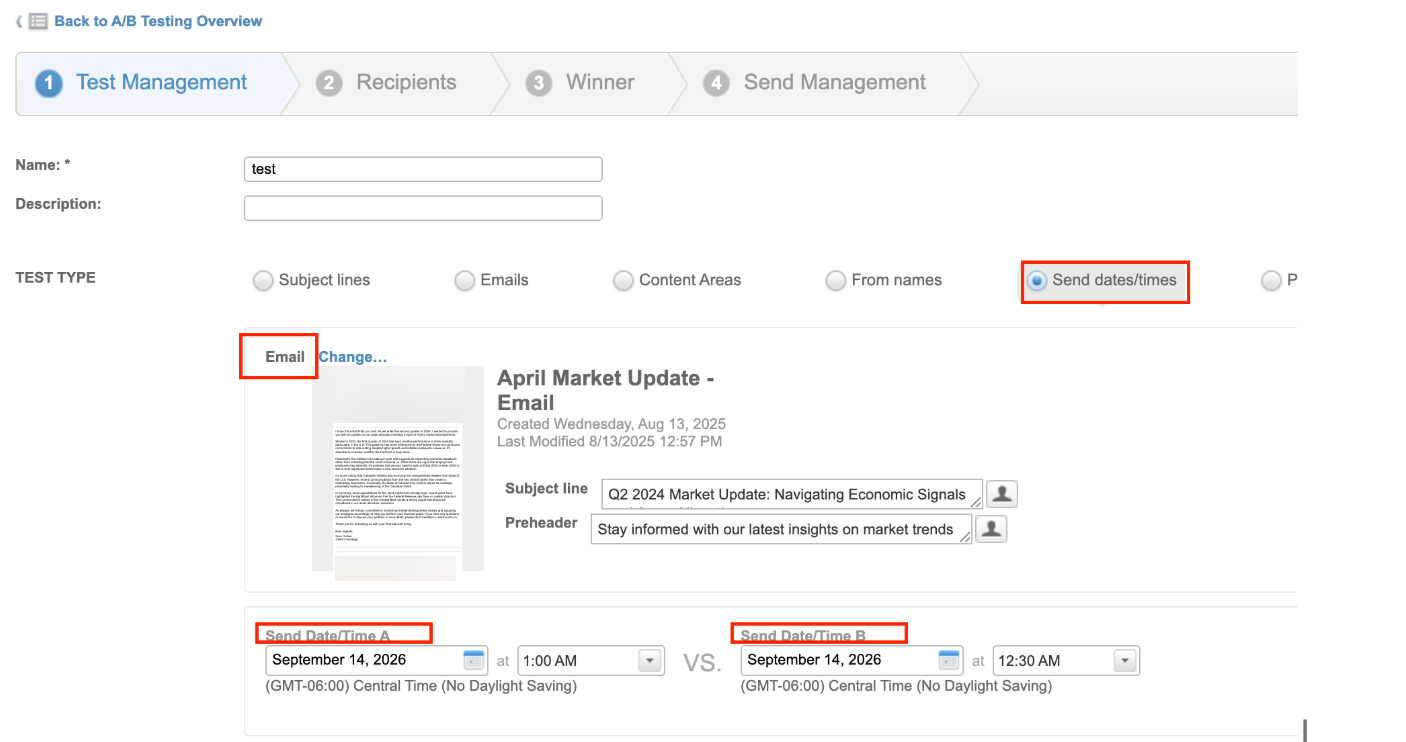
Test two different send times and see which one gets better results. This can help you find the days and times when your audience is most likely to open and click your emails.
Preheader: can a little extra context get more opens?
The preheader is the short preview text that appears next to or below the subject line in many inboxes. Test two versions and see which one gets more opens.
It works much like a subject line test — a small change that can make a difference.
In Salesforce Marketing Cloud Engagement, you can run these tests in two ways: using A/B Testing in Email Studio or Path Optimizer in Journey Builder.
Path Optimizer vs Email Studio A/B Testing: Which to Use?
Both Path Optimizer and Email Studio help you test what works. The difference is where you run an A/B testing email and how many versions you want to compare.
Use Path Optimizer when your test is part of a customer journey, or you want to compare more than two versions. Use Email Studio when you want to test one email element in a standalone send.
| Path Optimizer (Journey Builder) | A/B Testing (Email Studio) | |
|---|---|---|
| Best for | Tests inside a customer journey or tests with 3+ variants | Quick tests of one element in a standalone email or newsletter |
| Where you set it up | Journey Builder, as an activity on the journey canvas | Email Studio → A/B Testing |
| Versions compared | Up to 10 paths | 2 (A and B) |
| What you test | Whole journey paths, each with its own emails | One element: subject line, email, content area, from name, send date/time, or preheader |
| Audience split | Even or custom percentage per path | A set test percentage, split between A and B |
| Winner selection | Automatic by email engagement (opens, clicks, or unsubscribes), or manual | Automatic by highest unique open rate or unique click rate |
| Sending the winner | Holdback contacts receive the winning path (Run Once schedule only) | The rest of the audience receives the winner after the evaluation period |
| Setup effort | Higher: requires a journey, an entry source, and a data extension | Lower: a guided six-step wizard |
Already building your campaign in Journey Builder? Path Optimizer lets you test different paths without leaving the journey.
Sending a one-off email and want to test a subject line, sender name, or preheader? Email Studio gives you a simpler way to run the test. Knowing when to use each tool is an important part of learning how to use Salesforce Marketing Cloud with benefits for your business units.
Option 1: How to Use Path Optimizer in Journey Builder
Path Optimizer is a Journey Builder activity that lets you test up to 10 versions of a journey path. You can let Journey Builder choose the winner based on email engagement, such as opens, clicks, or unsubscribes, or select the winner manually.
Prerequisites
Before you start, make sure you have:
- The emails you want to test, created in Content Builder
- A data extension (DE) with the contacts who should receive the test emails
To run an A/B test with Path Optimizer in Journey Builder:
→ Go to Journey Builder:
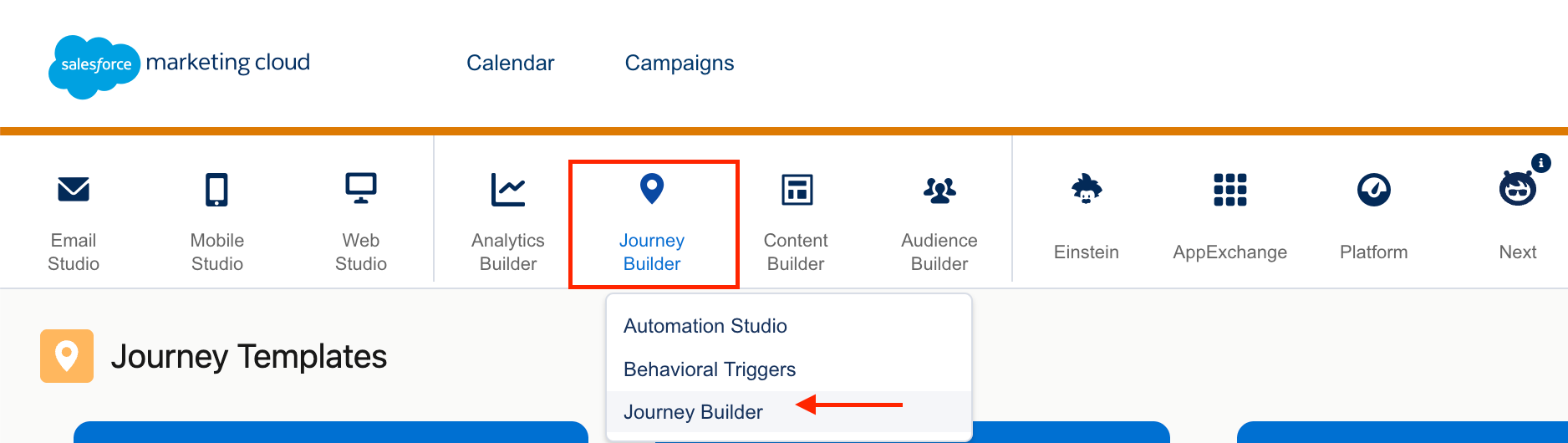
→ Click Create New Journey to build a journey from scratch. Then drag and drop the elements and activities you need onto the canvas.

Alternatively, you can use a pre-built template for the journey.
→ Open the Templates tab and select Path Optimizer Email A/B Test.
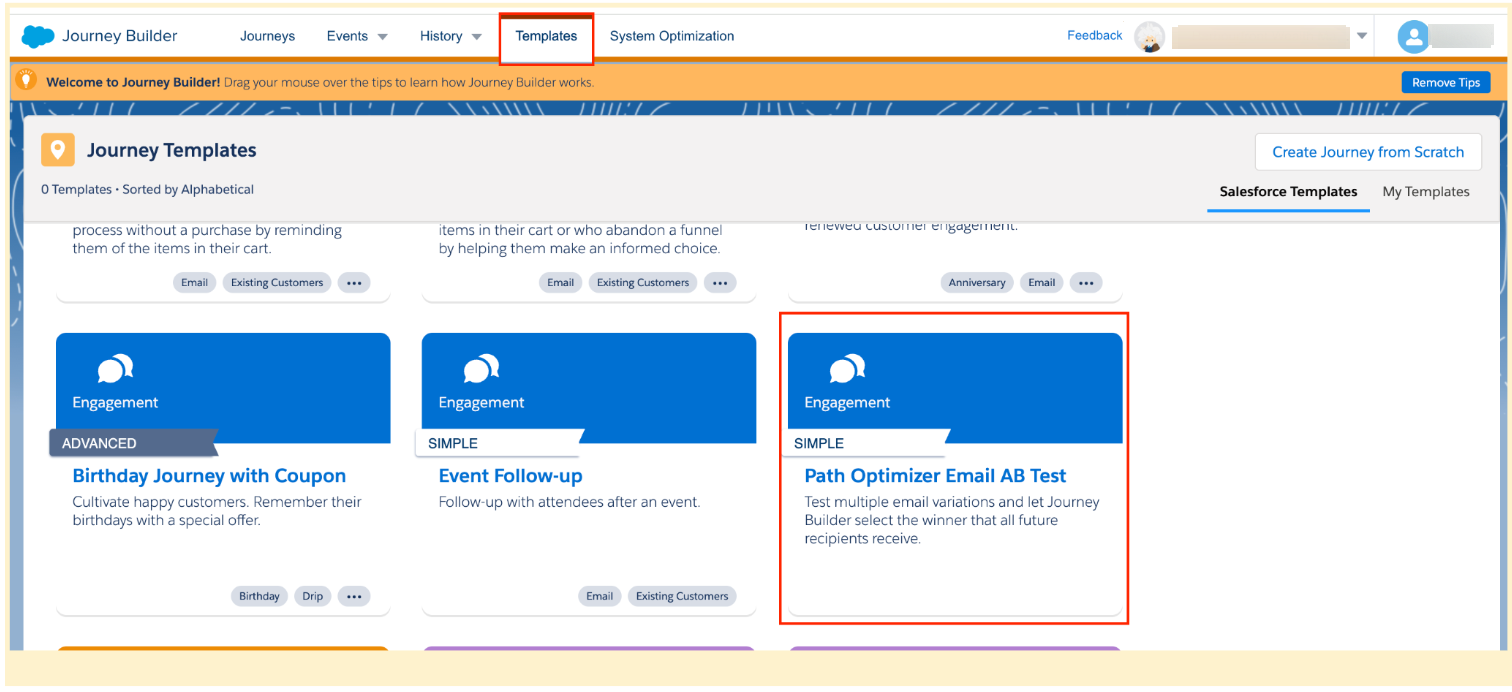
After selecting the template, you’ll see the following page:
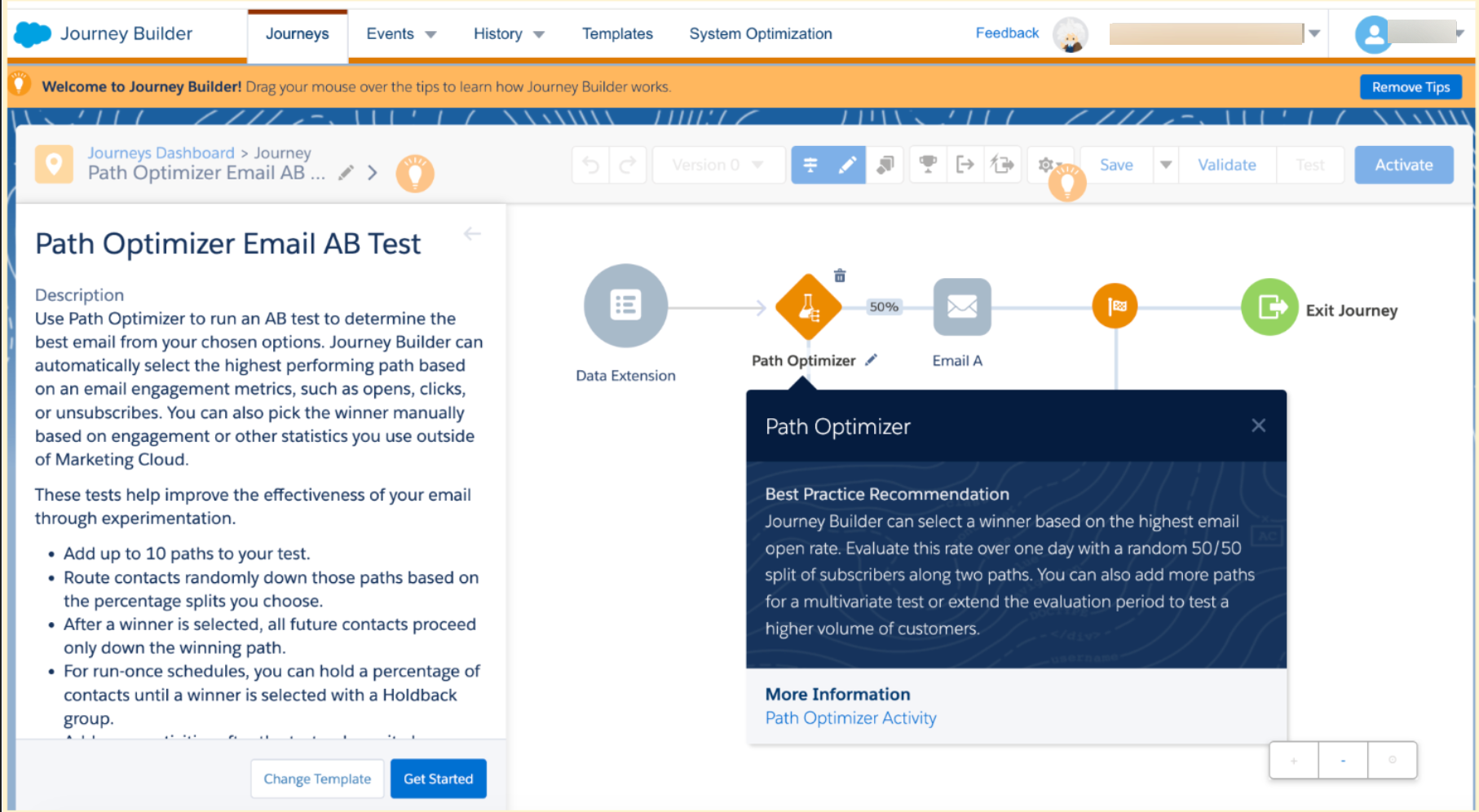
The Path Optimizer activity lets you test up to 10 variations of a journey path and see which one performs best. You can let Journey Builder automatically select the winner based on email metrics such as opens, clicks, or unsubscribes. You can also review the results and choose the winner manually based on the metrics tracked in Marketing Cloud.
How to configure Path Optimizer
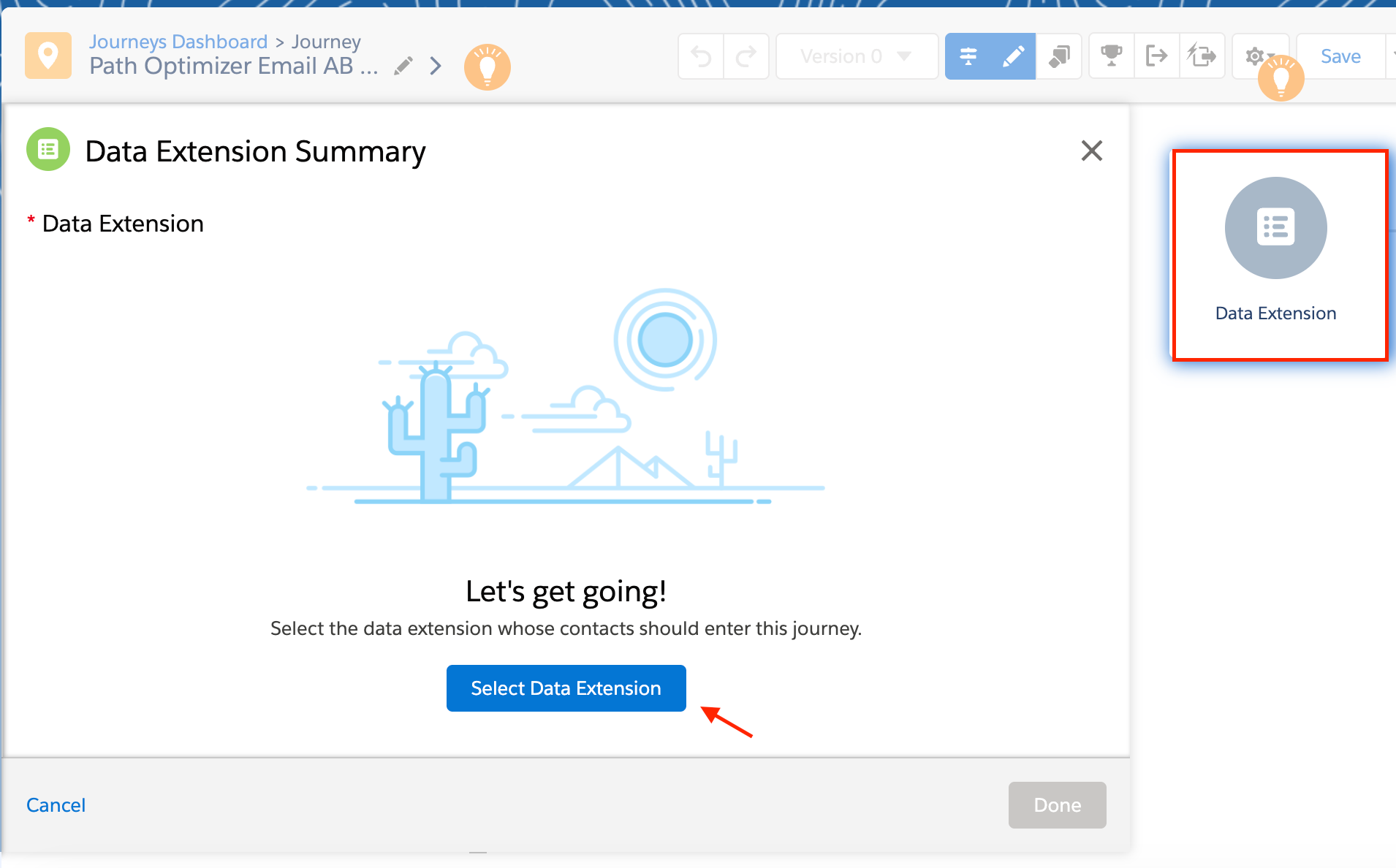
Step 1: Select your entry source
First, choose the Data Extension that contains the audience for your test. Then set up the journey's running schedule.
Step 2: Configure Winner Evaluation
Select Path Optimizer and go to the Winner Evaluation section. Click Edit.
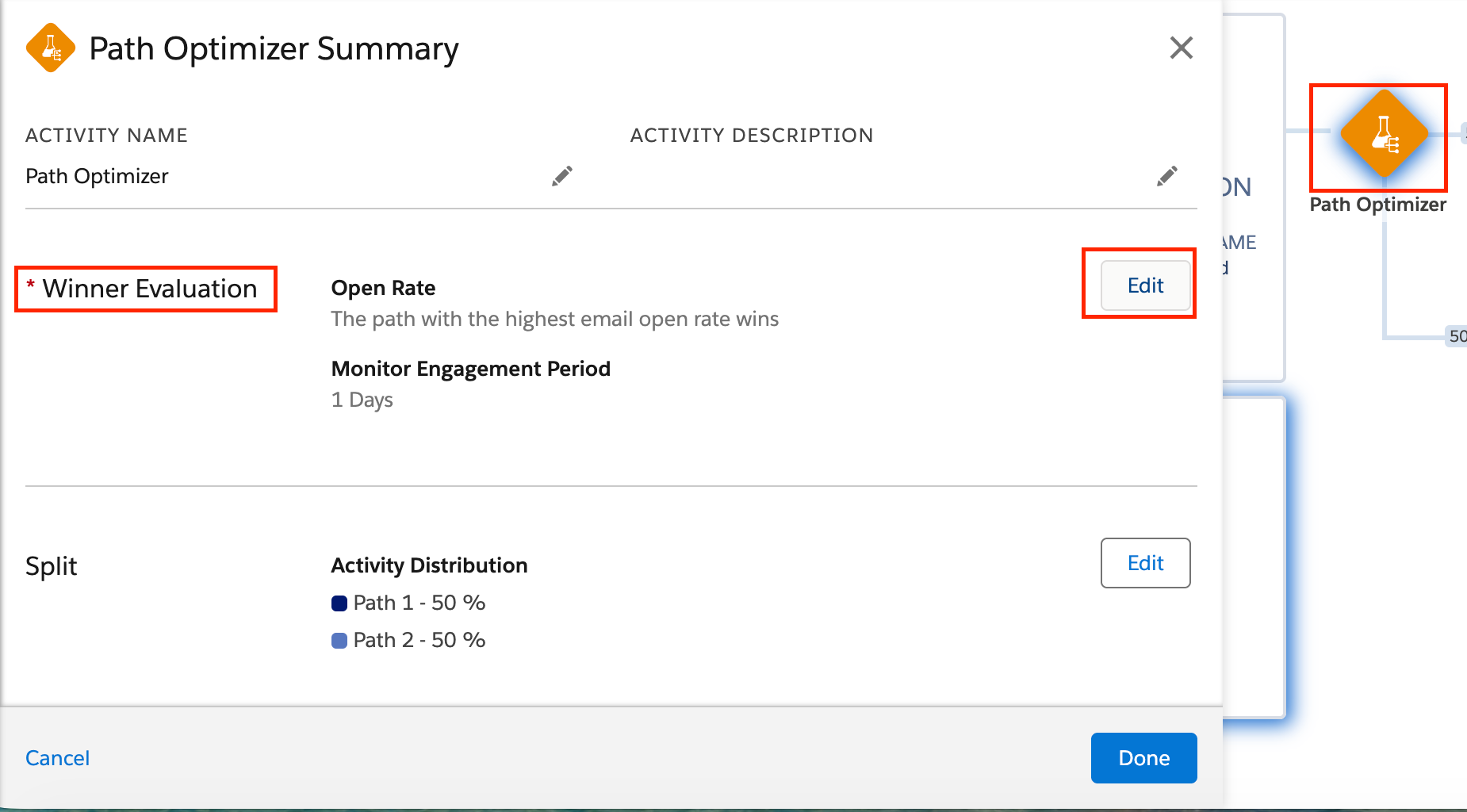
Choose how you want to select the winning path and click Summary.
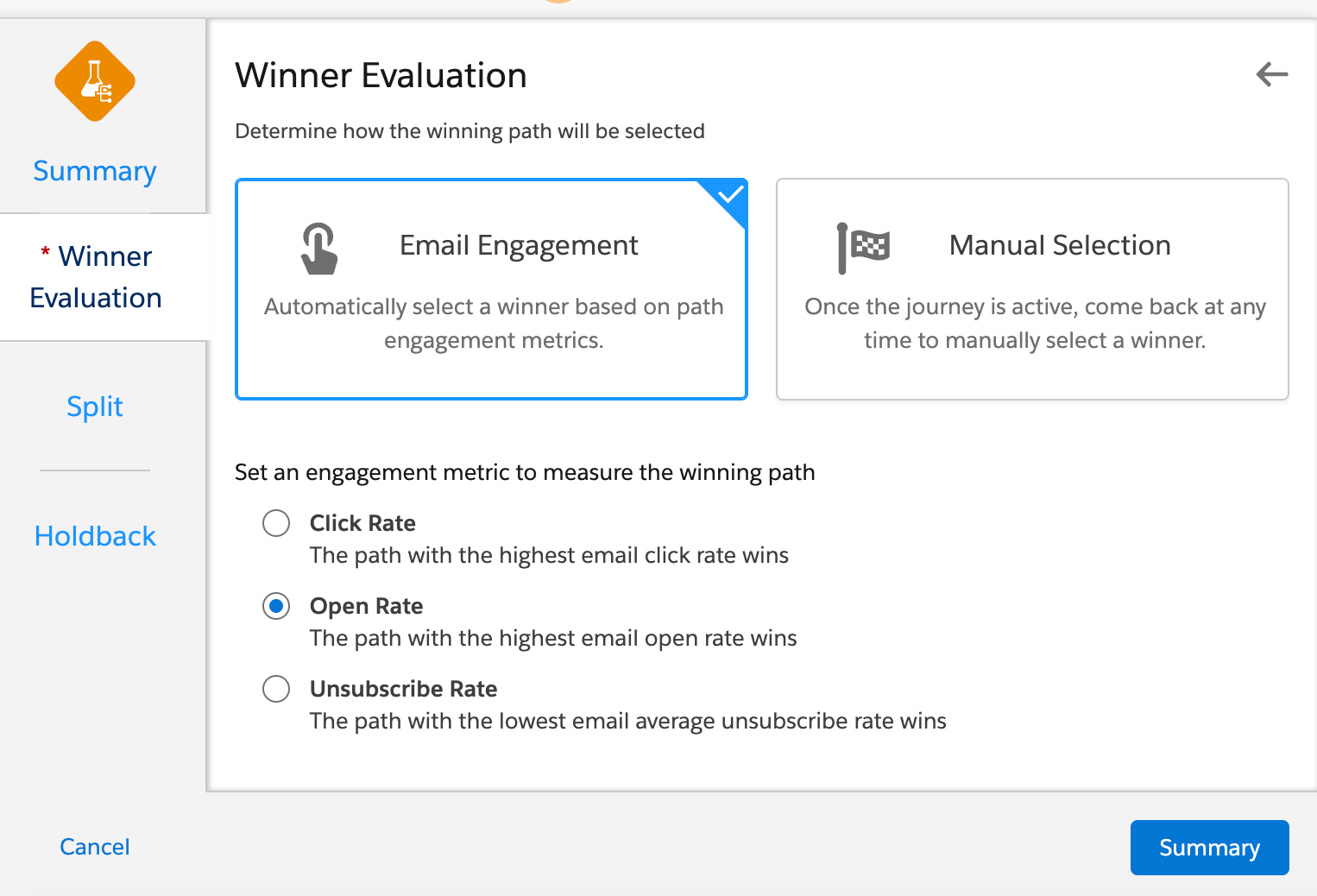
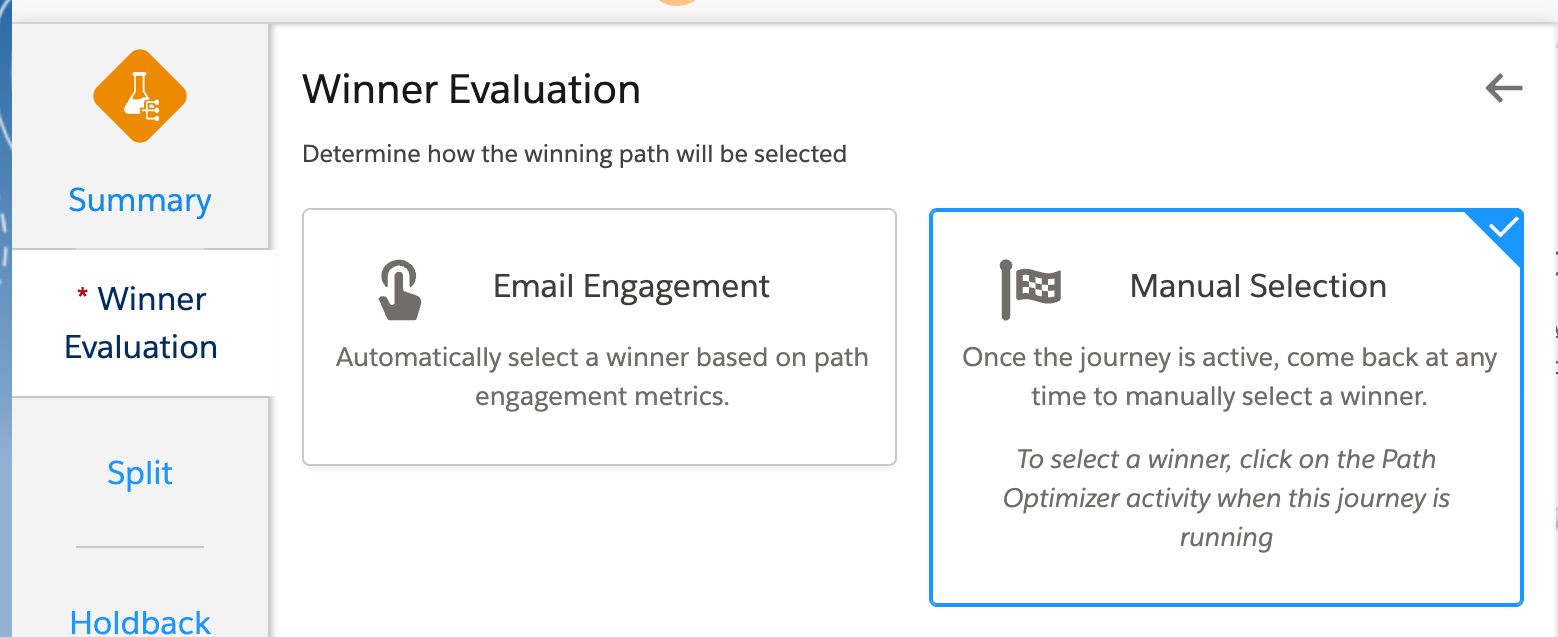
You have two options:
- Email Engagement: Journey Builder automatically selects the winning path based on engagement data, such as opens, clicks, or unsubscribes.
- Manual Selection: You review the results and choose the winning path based on your own judgement.
Step 3: Configure your Path
Select Path Optimizer and click Edit under Path.
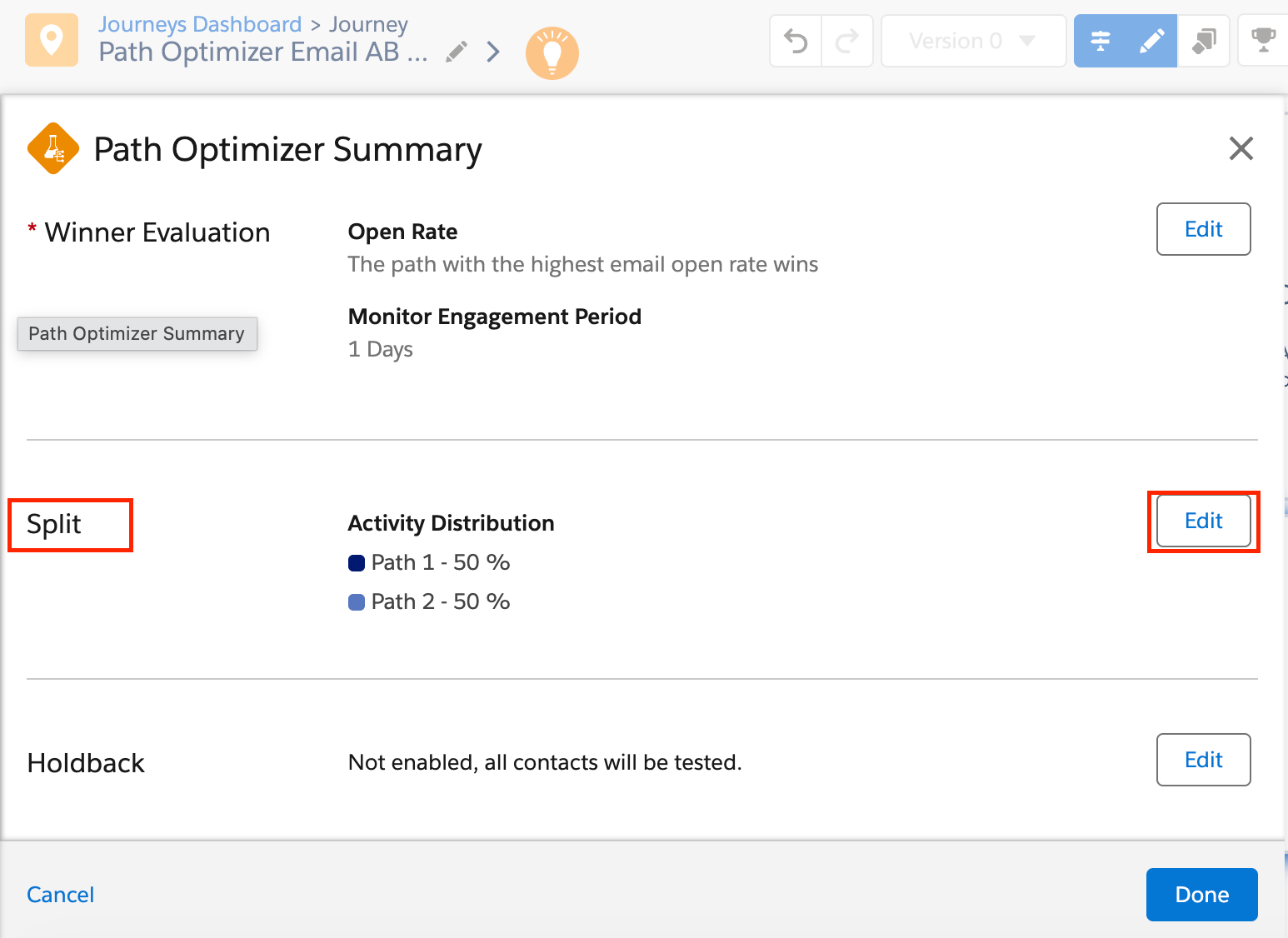
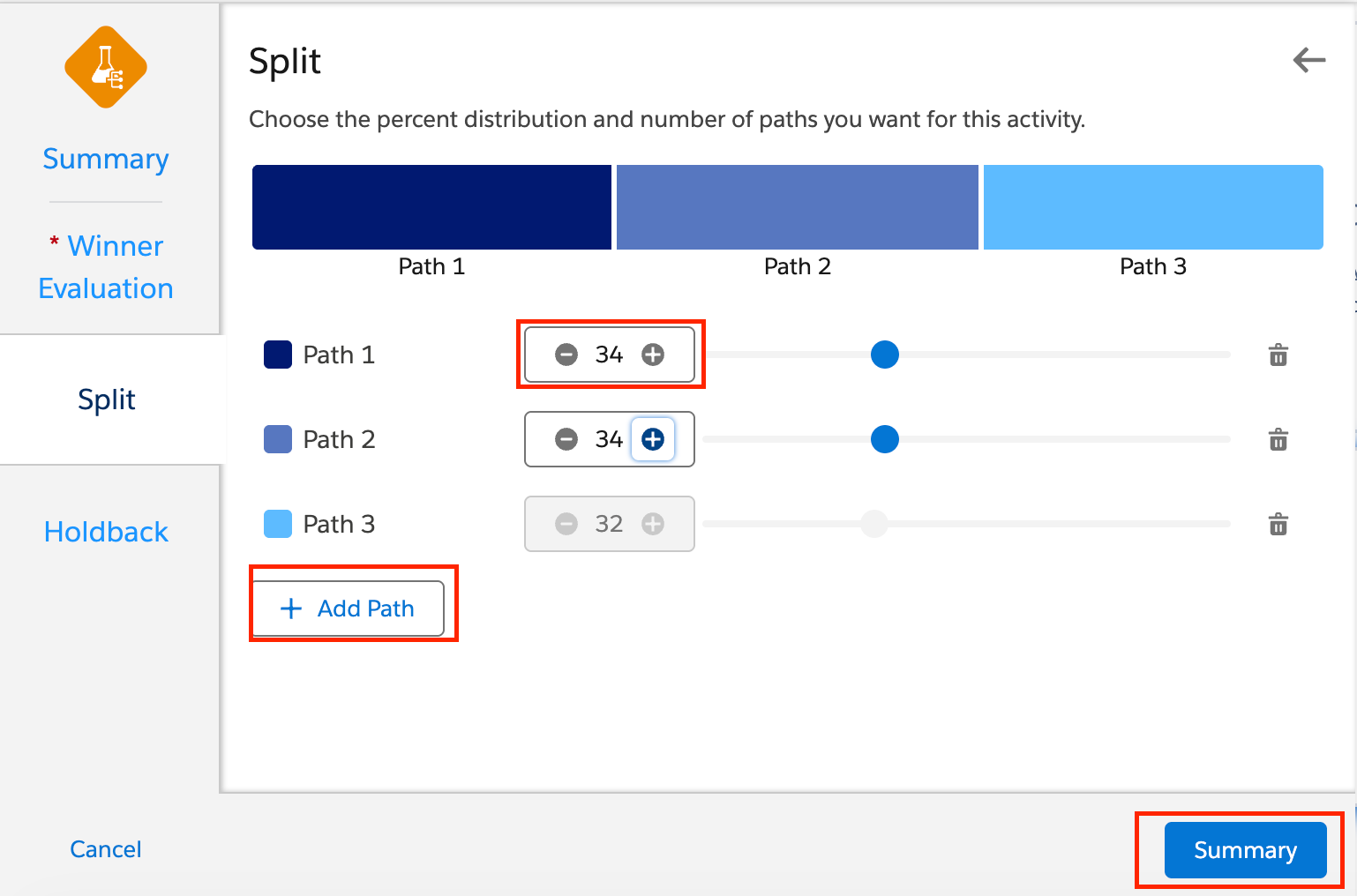
On the Split page, add or remove paths and set the percentage of your audience for each one. You can split the audience evenly or use custom percentages.
Create the number of paths you need, set the audience percentage for each one, and click Summary.
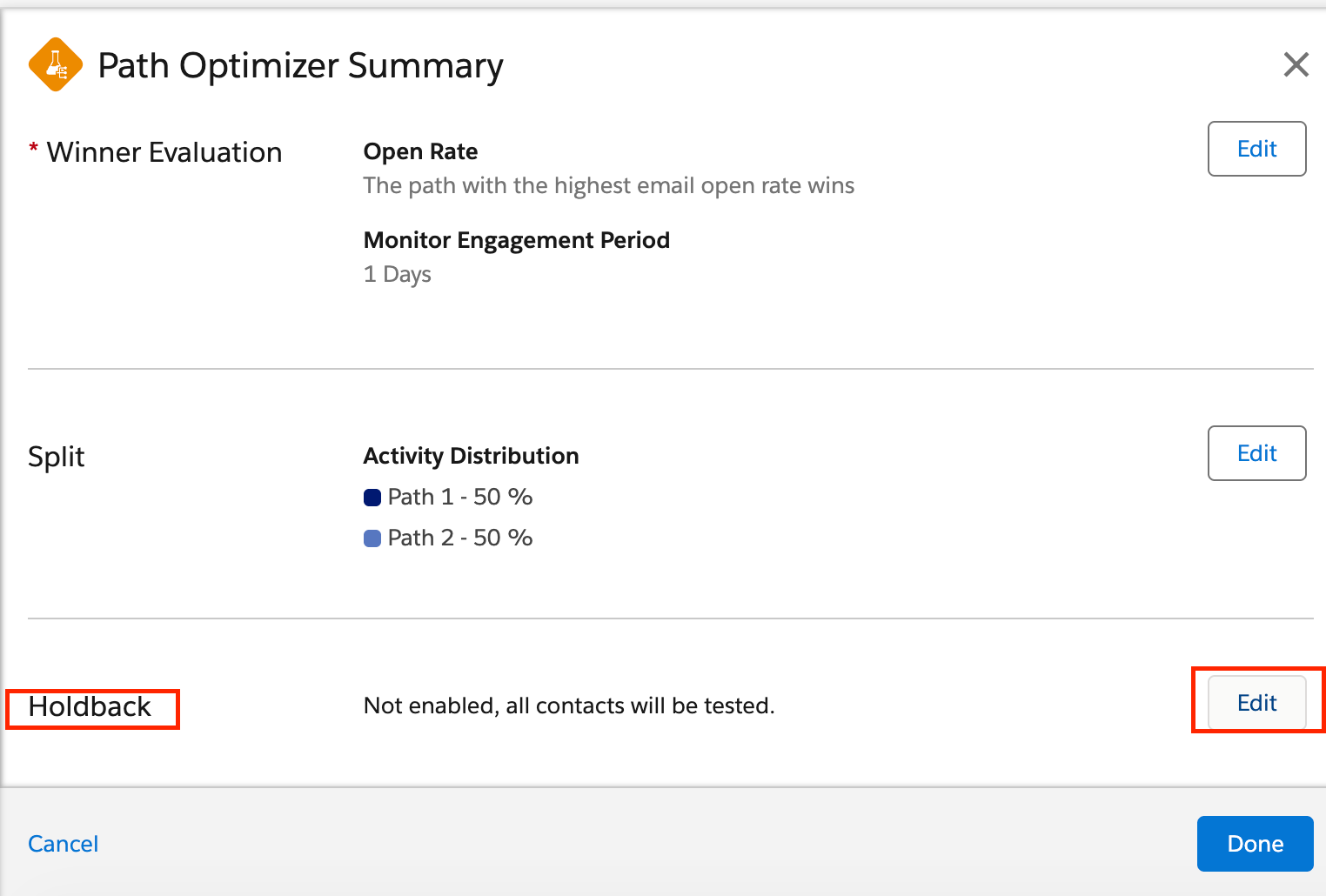
Step 4: Configure a Holdback
A Holdback keeps a percentage of your audience waiting until the winning path is selected. These contacts then receive the winning path.
Note: Holdback is available only when the journey uses a Run Once schedule.
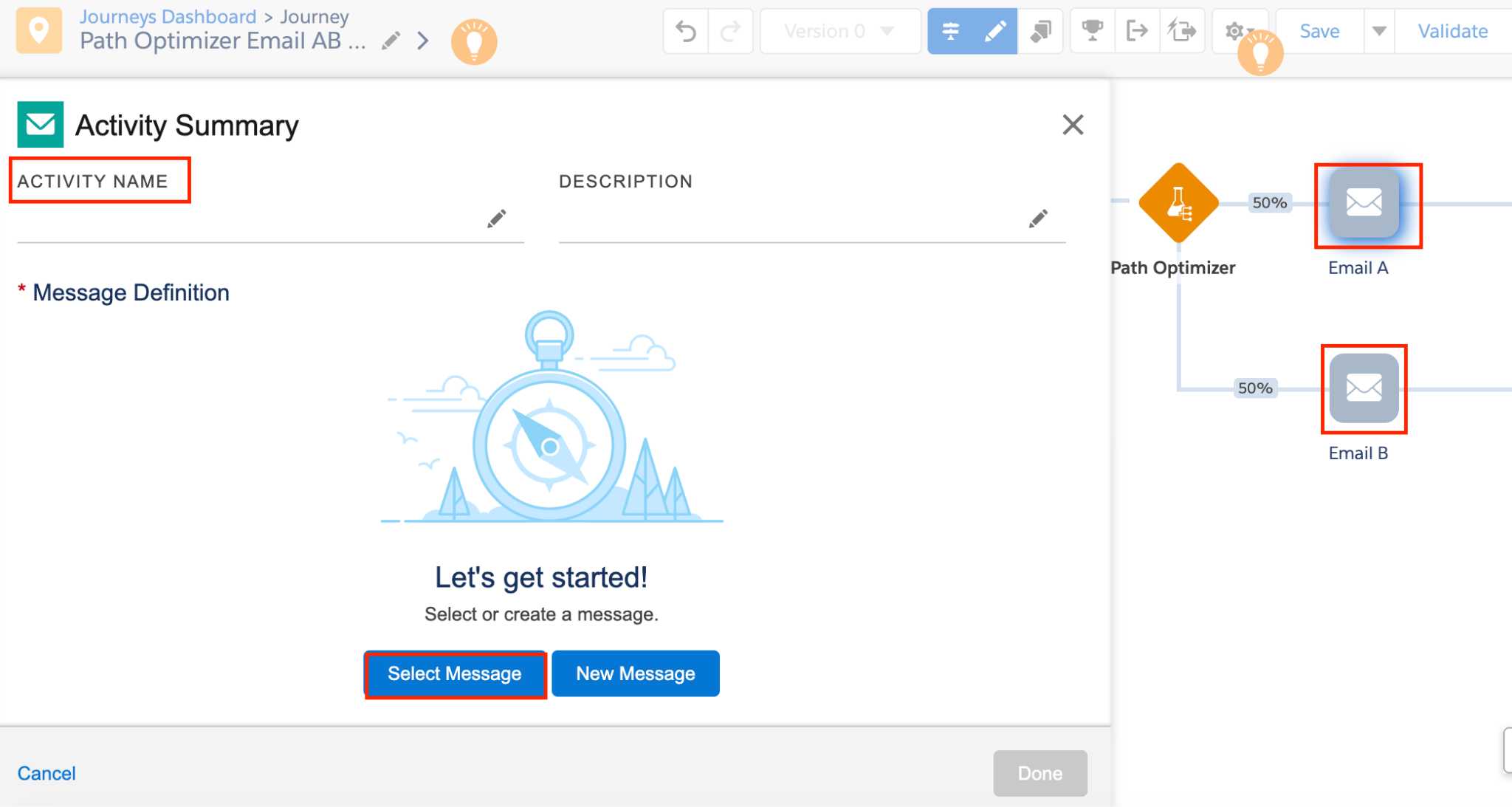
Step 5: Select your email messages
Select the emails you created for each path and click Done.
Step 6: Configure your Journey Settings
Adjust the Journey Settings based on your marketing campaign requirements.
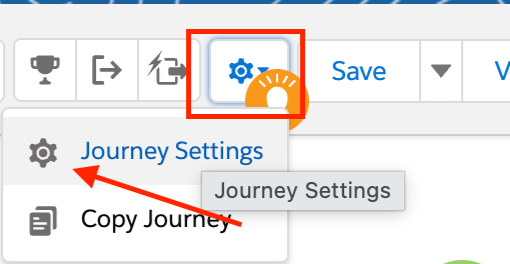
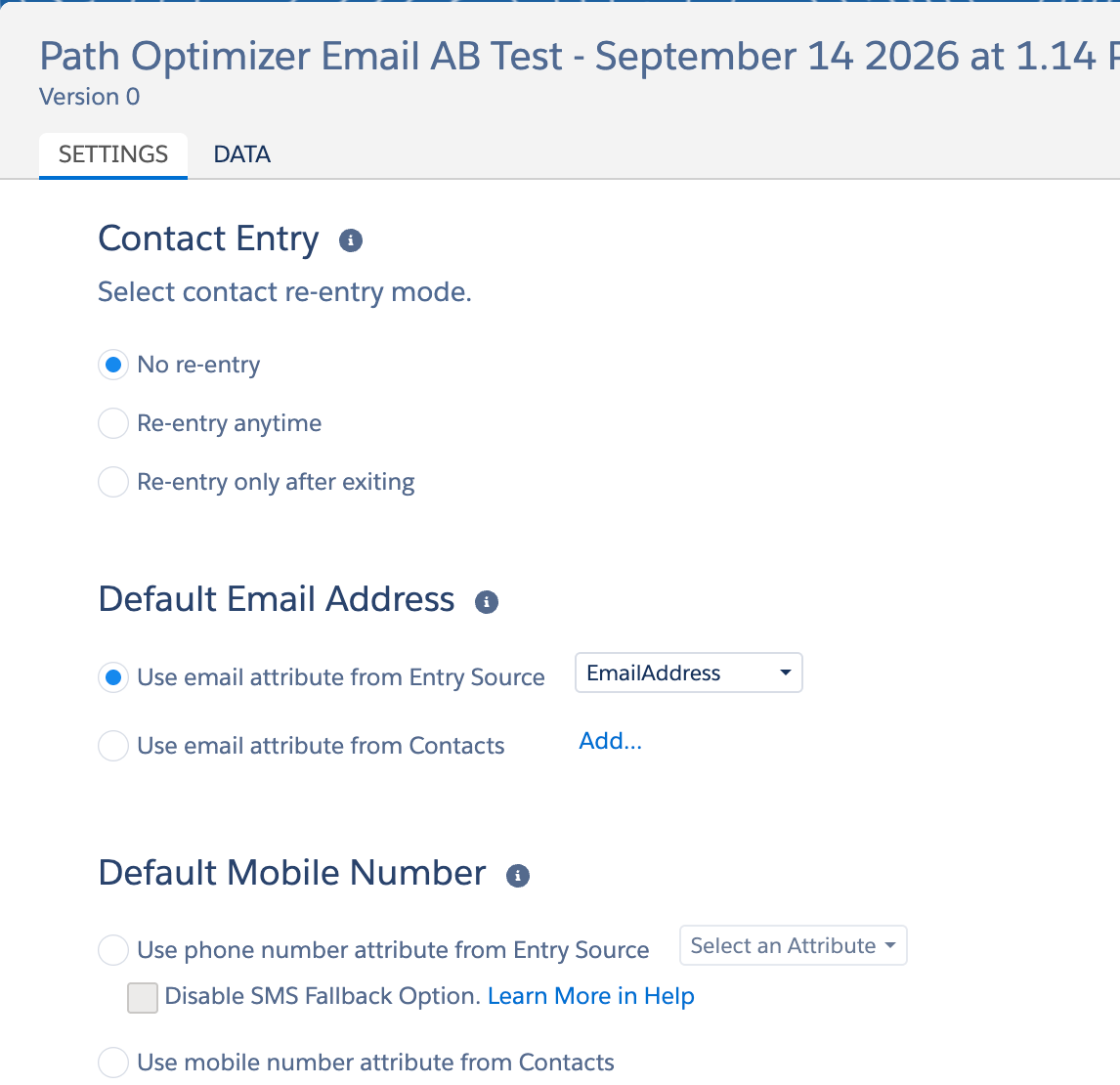
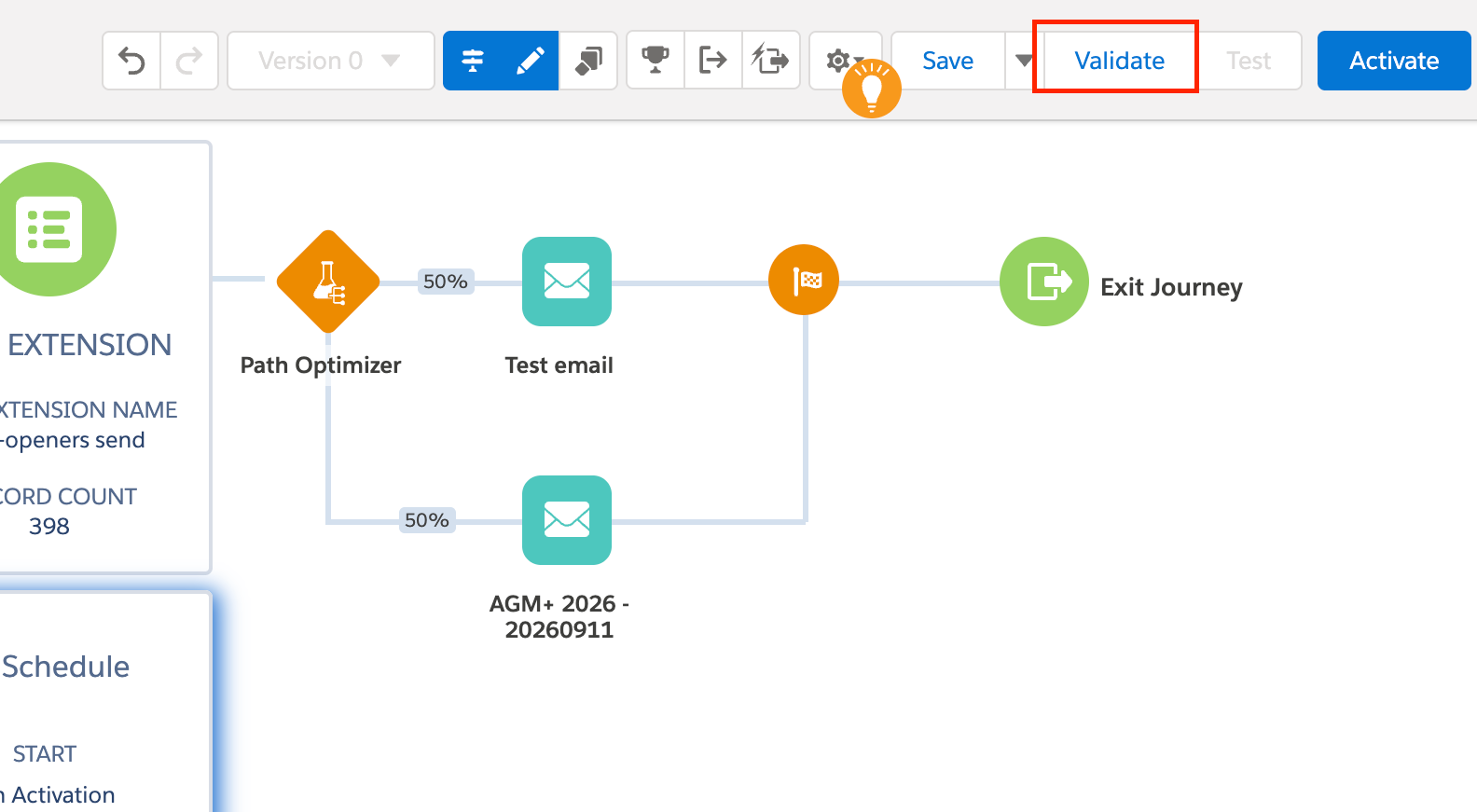
Step 7: Validate and activate your Journey
Review your Journey and click Validate to check for errors. If everything looks good, click Activate.
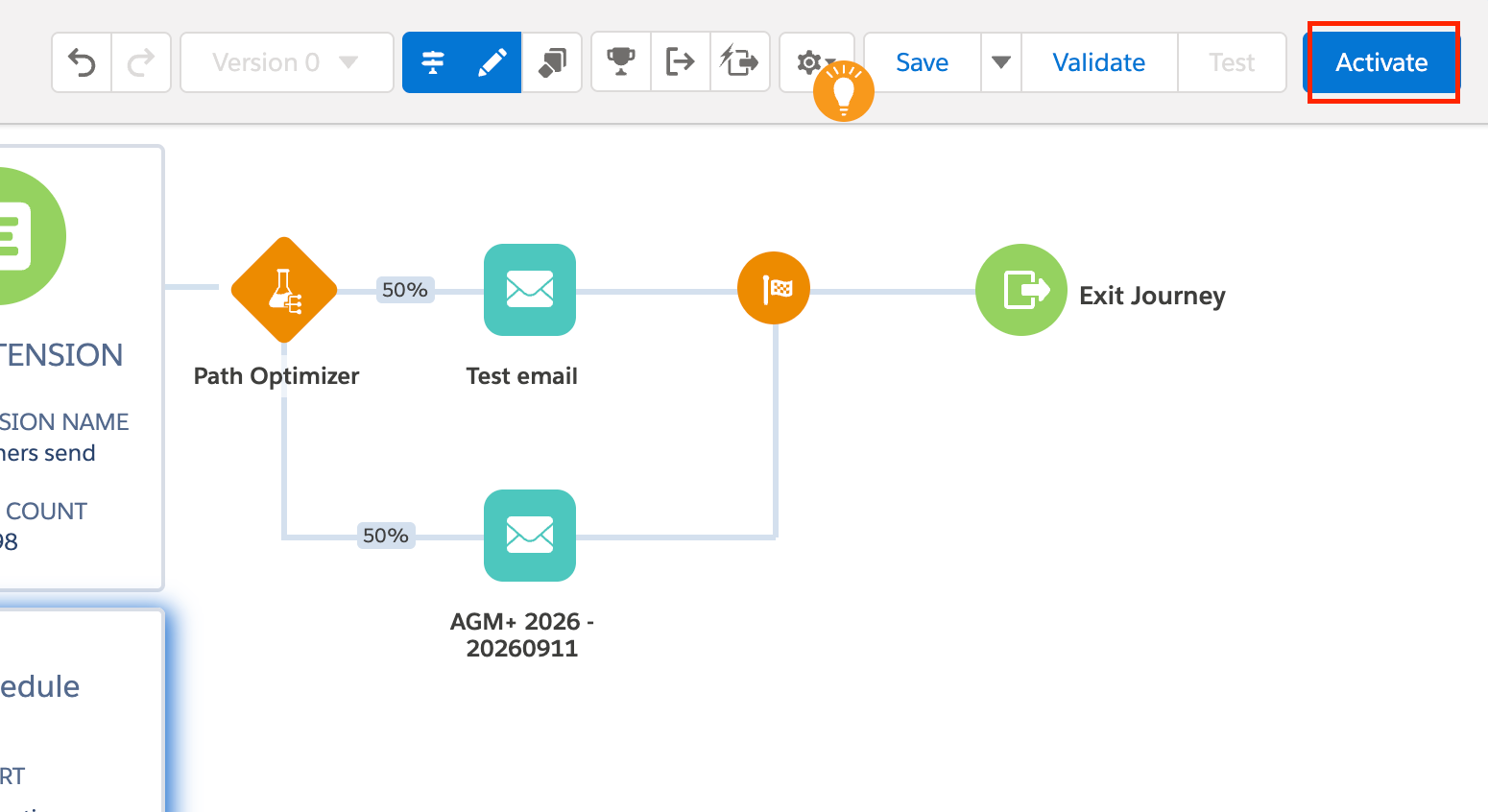
Your Journey is now live. Contacts will start entering based on your entry source configuration.
Option 2: How to Create an A/B Test in Email Studio
Email Studio lets you test two versions of an email element and automatically send the winner to the rest of your audience. Here’s how to create an A/B Test in Email Studio:
Step 1: Go to A/B Testing
Go to Email → Email Studio → A/B Testing and select Create A/B Test.
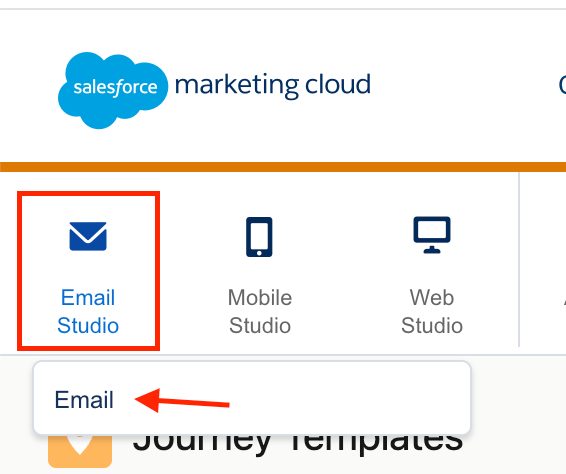
Step 2: Create your A/B Test
Select Create A/B Test on the right side of the screen.

Step 3: Configure your Test
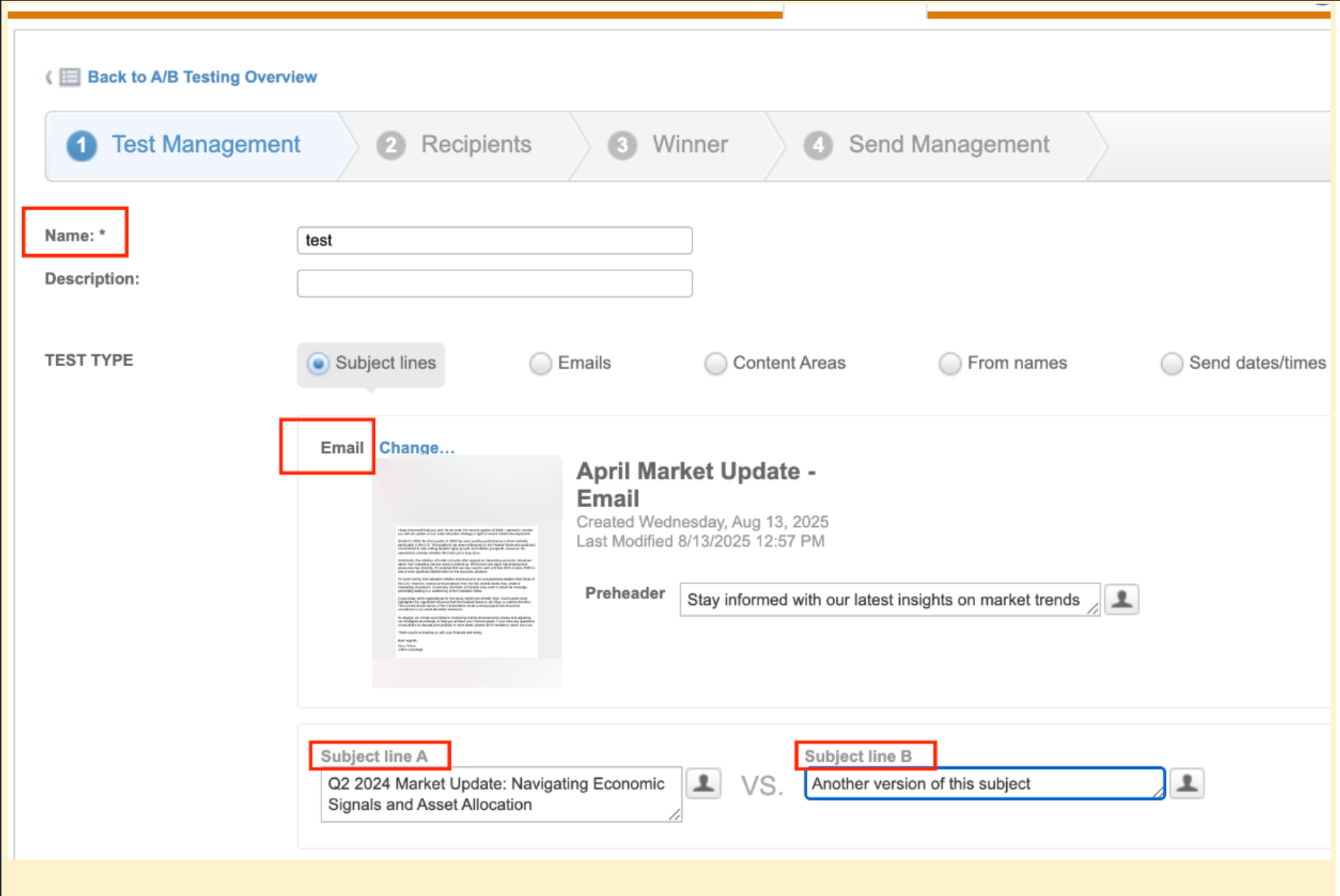
→ Add the details to the description if needed (this field is optional).
→ Choose the type of Test that you are going to carry out by sending the email.
In this case, we have selected the Subject Line test type. To make this comparison, we need to select the email and then enter the subjects that we are going to compare.
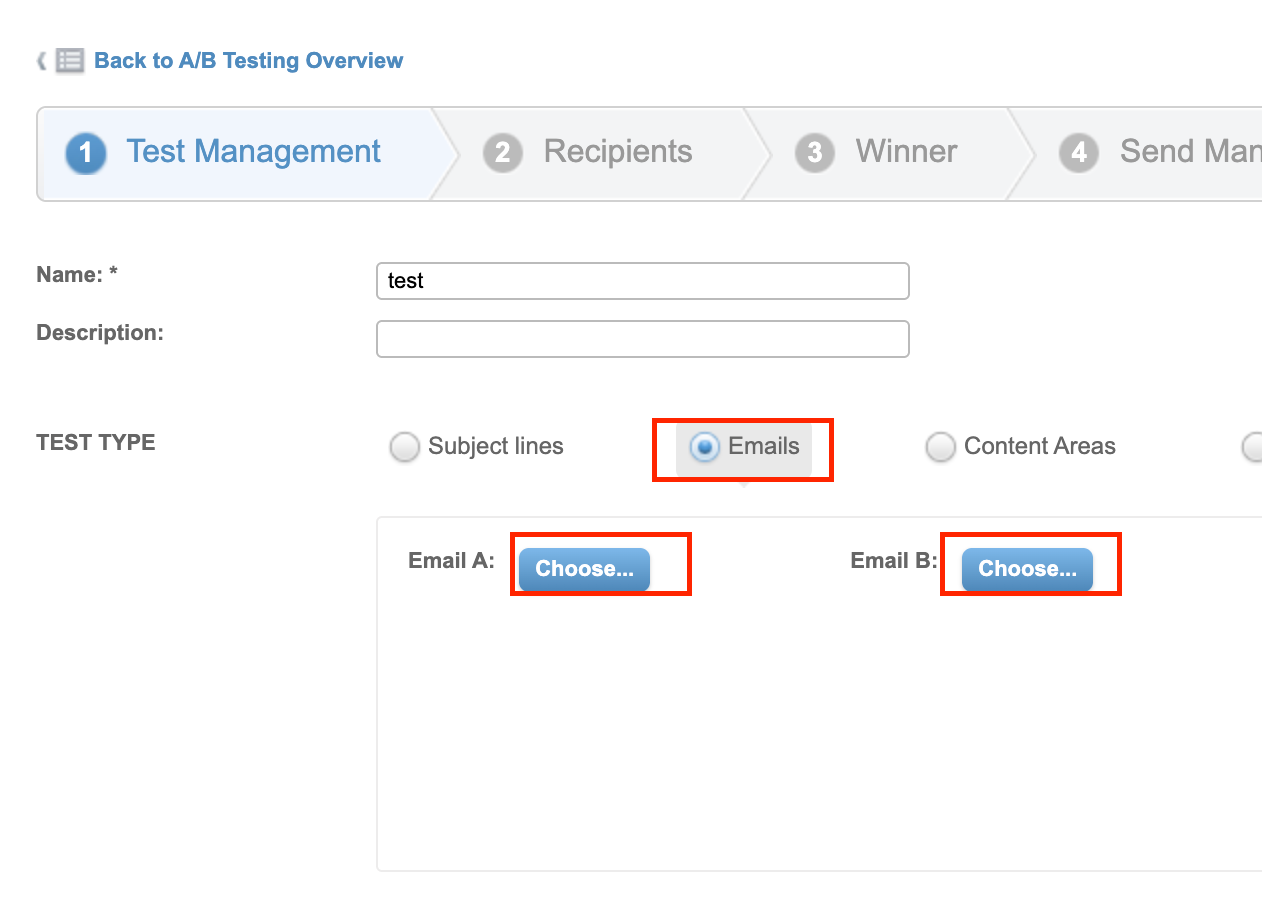
You can also compare Email Templates – you can choose email A and email B, that will be uploaded as a test.
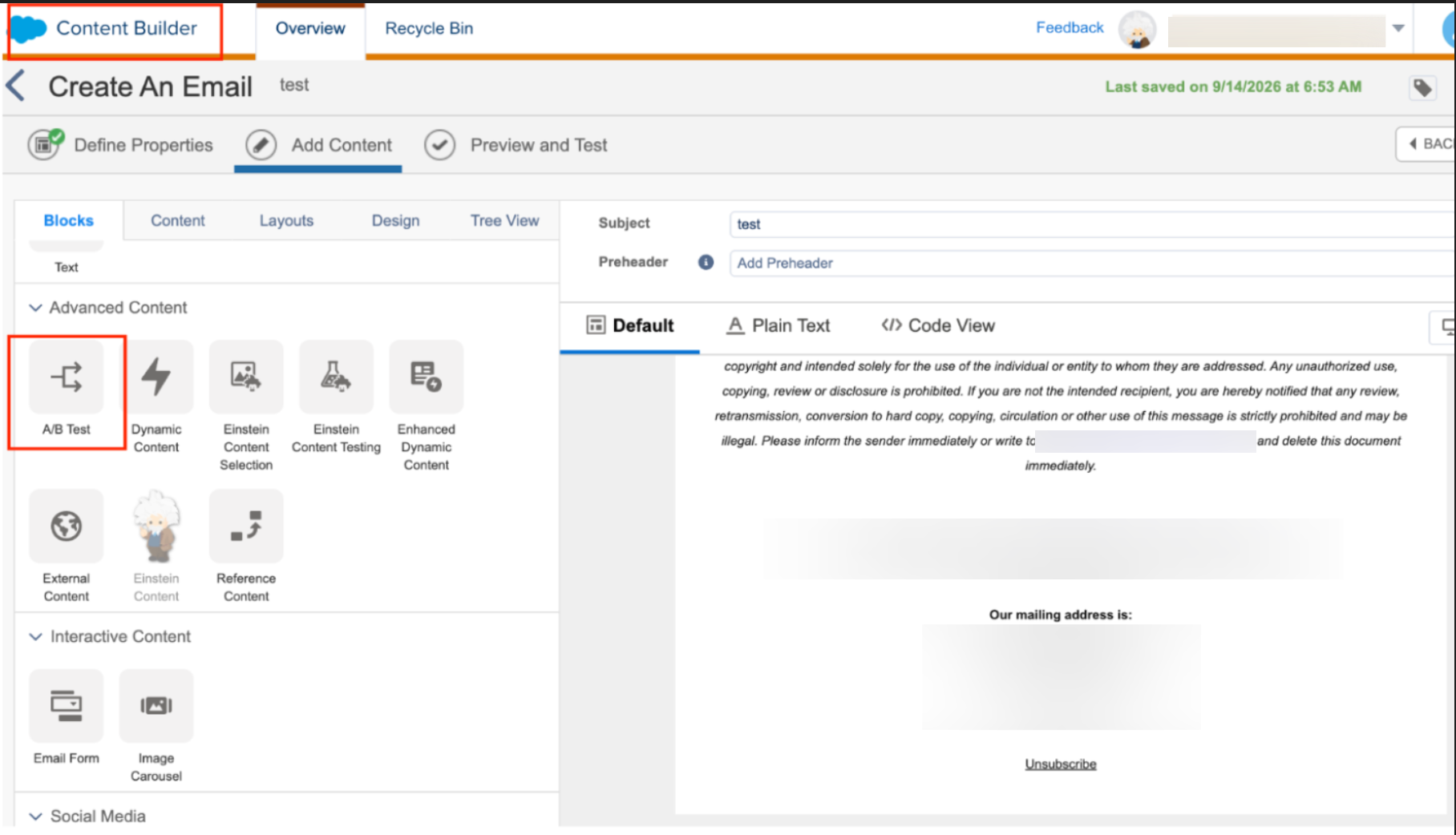
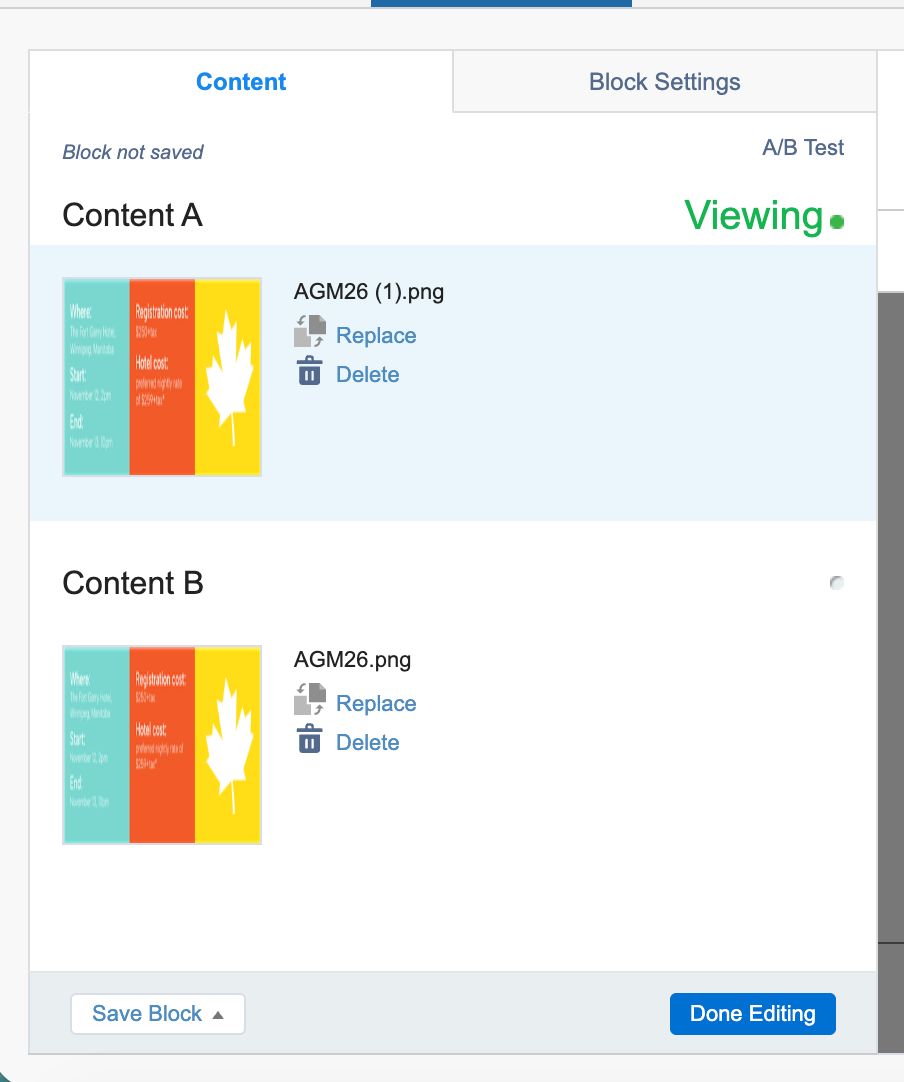
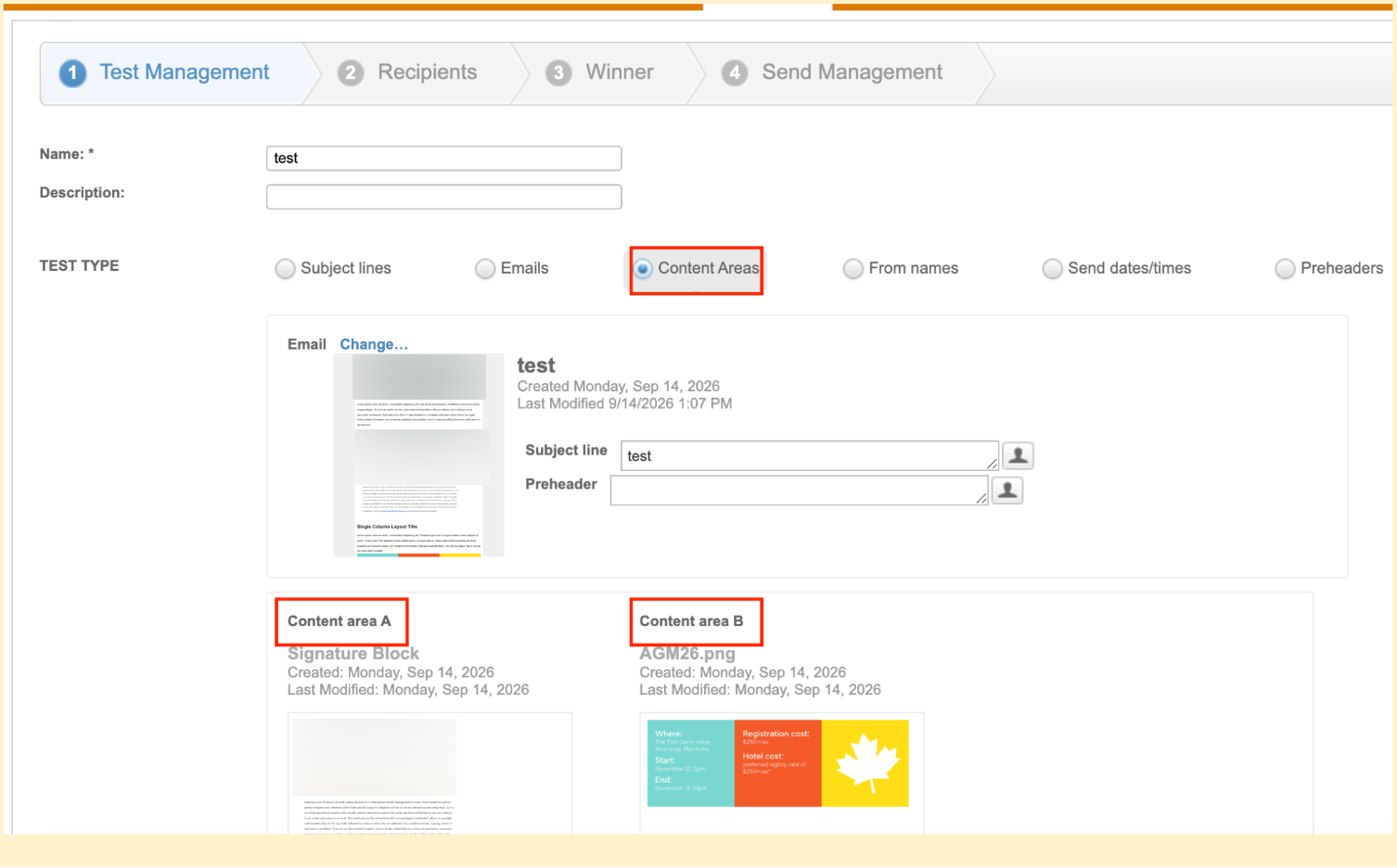
To enable comparison of the Content Areas, the Email Template must contain an A/B Test content area.
When you create your Email Content in Content Builder:
→ Choose A/B test content and move it to the area of the Email Template where you want to add your Content Block A and Content Block B.
How it looks in Content Builder:
In the Email Studio A/B testing, it will appear as follows:
"From Name” is another parameter by which you can evaluate via Email Studio A/B testing.
“Send date/times”. Based on the marketing consumer behavior study, there are certain days and time slots when customers are most likely to open the emails. You can test 2 different send days and time slots to determine which one works better based on customer engagement.
Finally, we have the Preheader test type, which works similarly to the Subject Line test. Instead of comparing two subject lines, you enter two different preheaders and compare how they affect your audience's engagement.
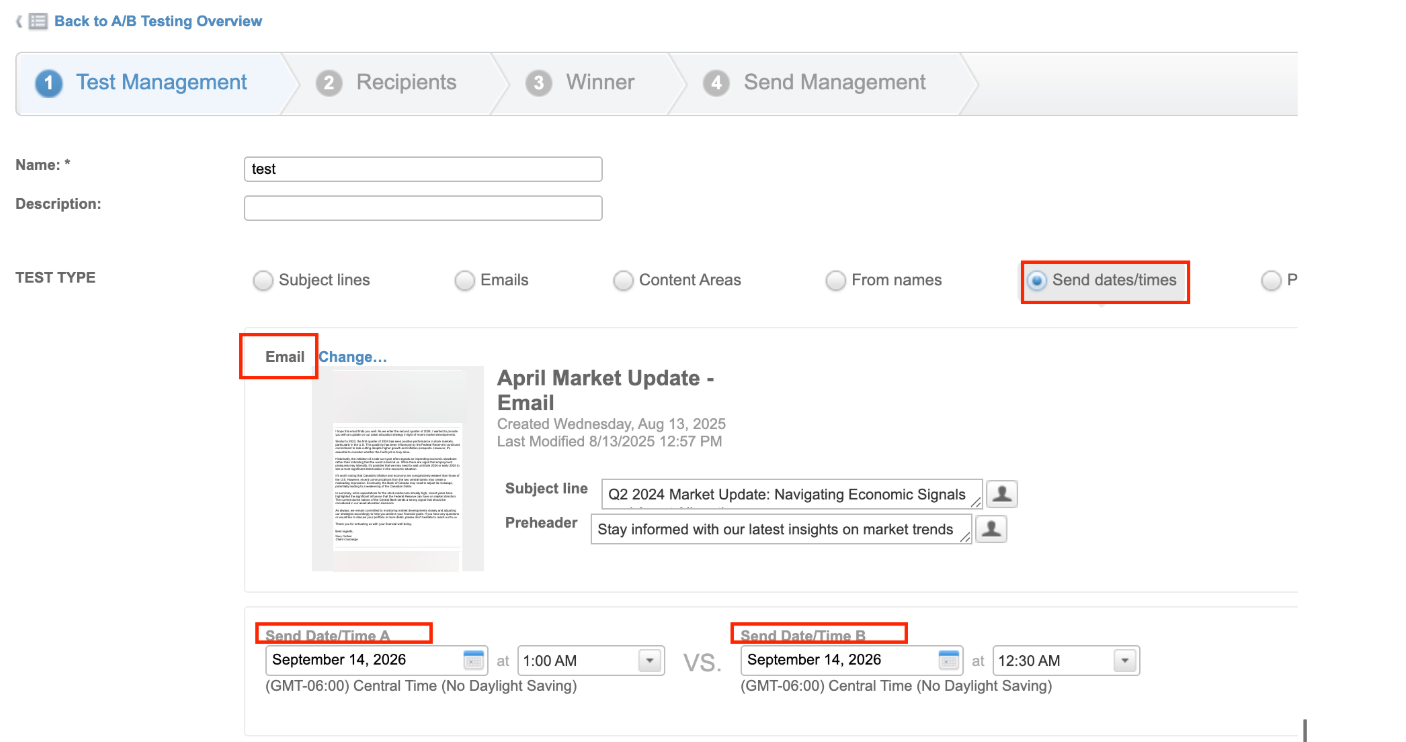
After defining your test type, click Next.

Step 4: Select recipients
The next step applies to any type of A/B test: selecting your recipients.
Here, you choose the audience for your test. Marketing Cloud also lets you add suppression lists and exclusion lists if needed.
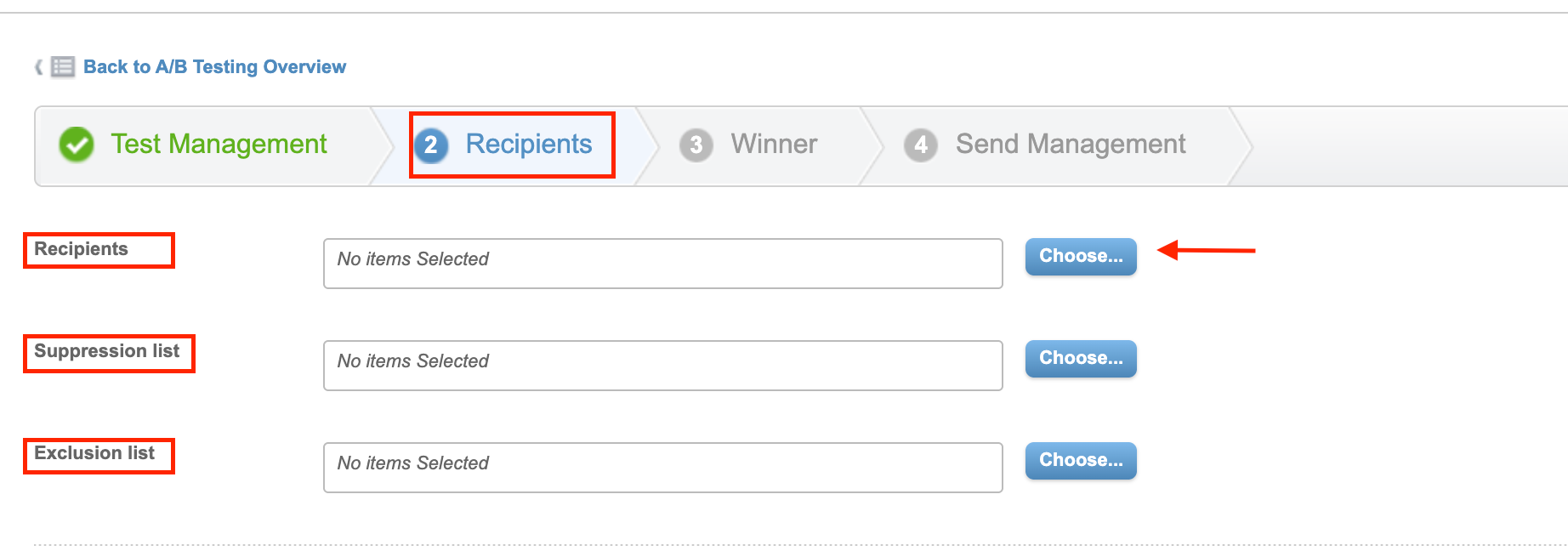
Once the audience has been selected, we can set the percentage that we are going to allocate to carry out our test.
For example: if we have a total of 1000 subscribers and want to test only 50% of them, we place it in ‘Testing’; the test will be sent to 25% of option A and option B to the other 25%.
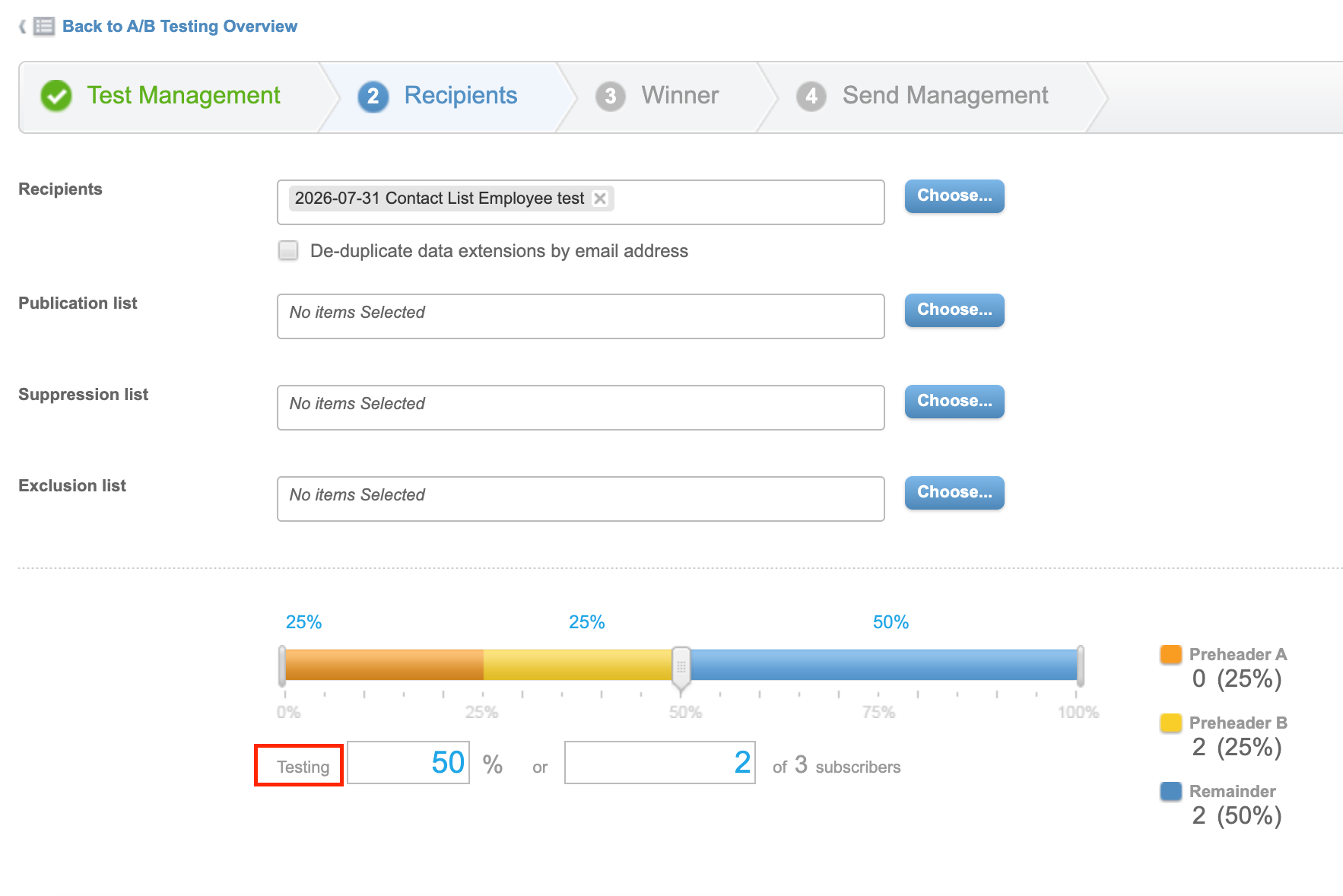
After selecting the recipients, click Next in the top-right corner.
Step 5: Define the Winner rule
On this step we will determine what metric will determine the winning email: the highest unique open rate or the highest unique click rate. We will also determine the evaluation period - how long do we want to wait until the winner is chosen.
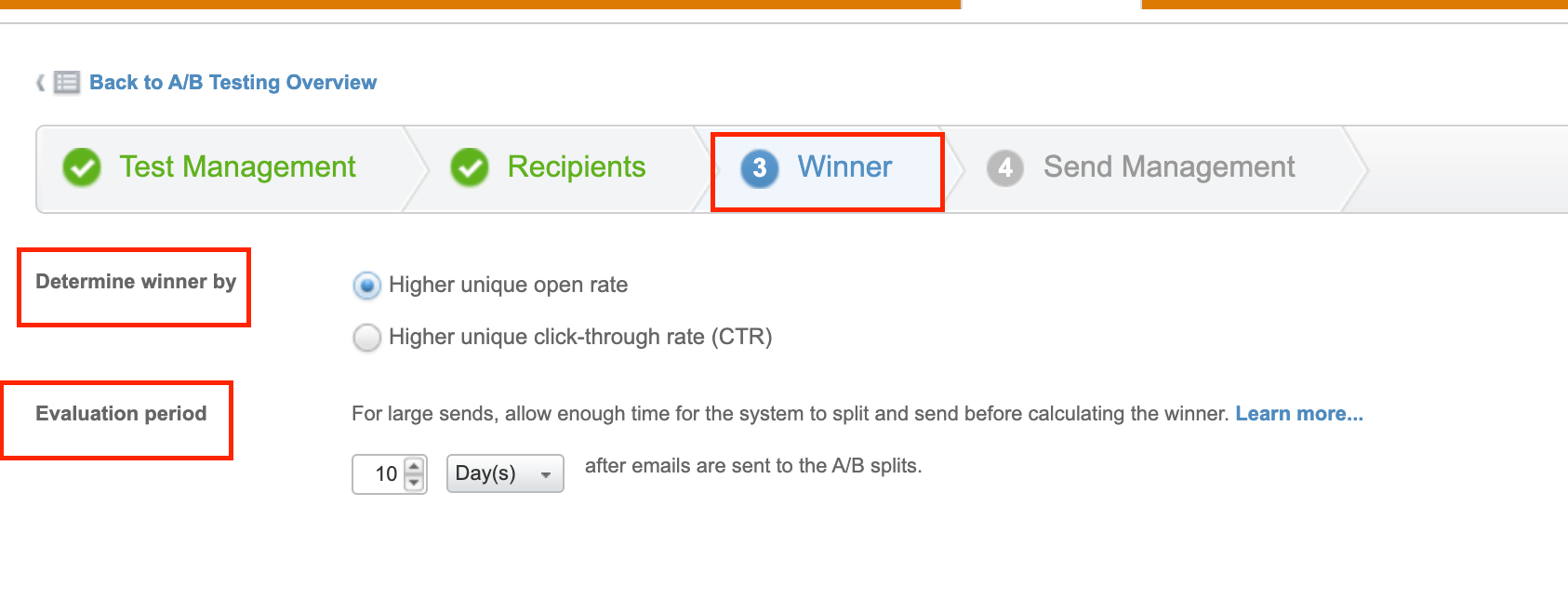
Step 6. Set the Email Send Management
→ First, set the start date and time for the test. You can start it immediately or schedule it for a later date and time.
→ Next, select the Sender Profile and Send Classification.
→Then, configure the Sending Options. For example, you can choose whether to track all links in the email and whether to exclude the test from reports.
→ Finally, add the email address of the person who should receive test notifications. You can choose when to send these notifications: when the email is sent, when a winner is selected, or when an error occurs.
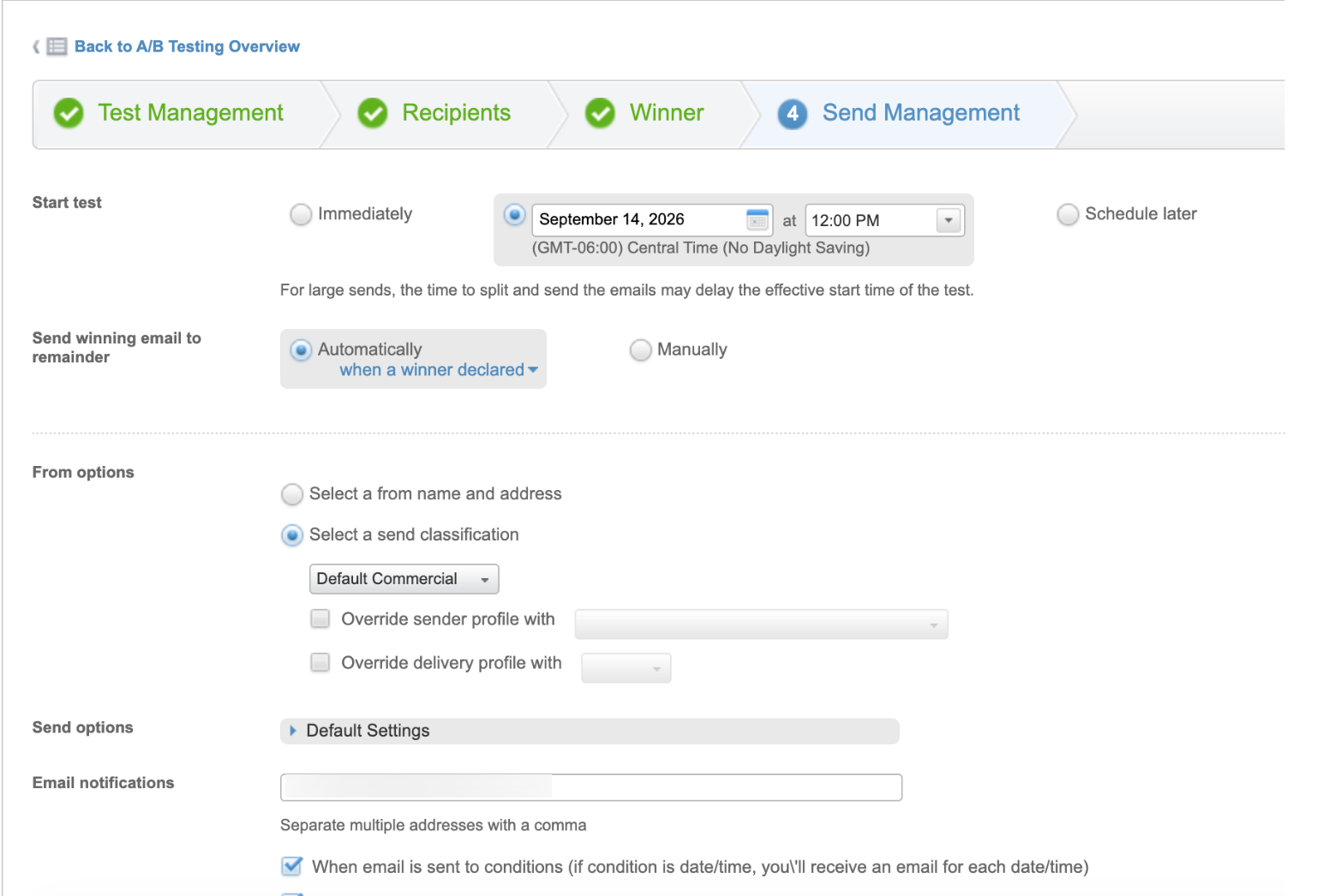
Once we have defined all the parameters, we click on Finish.
A summary of the A/B Test will appear and, if everything is correct, we confirm that it can be executed.
The conditions for sending the A/B Test will be sent to our email. We can also check them on the Overview tab.

Step 7: Review the results
Once the test period ends, Marketing Cloud sends an email with the test results and the winning version.
You can also go to Email Studio → A/B Testing → Overview to see the completed test and review the performance of each version based on the metric you selected.
Use these results to make better decisions for your next email campaign. Data sources can show you which subject lines, sender names, content, or sending times get a better response from your audience.
With Marketing Cloud Engagement A/B testing, you don’t need to guess. You’ll get real customer data that help you refine your email strategy, boost engagement, and interact better with your audience.
What Are A/B Email Testing Best Practices?
A clear goal and a consistent approach are the backbone of the A/B testing efficiency. That’s why we recommend you follow a few simple rules to succeed at your marketing campaign.
1. Set a clear goal
Before you start the A/B test, decide what doesn’t work and what you want to refine.
For example, you can increase open rates. But for this, you should set a realistic target that is a bit higher than your current benchmark (3-5%). With the right metric, you’ll see whether the test can contribute.
2. Test one variable at a time
To understand what affects your results, change only one element in each test.
Testing subject lines? Keep the email content, layout, and images the same.
Testing a call to action? Keep everything else unchanged.
This gives you a clear comparison and makes it easier to understand what caused the difference in results.
3. Choose the right audience
Your test results can be valuable if you trial your ideas with the right audience. So it’s vital to segment your customers based on demographics, past behavior, or interests.
With Data Cloud, you can bring customer data together through data integration and create more relevant audience segments. You can also use data from Sales Cloud, such as customer information and past interactions, to better understand who should receive your test.
For example, if you're testing an email about a specific product, you can target people who have already shown interest in that product or a similar one.
4. Consider external factors
Your results can be affected by factors outside the email itself. These can be different types of device or the day and time you send the email.
So you should consider these when assessing your results. A difference between two versions isn’t always better the email quality.
5. Keep a testing log
Record what you tested, who you tested it with, what the results were, and what you changed based on those results.
For example, note which subject line performed better, what metric you used to choose the winner, and what you learned from the test.
Over time, this log gives your team a clear picture of what works for your audience. It also helps you avoid repeating the same tests and build new A/B tests based on what you've already learned.
We hope these email A/B testing best practices help you improve your email marketing strategy by testing your hypotheses, learning from the results, and applying those valuable insights to your next campaigns.
Start Testing Smarter in Marketing Cloud
Marketing Cloud A/B testing gives you two ways to test and improve your emails. Path Optimizer works well for multi-path journeys, while Email Studio is a simpler option for testing individual email elements.
Choose the approach that fits your campaign, test one variable at a time, and use each result to improve your future marketing efforts.
Need help setting up A/B testing across your journeys? Noltic's certified Marketing Cloud team can help you plan, configure, and optimize your testing strategy. Talk to our Marketing Cloud experts.
FAQ
What is A/B testing in email marketing?
Email marketing A/B testing means sending different versions of an email to separate groups of your audience and comparing the results. You can compare open rates, click rates, or other metrics to see which version performs better. The winning version is then sent to the rest of your audience.
How to do email A/B Testing?
You can use Path Optimizer in Journey Builder to test up to 10 journey paths, or A/B Testing in Email Studio to compare two versions of an email element. Both options let you test different versions and use engagement data to identify the winning version.
What Is Path Optimizer in Journey Builder?
Path Optimizer in Marketing Cloud is a Journey Builder activity that lets you split your audience across up to 10 journey paths and compare their performance. You can let Marketing Cloud automatically select the winner based on metrics such as opens, clicks, or unsubscribes, or review the results and choose the winner manually.
How many versions can I test in the Marketing Cloud?
Path Optimizer supports up to 10 paths. Email Studio A/B Testing compares two versions, A and B.



together